Topics covered:
How to Configure Check Email Status Condition
When setting up a Smart Flow, choose the Check Email Status Condition.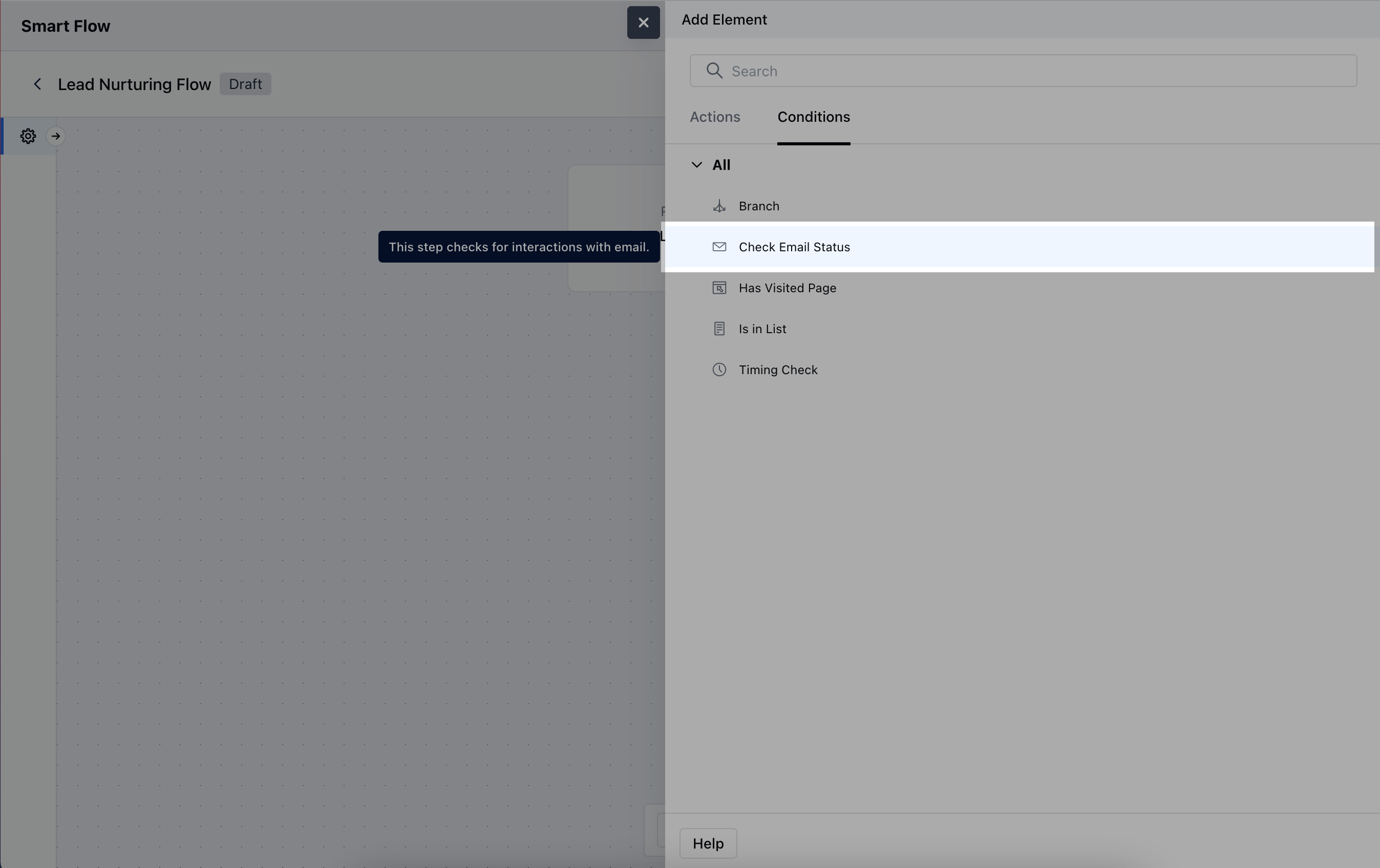
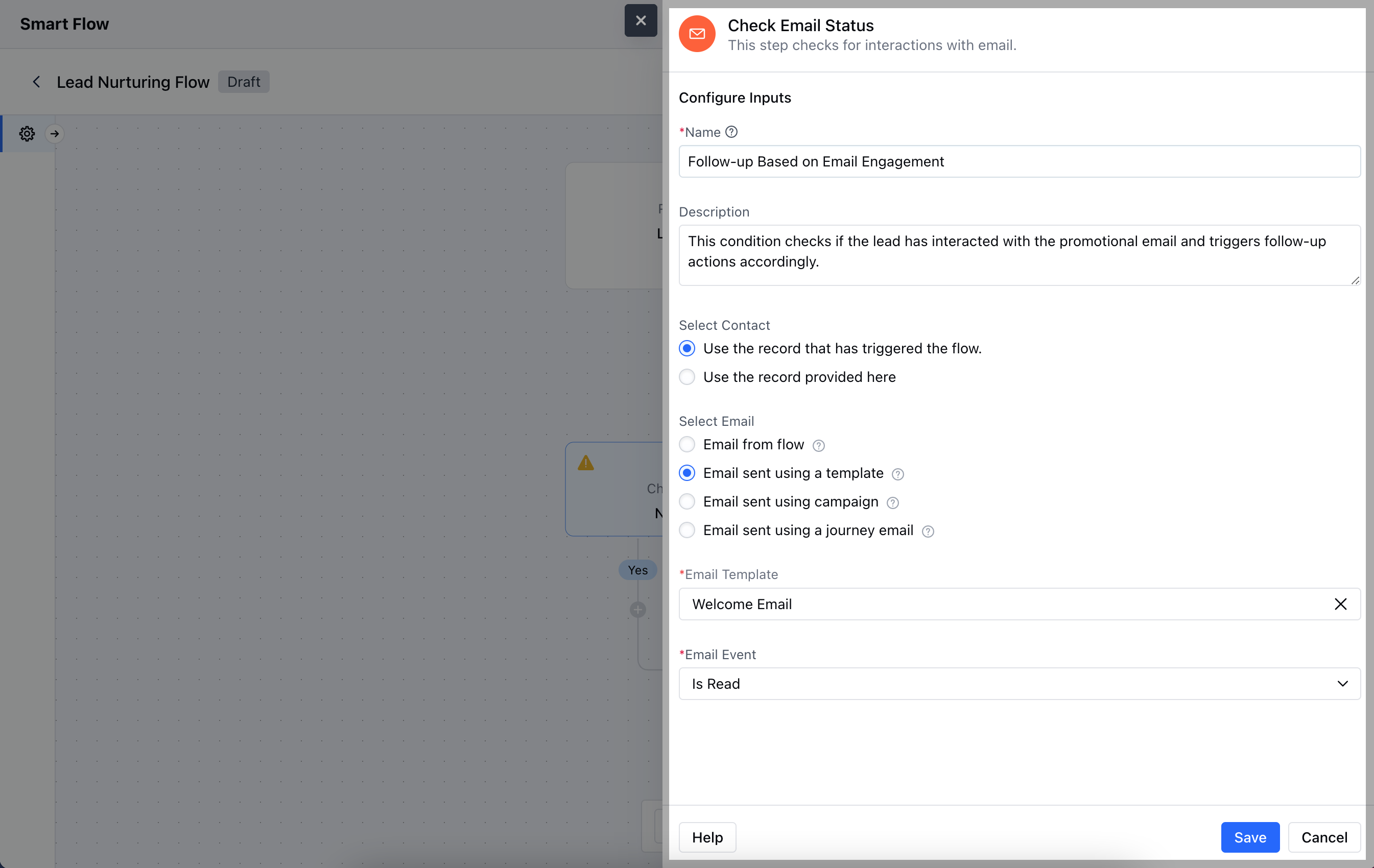
- Name: Assign a clear and descriptive name for the condition.
- Description: Provide a brief explanation of the condition’s purpose.
- Select Contact: Choose the contact for whom the email status will be checked.
- Select Email: Choose one of the following options,
- Email from flow: Select an email directly used within the current flow.
- Email sent using a template: Choose an email that was sent using a pre-designed template.
- Email sent using a campaign: Select an email that was part of a larger email campaign.
- Email sent using a journey email: Choose an email that was part of an automated journey or series.
- Email Event: Choose the specific email event to track.Once the configuration is completed, hit Save.
Practical Example
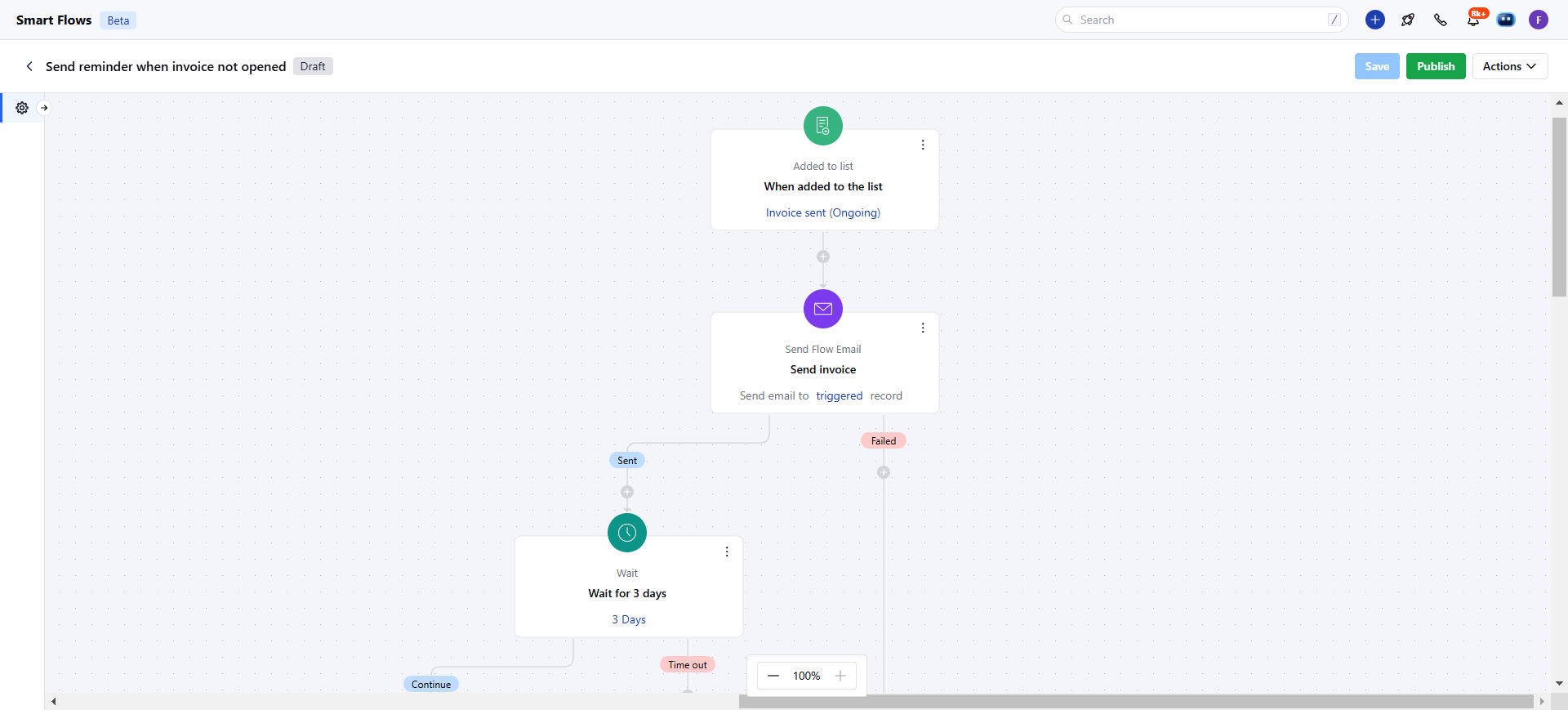
When sending an important invoice, you can set up a flow with the “Check Email Status” condition to monitor engagement. This allows you to automatically check if the email has been opened or clicked, ensuring timely follow-ups based on the contact’s interaction with your message.