Topics covered:
How to Configure Branch Condition
When setting up a Smart Flow, choose the Branch within the Condition section.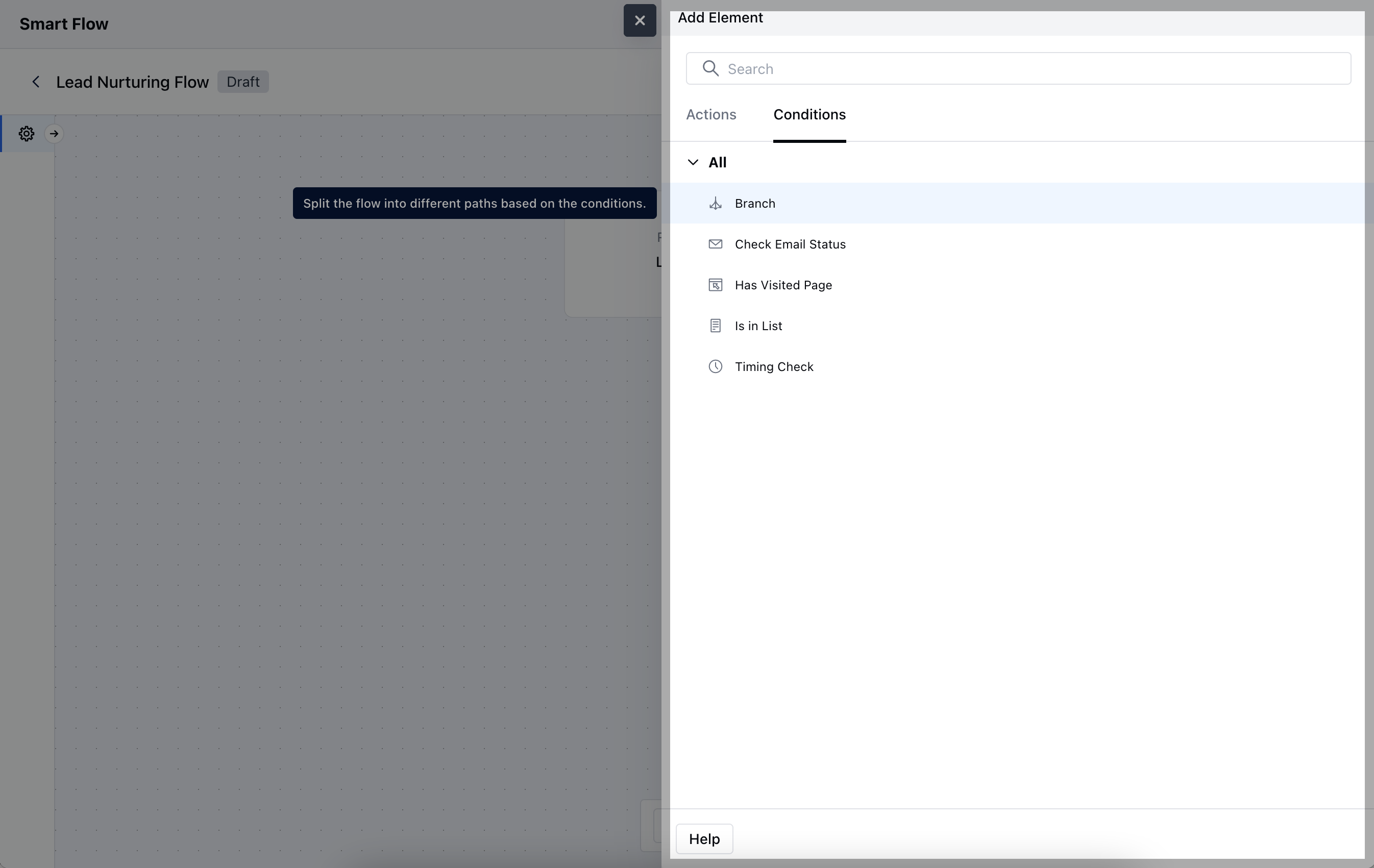
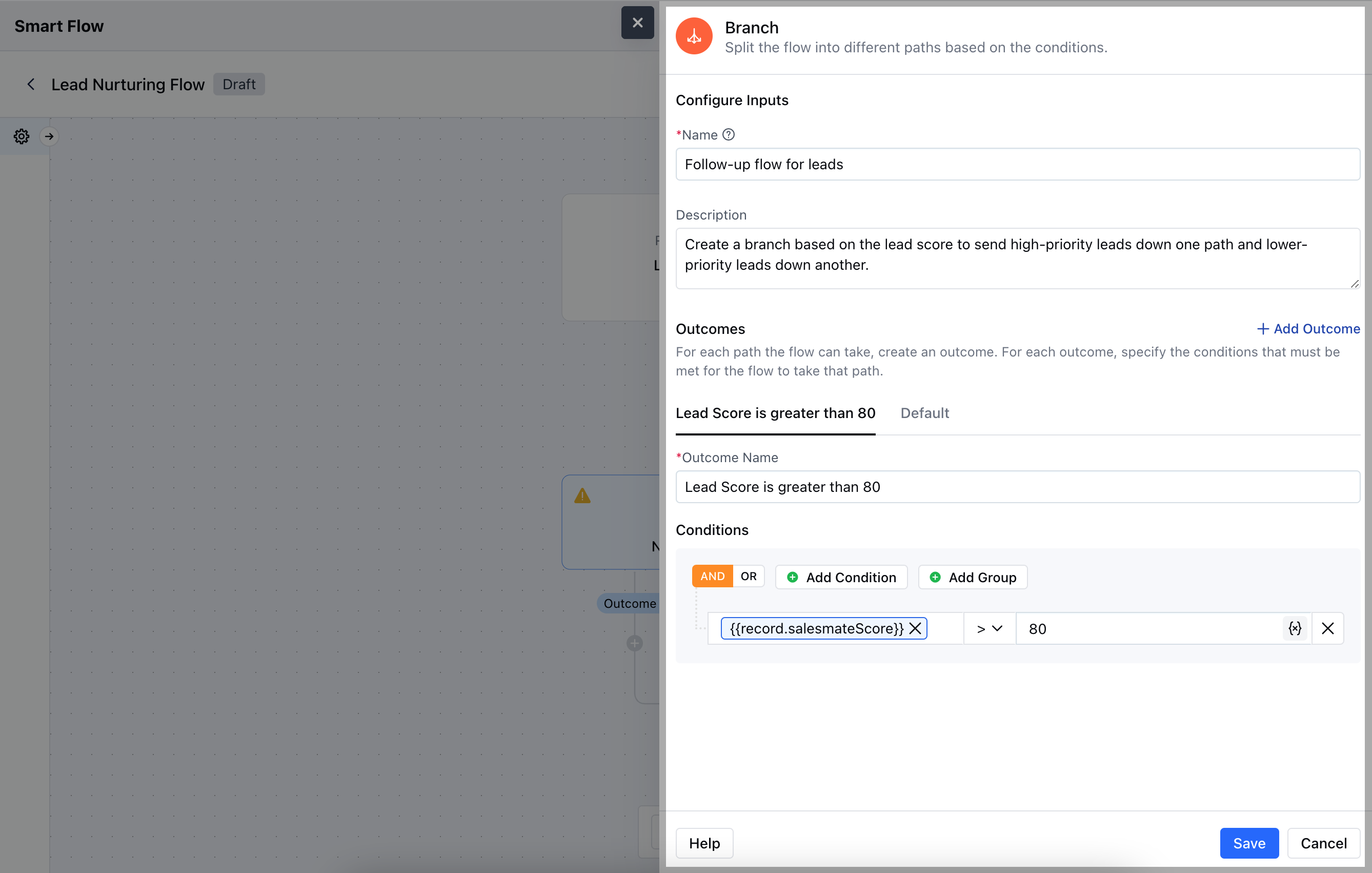
- Name: Assign a clear and descriptive name to easily identify the branch condition.
- Description: Provide a brief explanation of what the branch condition does and its purpose within the flow.
- Outcomes: Define the possible paths or results that the branch will take based on the conditions.
- Conditions: Set the criteria that determine how records will flow through the different branches.Once done,Save the configuration.
Practical Example
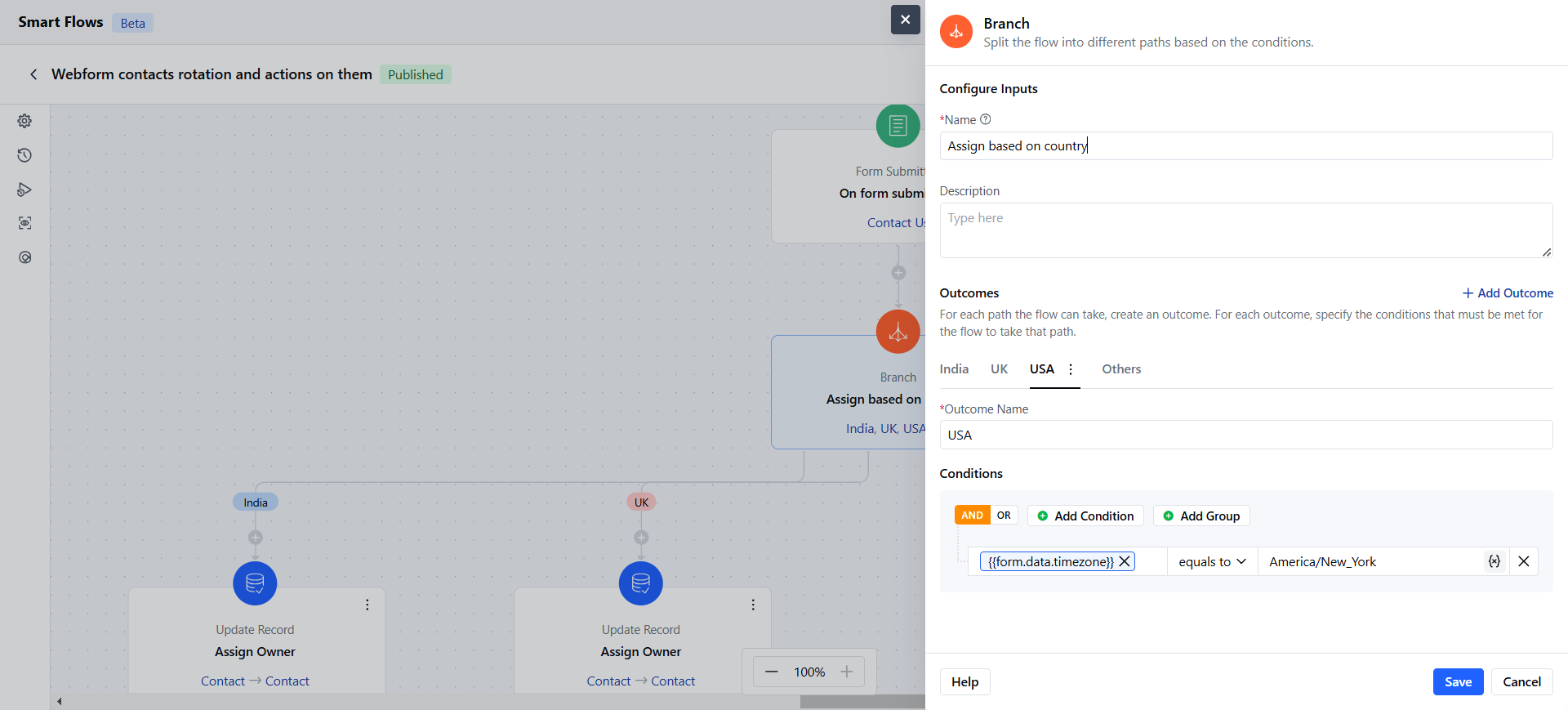
With the “Branch” condition, you can route web form submissions based on contact location. For instance, when a form is submitted and contacts are from different countries, the branch condition directs them to the appropriate team based on their country. This ensures each contact is assigned to the most relevant regional team, enhancing response accuracy and efficiency.