Topics covered:
How to Configure Has Visited Page Condition
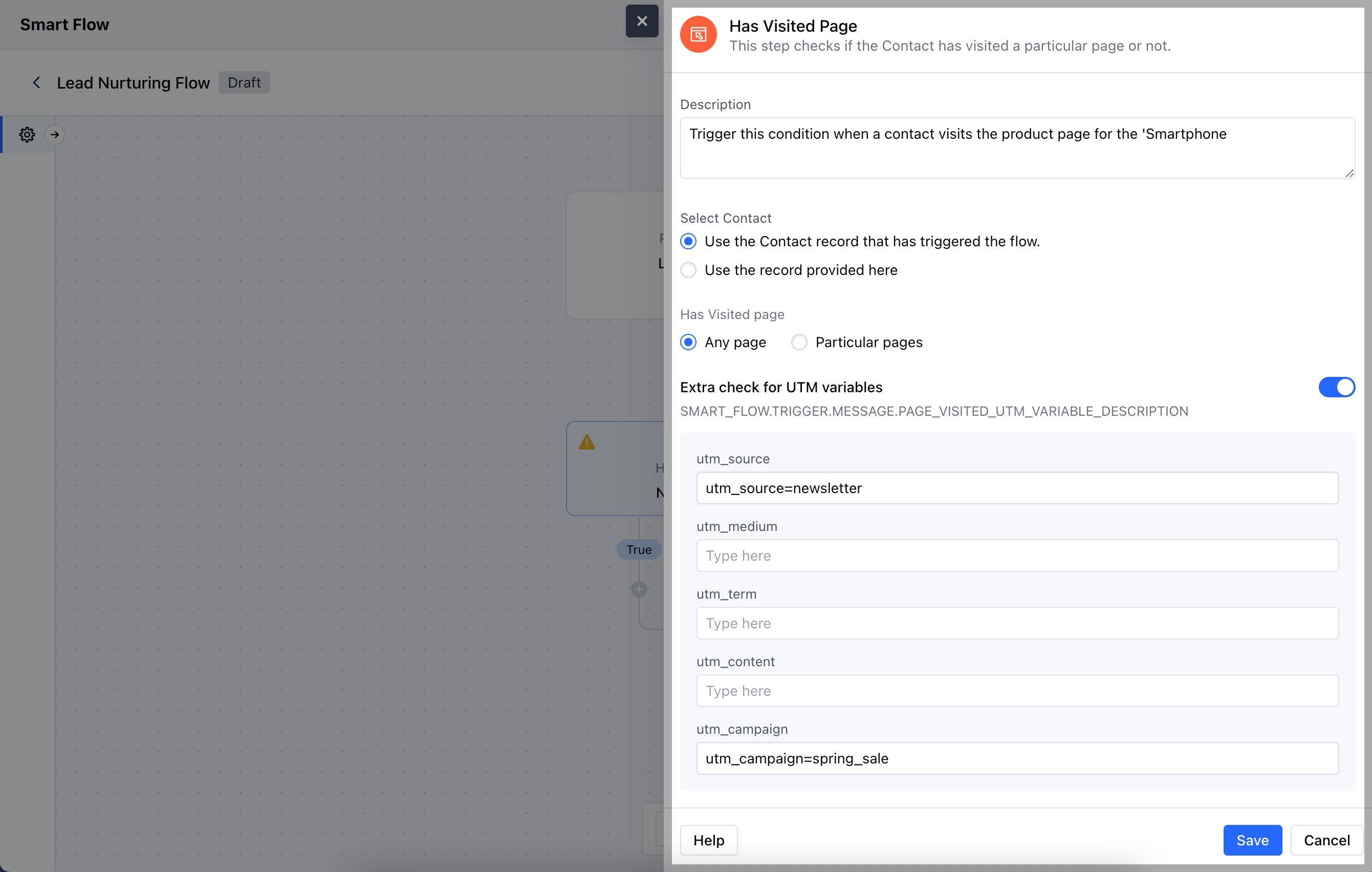
When setting up a Smart Flow, choose the Has Visited Page Condition.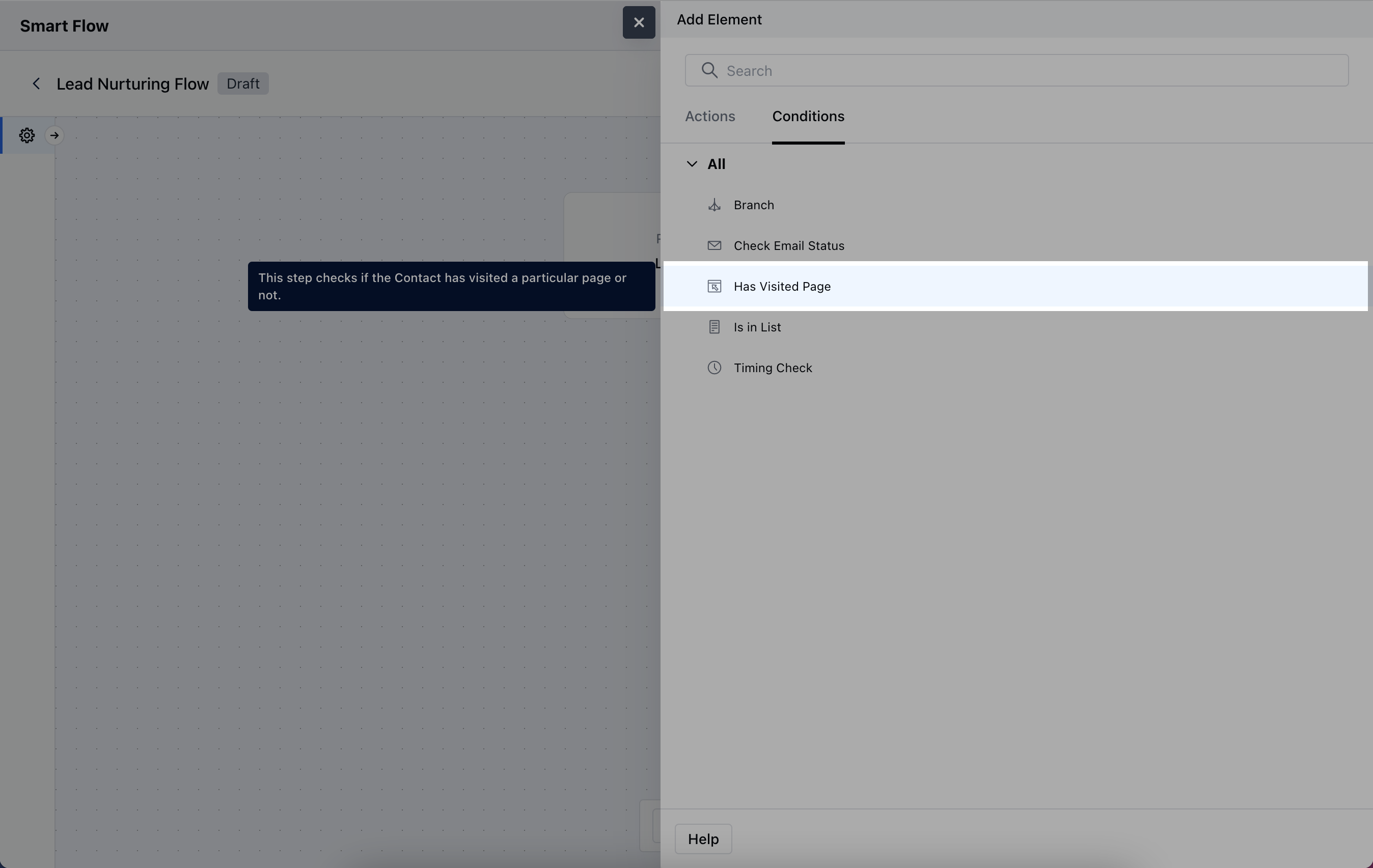
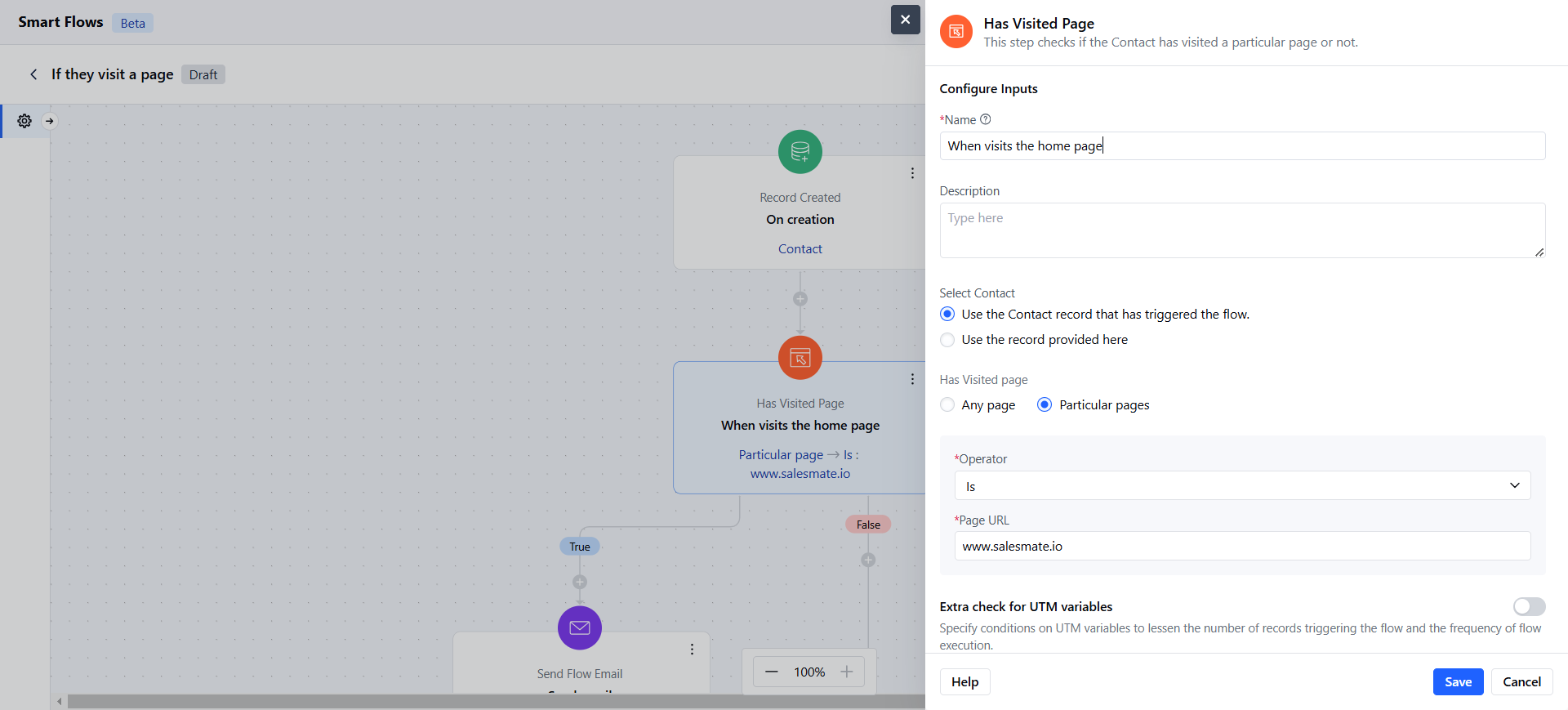
- Name: Assign a clear name to easily identify the condition.
- Description: Provide a brief explanation of what this condition does and its purpose in the flow.
- Select Contact:- Use the Contact record that has triggered the flow: Choose this if the contact initiating the flow will also be used to track the page visit.
- Use the record provided here: Choose this option if you want to manually specify a different contact or record.
- Select Page:- Any Page: Trigger the condition if the contact has visited any page on your website.
- Particular Page: Set the condition to trigger only when a specific page is visited.
- Extra check for UTM variables: Add any UTM parameters to narrow down the condition to specific campaigns or traffic sources. Once the configuration is completed, hit Save.
Practical Example
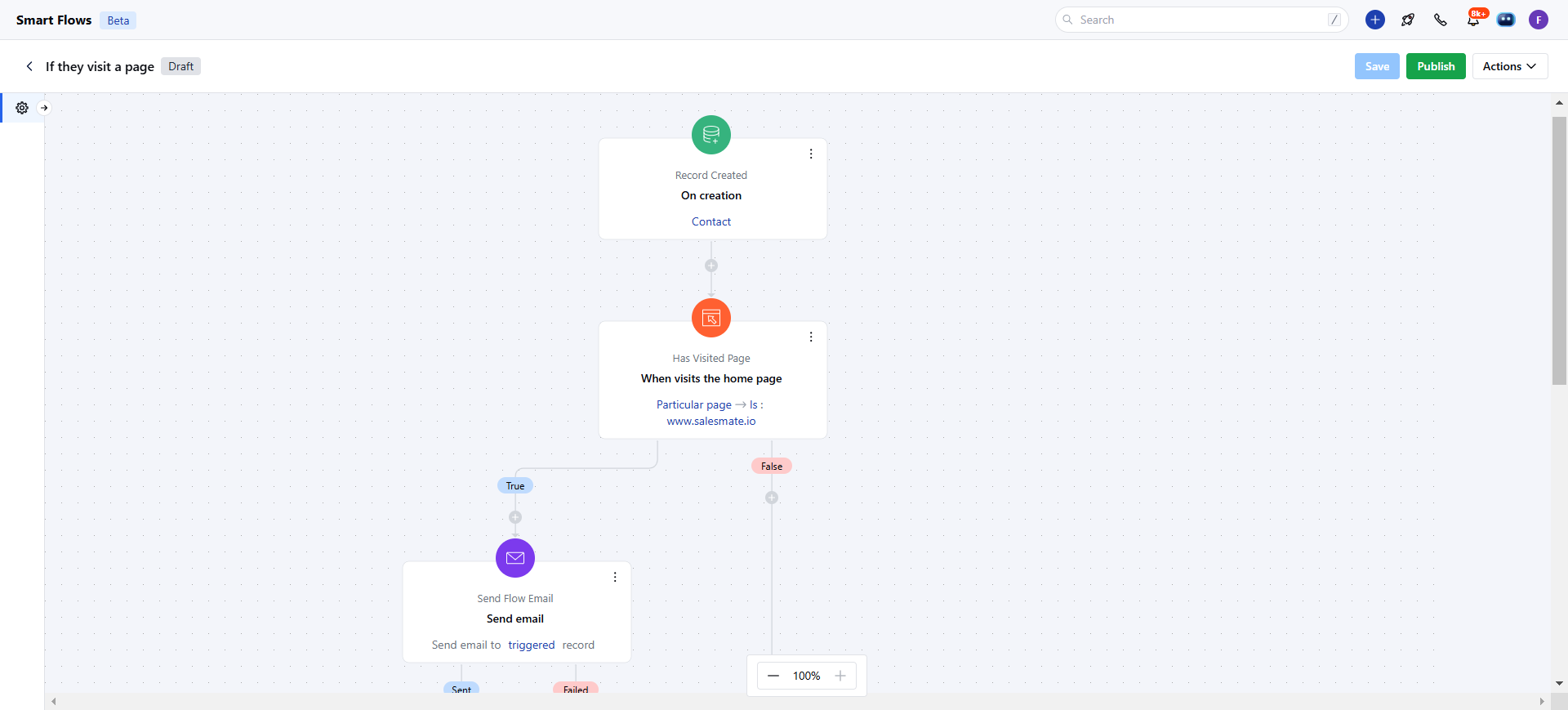
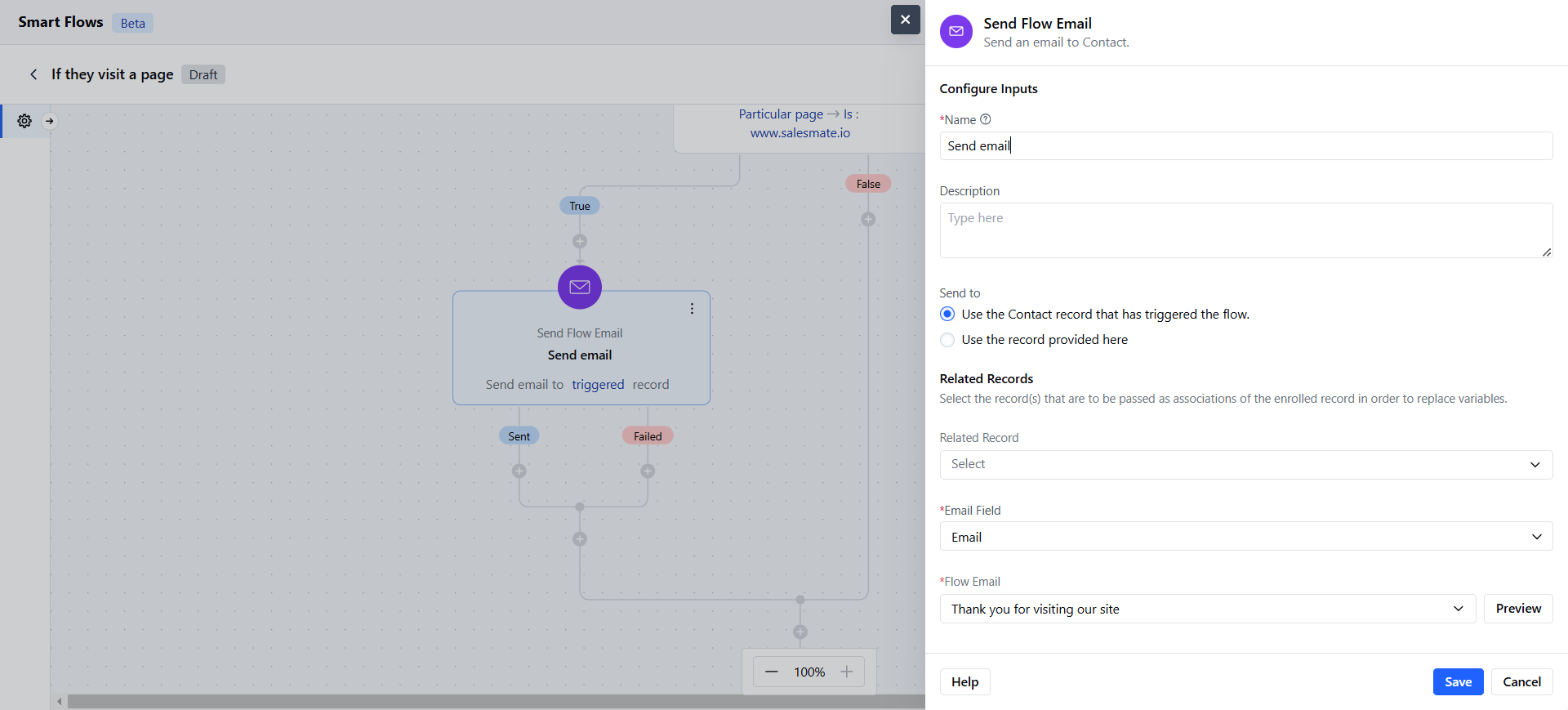
Using the “Has Visited a Page” condition, you can automate email engagement for site visitors. When a contact visits your website, this condition triggers an automated email, allowing you to promptly reach out with tailored information, offers, or a welcome message. This approach helps you engage visitors right as they show interest.