

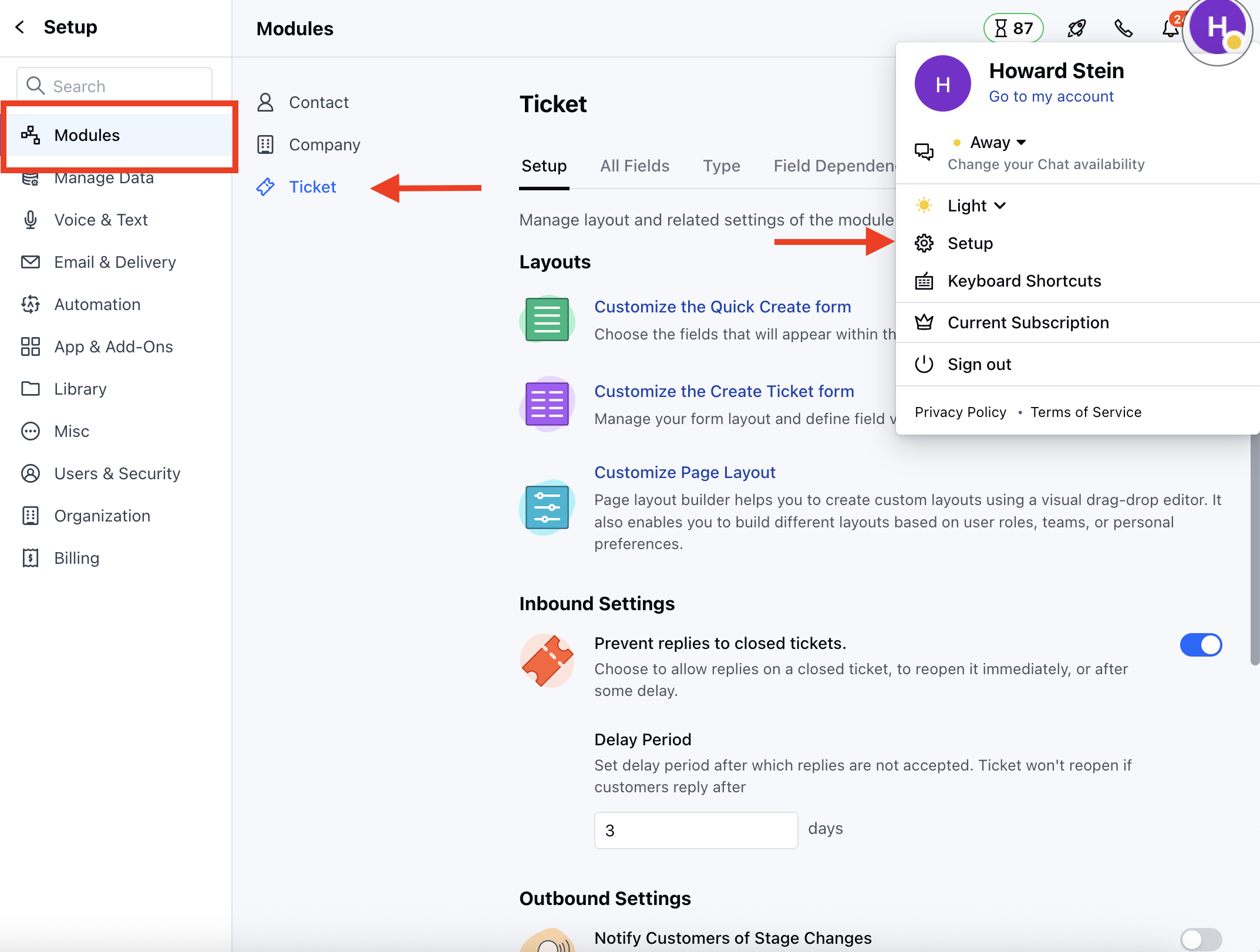
- Navigate to the Profile Icon on the top right corner
- Click on Set Up
- Head over to the Modules category
- Click on Tickets
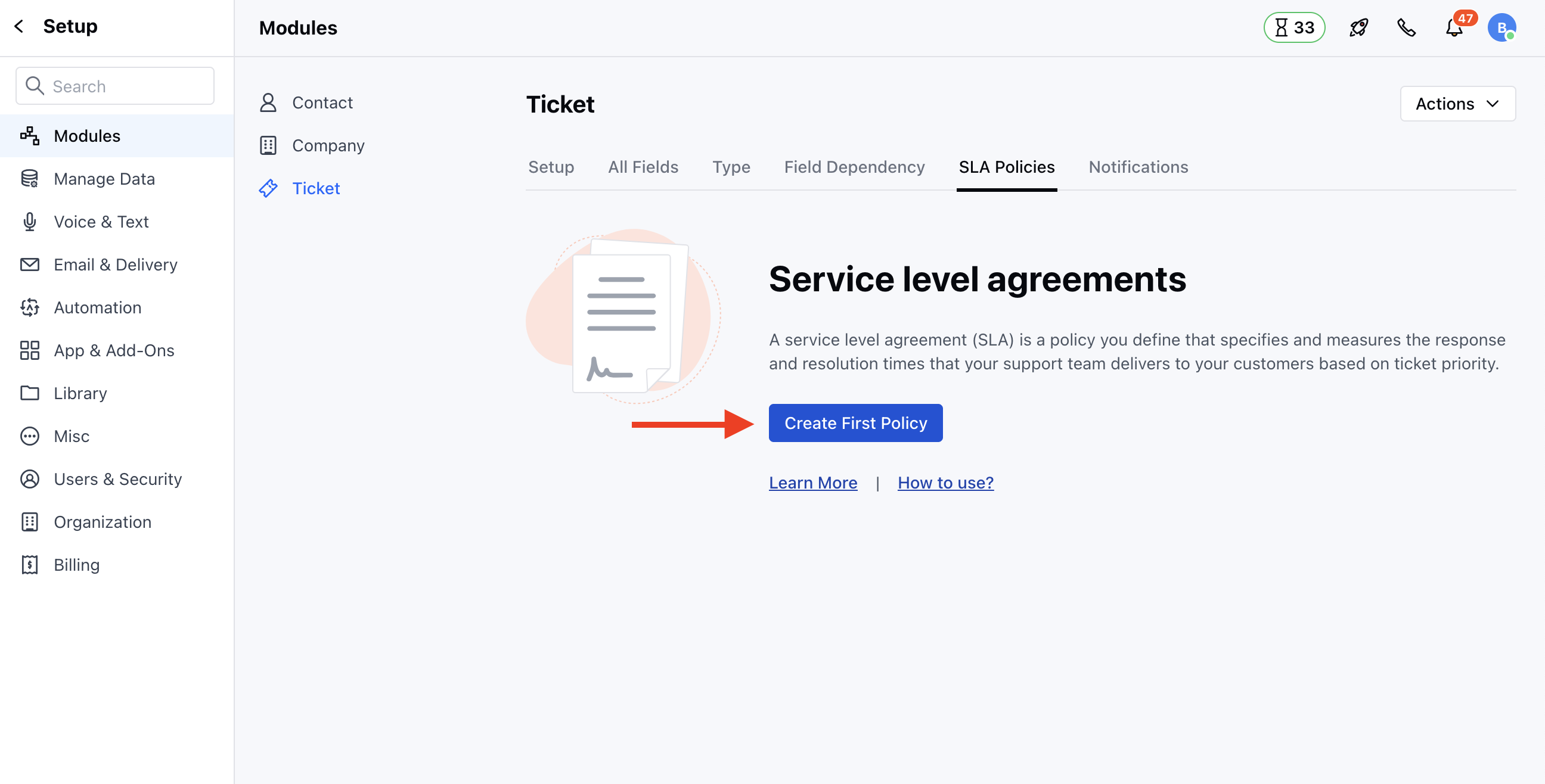
- Head to the SLA Policies section
- You can configure the SLA Target while creating a new policy
- Click on Add New Policy to create a new policy
- Head to Configure SLA Target
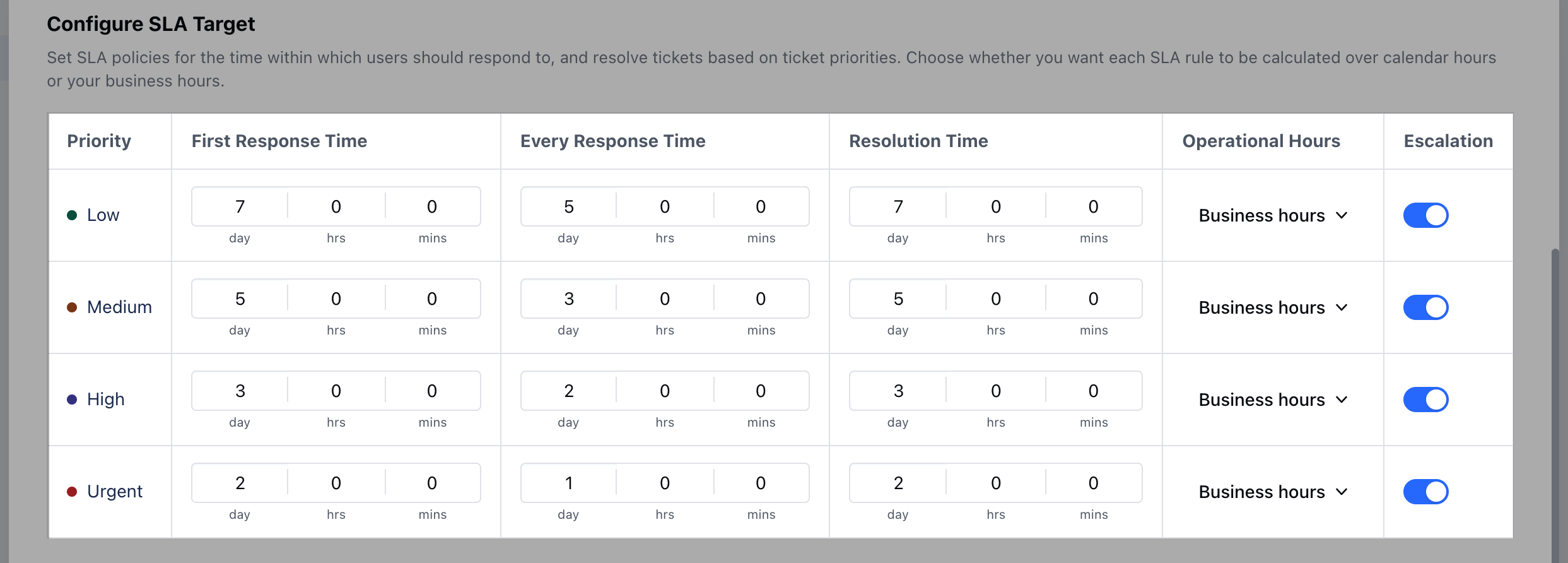
Priority
- Set the given SLA Priority as
- Low - Tickets marked with a Low-priority SLA may have longer allowed response and resolution times compared to higher-priority items.
- Medium - Tickets marked with a medium SLA priority usually have moderate response and resolution times
- High - Tickets marked with a high SLA priority typically have shorter allowed response and resolution times
- Urgent- Tickets marked with an “Urgent” SLA priority would need immediate attention and require the fastest possible turnaround for resolution.
First response time
- Choose the specific timeframe within which the Customer/User should receive an initial response once the Ticket is submitted
Every response time
- Choose the specific timeframe within which the Customers/Users should expect to receive a response each time they reply to your communications
Resolution Time
- Choose the specific timeframe within which the Tickets matching the SLA criteria should be resolved
Operational Hours
- Choose whether these response times will work based on Business or Calendar Hours
Escalation
- Choose whether an escalation reminder or violation should run for this priority. Simply enable the option for given priorities as per your business process