Topics covered:
How to Set Business Availability for SLA
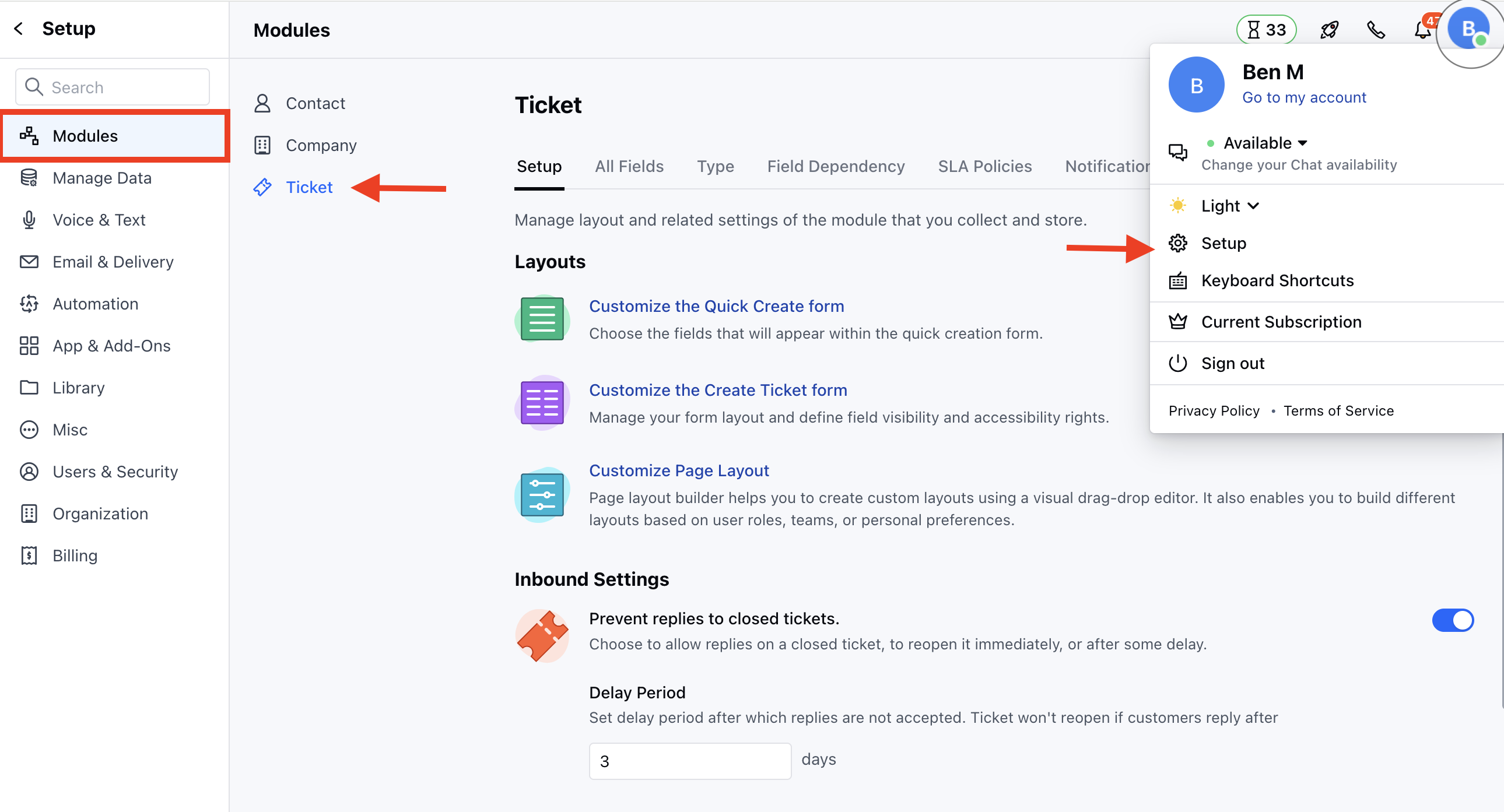
To set the Business Availability for SLA,- Navigate to the Profile Icon on the top right corner
- Click on Set Up
- Head over to the Modules category
- Click on Tickets
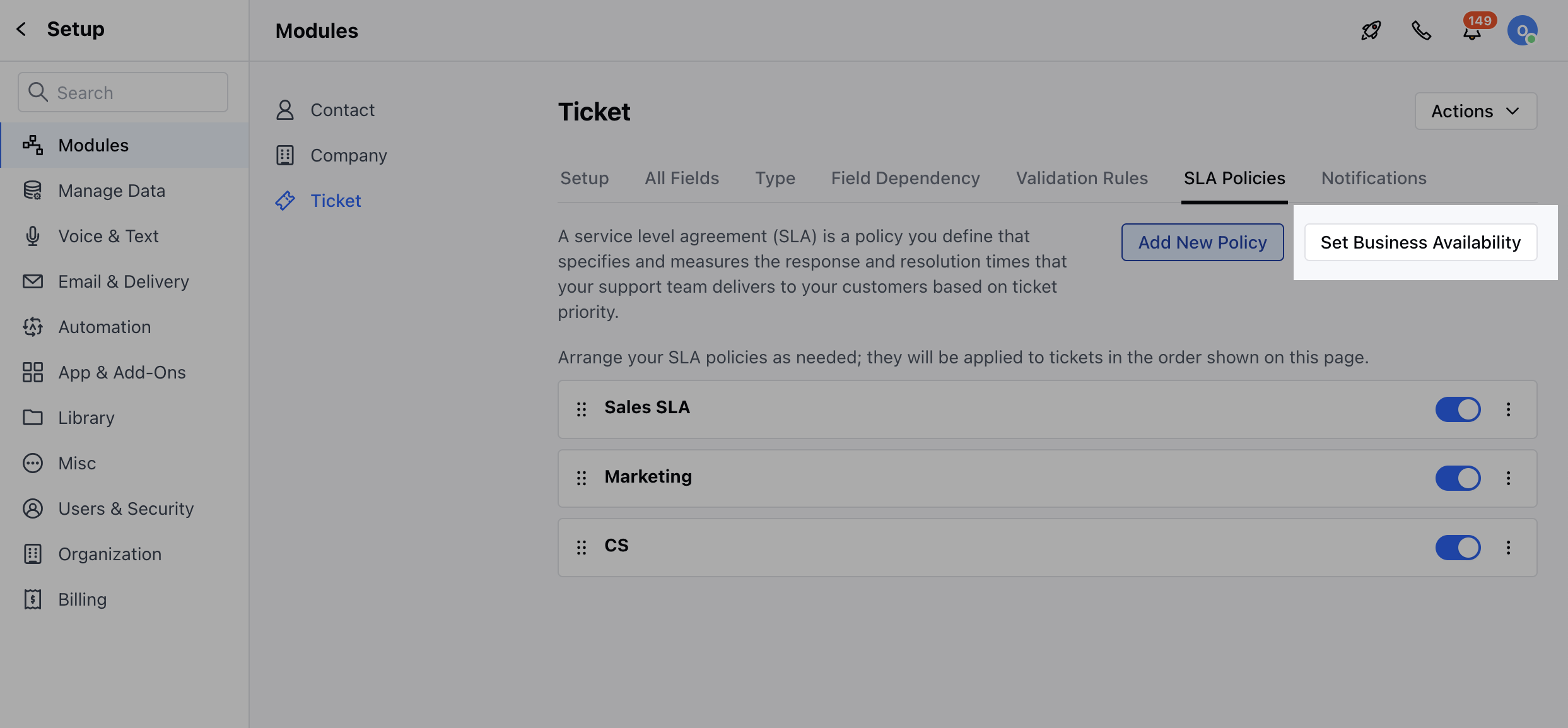
- Head to the SLA Policies section
- Click on the Set Business Availability option
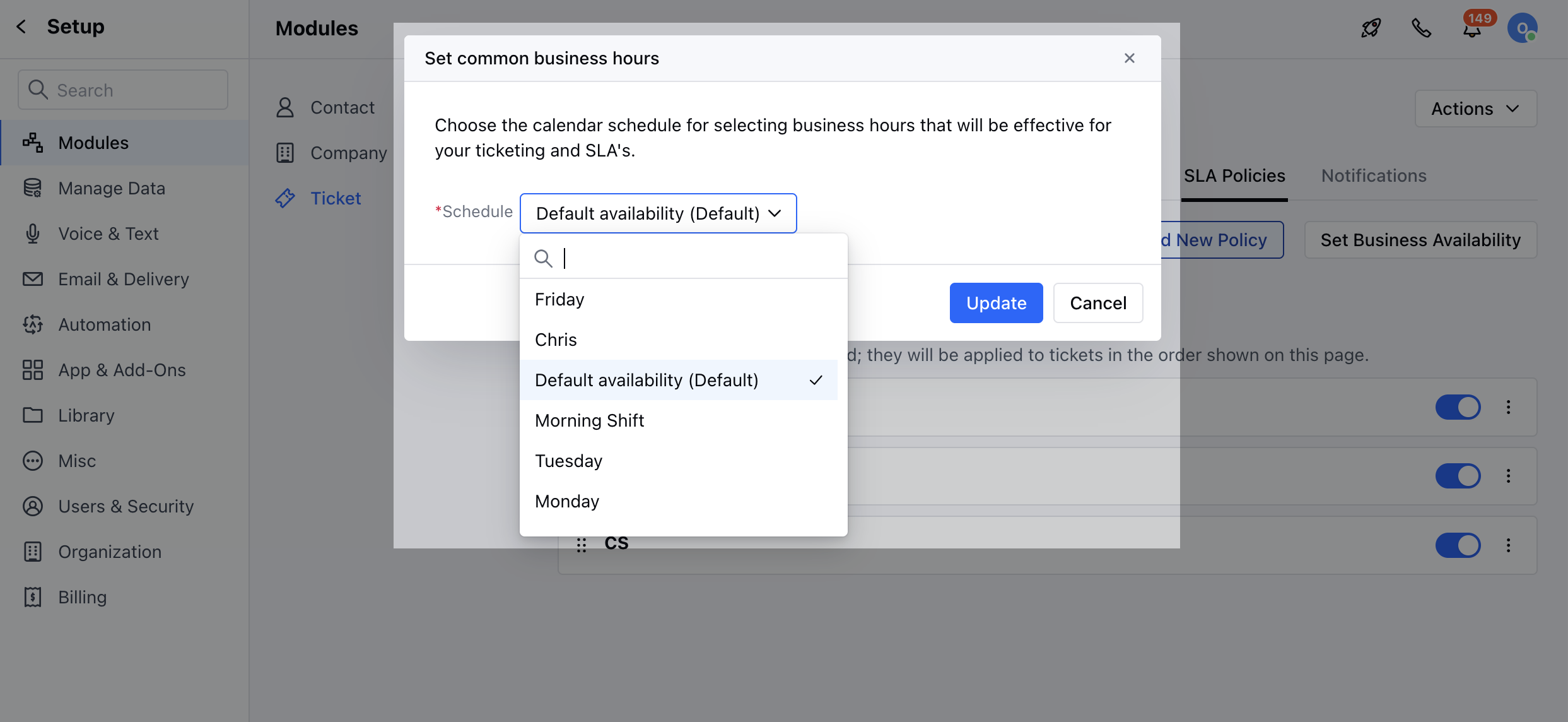
- Select your Availability option from the Schedule dropdown and click on save
How to Set Team-Specific Business Hours
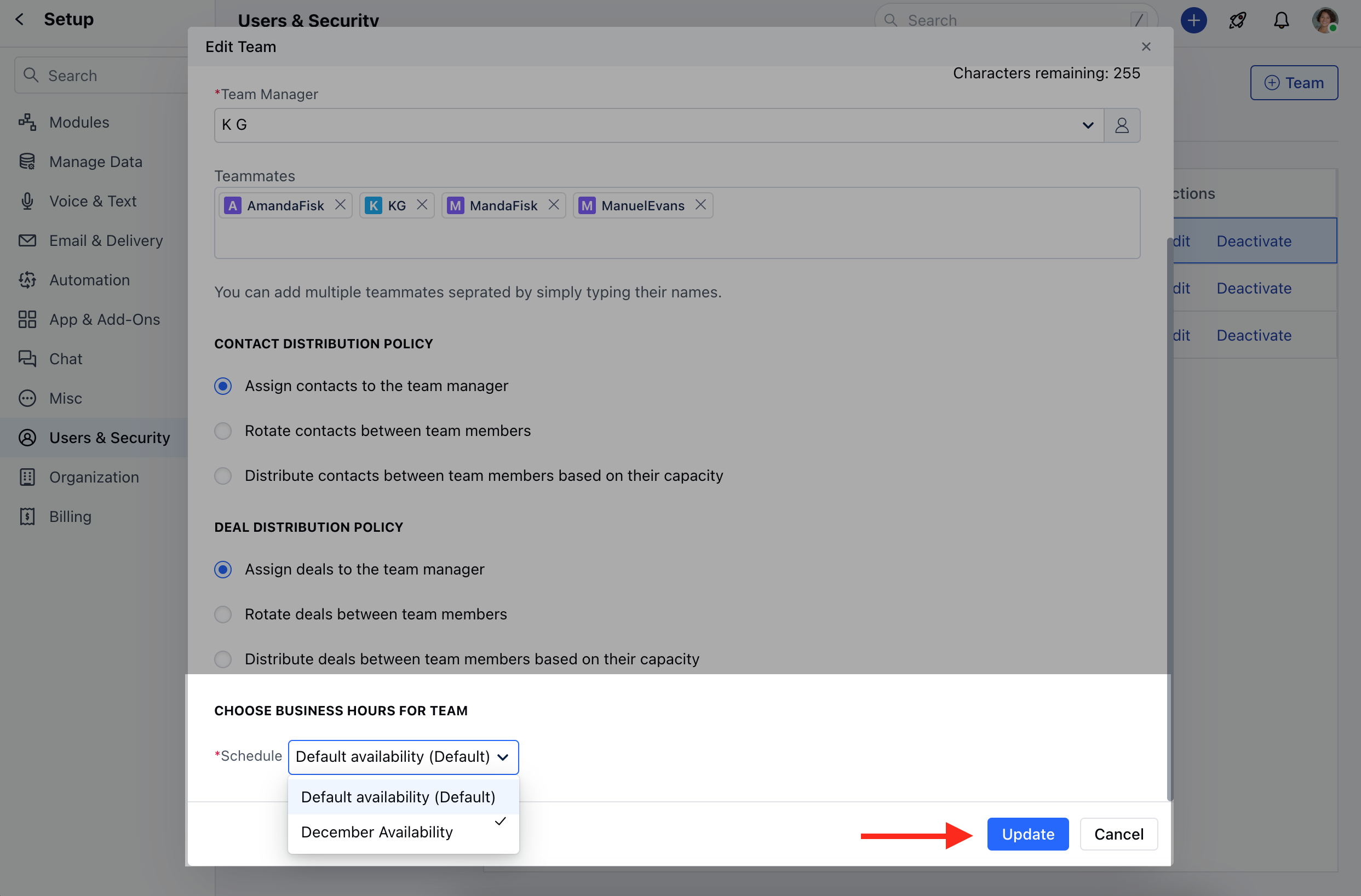
To Set Team Specific Business Hours,- Navigate to the Profile Icon on the top right corner
- Click on Set Up
- Head over to the Users & Security Category
- Click on Teams
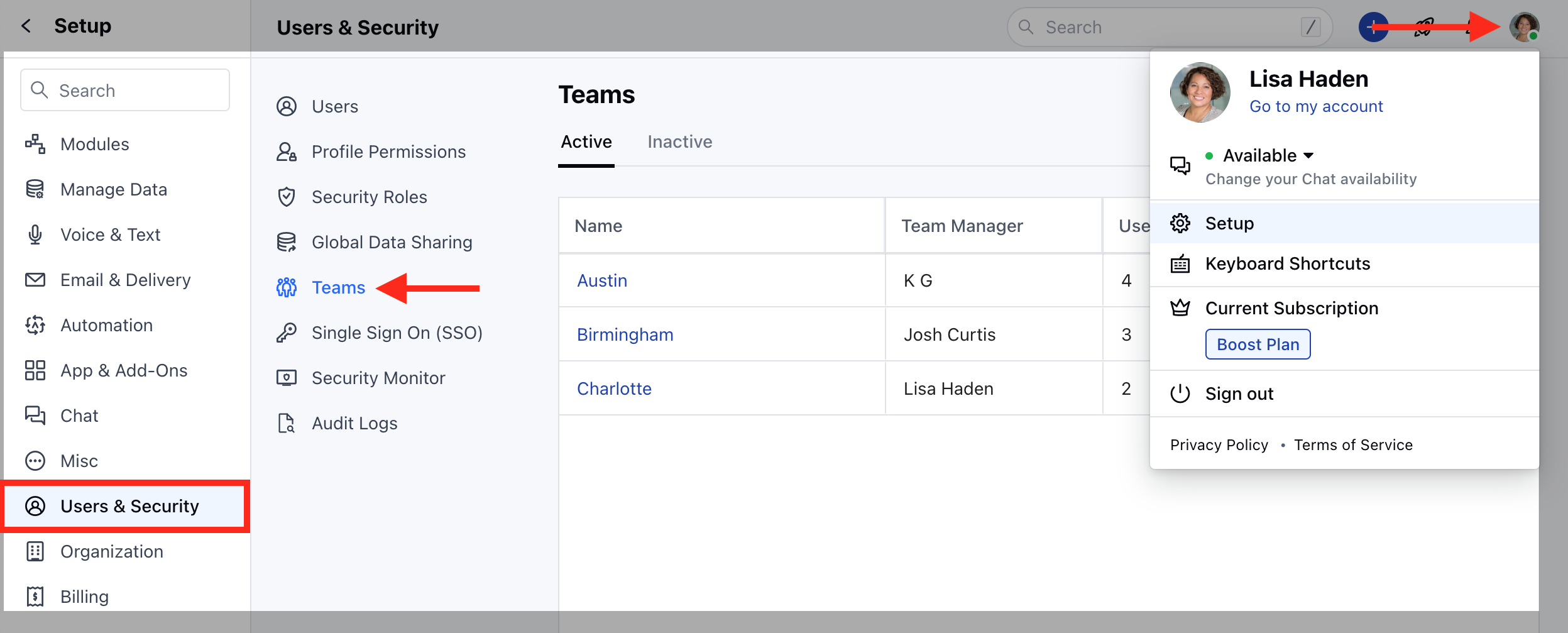
- Select the Team that you wish to Set the Availability for and click on the
- Edit* option
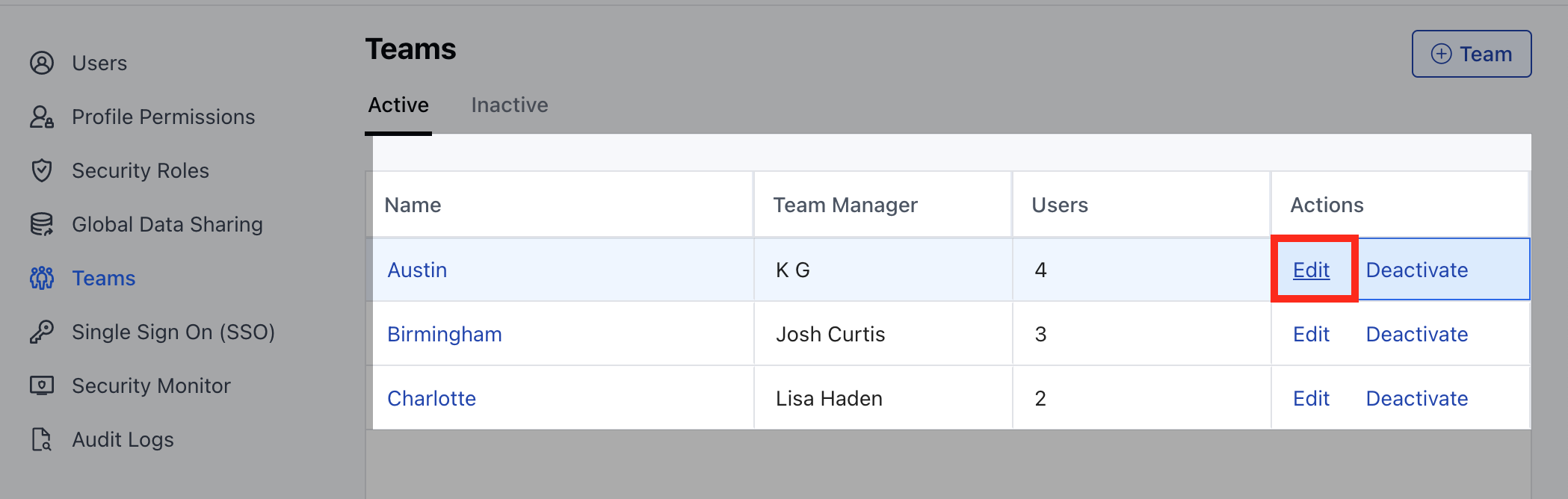
- Head to the CHOOSE BUSINESS HOURS FOR TEAM at the bottom * Select your Availability option from the Schedule dropdown and click on Update