

Topics covered:
Making a Call - Dial Out Call via Browser Call via Phone Receiving a Call - Incoming CallMaking a Call - Dial Out
To make an Outgoing Call, Click on the Make a call button (
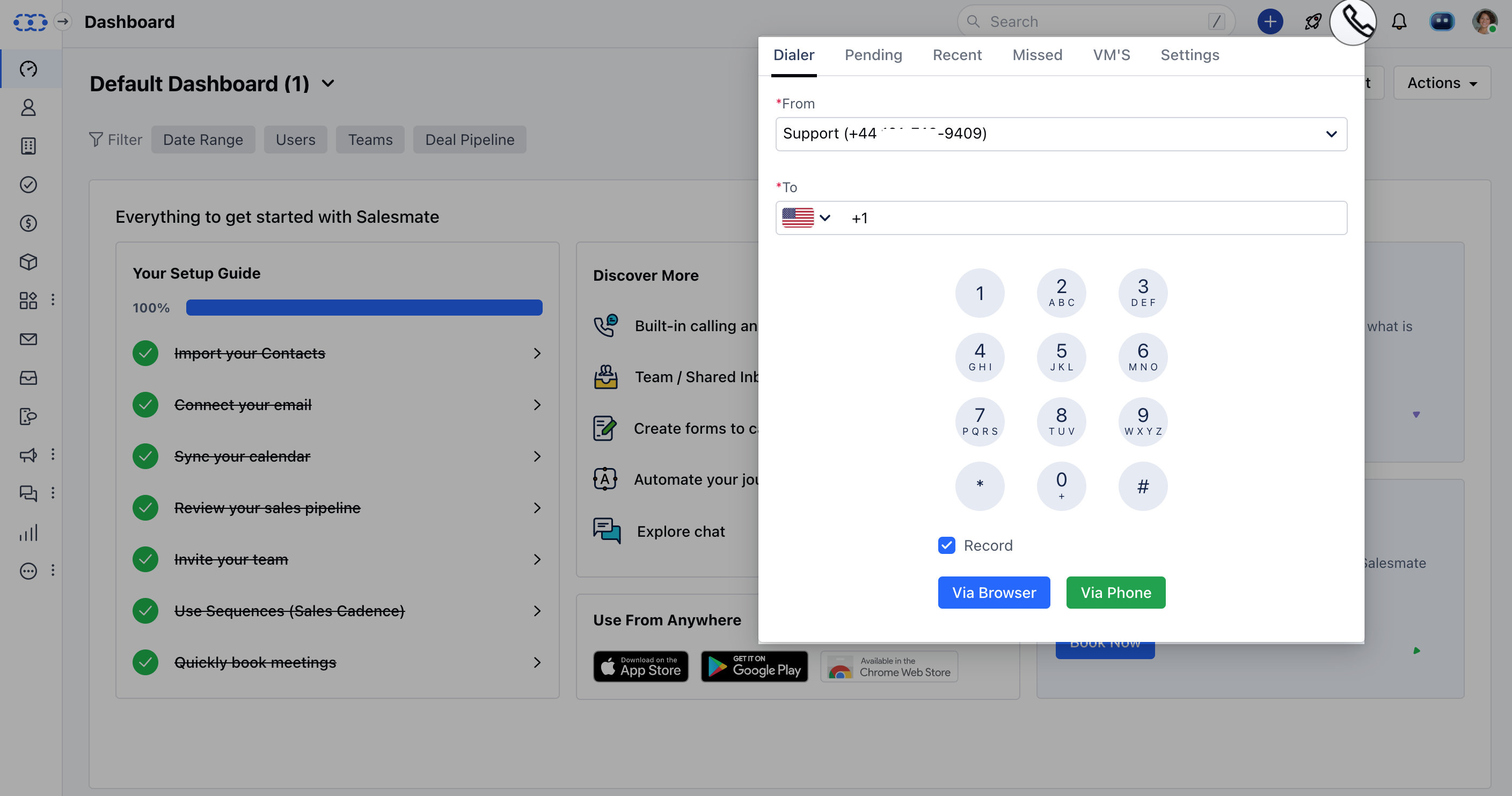
Call via Browser
You can also call out of Salesmate by heading to the Contact List Page. To make a Call via Browser,Note: Make sure you have included Mobile OR Phone fields in the list of columns from the Manage Columns option Go to Contact List/Detail Page.Hover over the number you wish to call.It will display the option to Call via Browser OR **Call via Phone.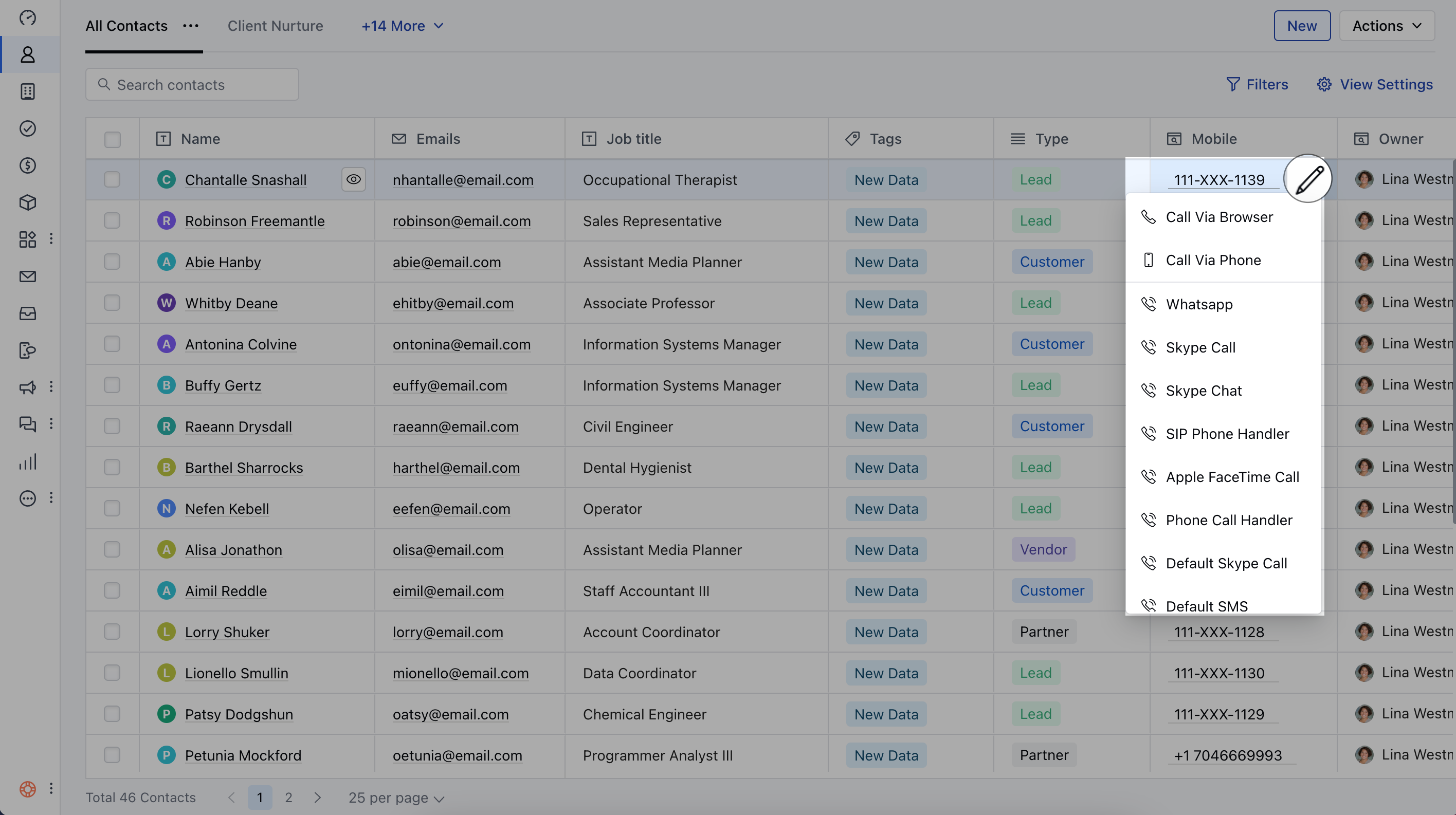
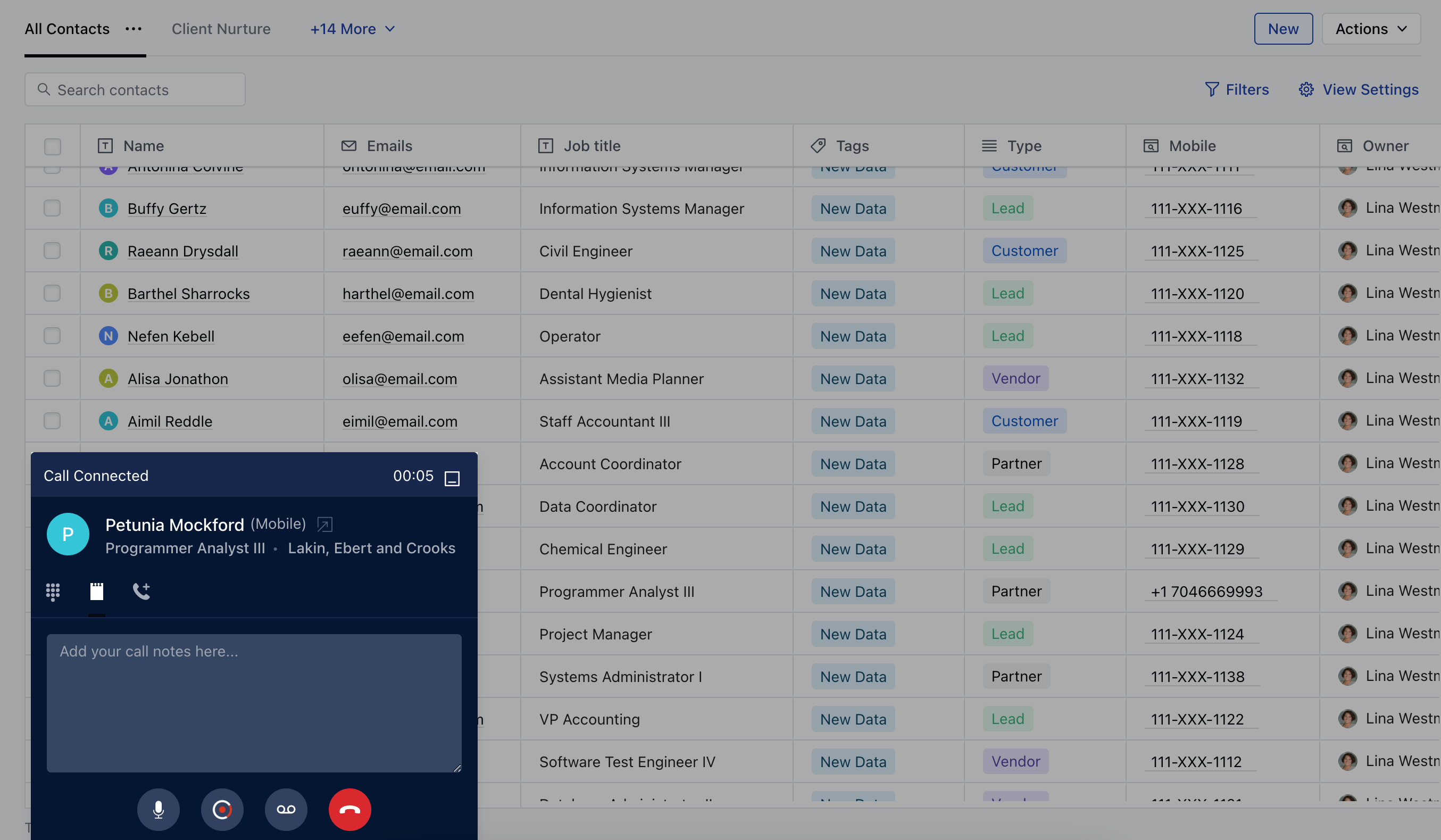
- **As you hit the option a pop-up will be displayed with the Contact Name.On this pop-up, you can take notes, disconnect the call, or start OR stop recording the call.
Call via Phone
In order to place a Call via Phone, You will need to add a mobile number, Navigate to Profile Icon on top right cornerClick on ** Go to **My Accounts **.
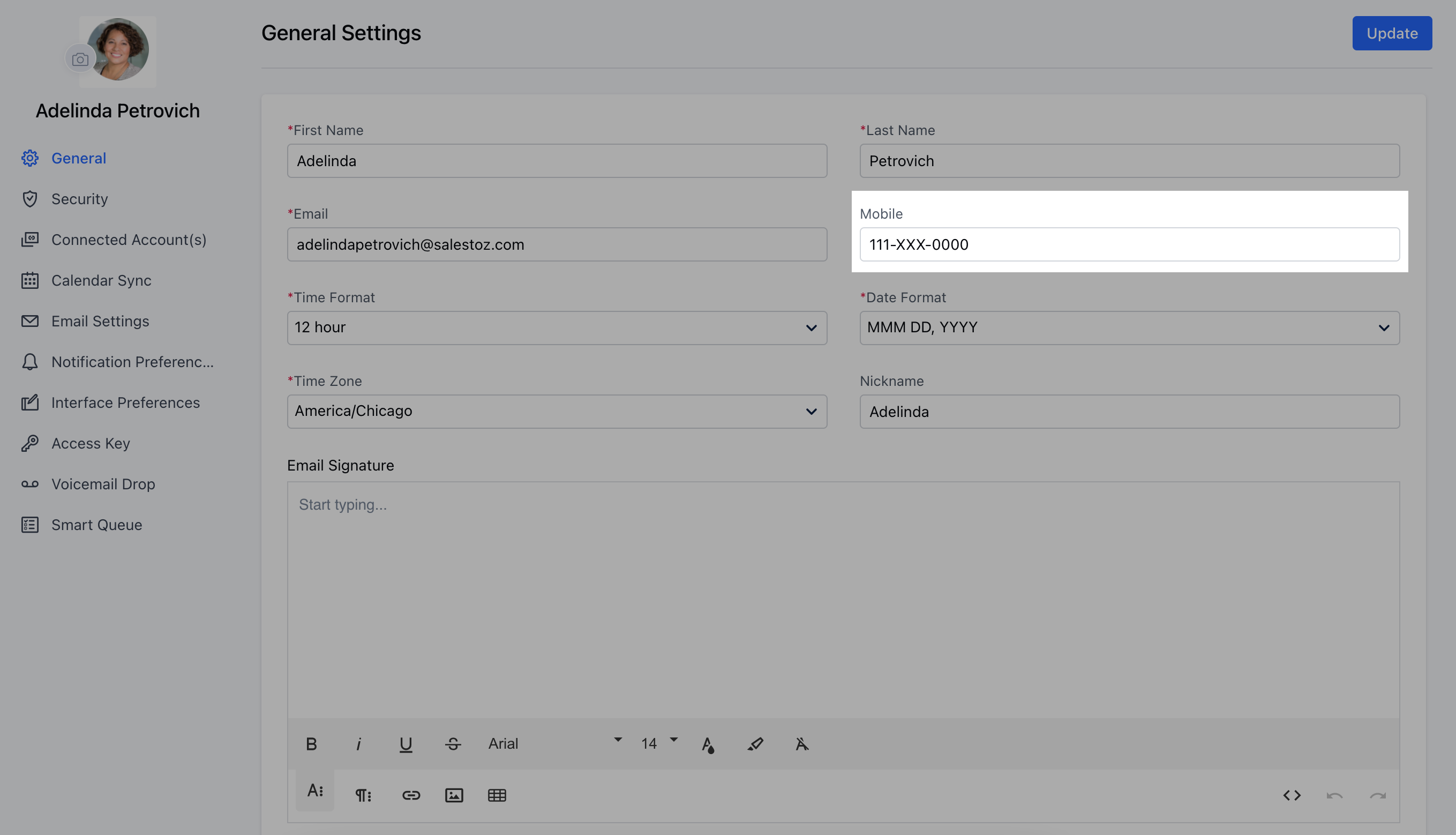
To receive calls in Salesmate:
When you have an incoming call on your number a pop-up will be shown with the number if the number is not saved as a contact in Salesmate. If the number exists in Salesmate-related contact will be shown.You can choose to pick up (receive) the call using the Green button or Hang Up using the Red button.Once you receive the call, you can log it.