Before you buy a phone number:

You need to enable the built-in phone (voice & text) app by requesting one. To do so: Click here for detailed steps to enable calling

To buy a phone number:

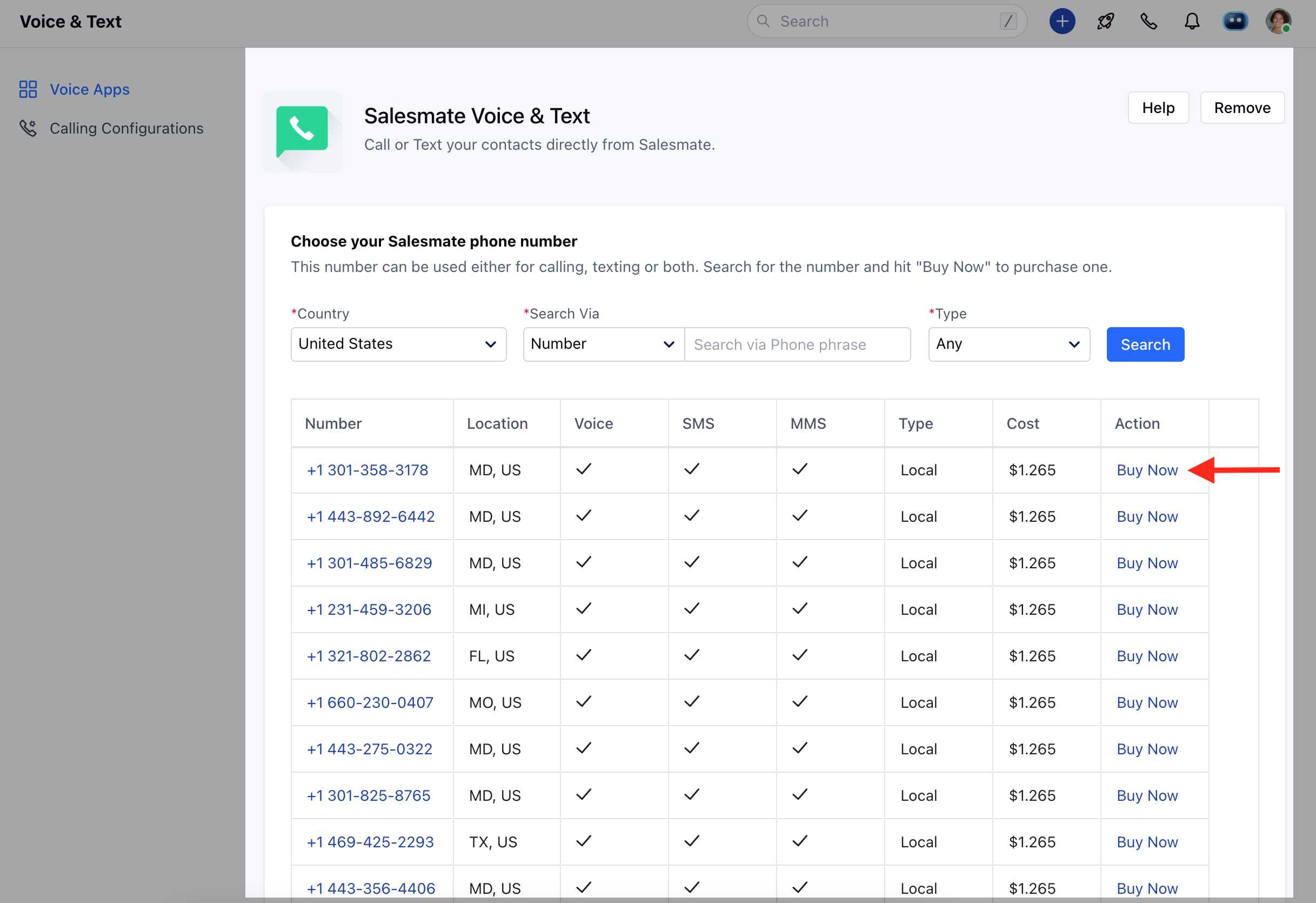
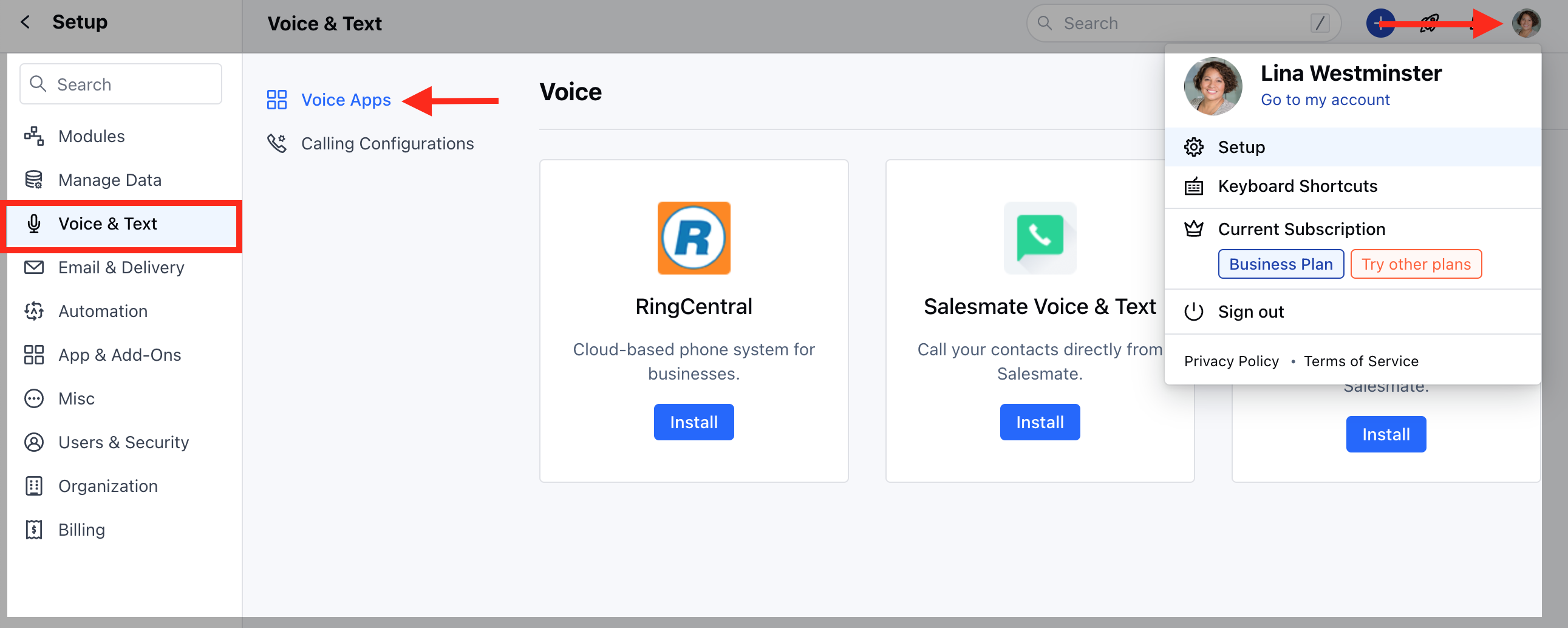
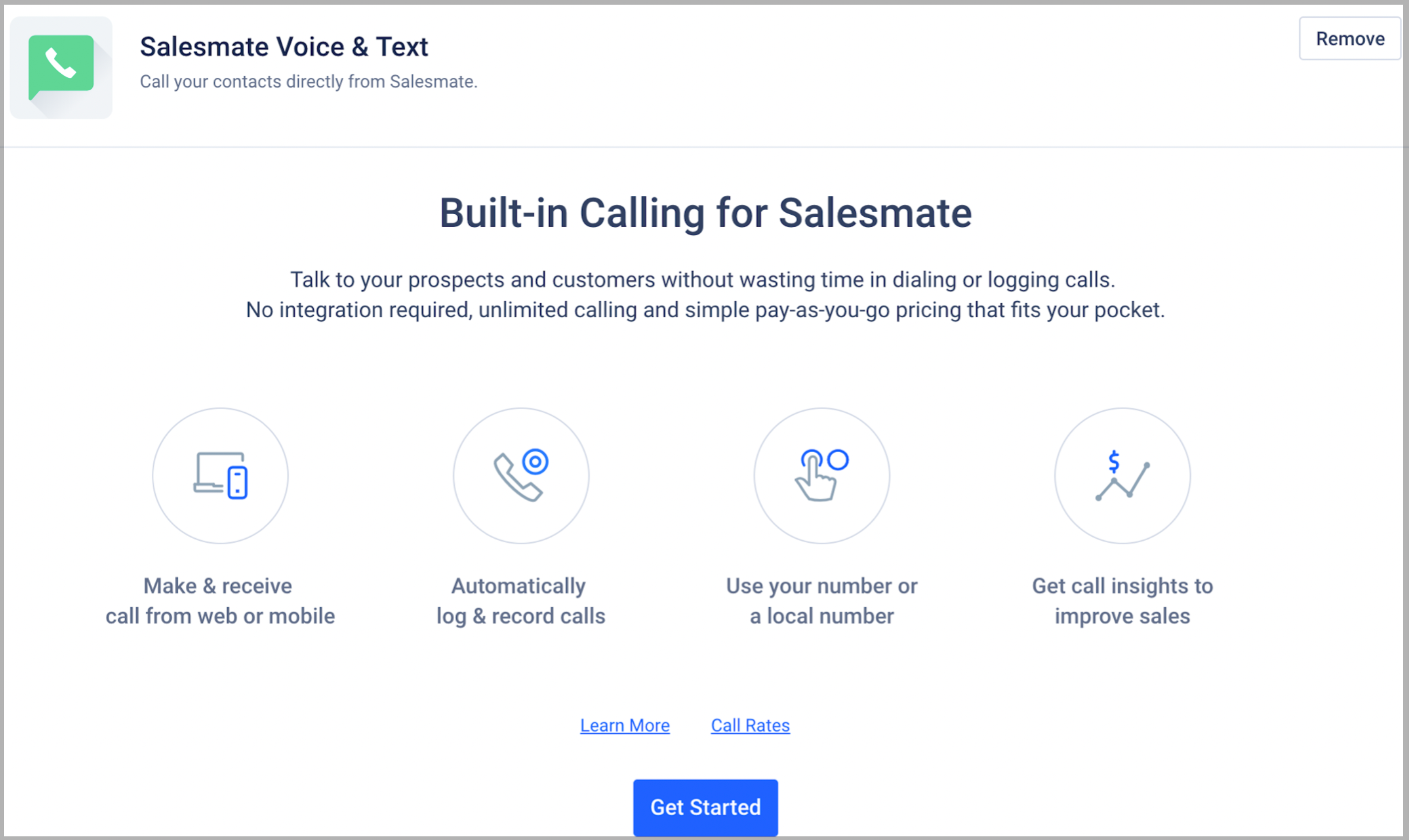
Once your built-in phone feature is enabled, you need to purchase phone numbers to make and receive calls in Salesmate. Navigate to the Profile Icon on the top right cornerClick on Setup Head over to Voice & Text categoryClick on Voice Apps mceclip0.png Click on Get Started mceclip2.png You will be redirected to the list of numbers available to purchase. You can choose to buy a Local number or Mobile number in your country or buy a Toll-free number. Select one of the two options. mceclip3.png
Choose your Salesmate Phone Number

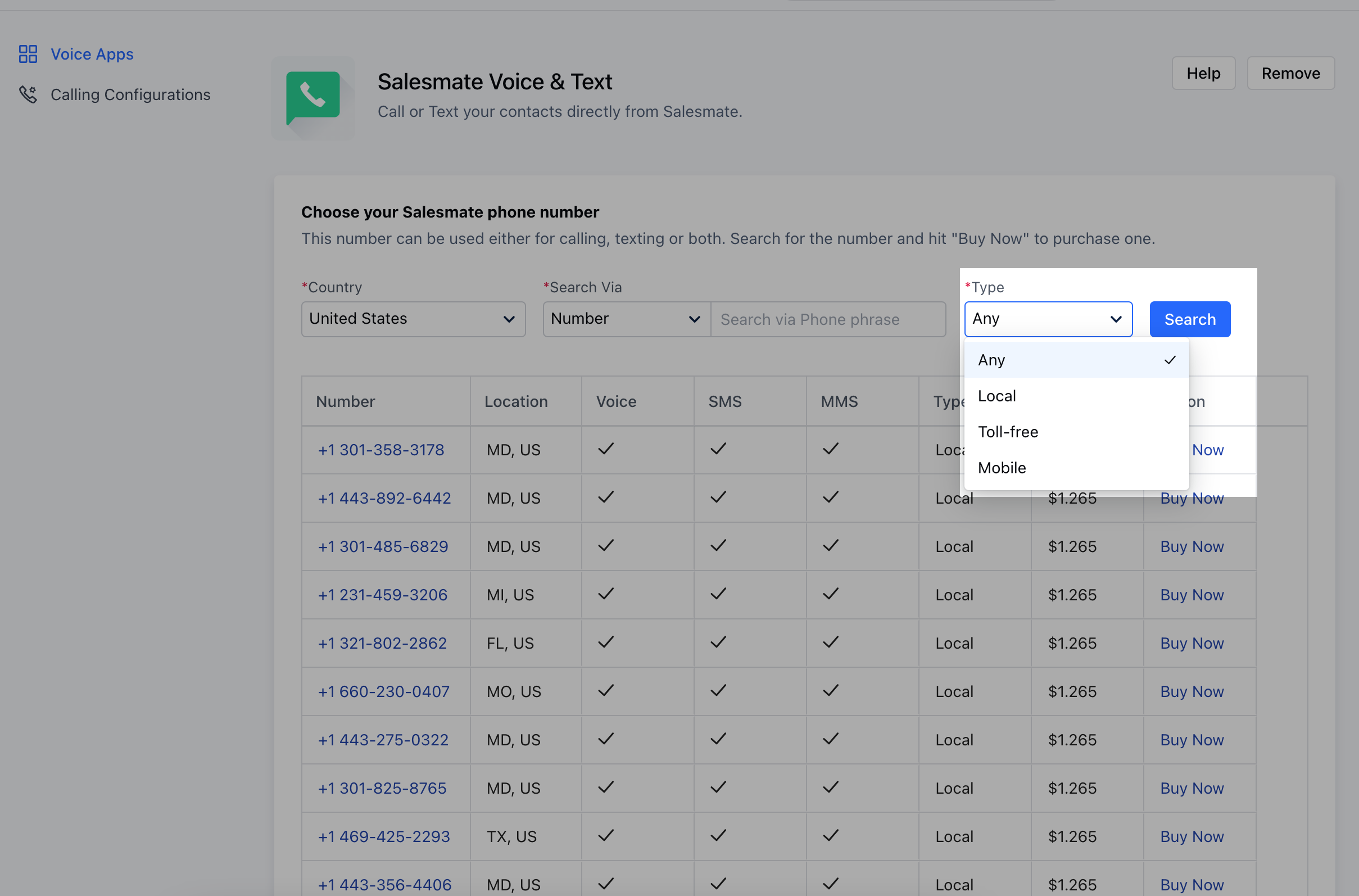
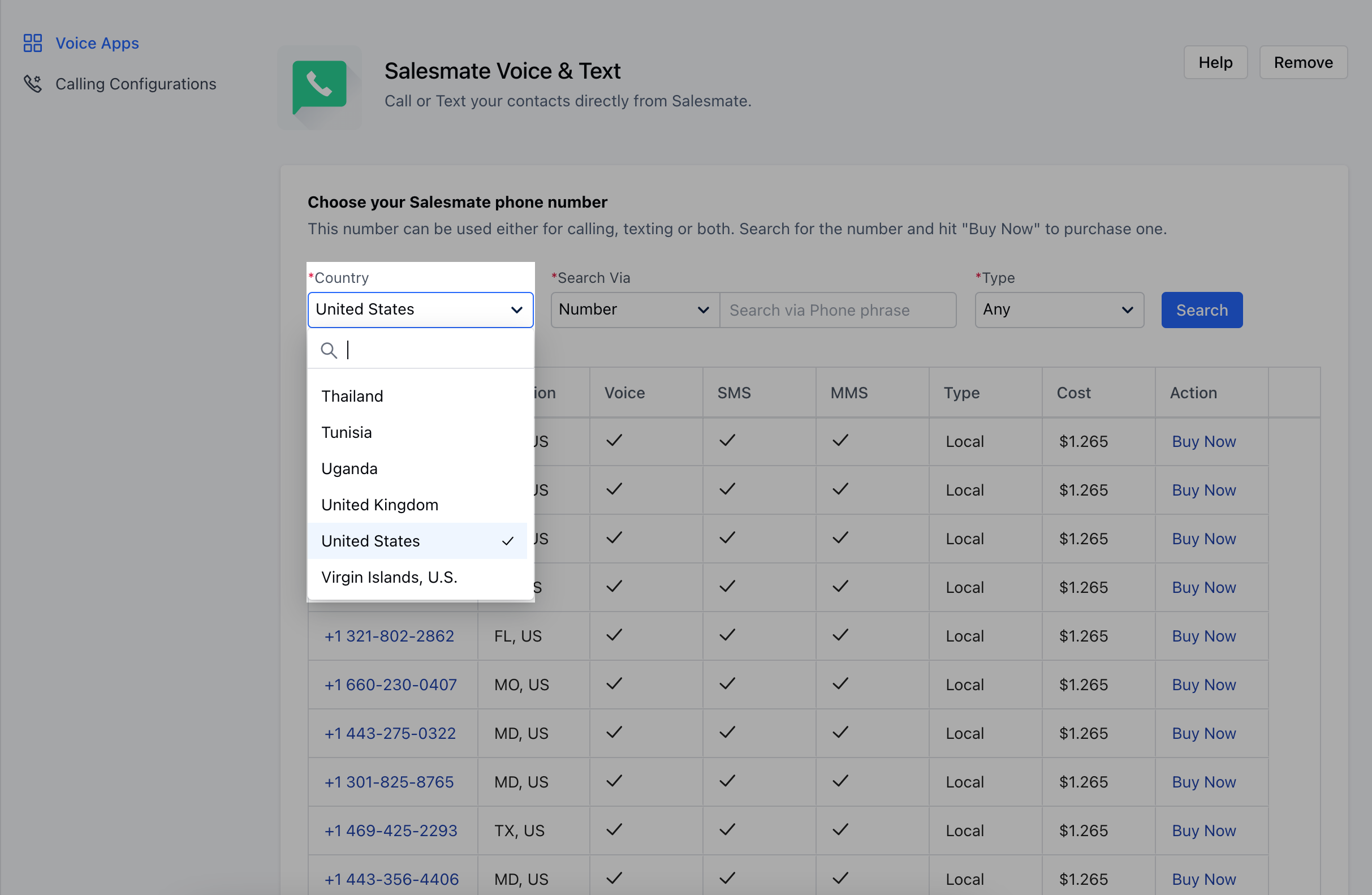
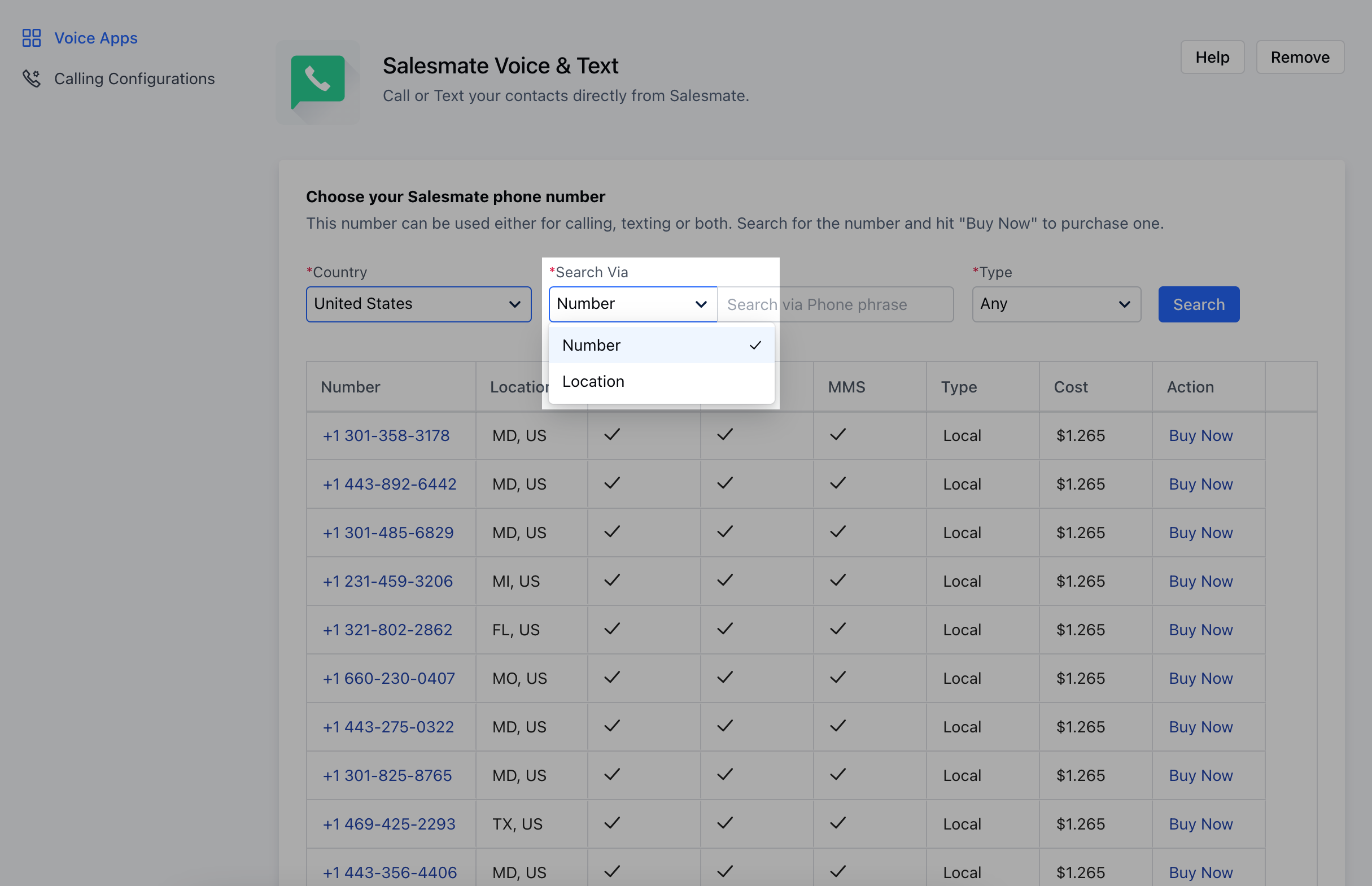
This number will be used for calling and texting. Click on any phone number to continue. Click on the Country, to select the appropriate Country Phone Numbers to Dial out mceclip0(1).png Search via Number or Location mceclip1.png Make a selection for the Type of Number required AnyLocalToll-FreeMobile mceclip2(1).png **Note:**Just in case you do not have credits being purchased you will need to purchase credits before you can purchase a phone number.
  • Select the Number, you would like to purchase and click on Buy Now
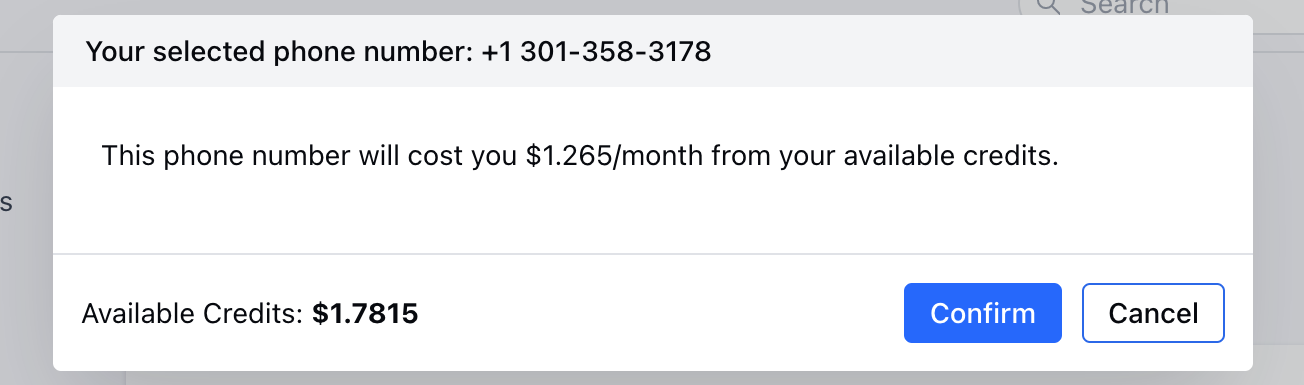
mceclip3.png Confirm the Credits for Purchase mceclip3(1).png Click on Confirm### **Local Number:**Local numbers are currently available in **80+**countries.Select the country and the corresponding state (in the case of the US) where you want your local number to be available in.You can also use the search box on the right to find numbers that have specific digits.Choose a number from the list of numbers displayed in the results and click Select. A confirmation dialog box with the cost of the number appears. Click Confirm to complete the purchase. **Note:**In accordance with the recent changes in Regulatory Compliance for purchasing numbers, you’ll need to submit valid address proof and other documents to purchase a number.

**Toll-free number:**Purchase your dial-in toll-free numbers from any one of these 4 countries

  • ** The United States of America, The United Kingdom,Canada, and Australia. Select the country and the extension of the toll-free number that you like to use.Use the search box to find numbers with specific digits.Choose a number from the list of numbers displayed in the results and click Select. A confirmation dialog box with the cost of the number appears. Click ** Confirm** to complete the purchase.

After buying the phone number:

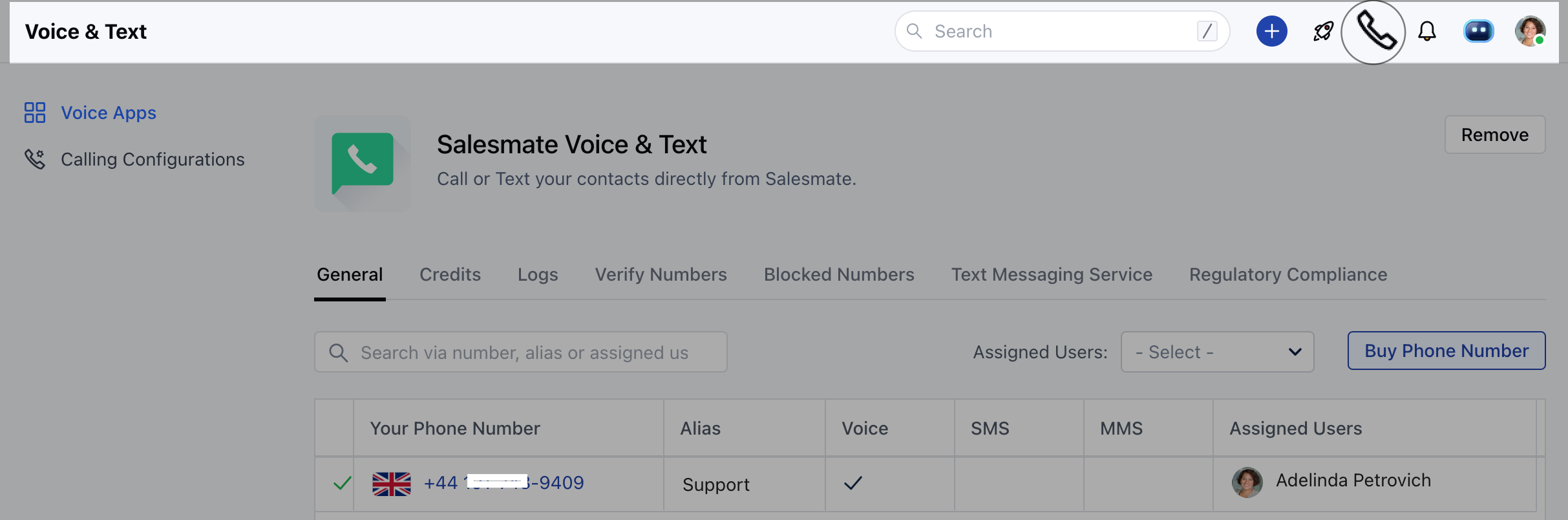
  • The Make a call button (
phone-call_edit.png  ) seen on the Quick Actions Bar is used to make a call from anywhere in Salesmate. mceclip5.png Check if it is **enabled.
  • **If not, you need to configure your phone settings:
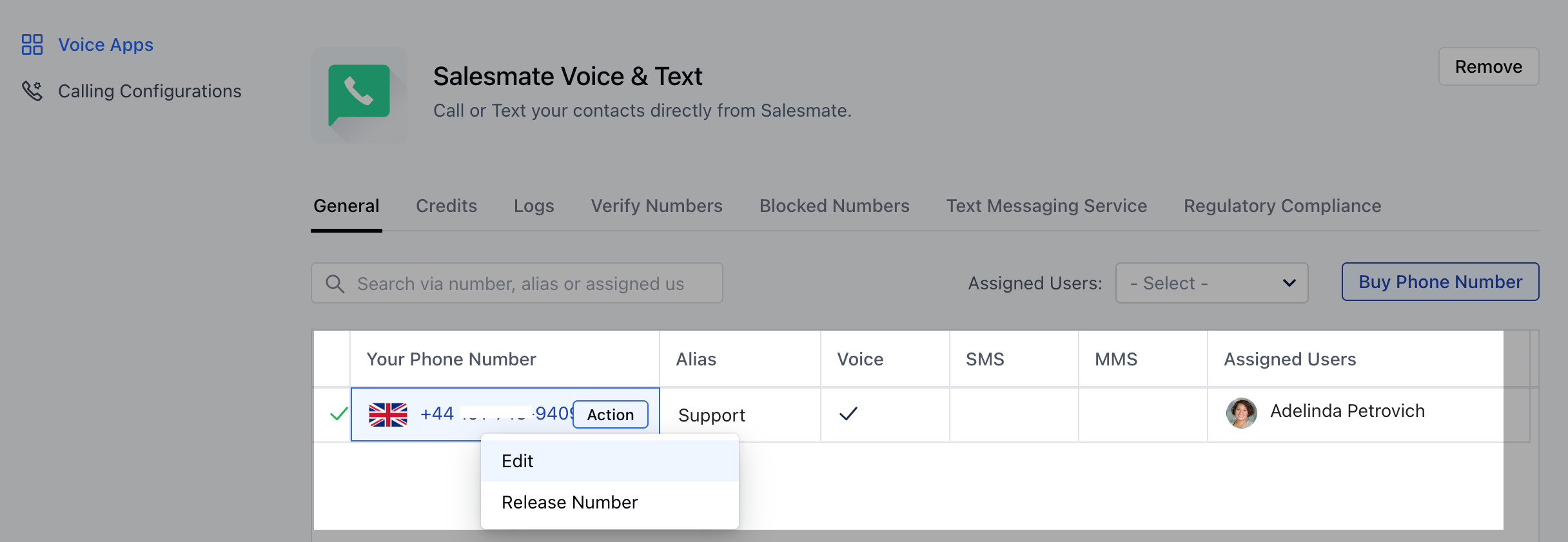
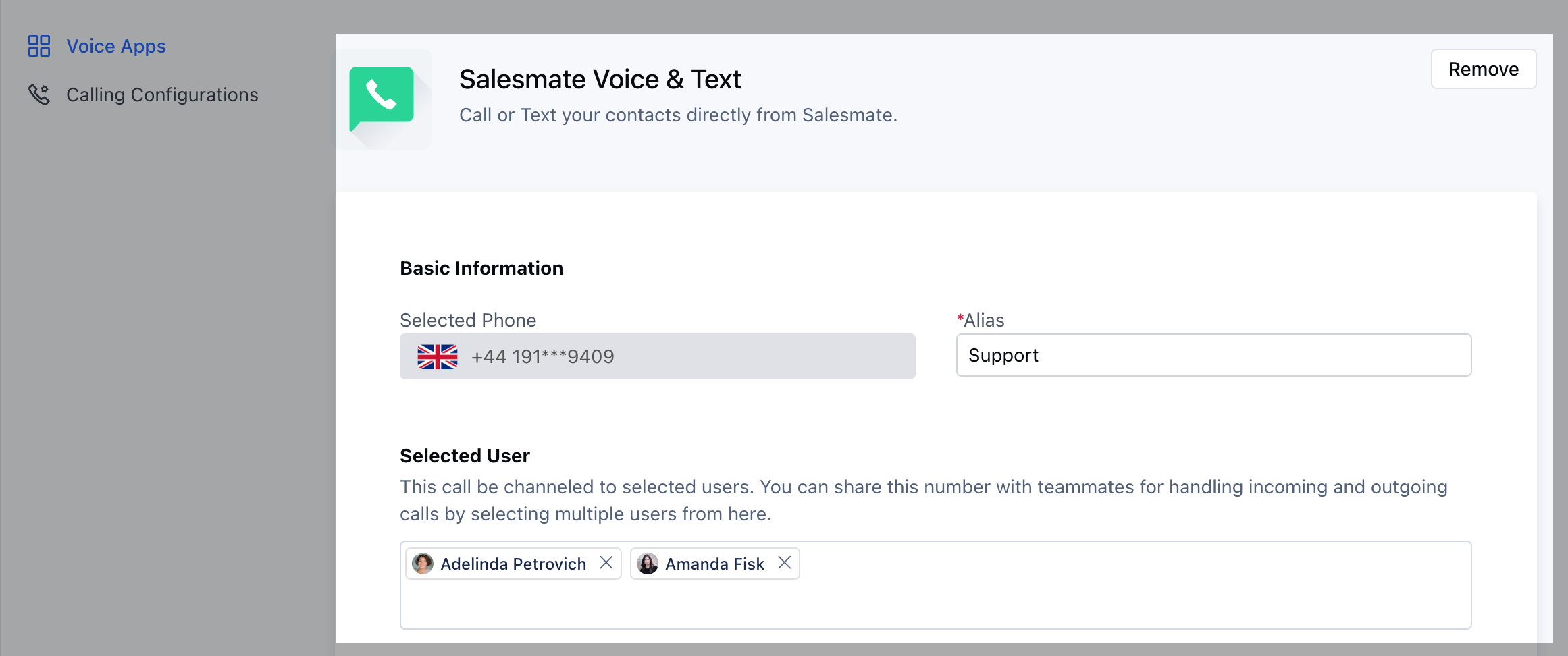
Navigate to Setup from profile icon ** Voice & Text Voice Apps The list of all the purchased numbers appearsClick on number you have would like to edit,Action button will pop up.Click on Action and then** Edit ** mceclip6.png Check if you have assigned a user in the ‘Selected User mceclip4.png You can assign more than one user to a number and users can make or receive calls with that number.If no number is assigned to you then make a call button is set to **Screen_Shot_2018-06-29_at_1.48.52_AM.png ** and if you are assigned, then it will be set as phone-call_edit.png