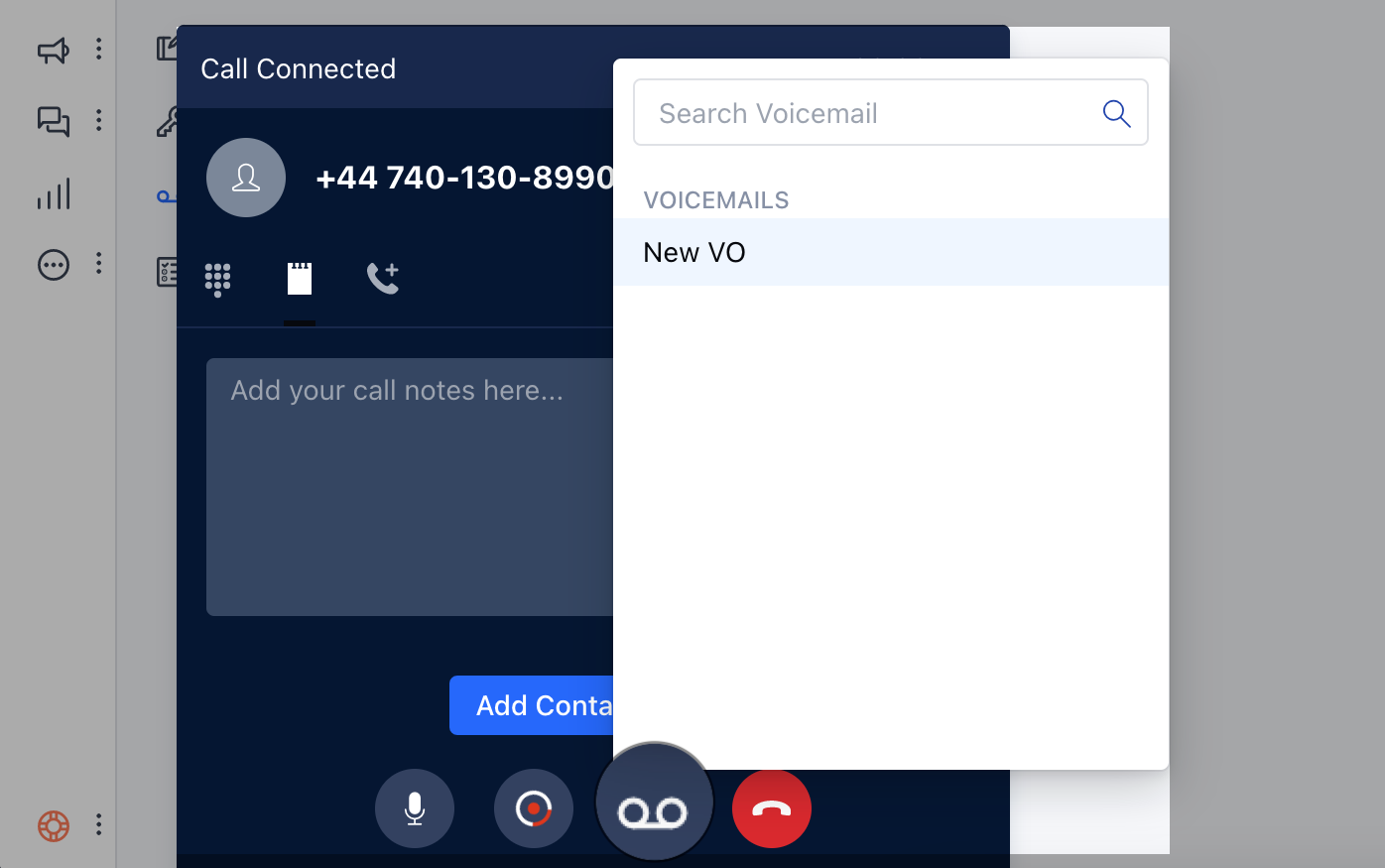
Topics covered:
- Uploading a pre-recorded voicemail message.
- Recording an mp3 file.
- Drop a voicemail for an Outgoing Call.
Uploading a pre-recorded voicemail message
To upload a pre-recorded message in Salesmate. Navigate to the Profile icon on the top right cornerGo to My Accounts Click on Voicemail Drop Click on Upload Audio
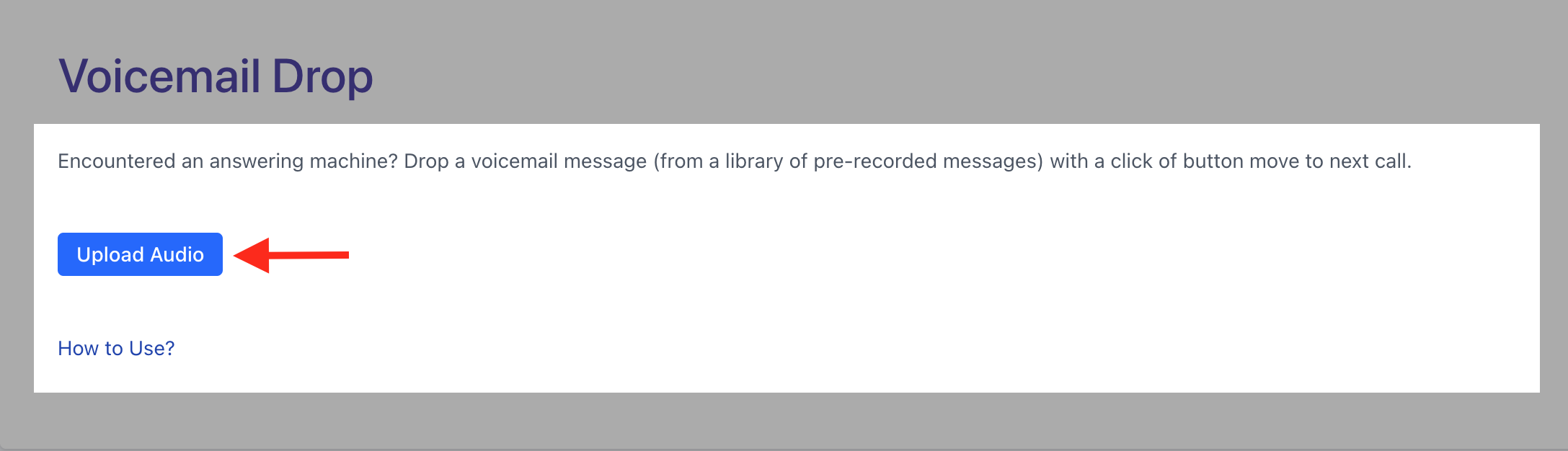
- Subject*- To choose a proper voicemail from multiple voicemails.
- Upload MP3 File- A pre-recorded message in MP3 format.
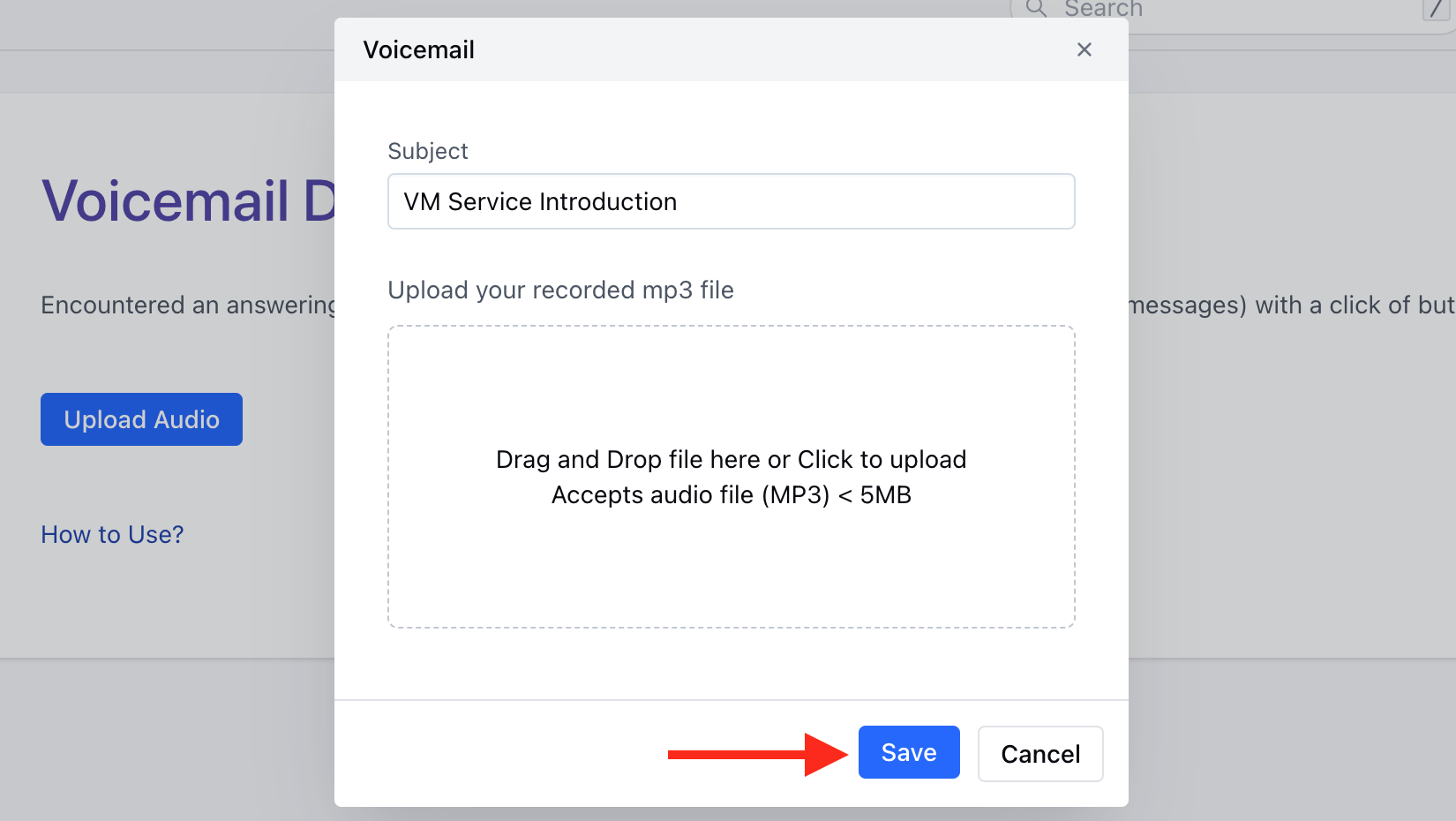
- ** Similarly, additional files can be uploaded to be used as VM Drops.You can also update and remove the uploaded file via Edit and remove option.

Recording an MP3 file
These days there are many tools available on your desktop or mobile apps to record MP3 files. Recording using QuickPlayer. Record MP3 online via your browserDrop a voicemail for an outgoing call
While you are on an outgoing (outbound) call and as soon as you hear the voicemail beep, click on the drop voicemail button and choose one of the pre-recorded messages. The voicemail will be dropped to the customer in the background, and you may continue your work henceforth.