- Topics covered:
- Outgoing Email Account
- Your Smart BCC Address (incoming emails)
- Automatic linking to deals
- Email Sharing Permission
- Email Tracking
- To set up your Email Templates
- Email Signature
Outbound Emails (SMTP)
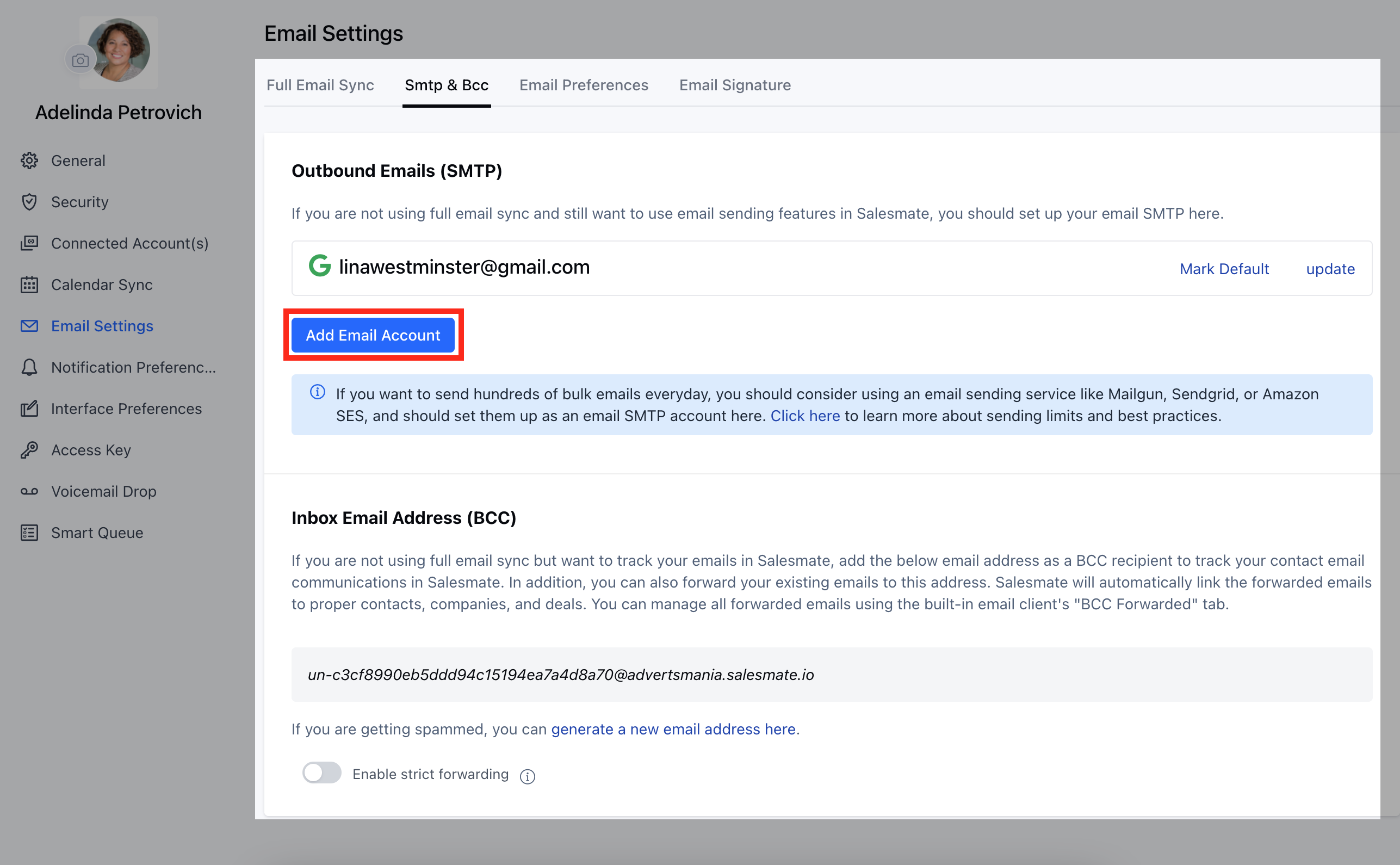
If you are not using full email sync and still want to use email-sending features in Salesmate, you should set up your email SMTP here.Salesmate helps you track email opens and clicks. It also eliminates manual email logging jobs and you can also save time using email templates for your canned or repetitive emails. To configure your outgoing emails: Navigate to the** Email icon on the left menu barClick on** Email settings ** on the bottom left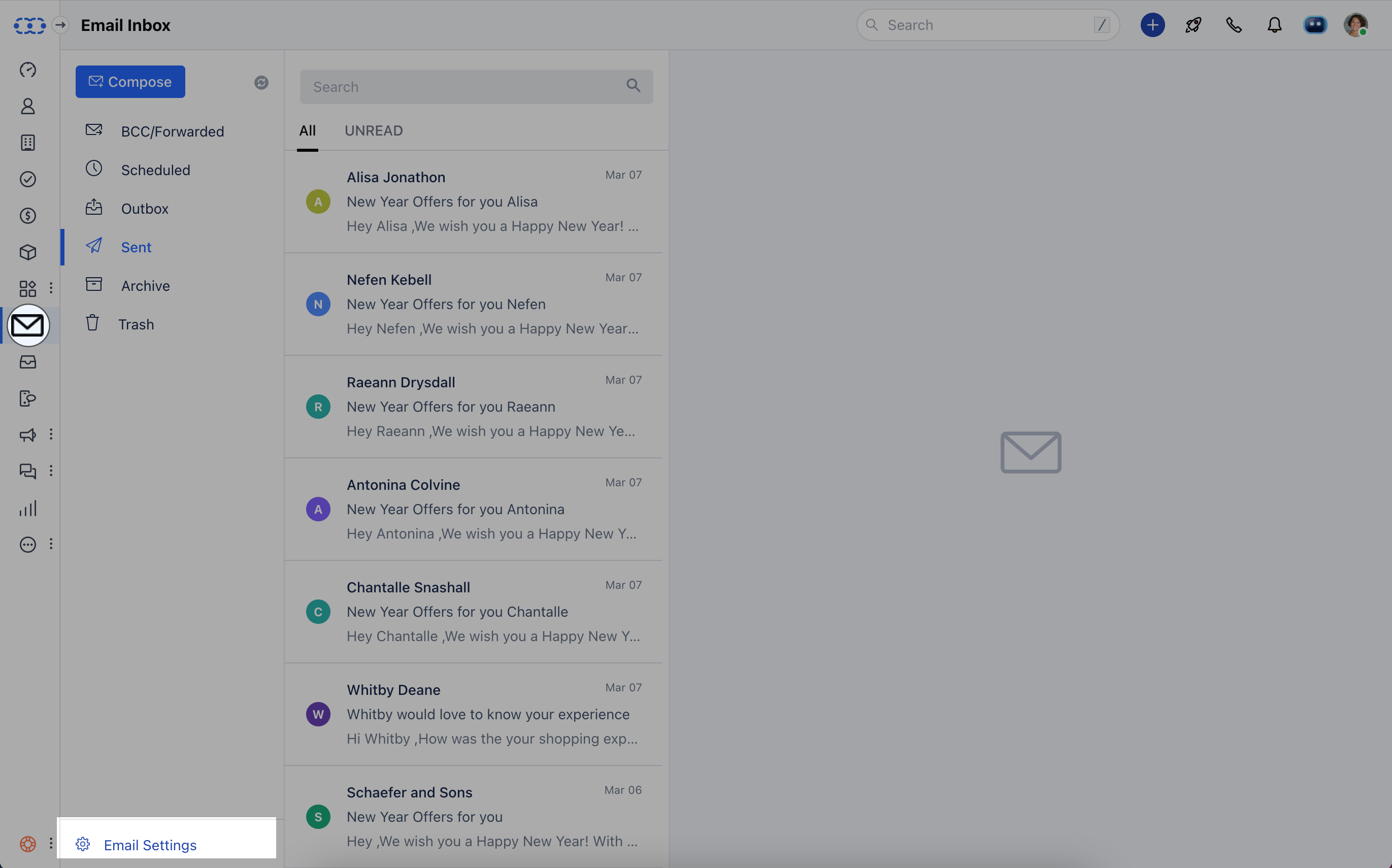

- Head over to* SMTP & BCC Click on Add Email Account **
Your Smart BCC Address (Incoming Emails)
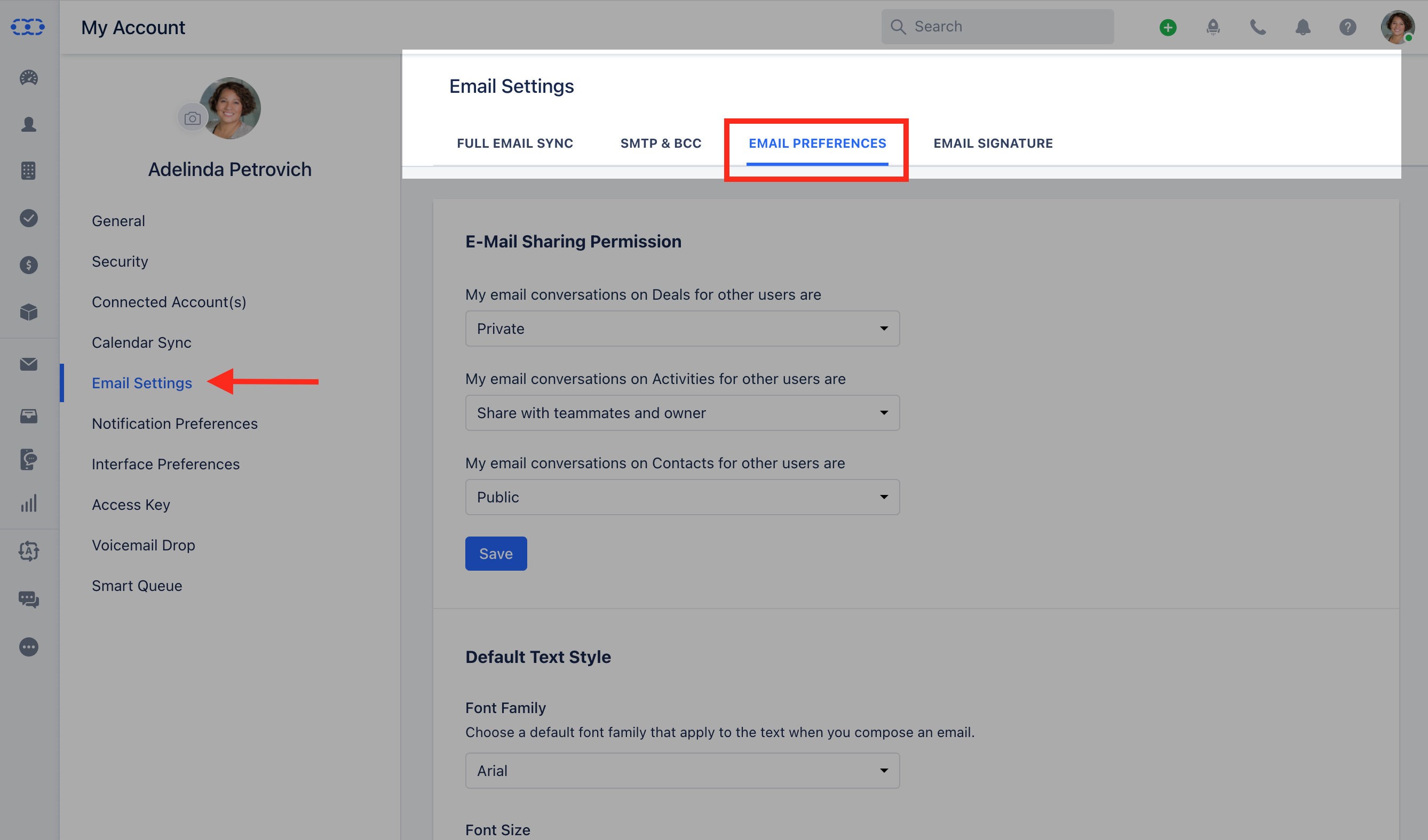
You get your own email address, which you can add to the BCC field whenever you email a customer, or you can forward existing emails directly to this address. These conversations will all appear on your Salesmate email page, linked to the relevant contacts and deals, when possible. To configure your BCC Address: Click on the ** Email icon(top right)Email settings(bottom left of page)Click on **SMTP & BCC **OR Navigate to the Profile Icon on the top right cornerClick on Go to my account Head over to Email Settings >>**SMTP & BCC ** If you want to reject all emails getting forwarded other than your registered or secondary email address, then enable the STRICT FORWARDING rule.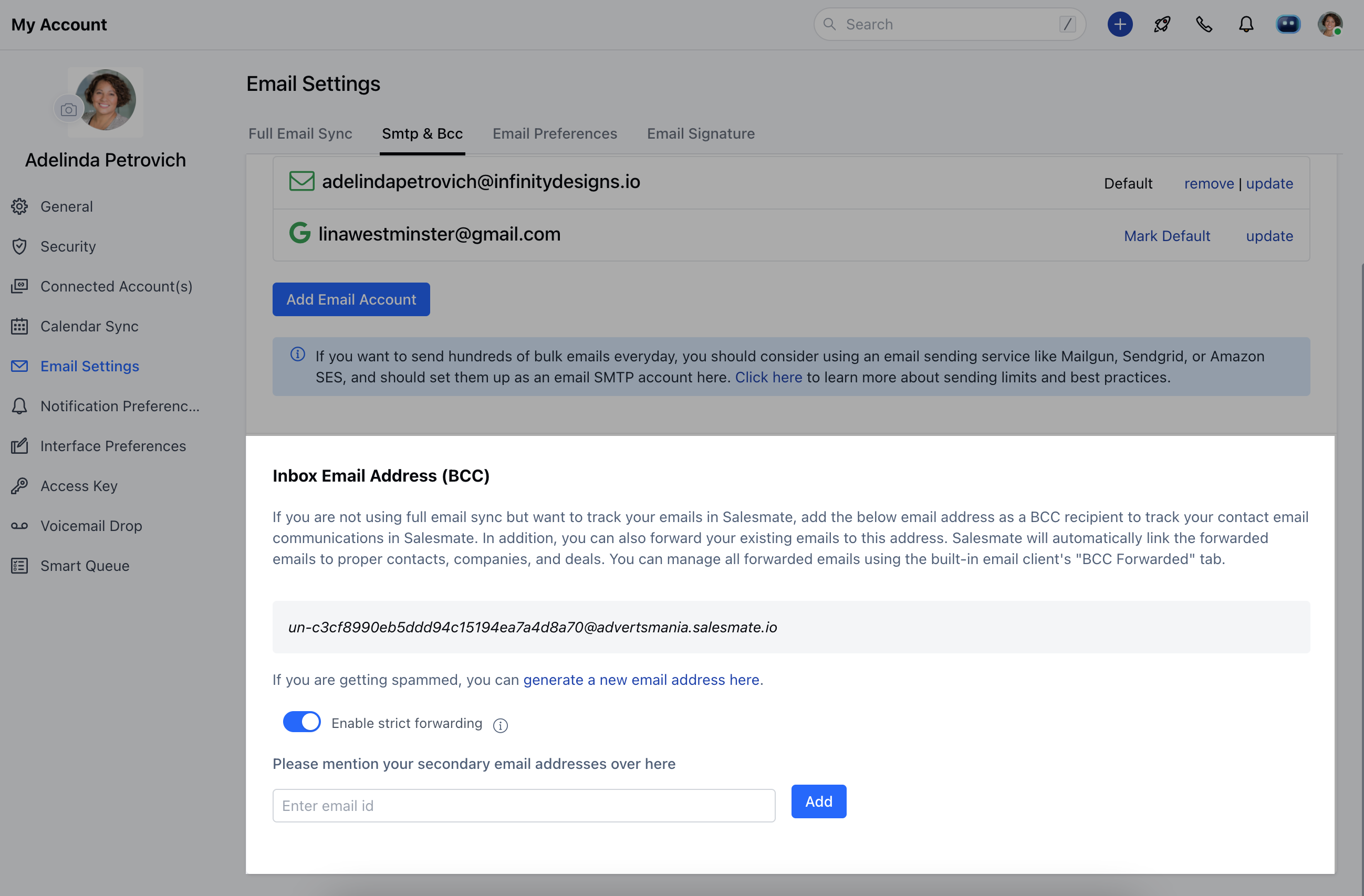
Automatic Email Linking
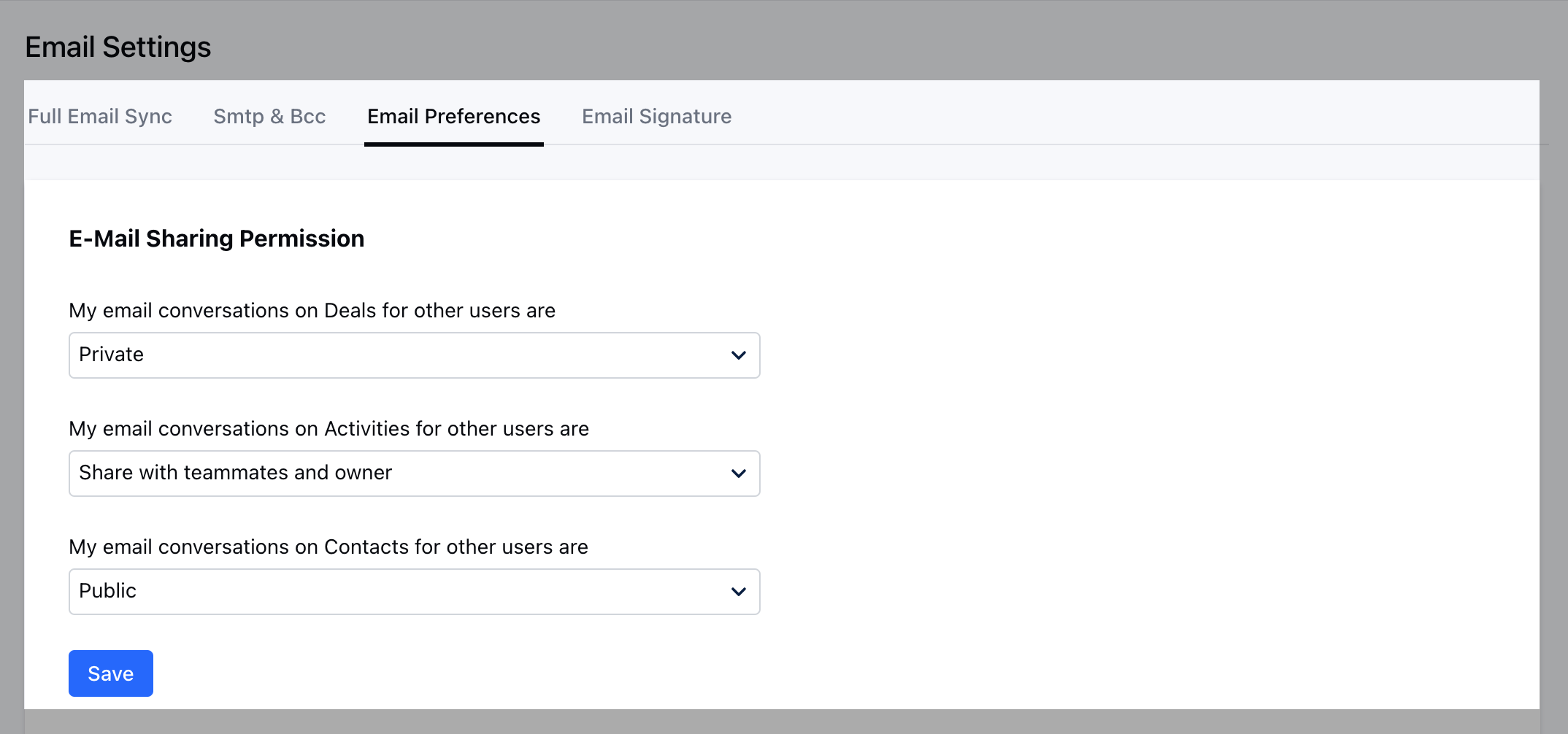
Automatic linking to deals, Salesmate allows you to link your emails to the deals in two ways: Link emails manually onlyAutomatically link emails with deals Salesmate will look for an open deal with the person the email was sent to. If only one open deal is found with the person, the email is linked to that deal automatically.E-Mail Sharing Permission
Email Module has a special security mechanism, different from the other modules.Email Sharing can be done either to individual emails, or the user can define a policy for sharing the emails by default.- **Email Sharing has the following 3 policies:**My email conversations on Deals for other usersMy email conversations on Activities for other usersMy email conversations on Contacts for other users ** The Sharing permissions are:Private(default: when a new user is created) All emails associated with the record will be visible to that user onlyEmail will be visible to users with whom the user has explicitly shared the email or manually shared the particular email with a user.
- Share with teammates and owner All teammates and owners of the record will be able to see the email associated with that particular record.Email will not be visible to all the users who see the particular record if they are not followers or ownerEmail will be visible to users with whom the user has explicitly shared the email or manually shared the particular email with a user marking him in CC or To ** Public** All followers and owners of the record will be able to see the email associated with that particular record.Email will be visible to all the users who see the particular deal even if they are not followers or owners.Email will be visible to users with whom the user has explicitly shared the email or manually shared the particular email with a user.
Email Tracking
Salesmate will automatically track and notify you when your contacts open your emails or click through the links in your emails.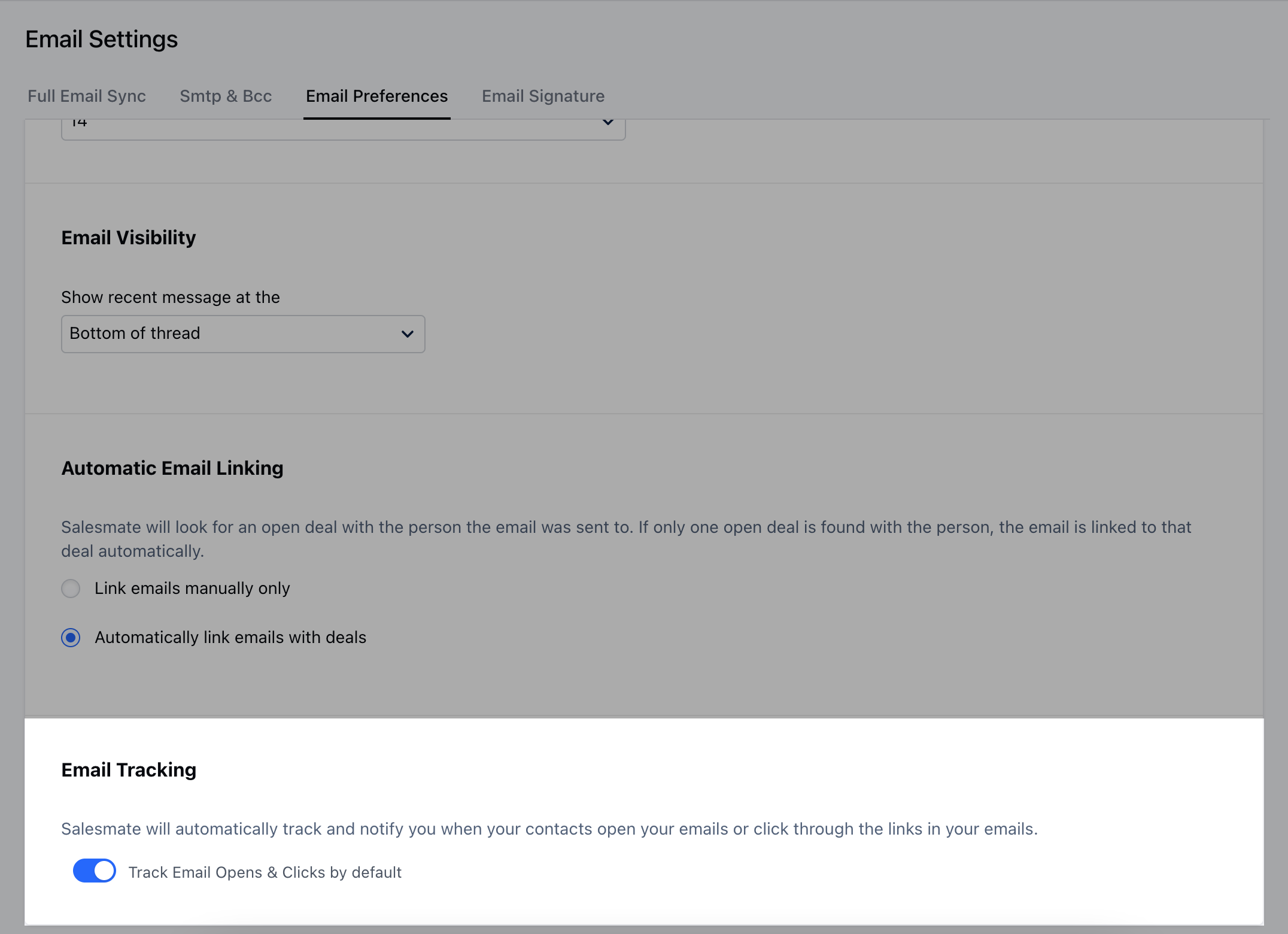
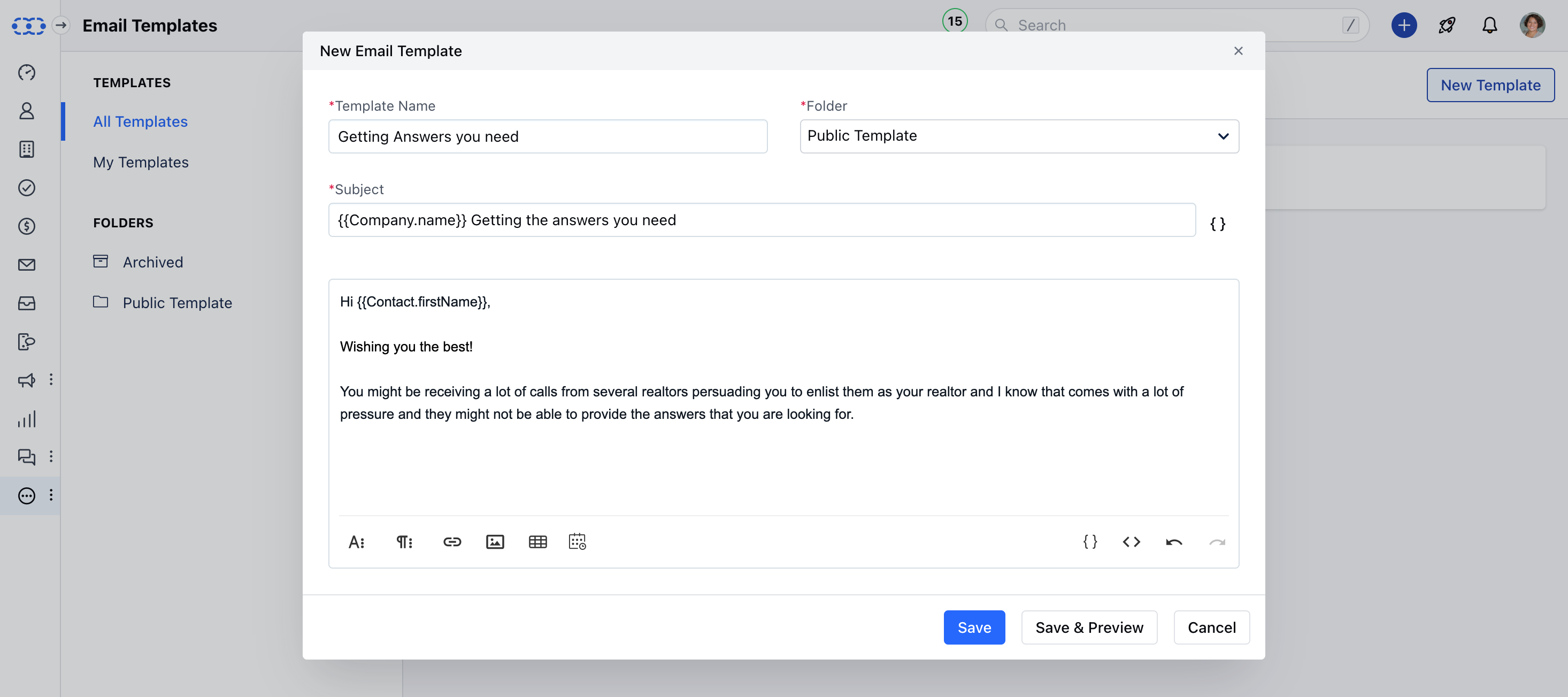
To set up your Email Templates
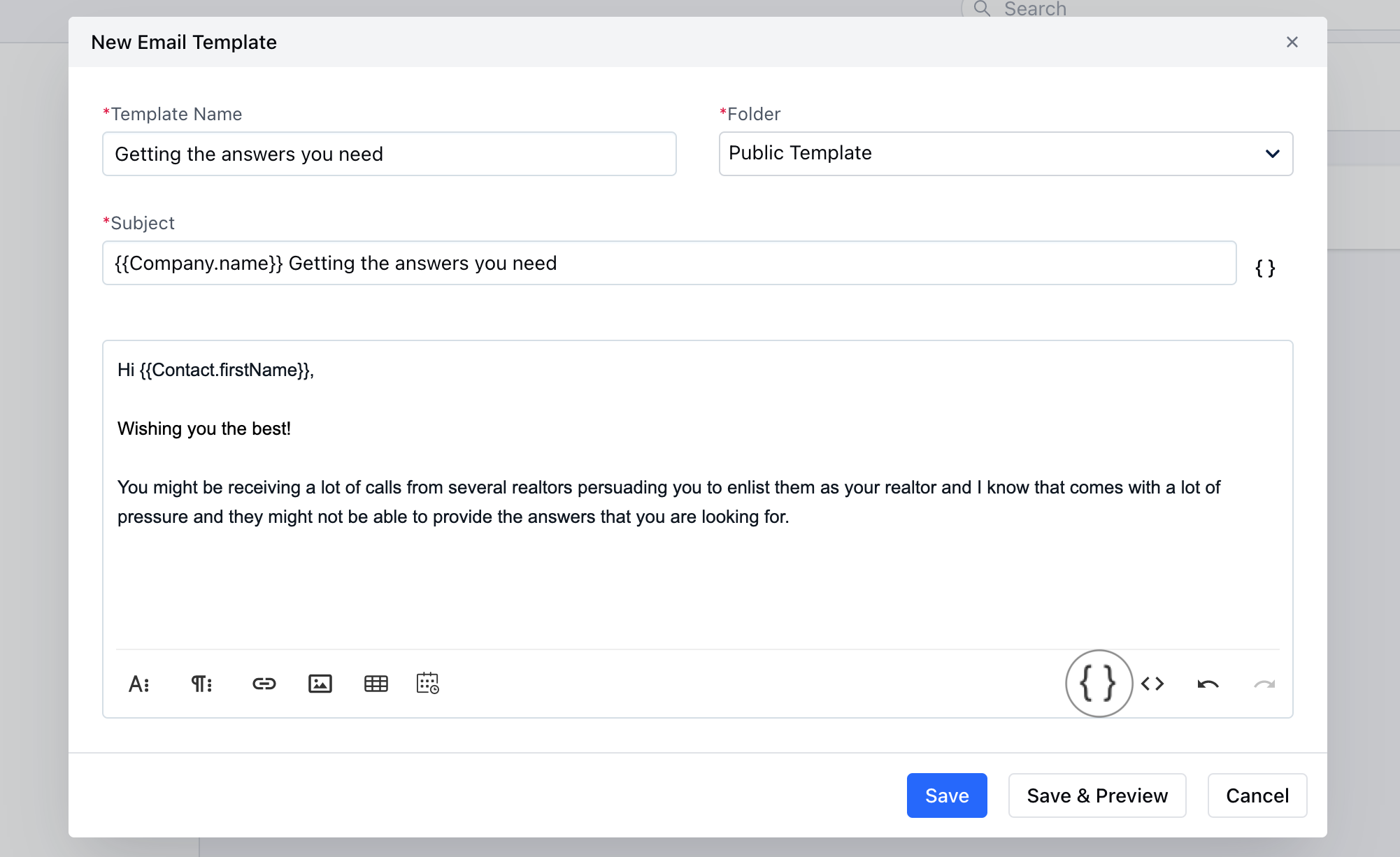
You can create email Templates to use when sending emails to contacts within the CRM or in your external email client viz. Gmail using Salesmate Chrome Plugin. To create a New ** Email **Template **: Go to Headers>More>** Email Templates Click **+ New Template **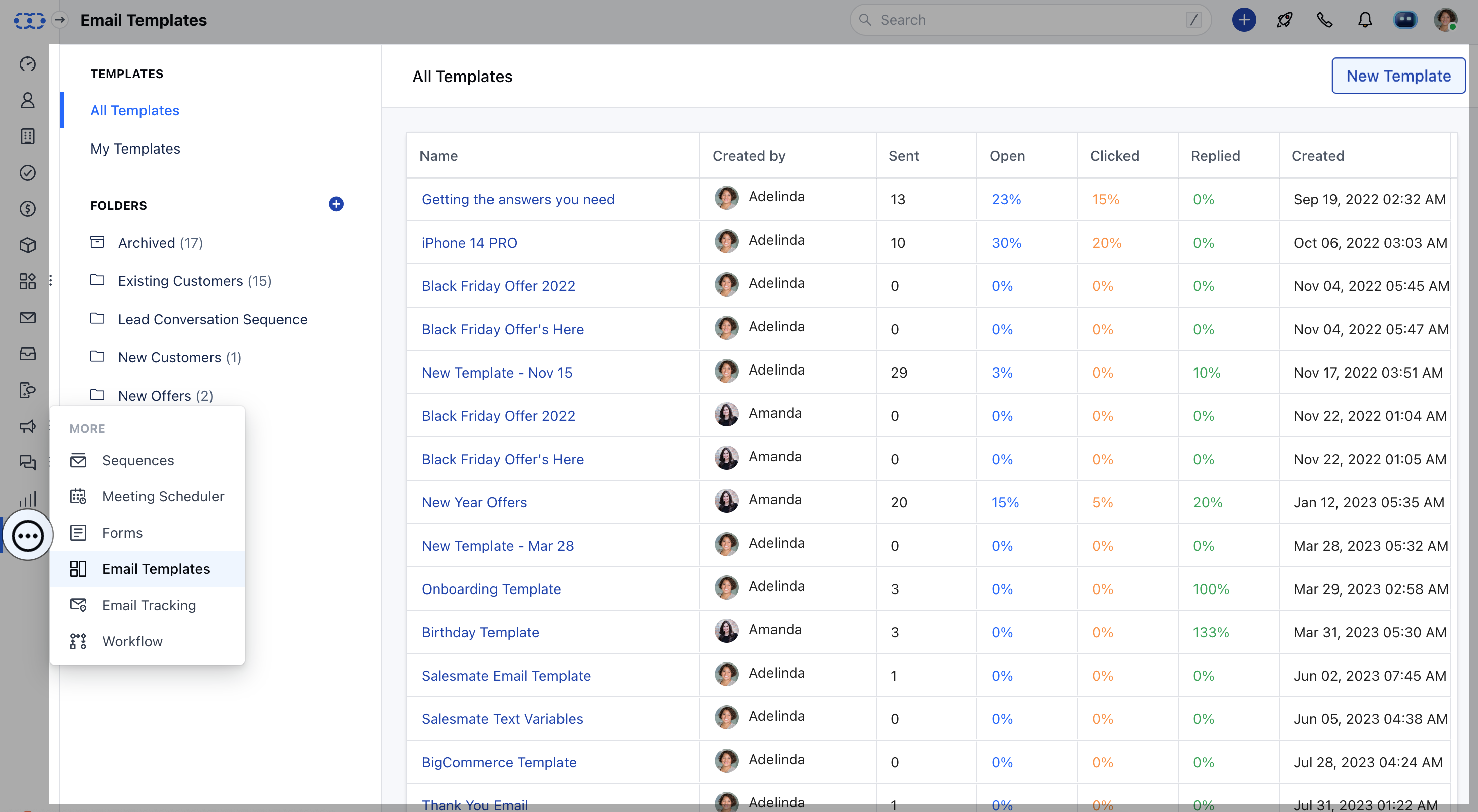
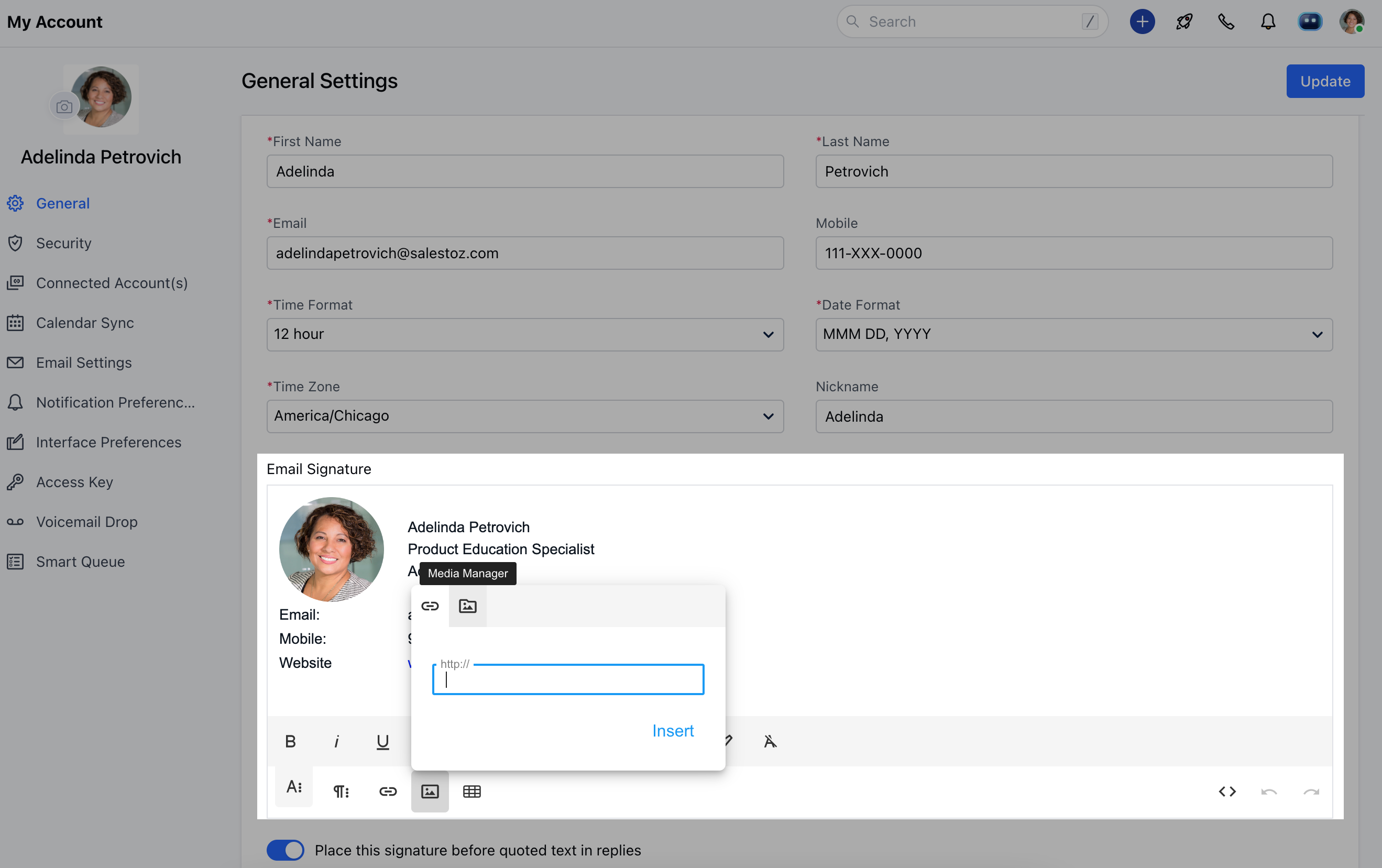
Setting up your Signature
Navigate to the Profile Icon on the top right cornerClick on ** Go to My Accounts Head over to the General Category Go to E** mail Signature **