How to Create an Email Template
To create email templates: Navigate to the More Icon from the left Menu barClick on Email Templates Head over to New Template to create a template.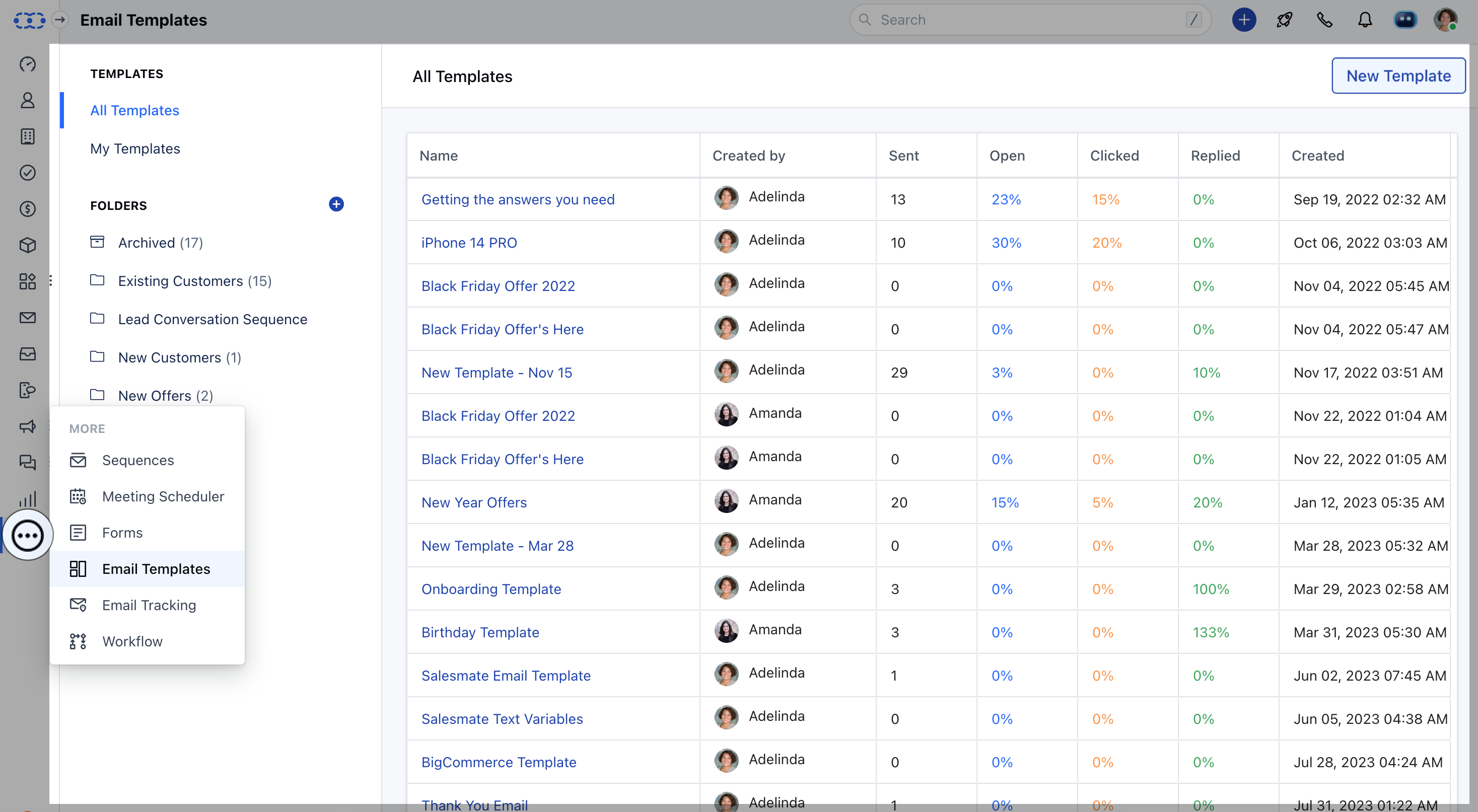
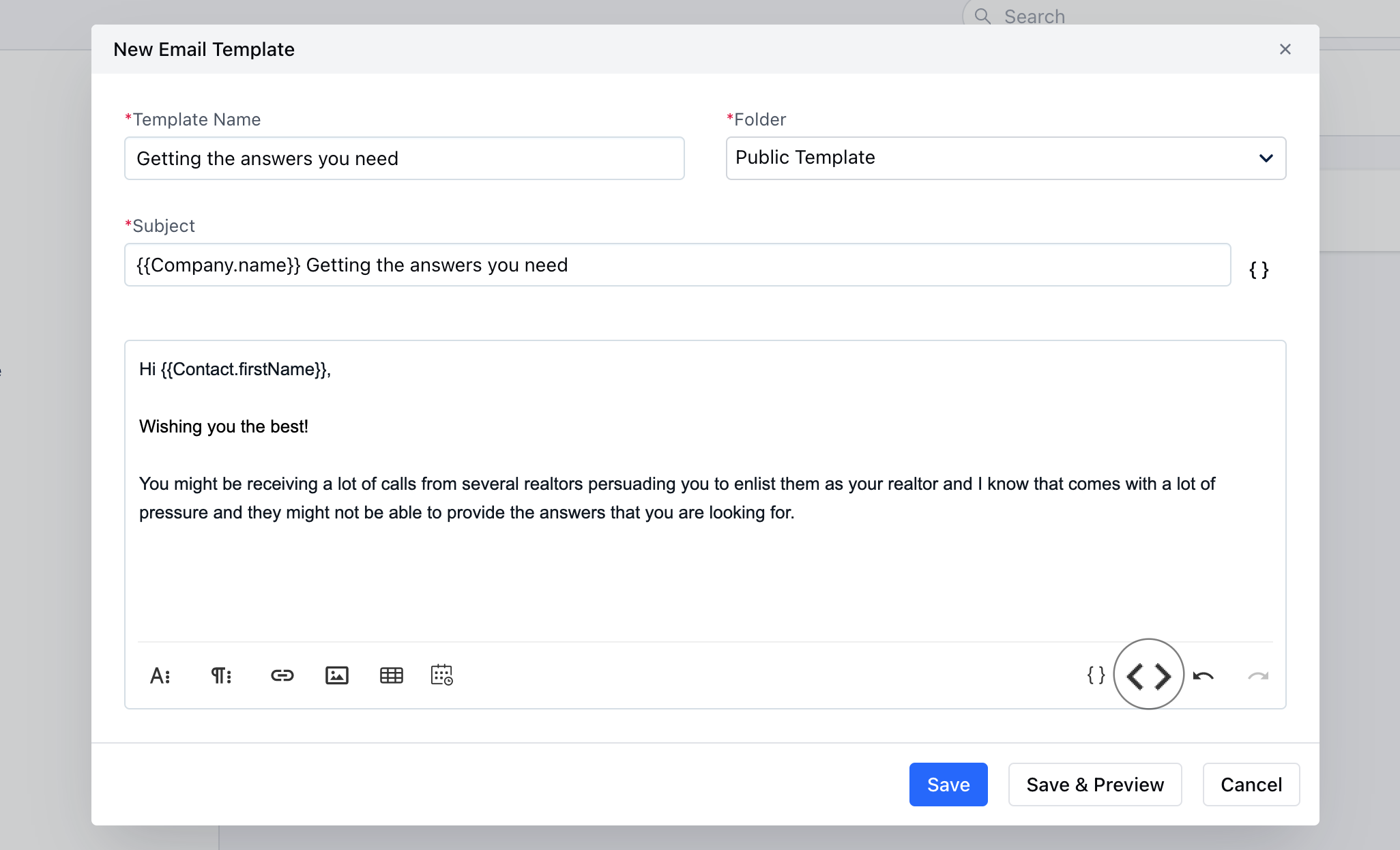
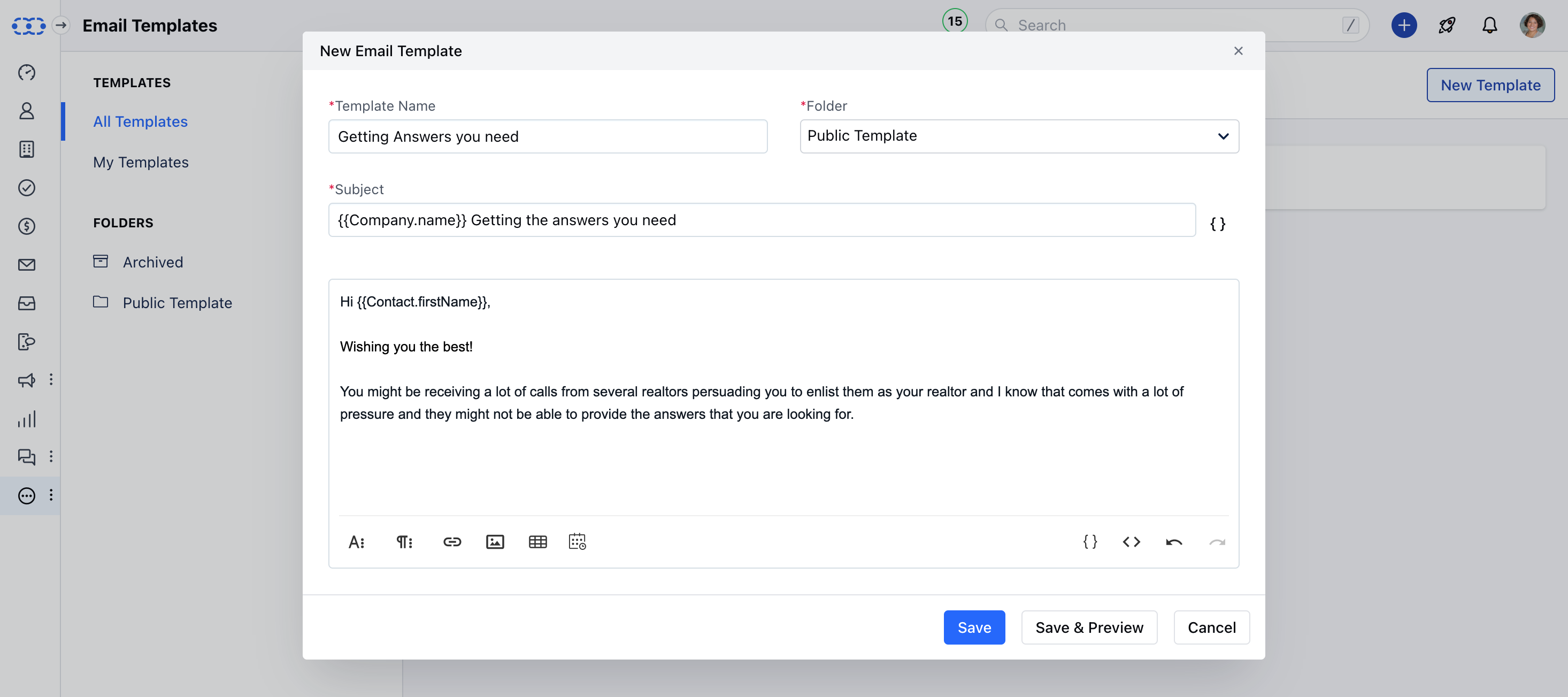
- Folder: Manage your email templates based on your requirement
- Subject: Add the purpose of the email
- Body: Add email content and use attributes to personalize the emails
Text Editor Options
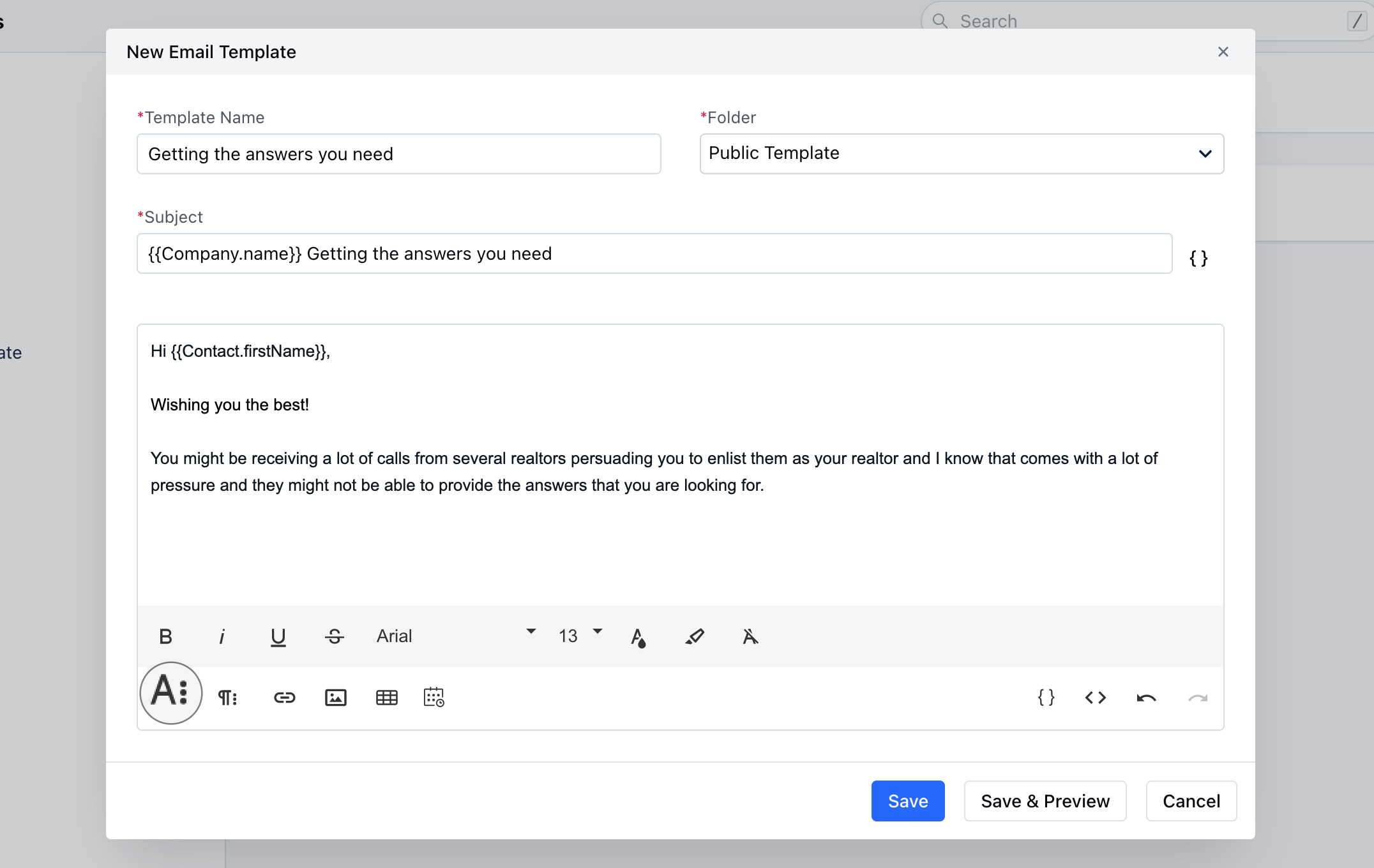
Use a different text editor option to customize the email content- More Text: With this option, you can customize the content by changing Font Style, Font Size, Font Family, Text color, and Background color. You can also Underline the Content,Use Strikethrough, and also Clear Formatting from here.
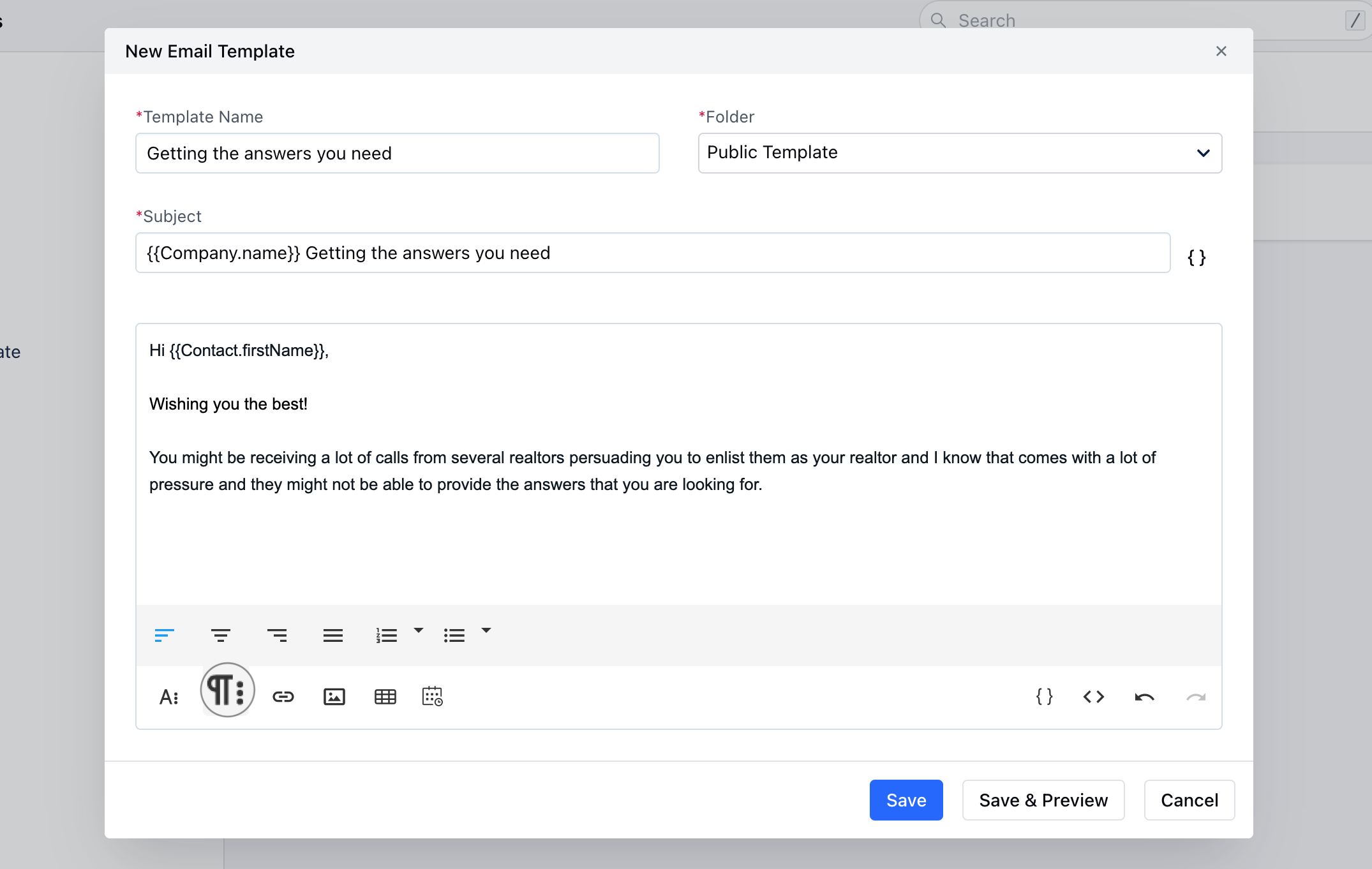
- More Paragraph: With this option, you can align the content to the Left, Right, or Center. Furthermore, you can also use the Order or Unorder List for alignment.
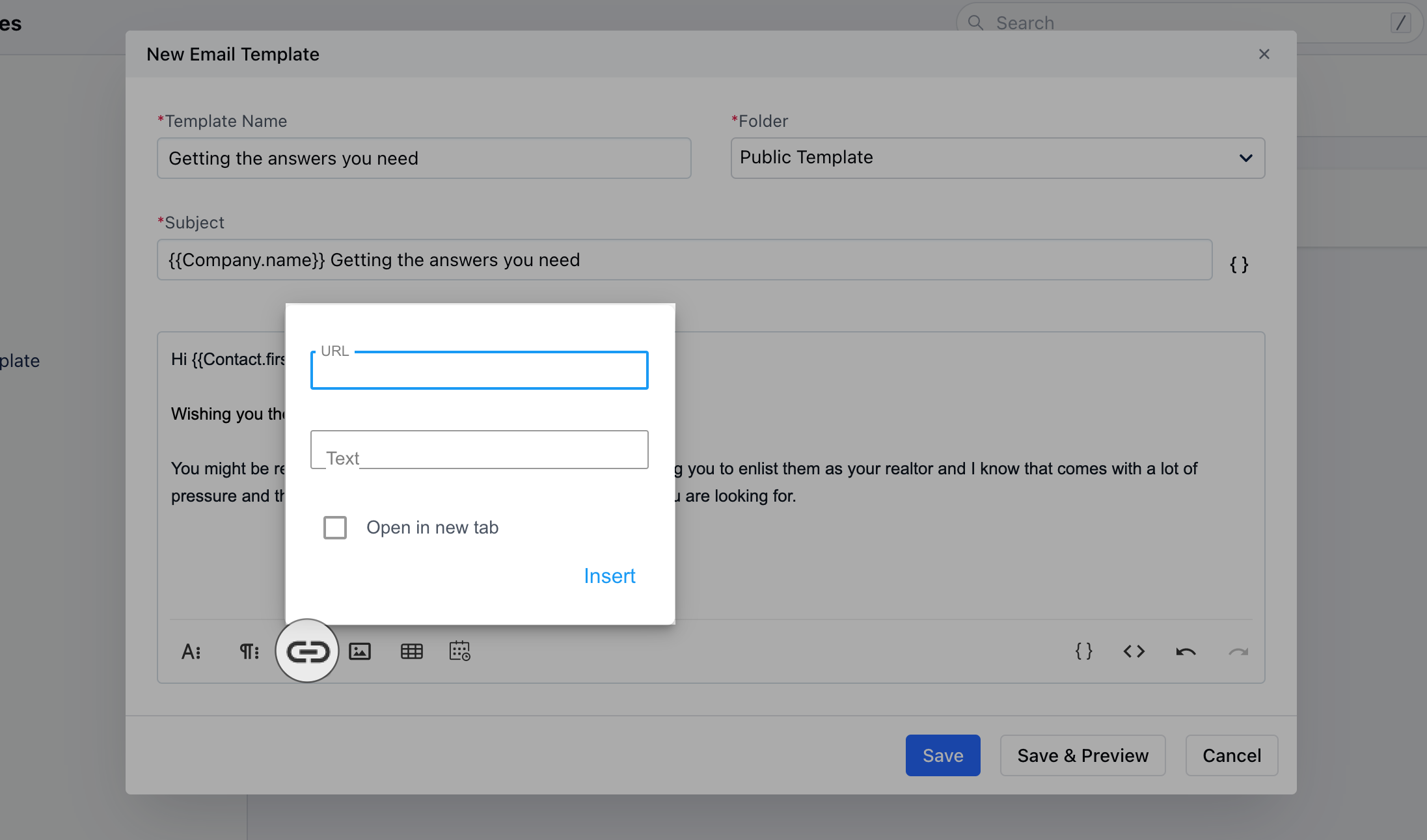
- Insert Link: This option allows you to add any links to your content.
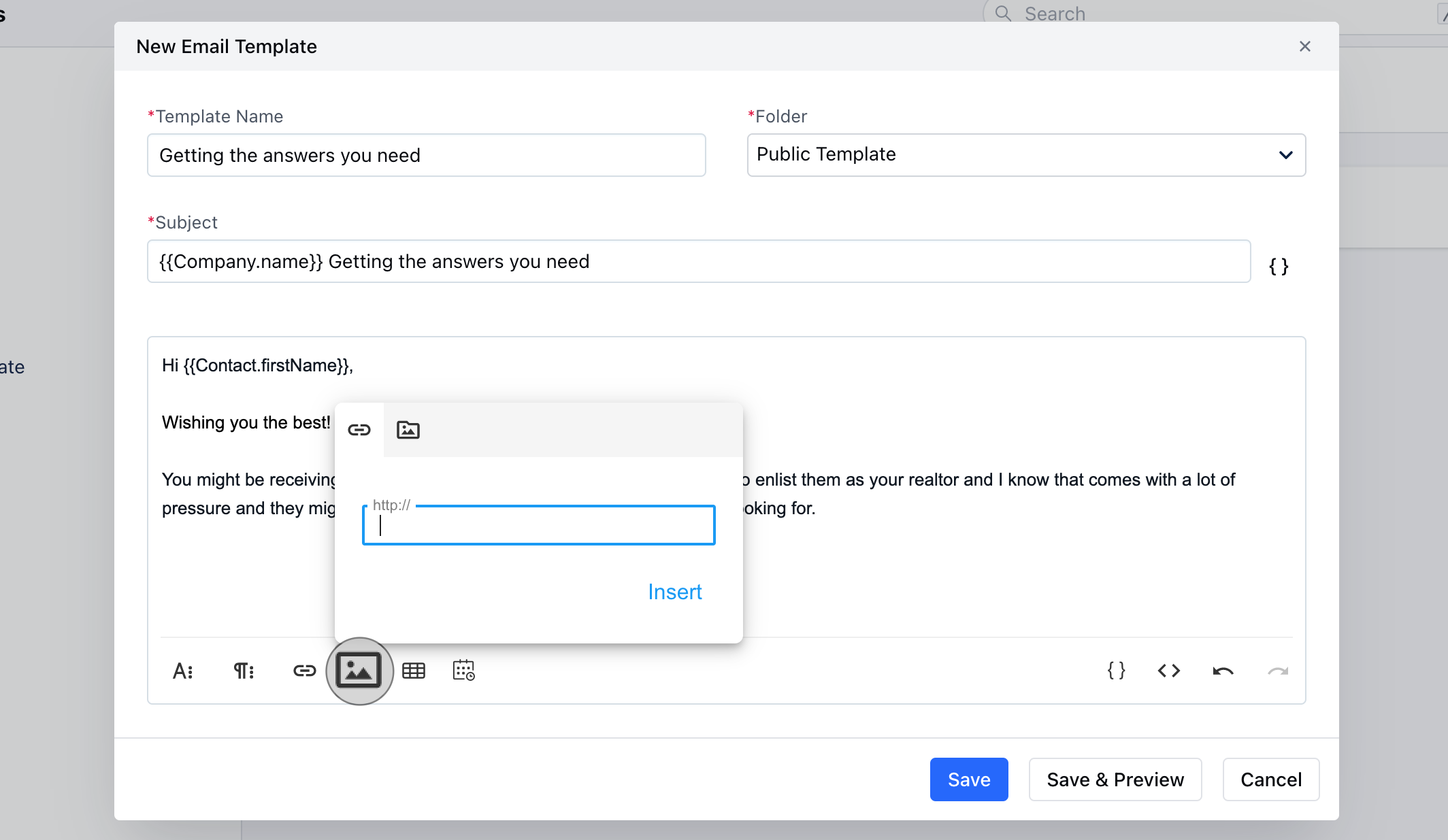
- Insert Image: This option allows you to add any image or gif to personalize your content by simply adding the links or using the Media Manager
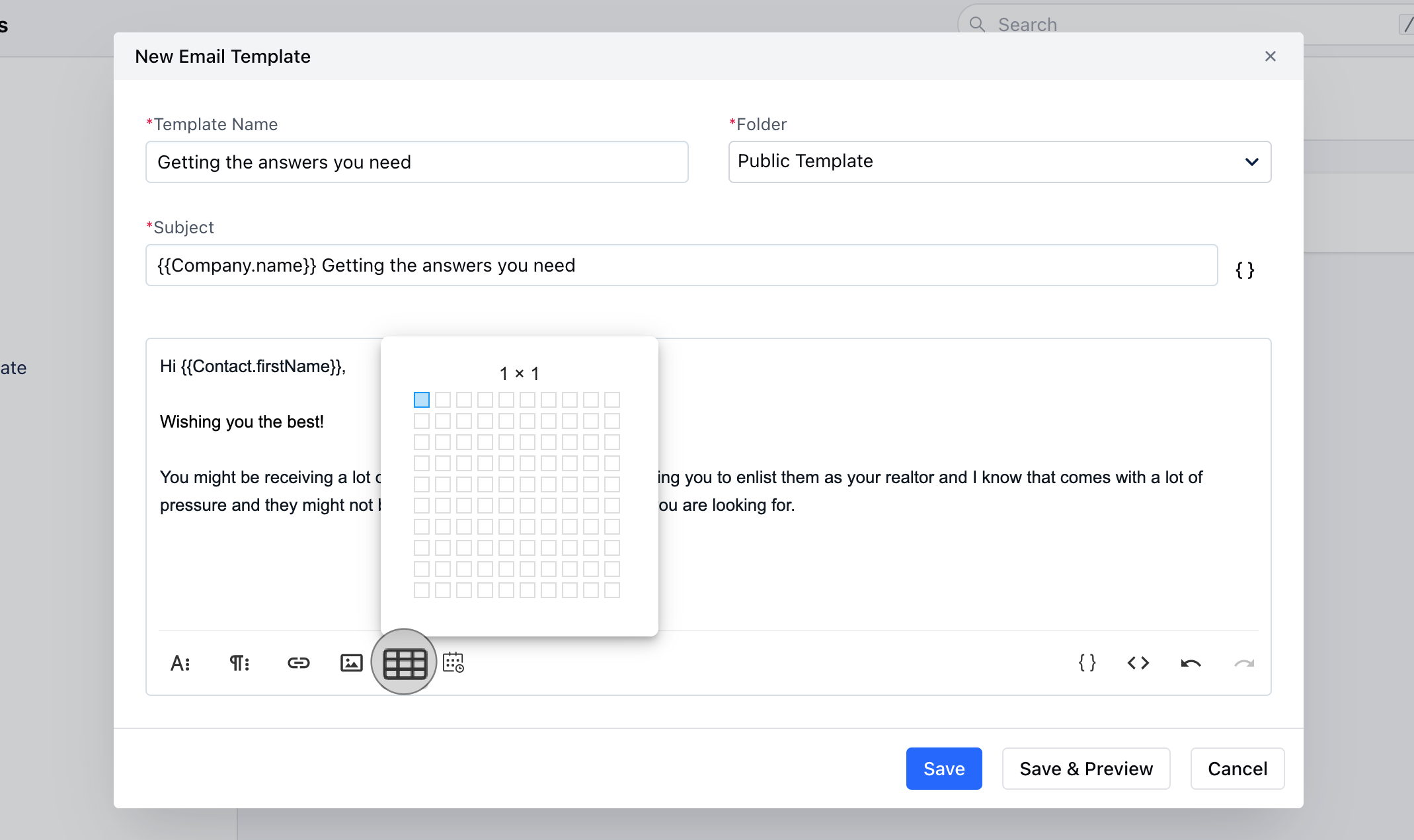
- Insert table: You can use this option to add content in table format.
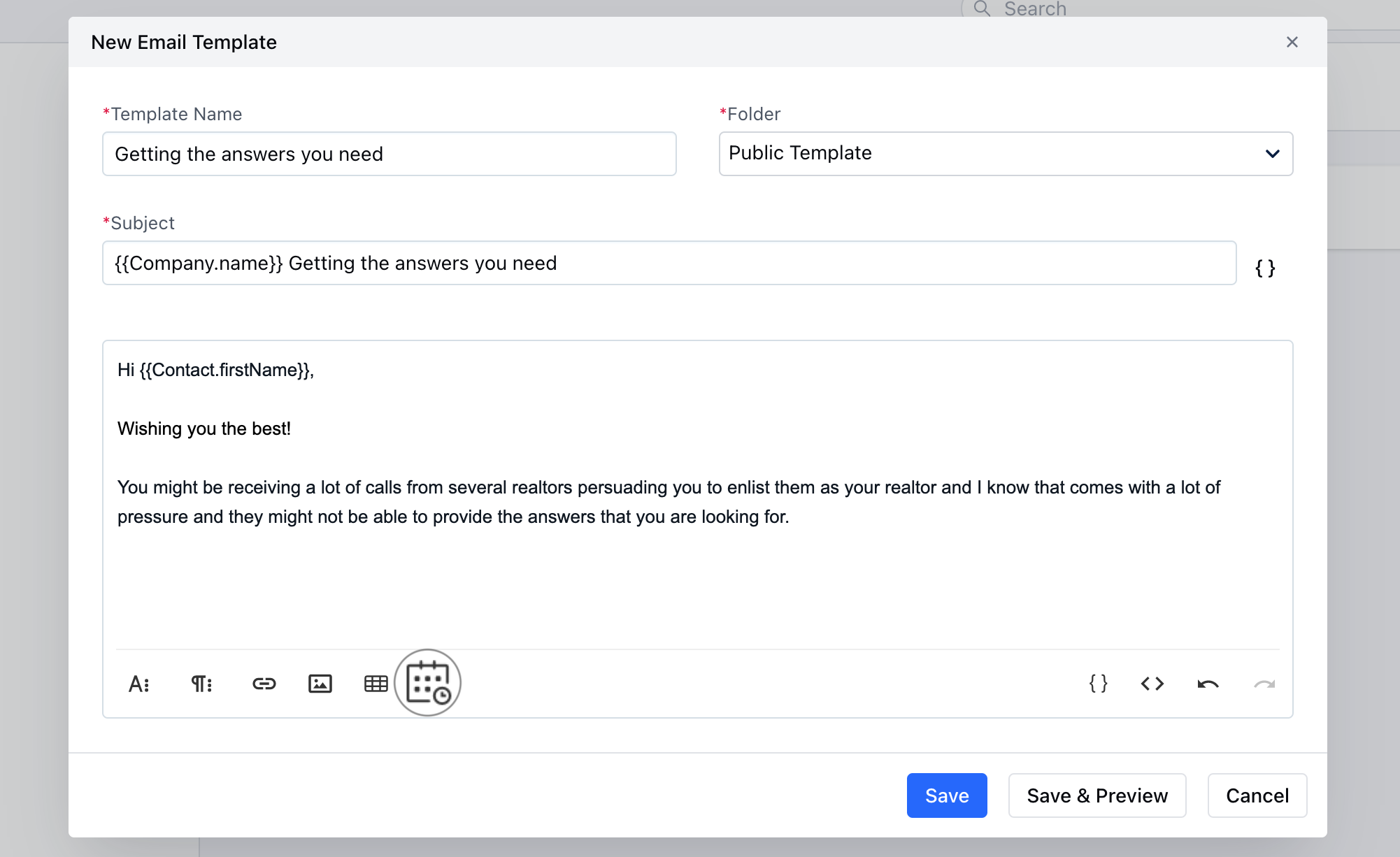
- Meeting Scheduler: With this option, you can add Meeting links to your content.
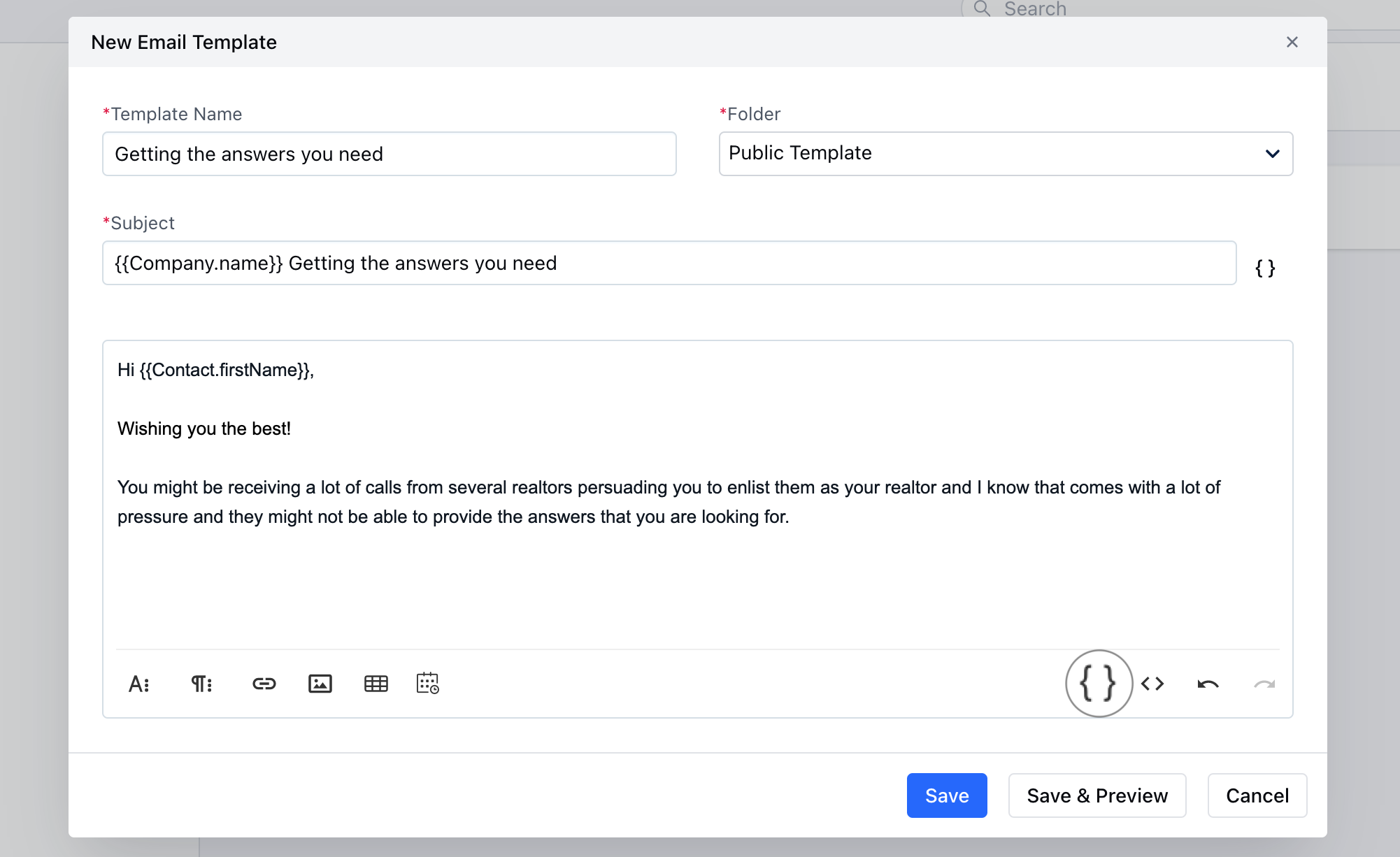
- Insert Attributes: Insert attributes to personalize your content
- Code View: View email in the HTML editor