

Topics covered:
- How to Access Article Settings
- Understanding Visitor and Contact Tabs
- Enabling the Articles Feature
- Configuring the Knowledge Base
How to Access Article Settings
- Navigate to Chat
- Click on Inbox Settings
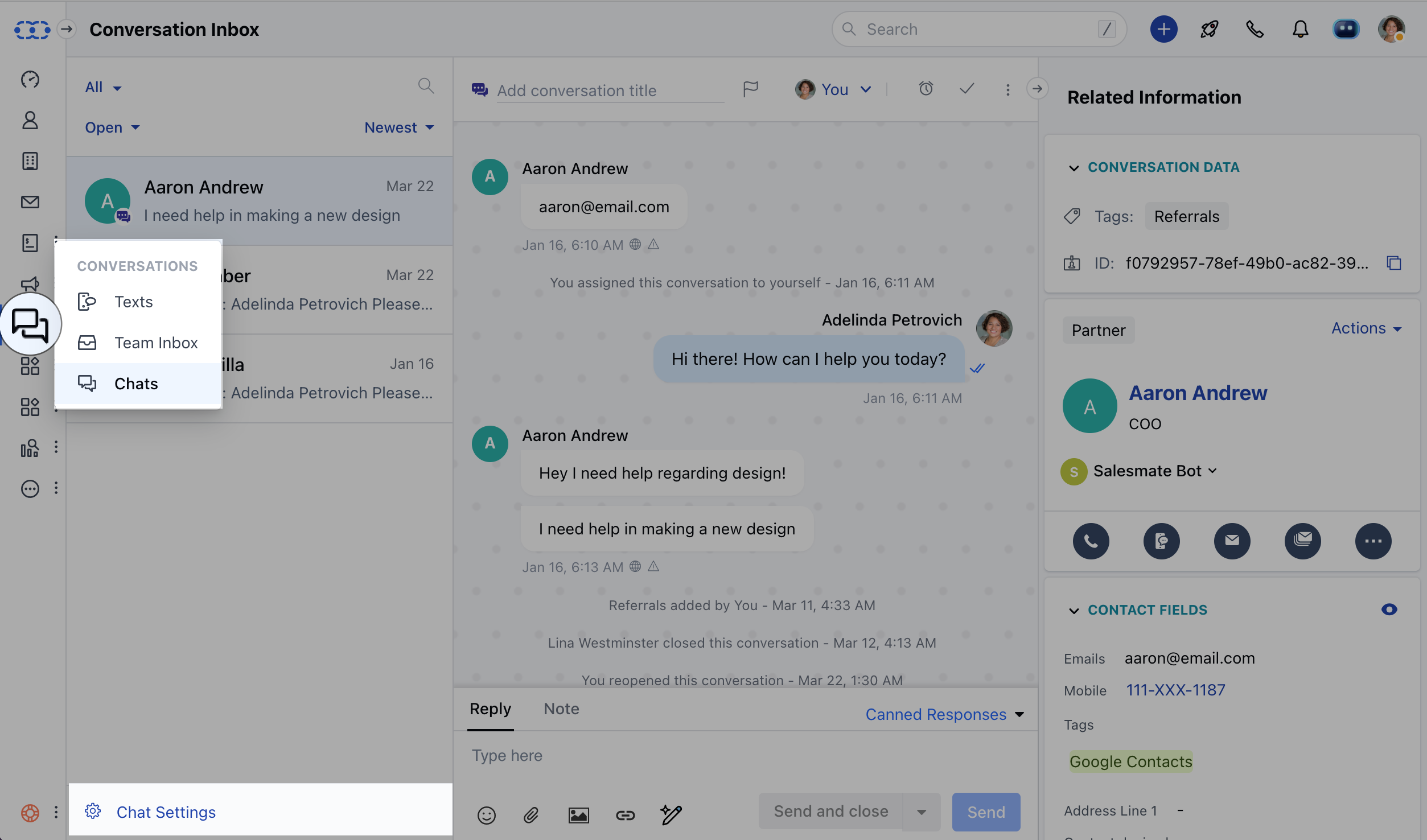
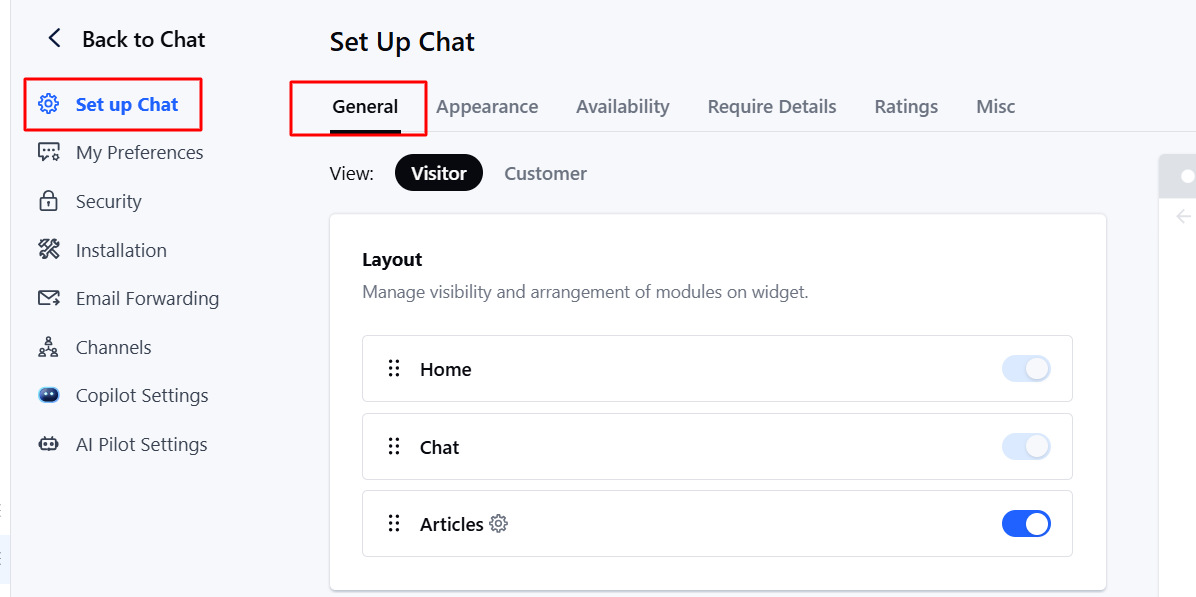
- Click Set up Chat
- Click on General Under Layout, you can manage the Article settings.
Enabling the Articles Feature
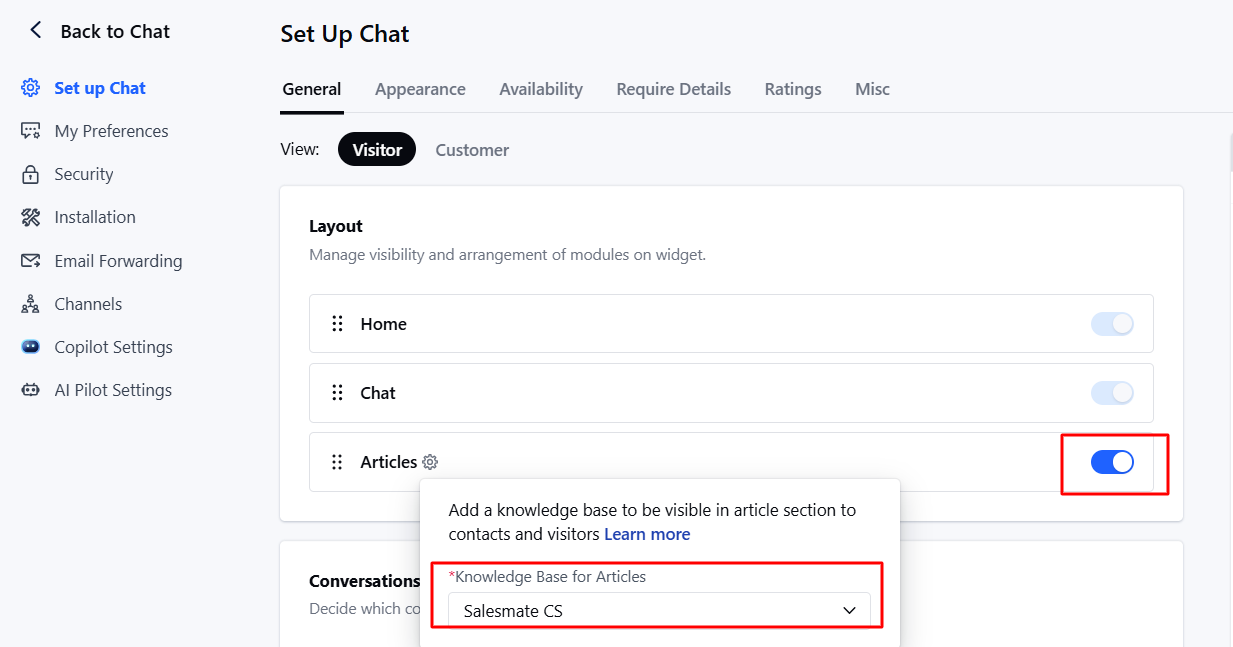
- Enable the toggle switch for “Articles” to make articles accessible in the chat widget.
- Click the gear icon next to Articles to select the appropriate Knowledge Base.
Configuring the Knowledge Base
- If no Knowledge Base exists: Click on the dropdown to create one. If you don’t, the option will be disabled automatically.
- If a Knowledge Base exists: If only one knowledge base is available, it will be selected by default.
- If multiple knowledge bases exist, the first one will be selected. _ If a knowledge base is already configured in Copilot settings, it will appear here by default. _ If none or multiple exist, the field will appear blank.
- Choosing a different Knowledge Base than Copilot’s: When you try to choose a different knowledge base than what is chosen under Copilot, you will see this message: “It seems you are using a different knowledge base for Copilot. Are you sure you don’t want to keep it the same”?
- Upon confirmation, the new selection will be saved. Otherwise, it will revert to the Copilot knowledge base.
Note: You will need “Manage Chat Settings” or “Manage Unified Inbox” permissions to update these settings.
- The Knowledge Base can be configured without enabling articles for the customer side in Messenger.
- The Home and Chat sections of the chat’s layout are always enabled, and they cannot be disabled.