

- Entire Article: Share the complete content of an article.
- Specific Section: Share a particular section or heading within the article.
Topics covered
Here’s what is covered in this article:- Setting Up the Knowledge Base for Chat
- Searching for an Article to Share
- Inserting the Article into Chat
- How the Article Appears in Chat
- Practical Use Case
Setting Up the Knowledge Base for Chat
Before sharing articles, it’s necessary to configure the Knowledge Base in chat settings.- Go to Chat.
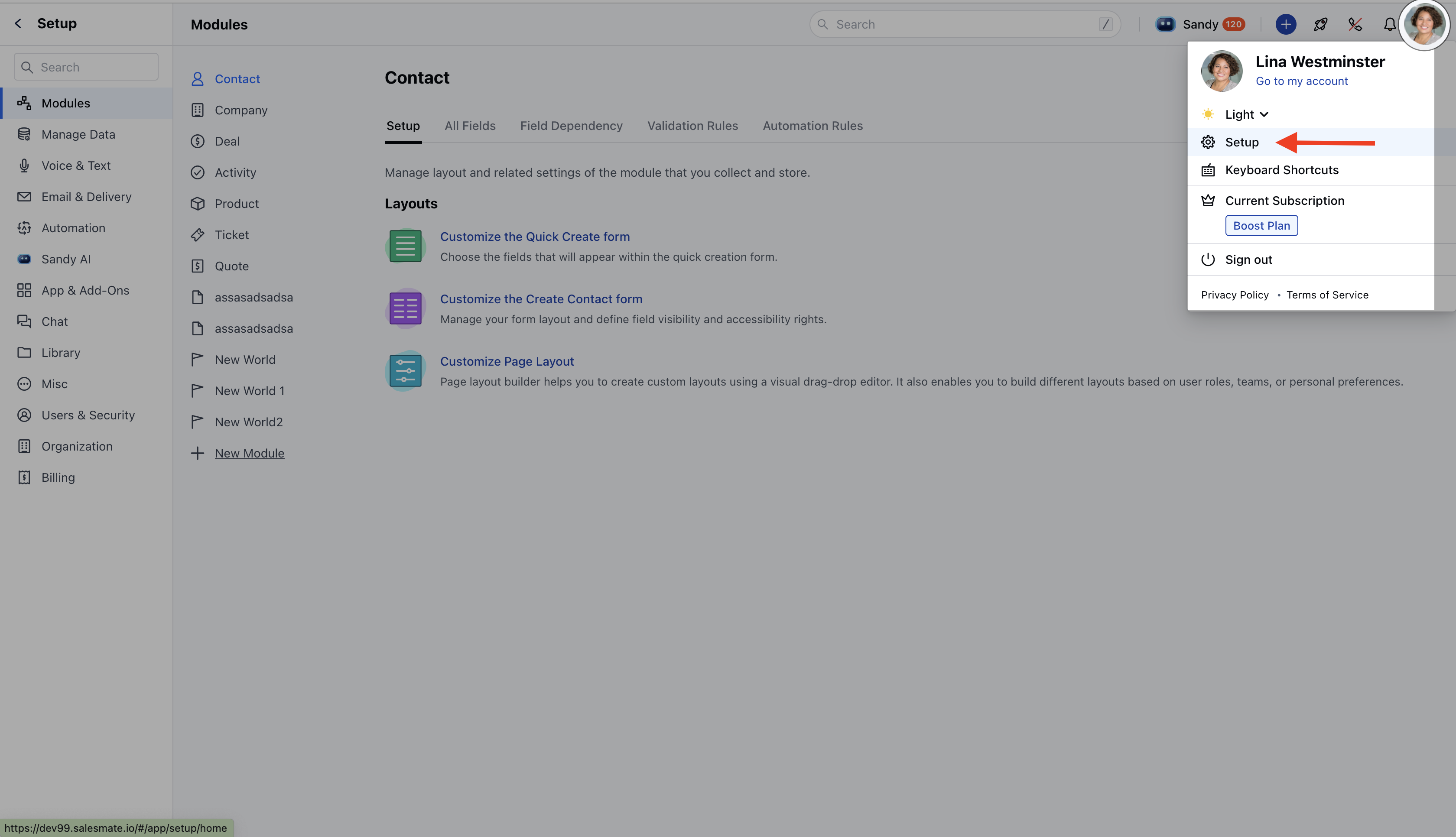
- Click Chat Settings or head to the profile icon at the top-right and click Set up.
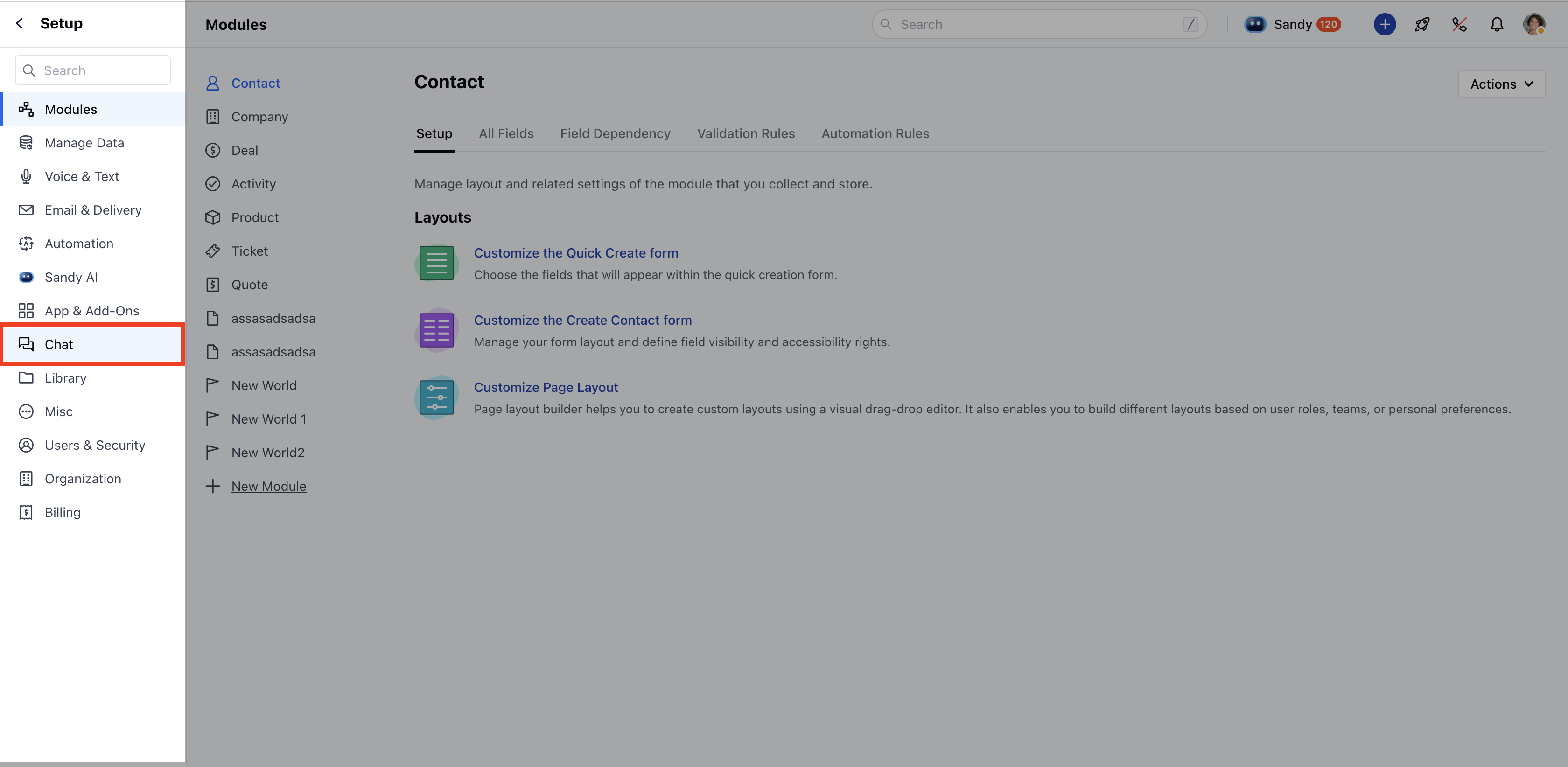
- Head to Set up Chat.
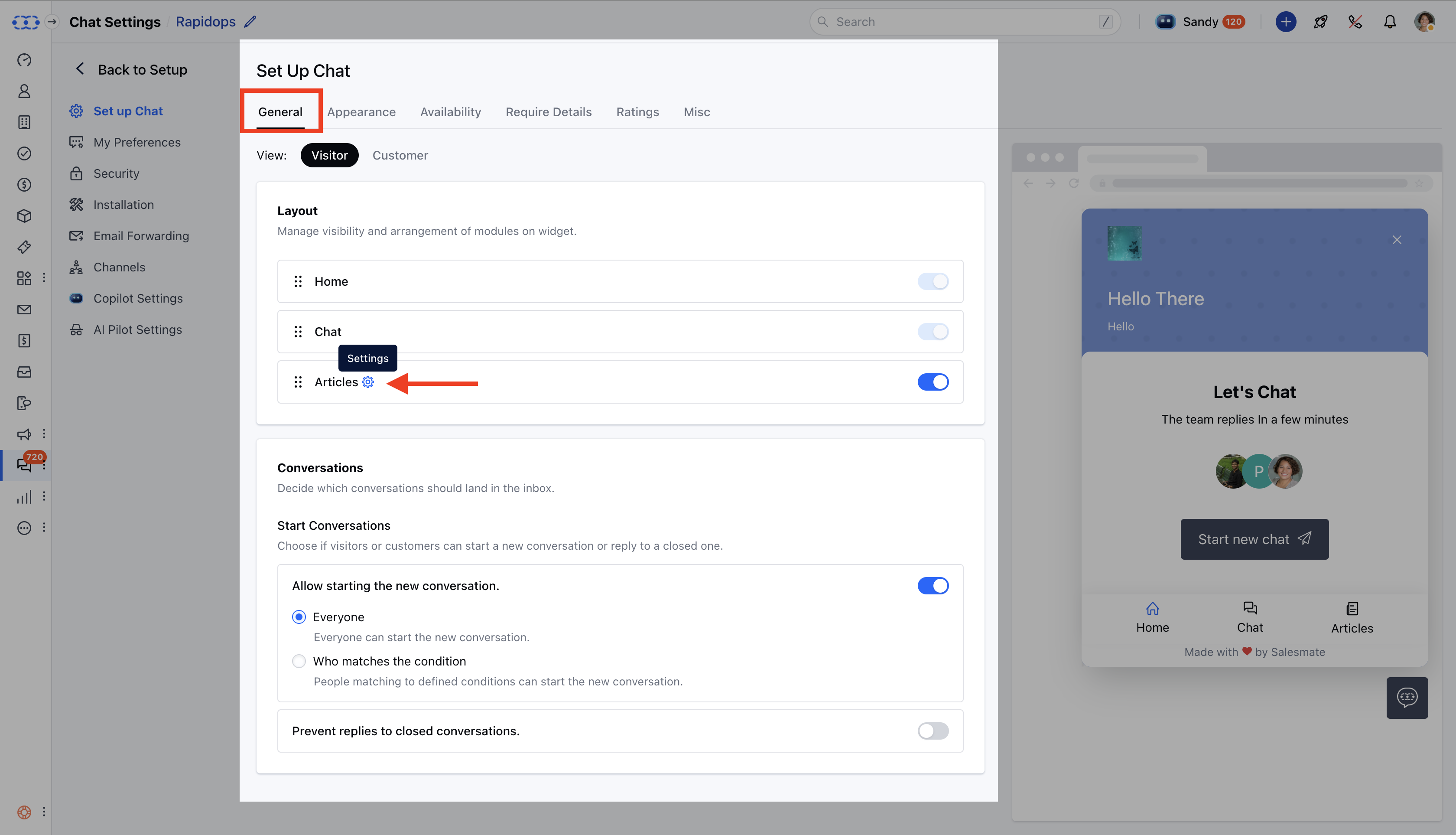
- Under General → Layout, click on the settings icon beside Articles.
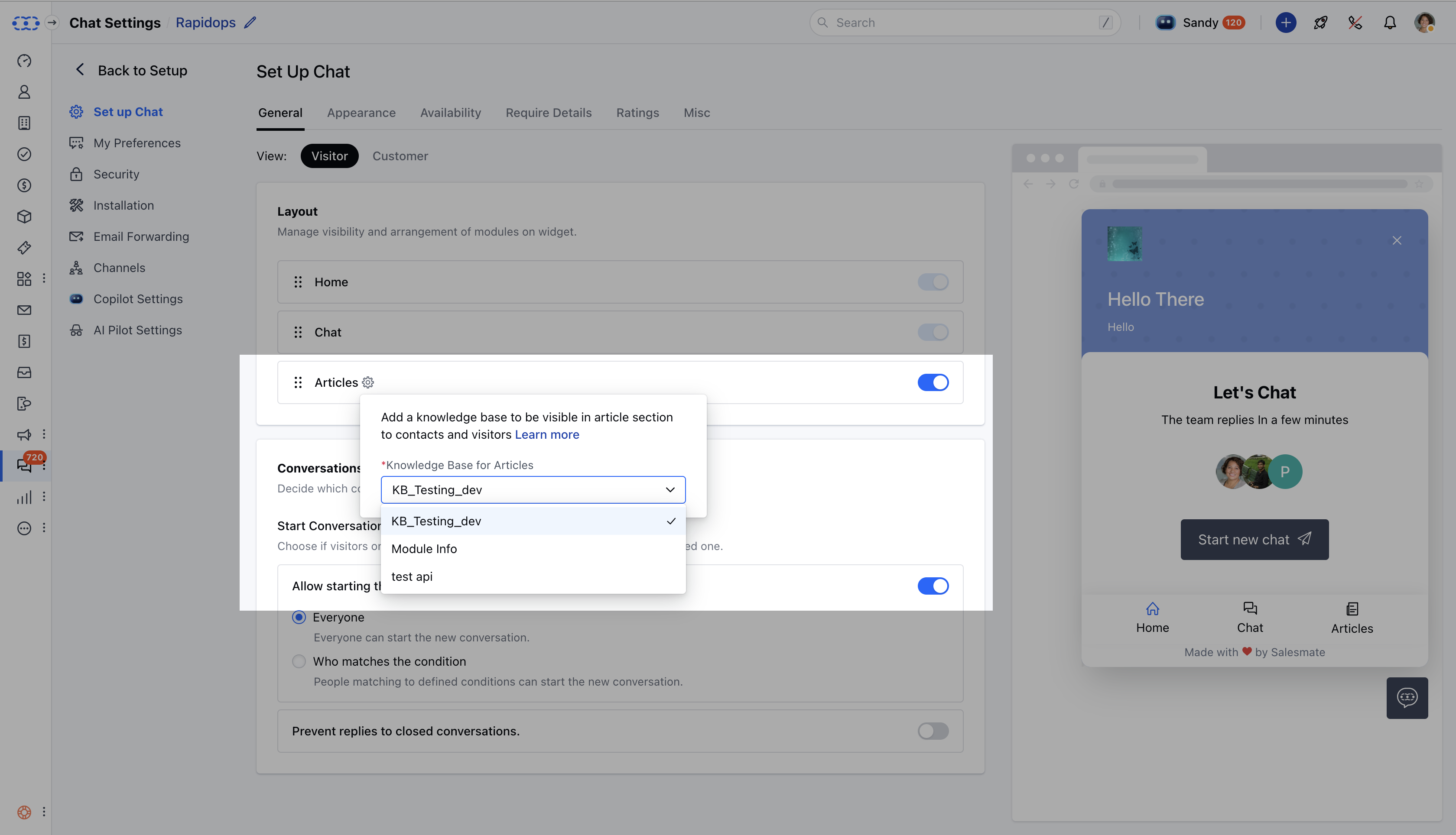
- The articles available to share come from the Knowledge Base selected in the Articles layout settings.
- Upon clicking settings, if you do not have a Knowledge Base configured, a popup will appear prompting you to Configure Now.
Searching for an Article to Share
- You can insert articles from the selected Knowledge Base in Setup Chat during a conversation.
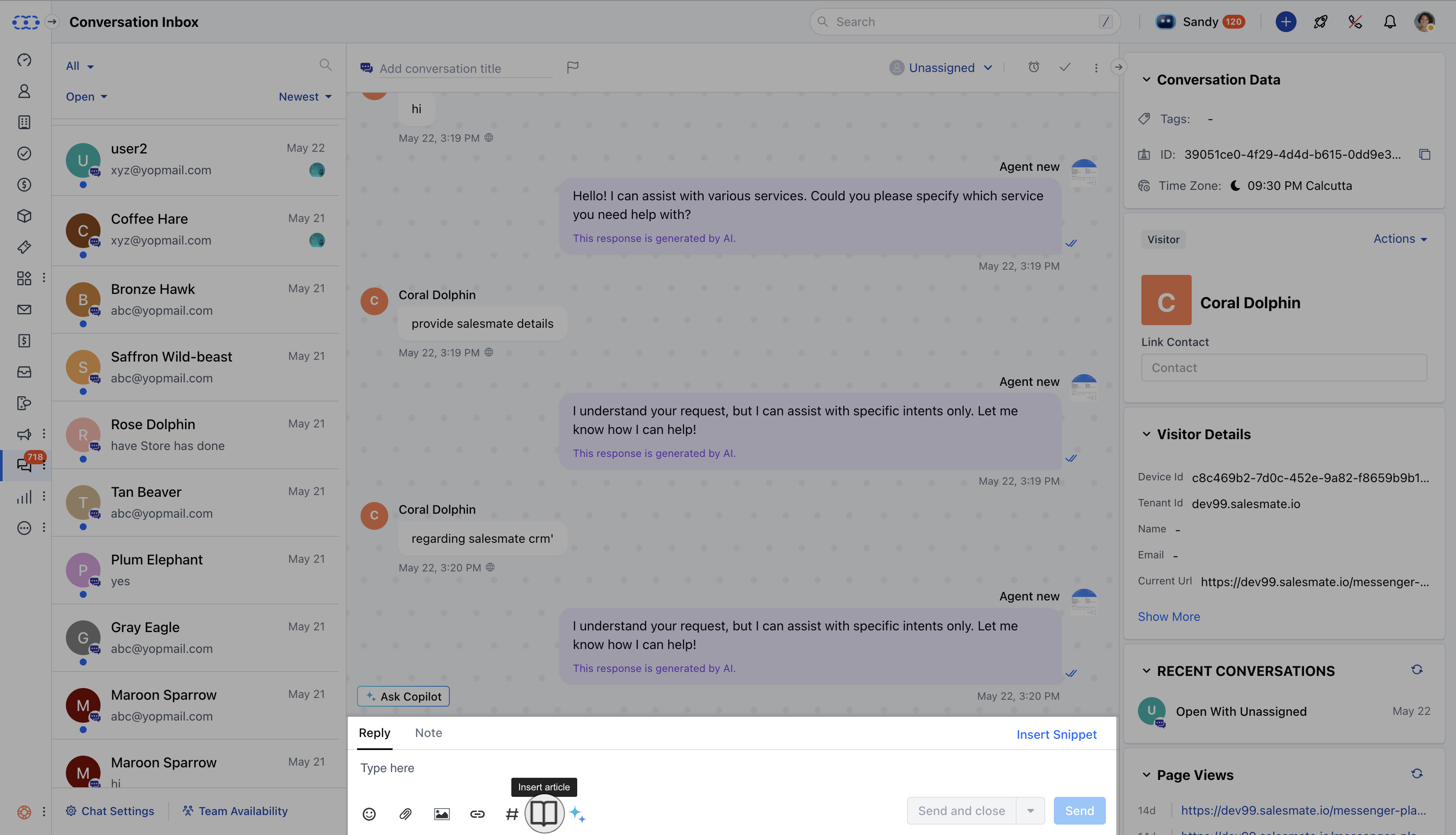
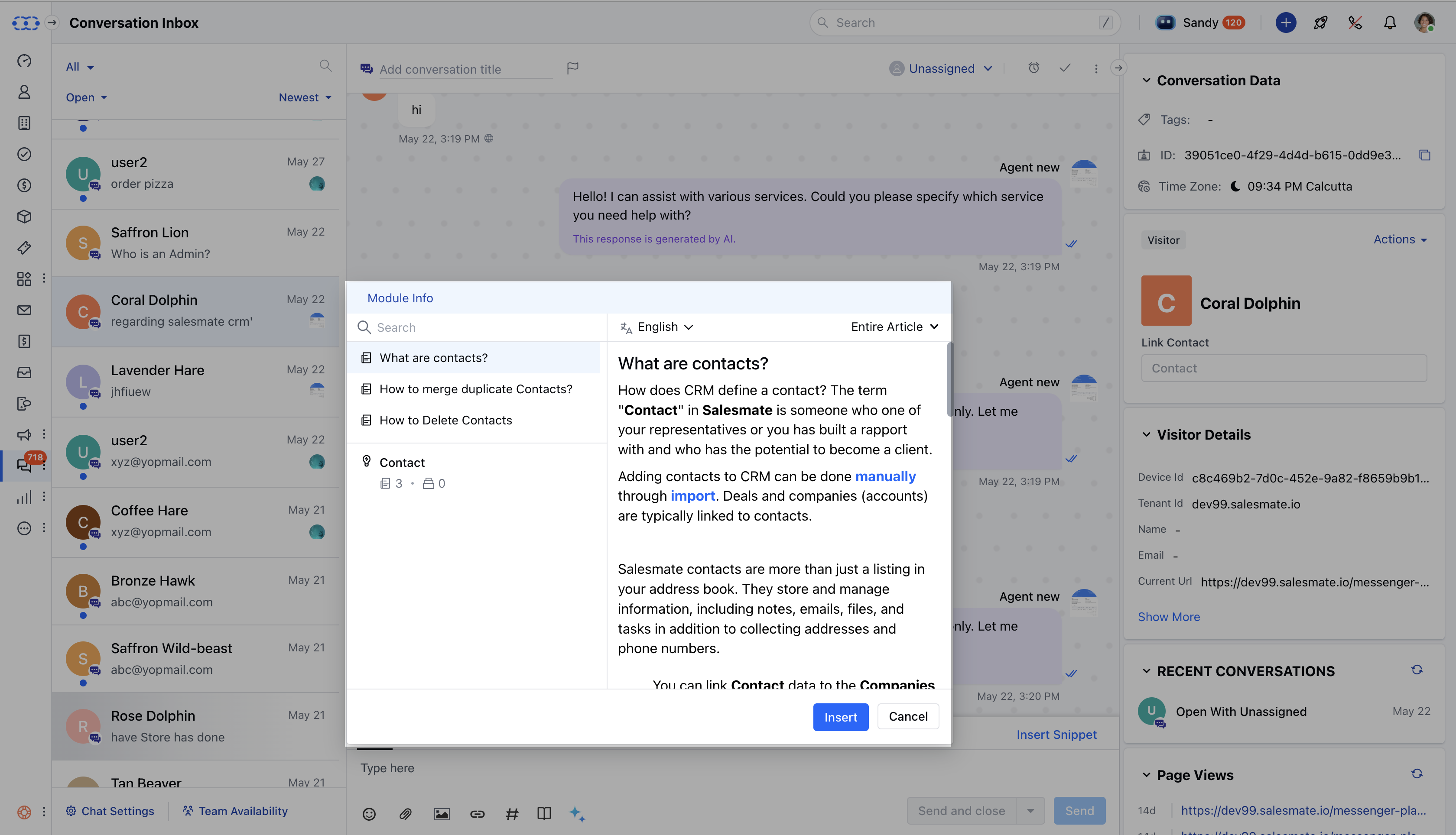
- Enter the article name into the search bar.
- Click on the desired article to open its preview.
Inserting the Article into Chat
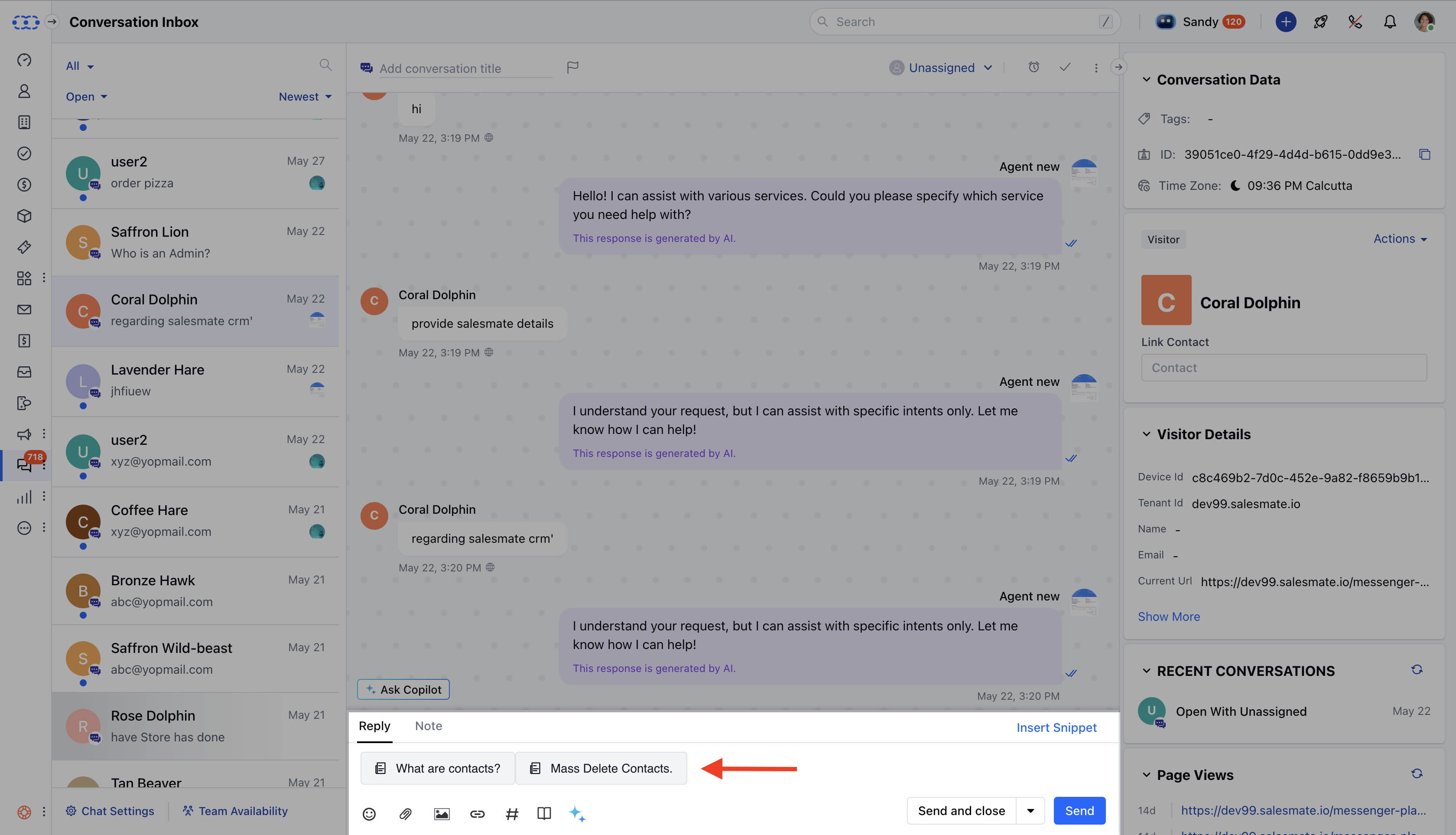
- Click the Insert button or press Enter/Return to add the article into the chat editor.
- If the entire article is selected, the article title will be displayed in the article card.
- If a specific heading is selected, that heading will be highlighted in the article card.
How the Article Appears in Chat
When a visitor or customer clicks on the article link:- The article will open in Messenger, even if the Article Section is disabled in the Messenger layout.
- If the article is deleted or archived, an error alert will appear:
“Article not found. Please check the knowledge base to ensure it is not archived or deleted.” - If the user lacks permission to view articles, the sharing option will be disabled with the message:
“You don’t have permission to view articles.” - If the Article Section is not enabled in the Messenger layout, the option to share articles will not be available in the chat editor.