

Topics covered:
- How to Set Up Copilot
- Default Availability in Channels
- Default Answer Tone
- Default Answer Length
- Knowledge Base
- Use Past Conversations
- Use Closed Tickets
How to Set Up Copilot
Follow the steps below to configure Copilot for your chat channels:- Access Copilot Settings
- Go to Setup
- Click on Chat Settings > Copilot Settings
- Select a Workspace
- Choose the Workspace where you want Copilot to be active.
Once you’re in the Copilot settings for your chosen workspace, you can customize the following:
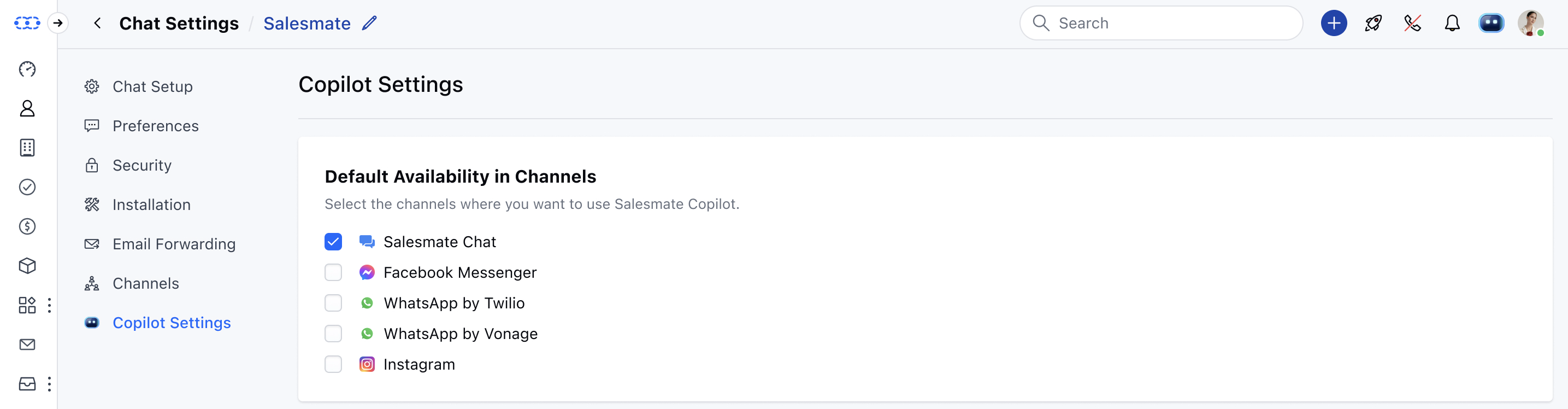
Default Availability in Channels
Select the channels where you want Copilot to be active:- Salesmate Chat
- Facebook Messenger
- WhatsApp by Twilio
- WhatsApp by Vonage
- Instagram Note: If only one channel exists in your account, this option won’t be shown. If you don’t select any channels, Copilot will not be active anywhere.
Default Answer Tone
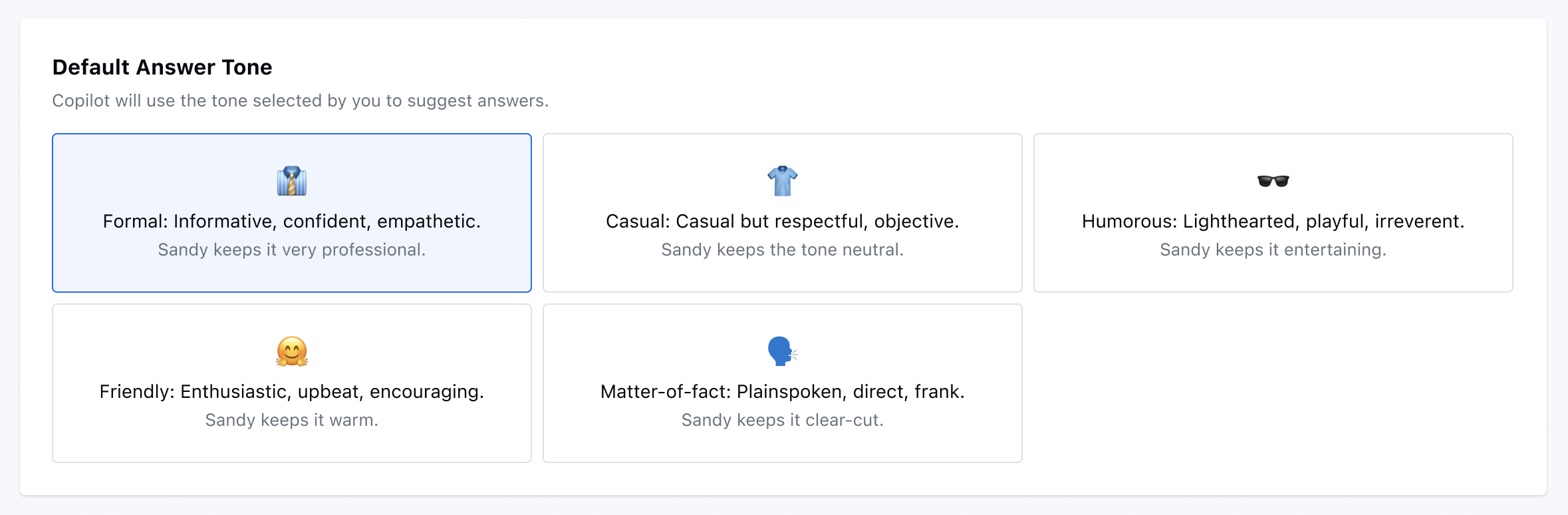
Choose the tone in which Copilot responds to customers:**Formal ** (default) – Professional tone- Casual– Relaxed yet respectful
- Humorous– Playful and witty
- Friendly– Warm and enthusiastic
- Direct– Straight to the point
Default Answer Length
Set how detailed Copilot’s responses should be:- Concise – Short and to the point
- Standard (default) – A balanced response
- Descriptive – Detailed and comprehensive

Knowledge Base
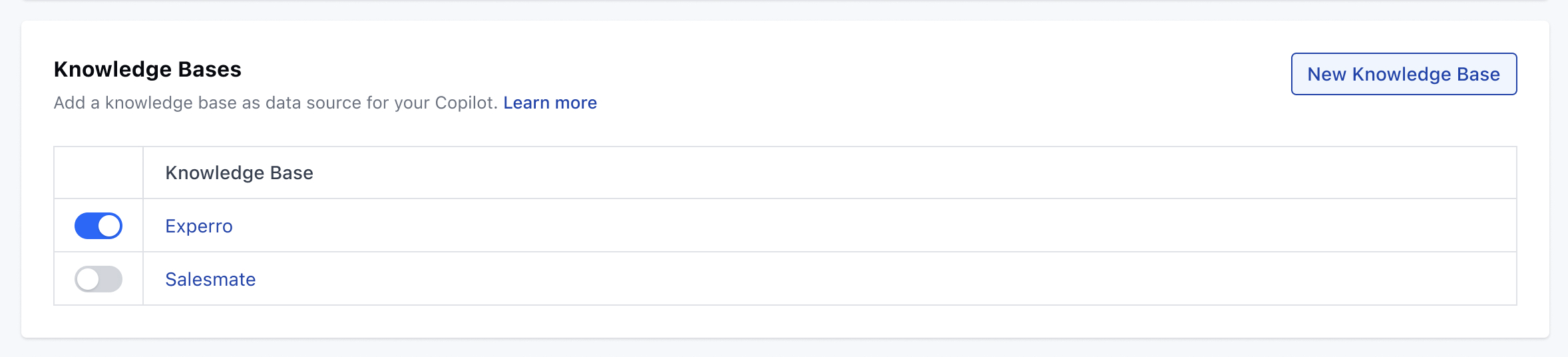
Connect one or more Knowledge Bases as data sources:- Optional, but at least one is required to enable Copilot fully.
- If you’ve already set up a KB for Chat, it will be pre-selected here.
- If you choose a different KB than what’s shown in Chat, a confirmation message will appear: _“It seems you are displaying a different knowledge base in Chat. Are you sure you don’t want to keep it the same?” _
- Don’t have a knowledge base yet? Click New Knowledge Base to create one.
Use Past Conversations
Let Copilot learn from previously closed conversations:- Requires at least one Knowledge Base to be enabled first.
- You can choose to use: All past conversations, or Conversations assigned to specific users or teams
- Only conversations closed within the past 90 days are considered.
- New conversations are added daily; older ones are removed automatically.
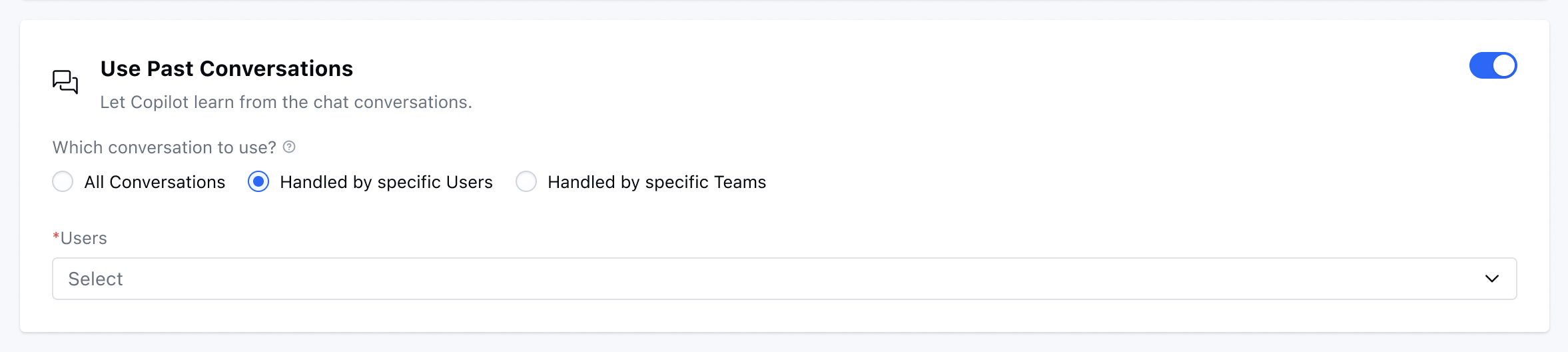
- Note: If no KB is enabled, you’ll see: “Please enable at least one knowledge base to use conversations.”
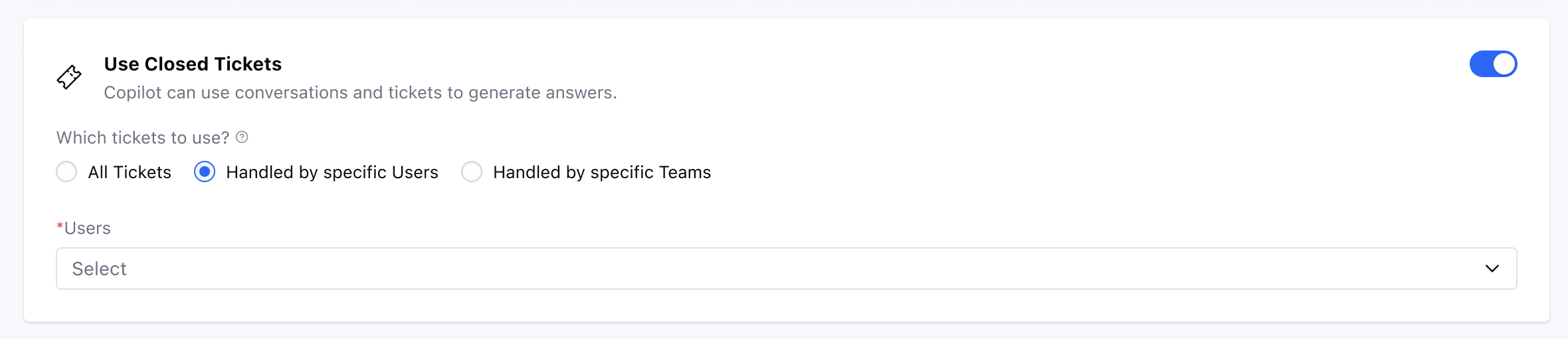
Use Closed Tickets
Allow Copilot to reference past support tickets:- Requires a Knowledge Base to be enabled.
- Choose between: All closed tickets, or Tickets assigned to specific users or teams Only tickets from the last 90 days are included.
- The system checks and updates this data daily.
- Note: If no KB is enabled, you’ll see: “Please enable at least one knowledge base to use conversations.”
Important Notes:
- All changes made in Copilot Settings are saved automatically — no need to hit “Save.”
- Copilot trains itself automatically on all published articles.
- If no published content exists, Copilot may not return any suggestions.
- Make sure at least one Knowledge Base is enabled to use full Copilot functionality.
- Copilot only analyzes closed conversations and tickets from the past 90 days .
- You can always revisit this setup to tweak tones, channels, or data sources as your needs evolve.