

Steps to Import Articles
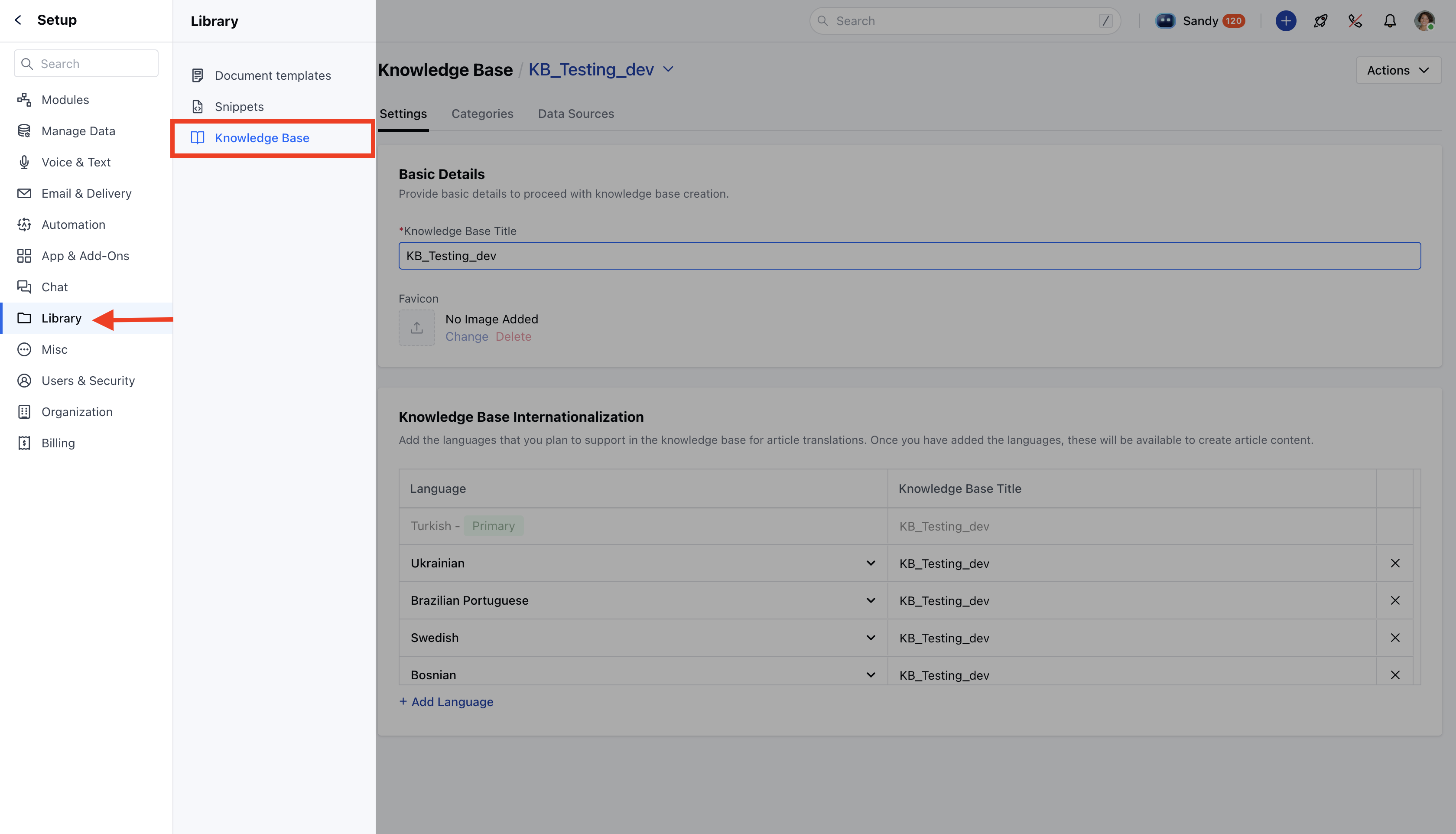
- Navigate to the Knowledge Base section from Setup.
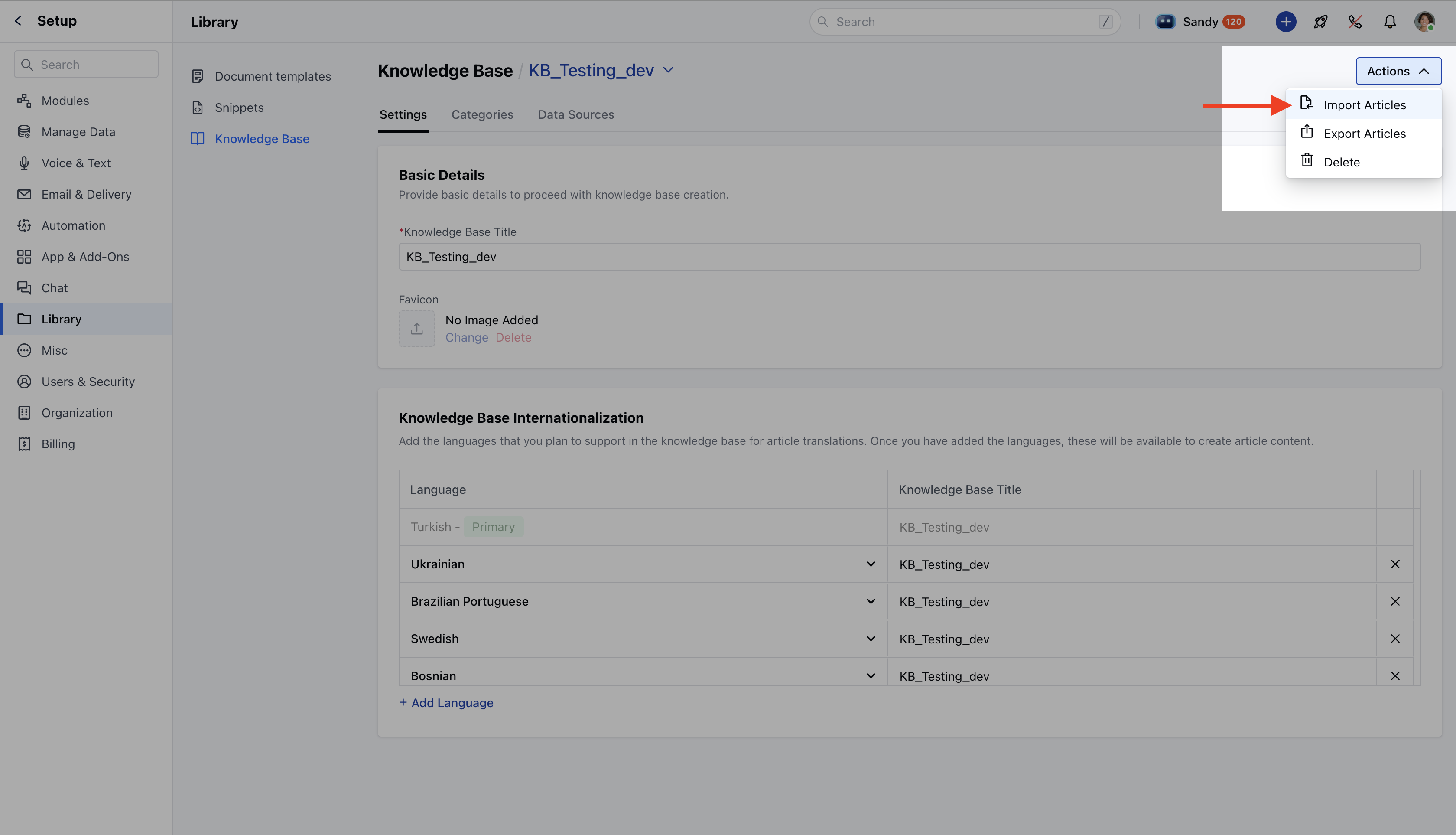
- Click on the Actions button and select “Import Articles from Excel or CSV file”.
- You will be redirected to a screen where you select the module to import.
- The Articles module will be selected by default, and other modules will be disabled during this import.
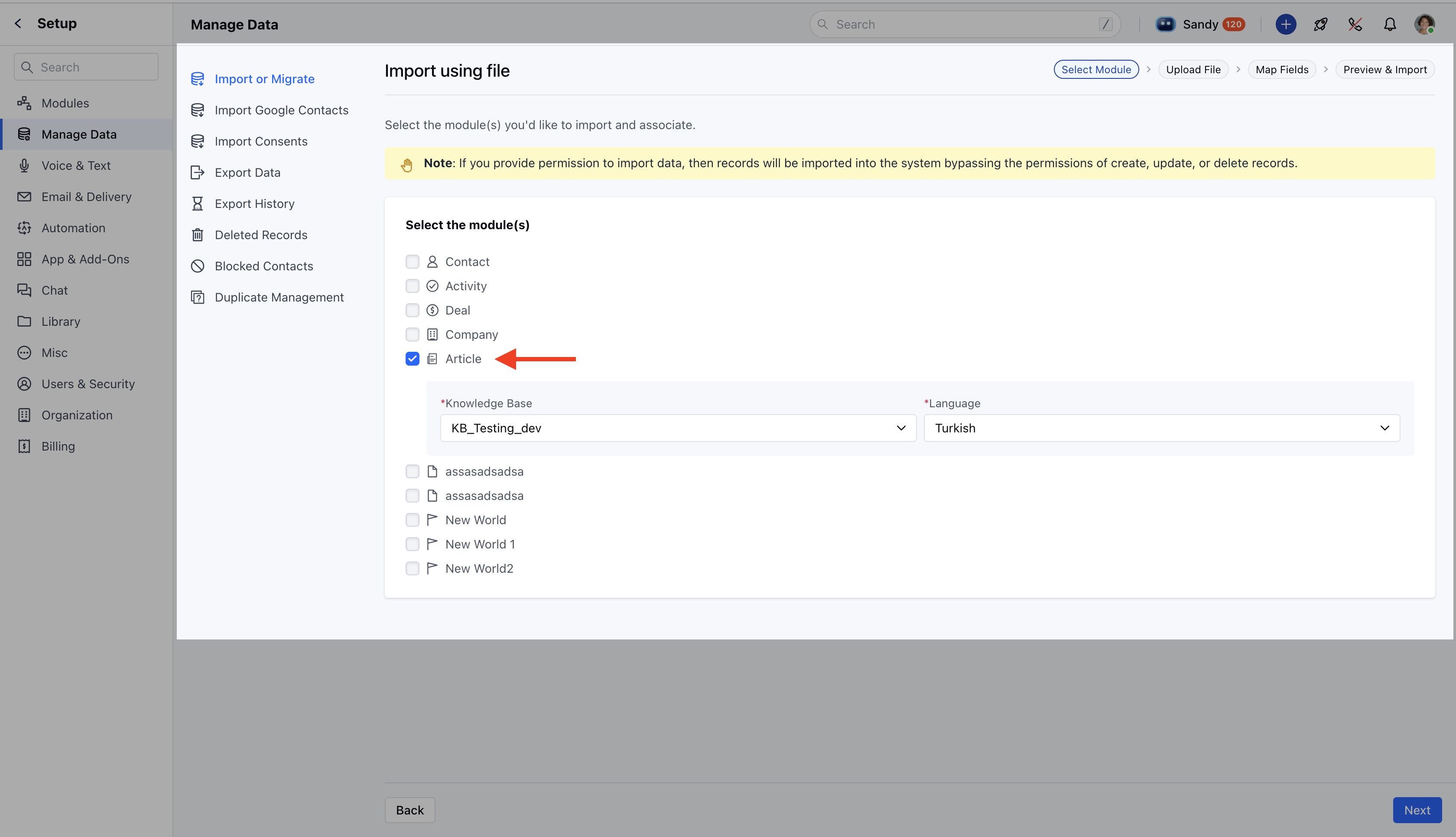
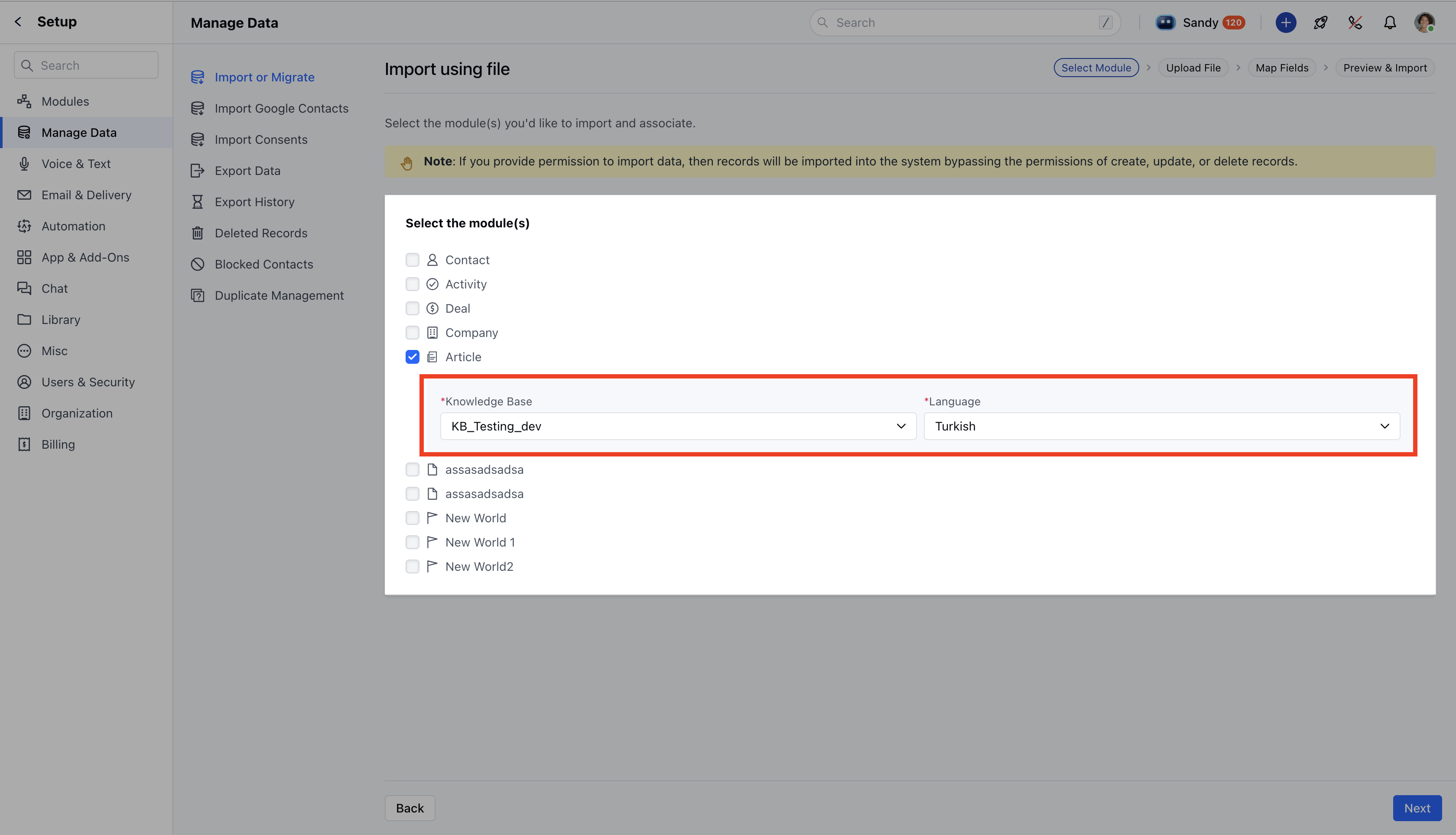
- If there are multiple knowledge bases, you will be able to select one. The default selection will be the knowledge base from which you came.
- Choose the language for the articles you are importing. If only one language is available, it will be pre-selected and shown as disabled. For multiple languages, the default will be the primary language .
- Click on Next to upload the CSV file containing the articles you want to import.
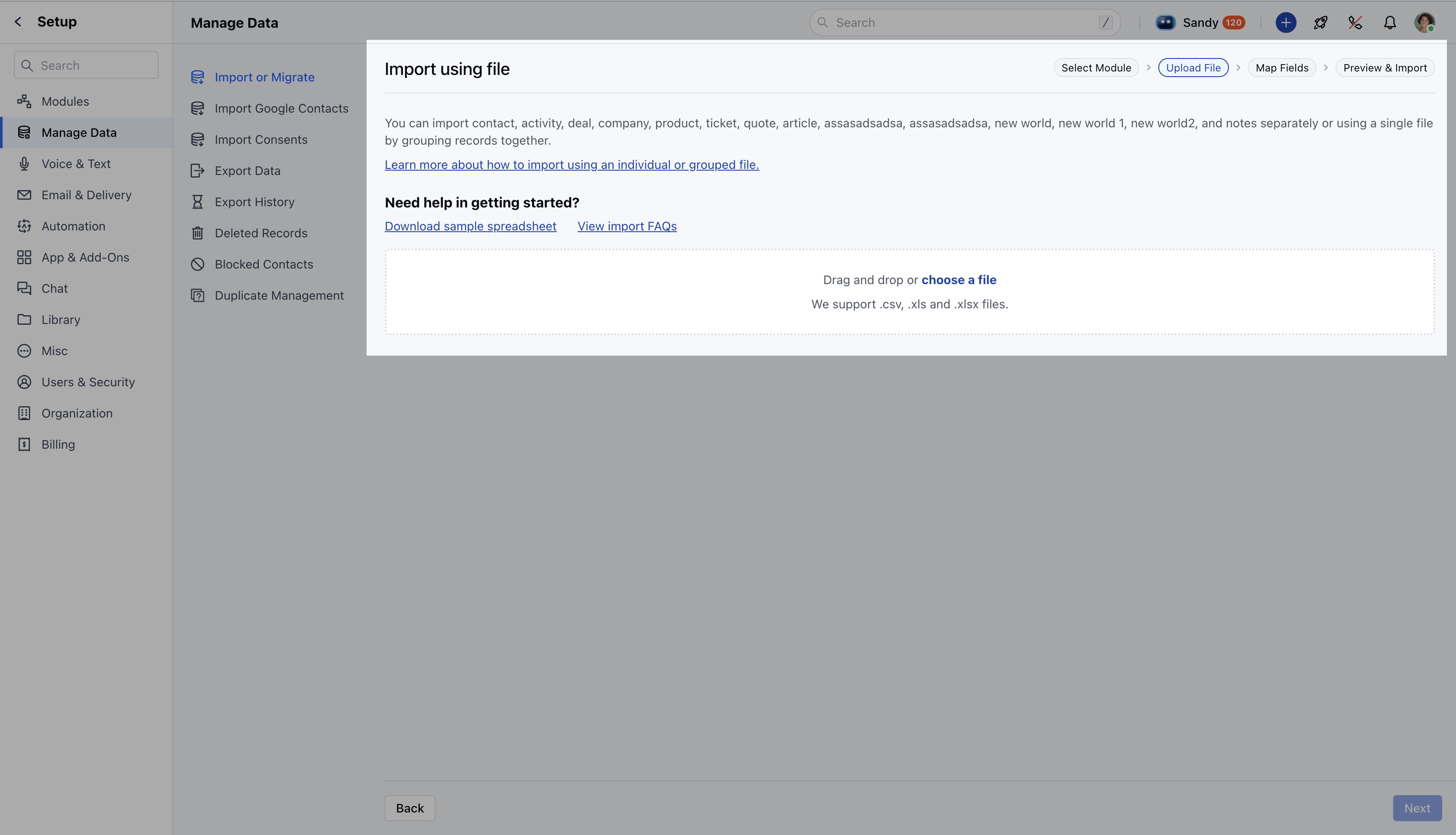
- If any required columns are missing from the CSV file, an error will appear**:** “The file is missing some required values. Review sample file.”
- Click on Next to map the columns from your CSV file to the corresponding fields in the knowledge base.
- The fields Slug, Title,Category, and Body are the required fields that you will need to map.
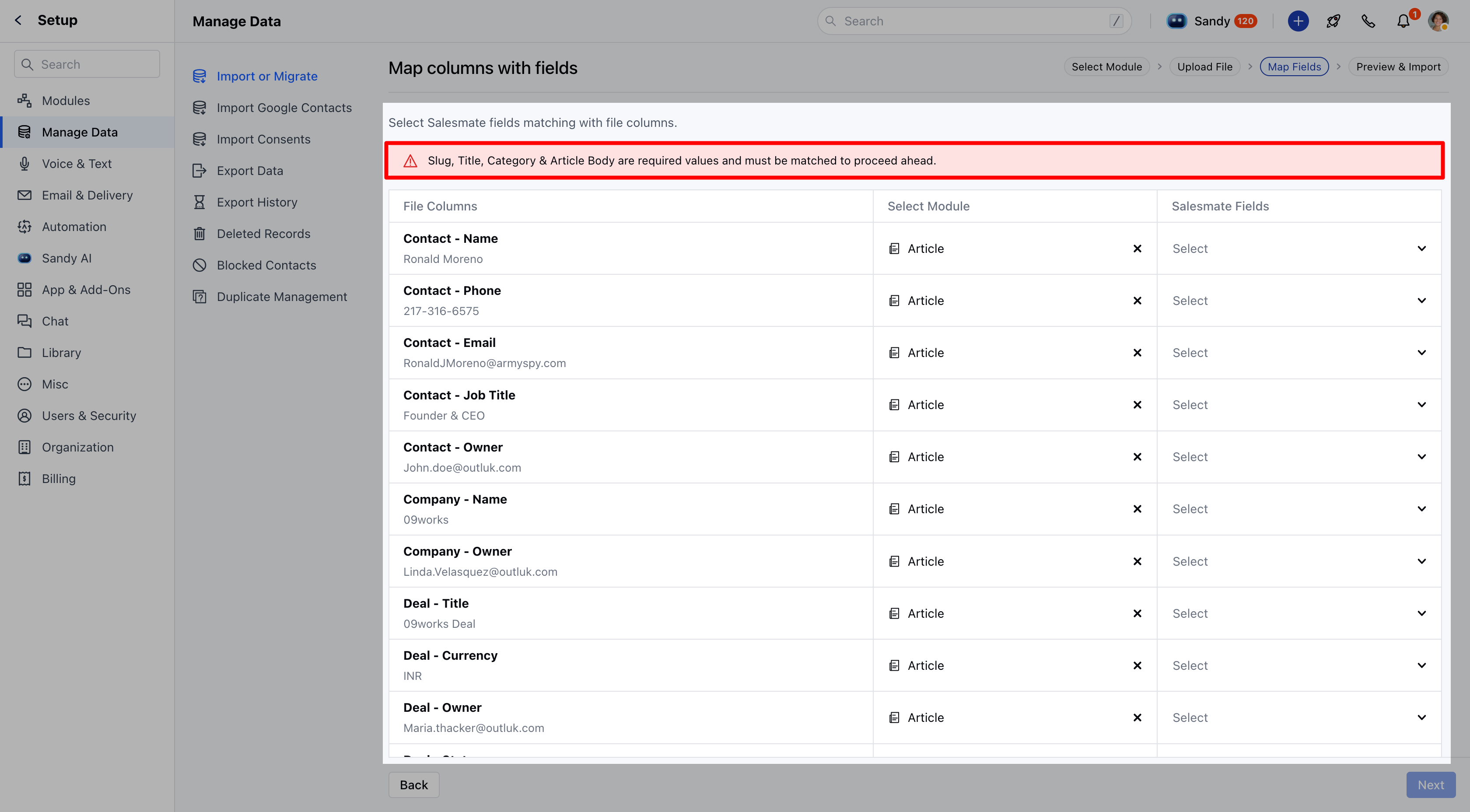
- Additional fields will have default values, but you can change them later: Language : English Owner : The user performing the import Visibility : Public Co-pilot : True Autopilot : False Comments: False
- Click on Next after mapping the columns to proceed to the final step.
- Choose whether to import the articles as Drafts or publish them immediately (the default is Draft).
- Duplication Check: The system will check for duplicates based on the Slug field.
- Choose how to handle duplicate articles: Skip : Skip importing existing articles.
- Overwrite : Replace existing articles with the imported ones.
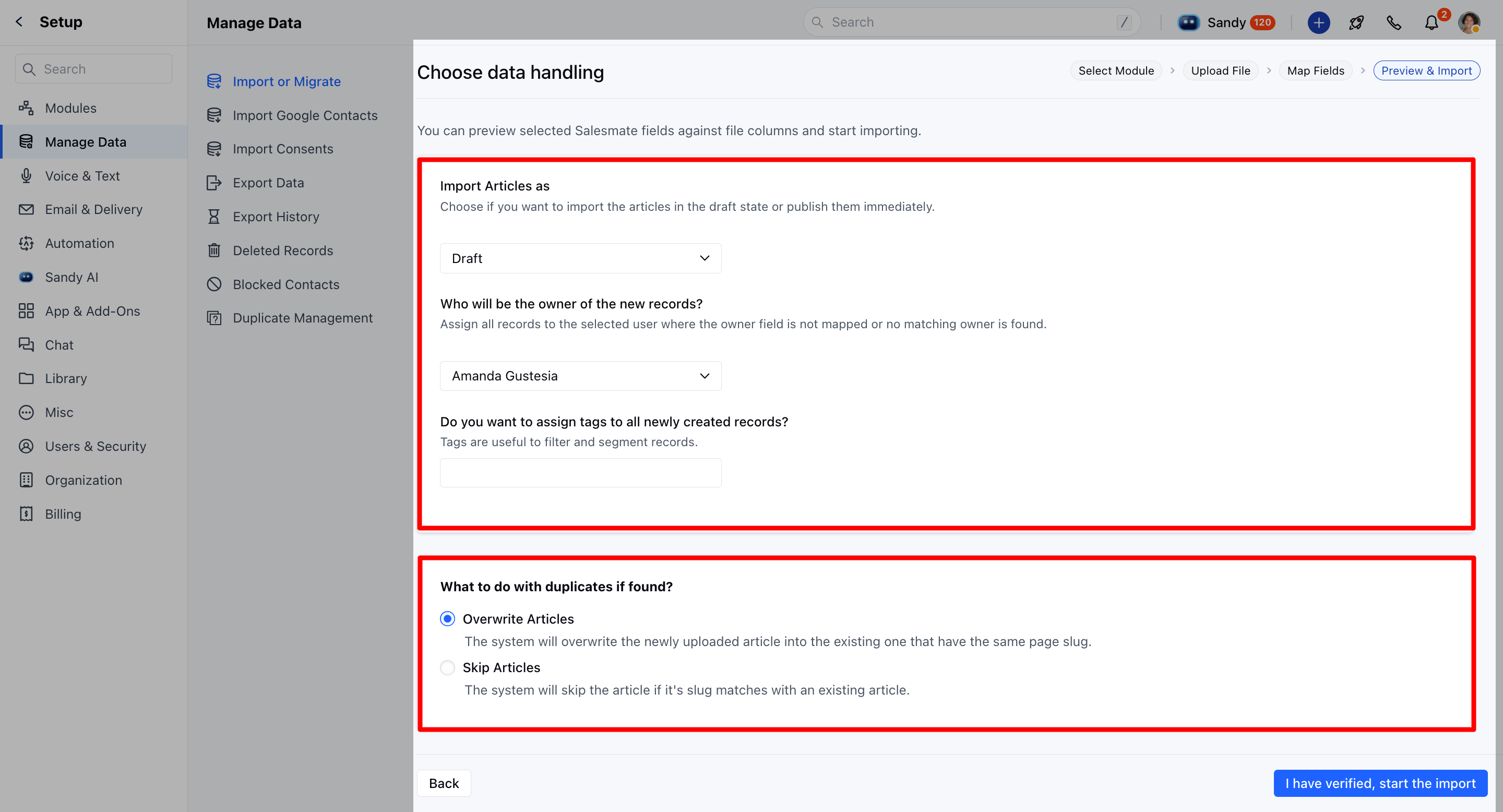
- Click on Save to start the import process.
- A success message will appear**:** “We are importing your records, this may take a while.