

Topics covered:
Navigating the Articles Section
- Homepage View: The homepage view is visible on the customer’s end when they try to initiate a chat
- To let them access homepage view of your articles, embed chat on your website.
- After the chat is embedded, customers will be able to see the articles section if enabled.
- To understand how to enable and configure article section, please visit
- Article Space in Chat
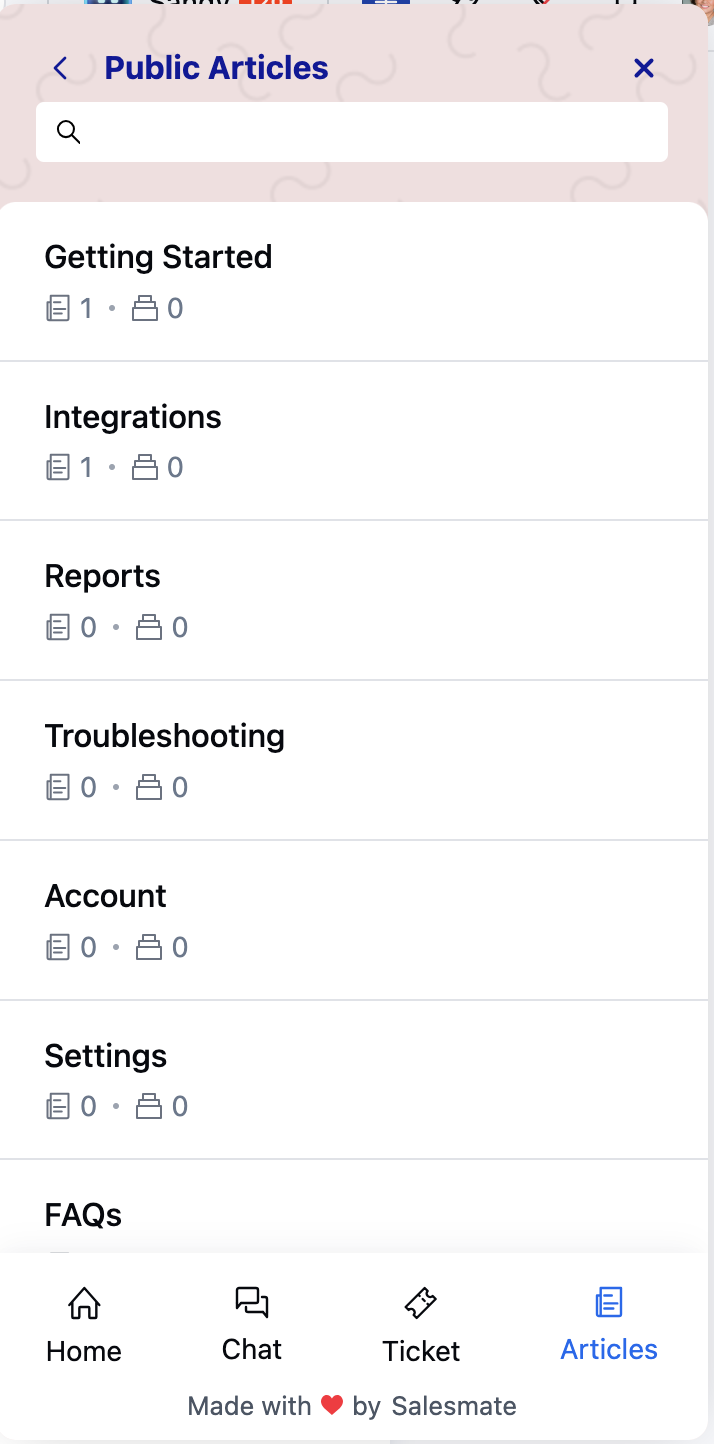
Category Page
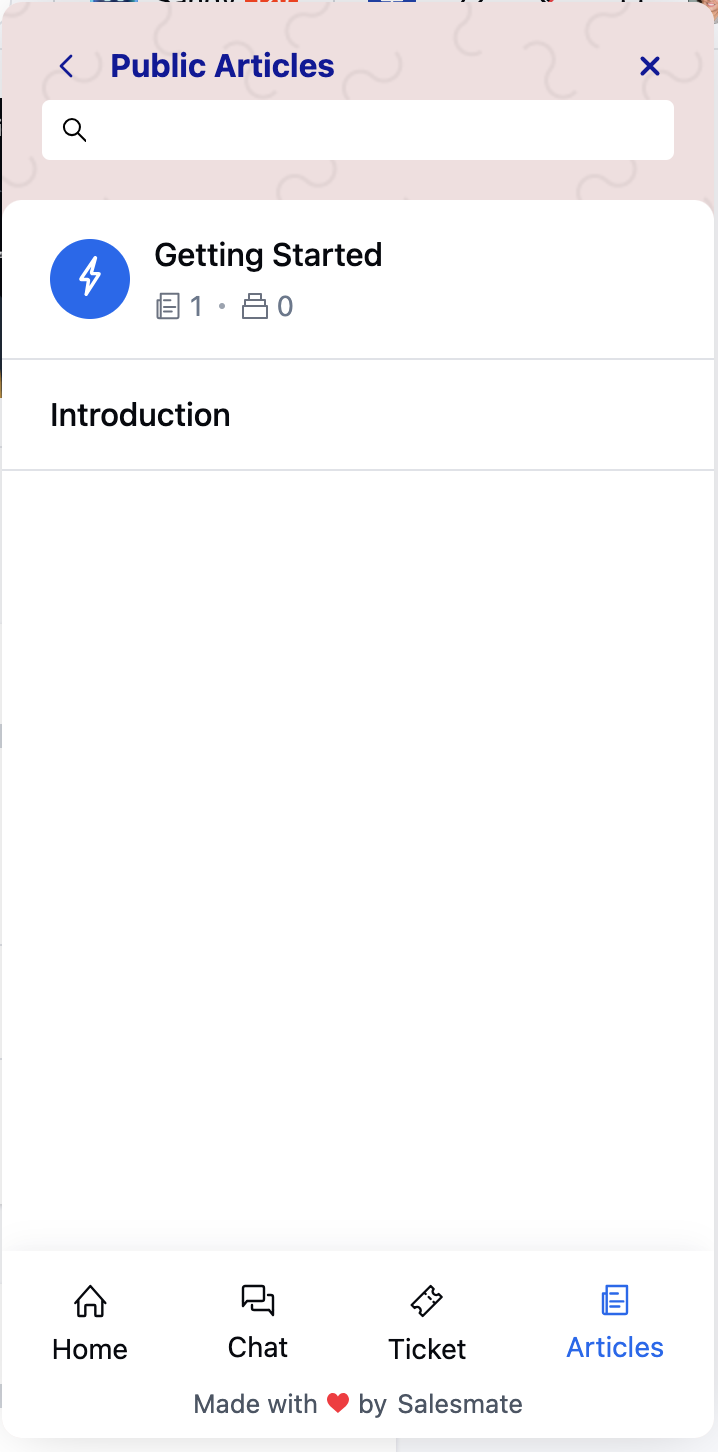
To understand how to create a category, please visit How to Create a Category- Upon clicking on any Category, it will open by displaying the category clicked at the top
- The articles present in that category will be shown below the category title
- Subcategories will be shown below the articles present in the primary category
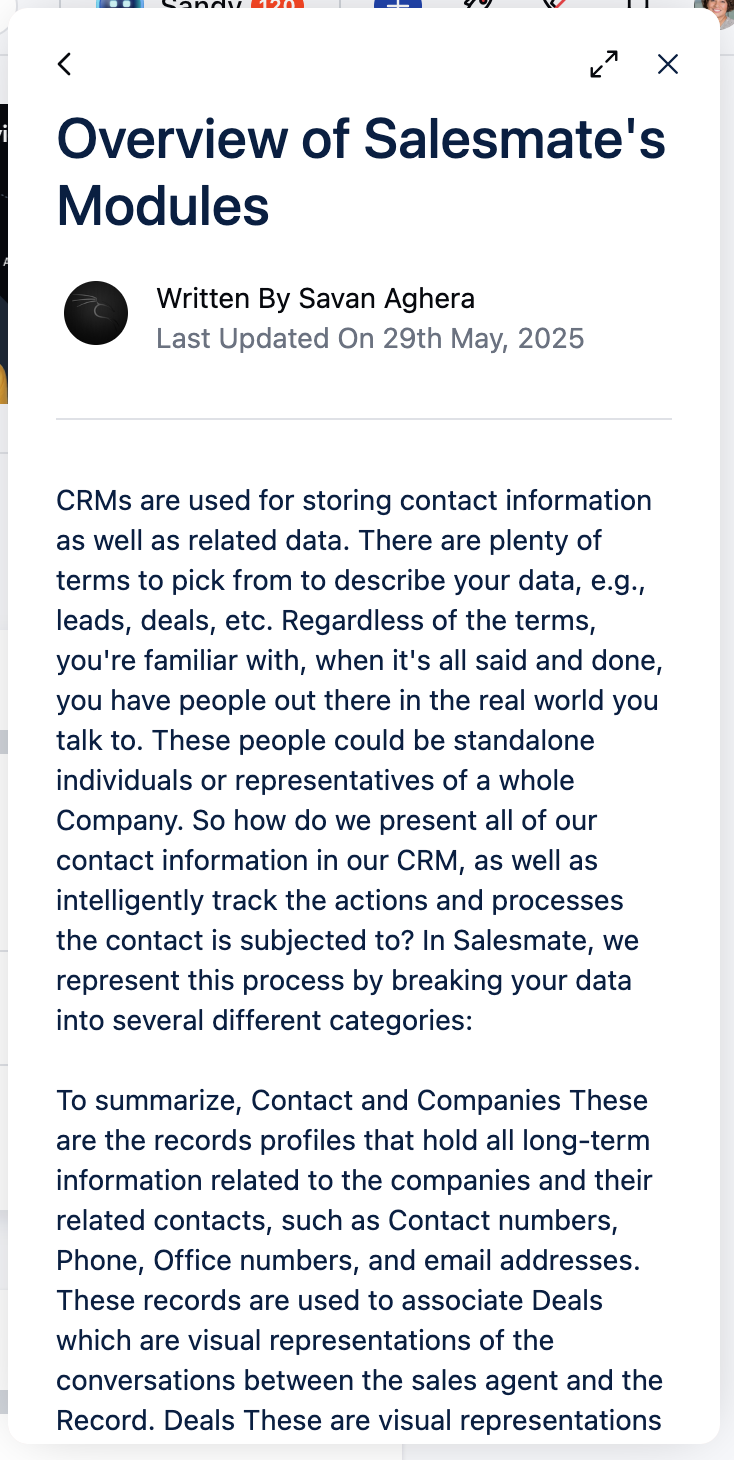
Viewing an Article
When you click on an article:- The preview will load in Messenger and expand automatically. * The opened article will display the following information: Form Title, Written By, Last Update date, and Table of Contents.
- Clicking on the back arrow will take you back to the category page _ Clicking the X button will close the chat pop-up _ Click on the Arrows beside the X button will resize the article opened
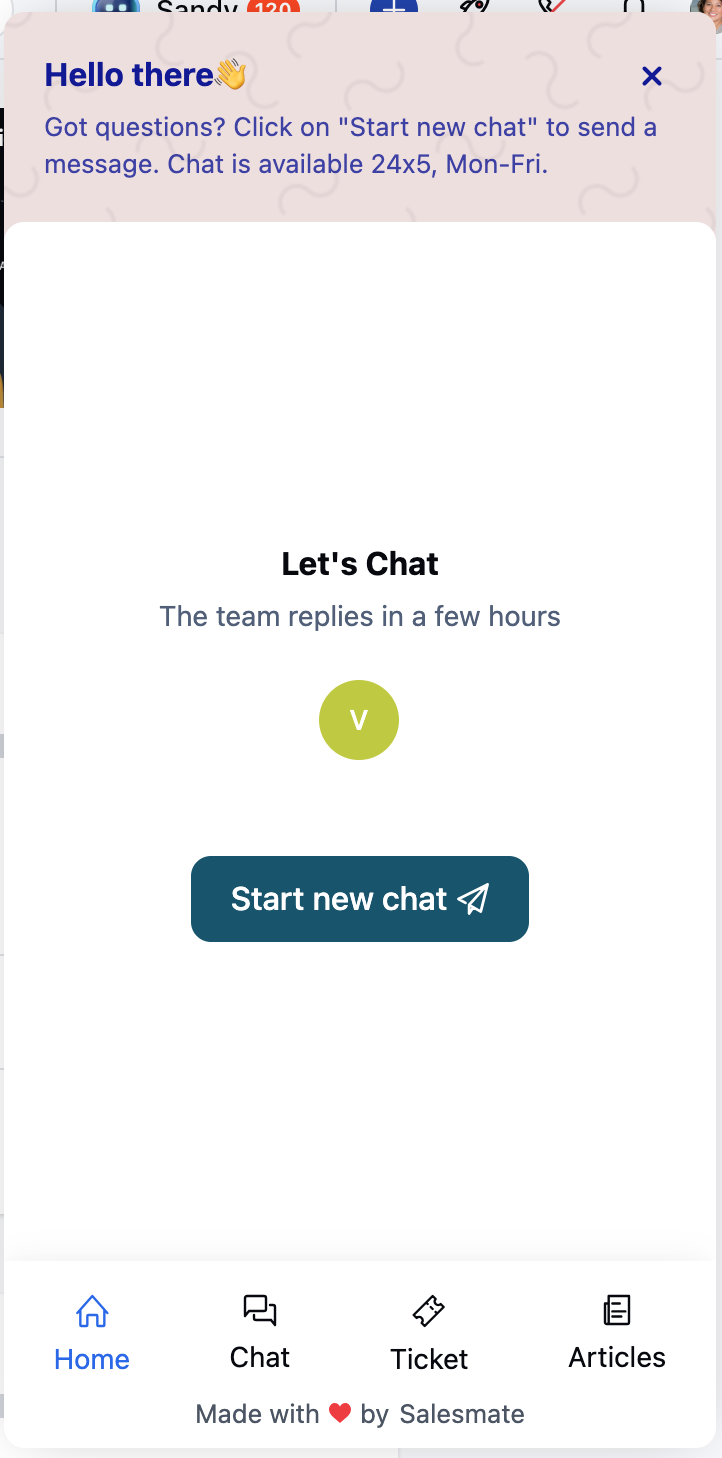
Widget Tabs and Navigation
When a conversation is ongoing in the widget, four tabs are displayed at the bottom:- Home: Returns to the homepage with the greeting and welcome message.
- Chats: Opens the “Your conversations” screen, showing all conversations.
- Articles: Opens the category listing screen, similar to conversation lists, with icons, headers, and descriptions.
- Tickets: Opens the ticket listing screen with the header “Your tickets”.
Note: The Article section must be enabled on the Messenger widget. Refer to the related article for setup instructions.
- If the Article space is disabled :
- Customers will not see the Articles section in the widget. * They will not be able to search for or access articles via Messenger.
- Tickets tab will only be visible to your contacts. It will be hidden by default for visitors.