Note: A User with Manage Permission Rights can perform this action
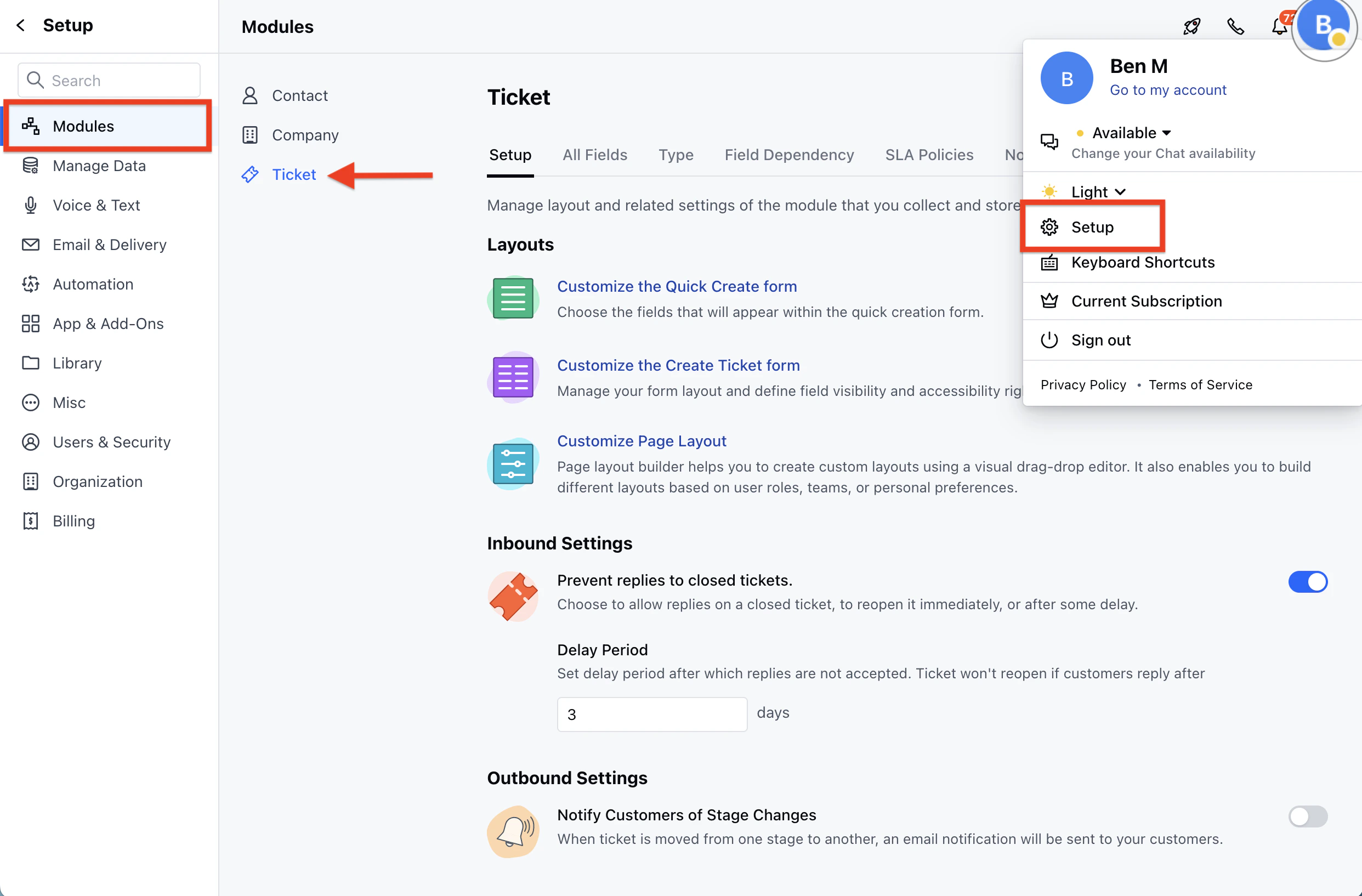
- Navigate to the Profile Icon on the top right corner
- Click on Set Up
- Head over to the Modules category
- Click on Tickets
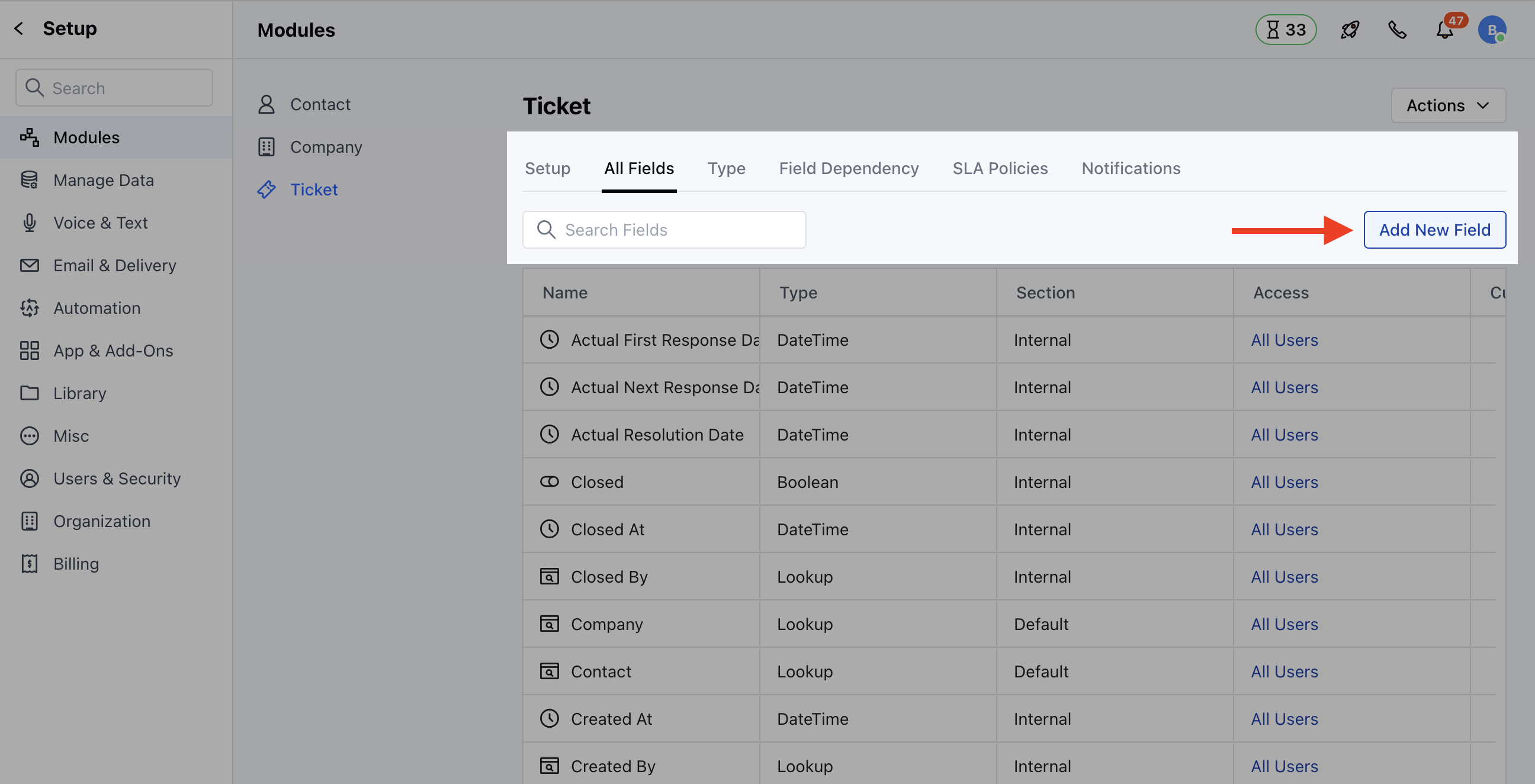
- Locate the All Detail Form Fields Section
- Click on the Add New Field option
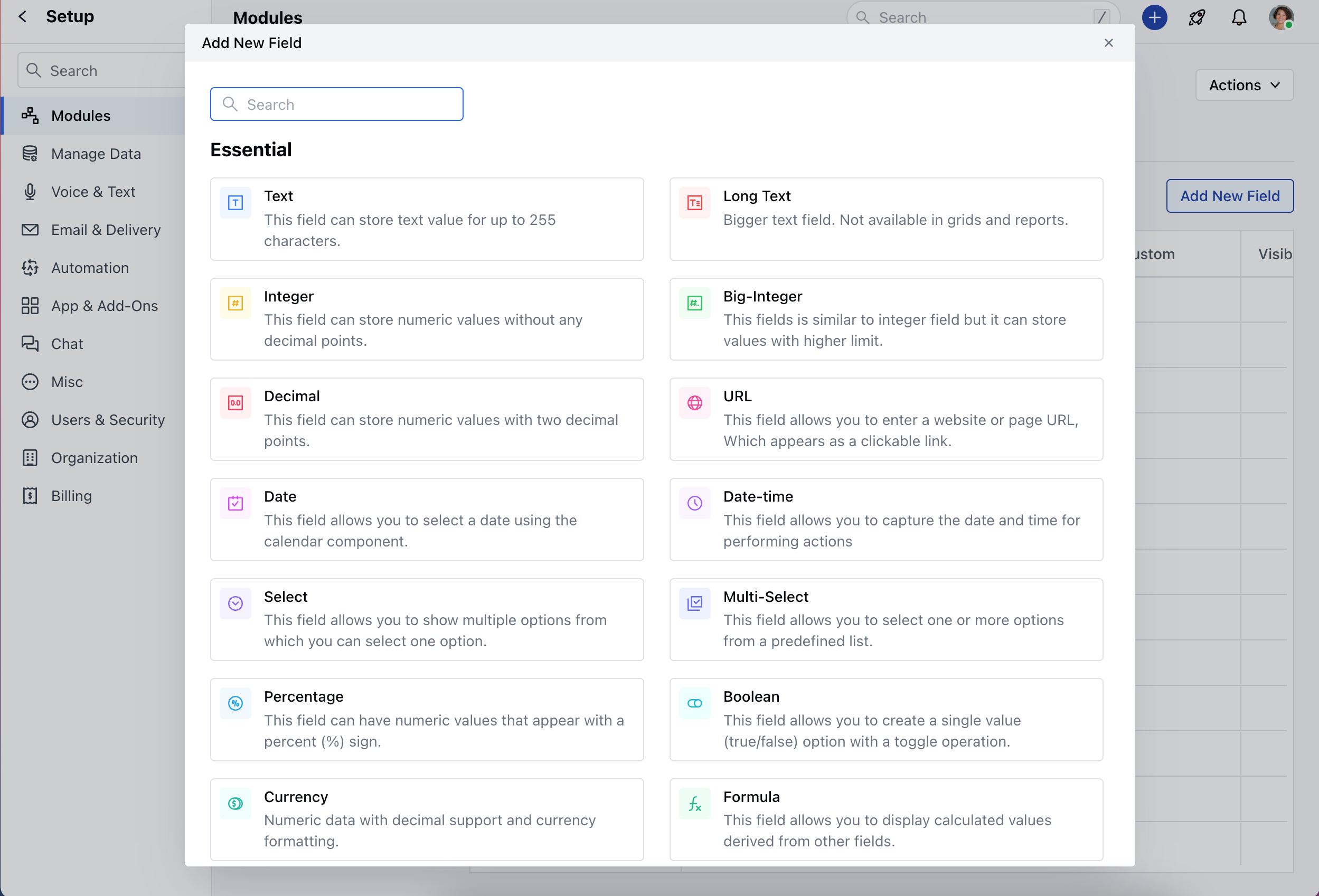
- A popup will appear displaying a list of essential and useful field types to choose from. You can search for a field using the search bar.
- Choose the Field Types.
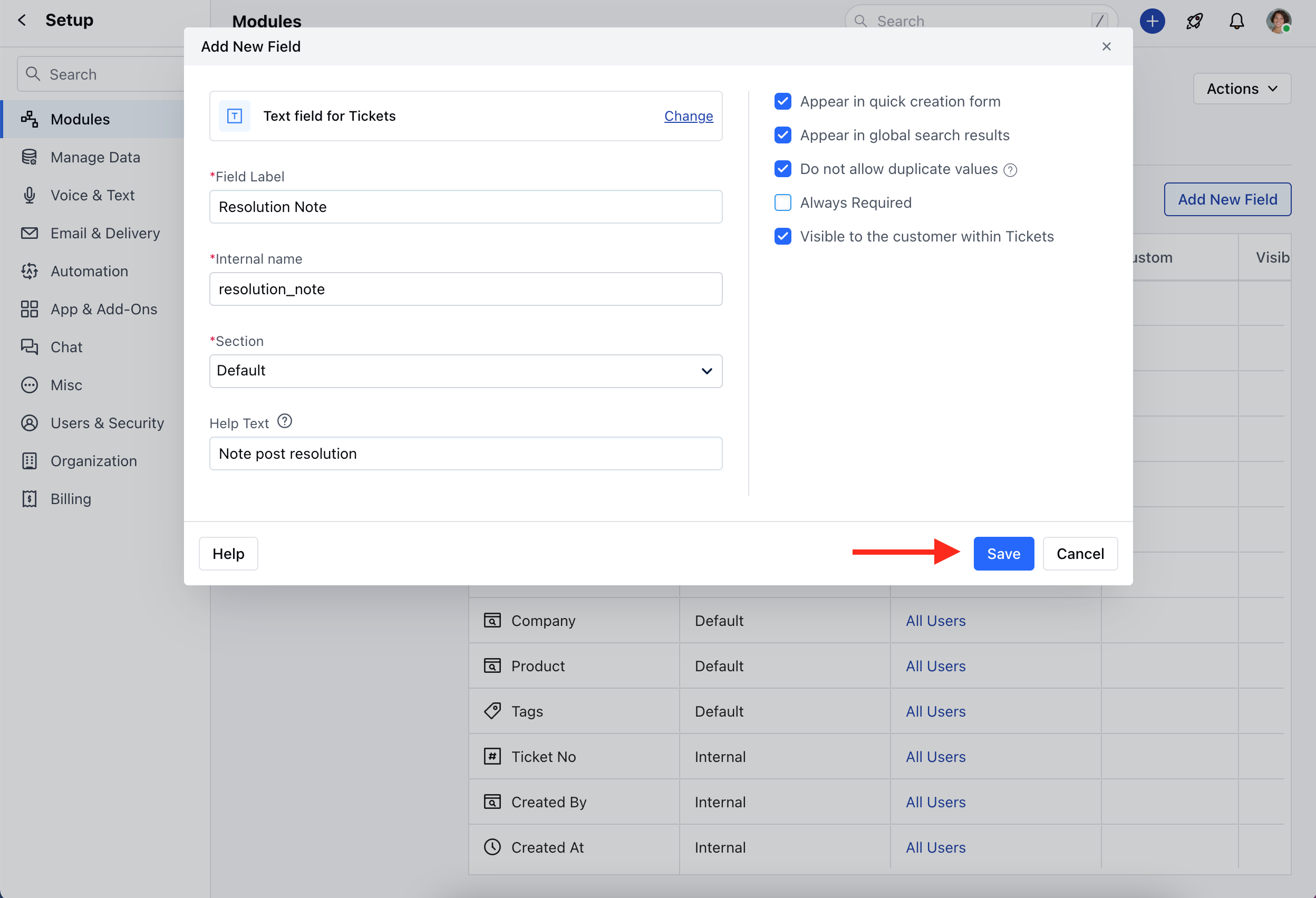
- Once you’ve selected a field type, provide the following details for the field:
- Field Label Name - Specify the field name for clear and easy identification
- Internal Name - Enter Internal Name for API integrations
- Section - Select the Section you wish the Field to fall under
- Help Text - Add the Help Text to provide additional information to help your teammates to understand the purpose of the field *
- Once you have added the details, you can select,
- Appear in quick creation form: To display this field in the quick creation form.
- Appear in global search results: To allow searching the field via global search.
- Do not allow duplicate values: To prevent the creation of a duplicate Ticket.
- Required: If the Field should be mandatory.
- Visible to the customer within Tickets: If the field should be visible to the customers
- Once done, Save the details.