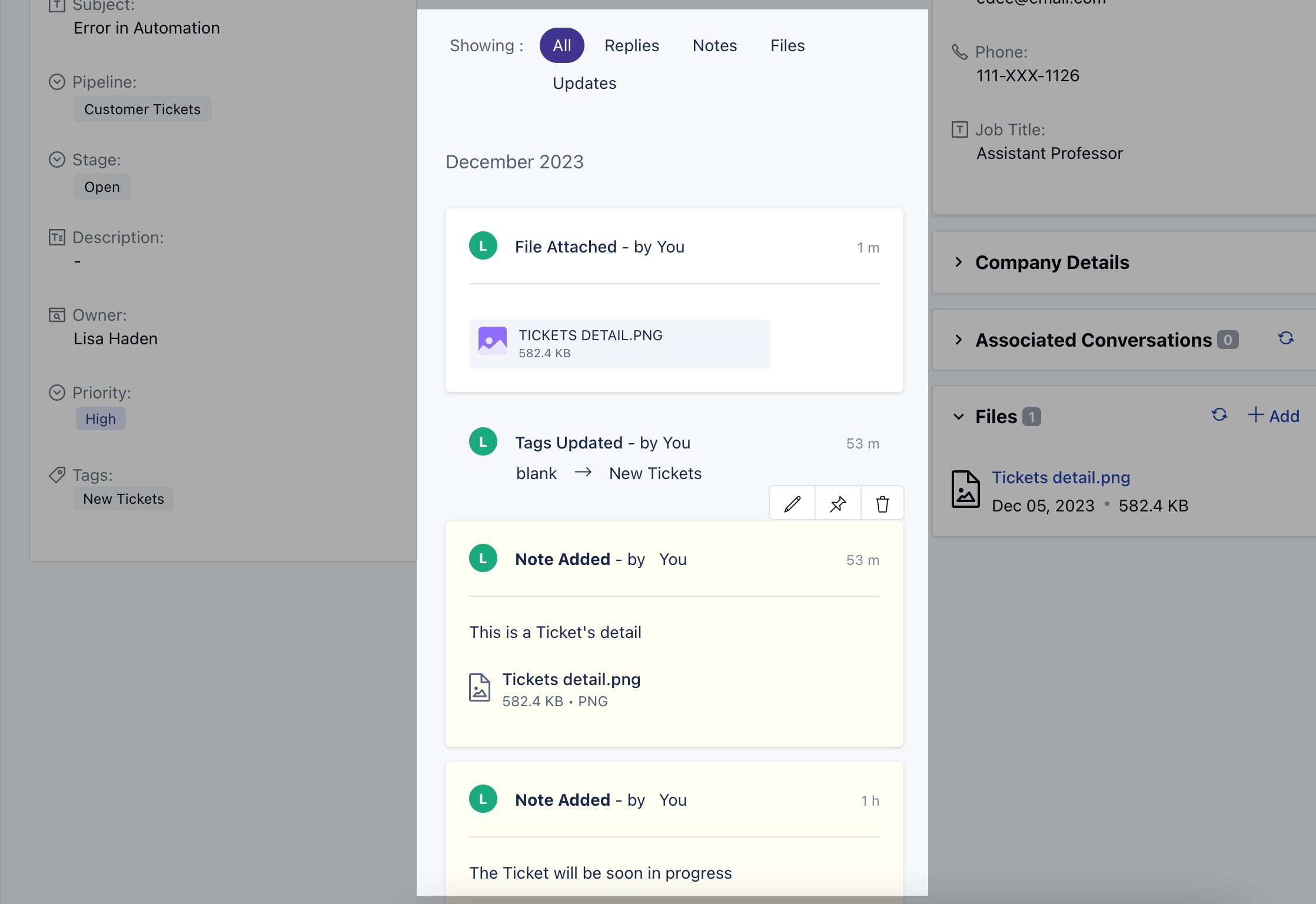
- Navigate to the Tickets module from the left menu bar
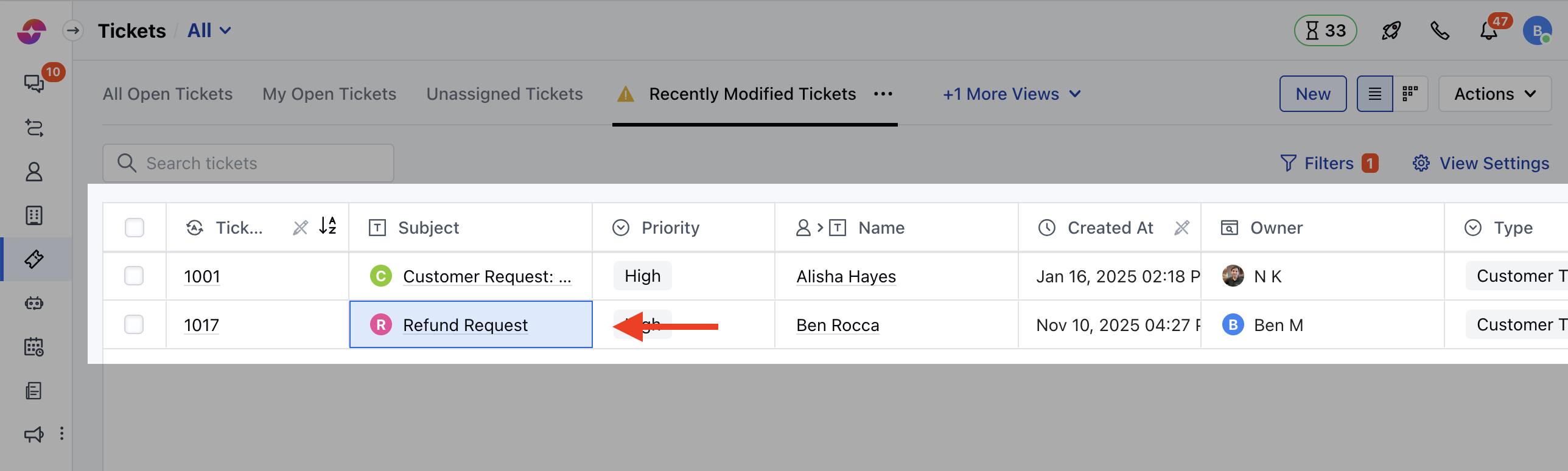
- Select and click on the Title of the created ticket, you will be redirected to the detail screen
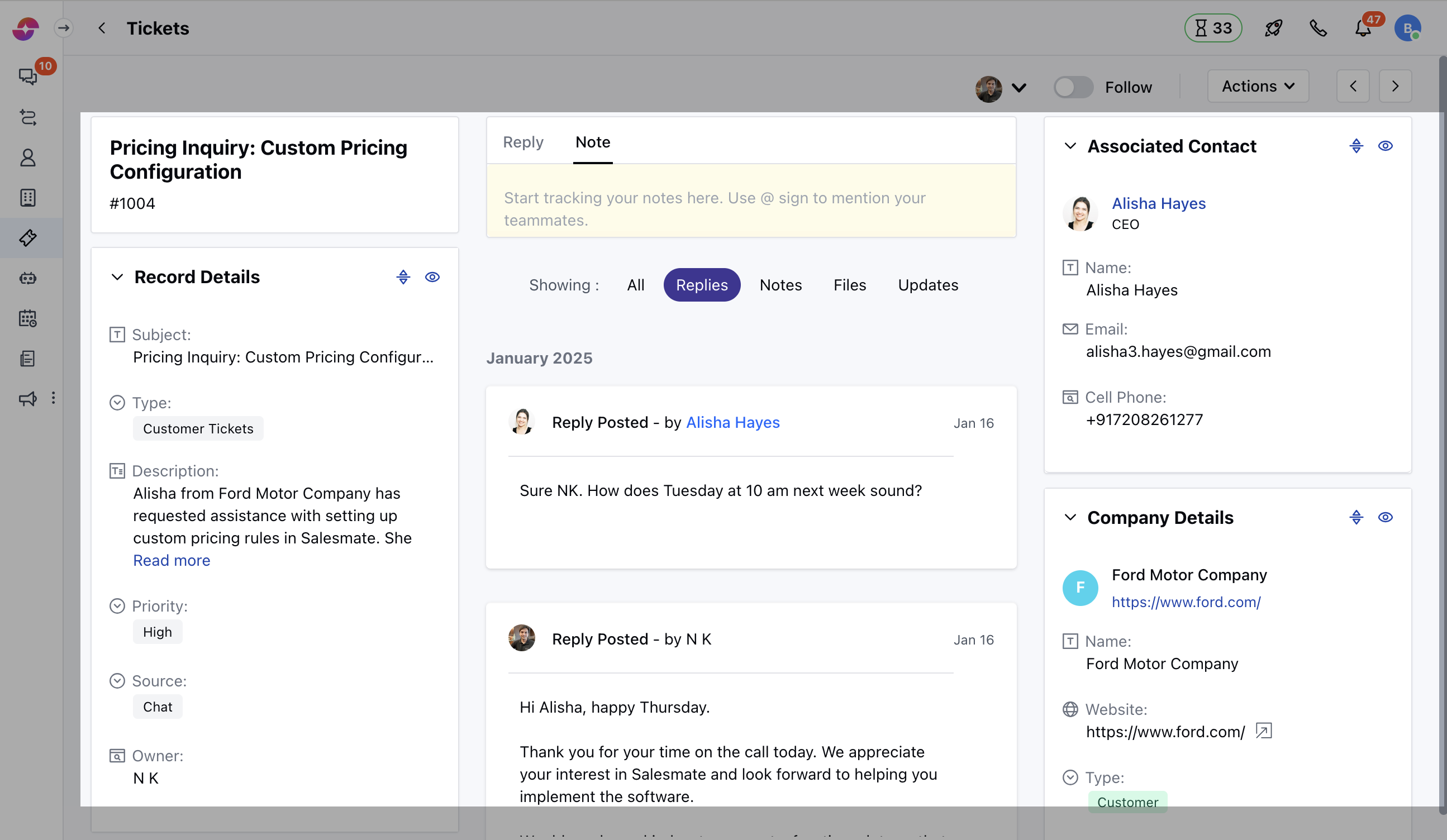
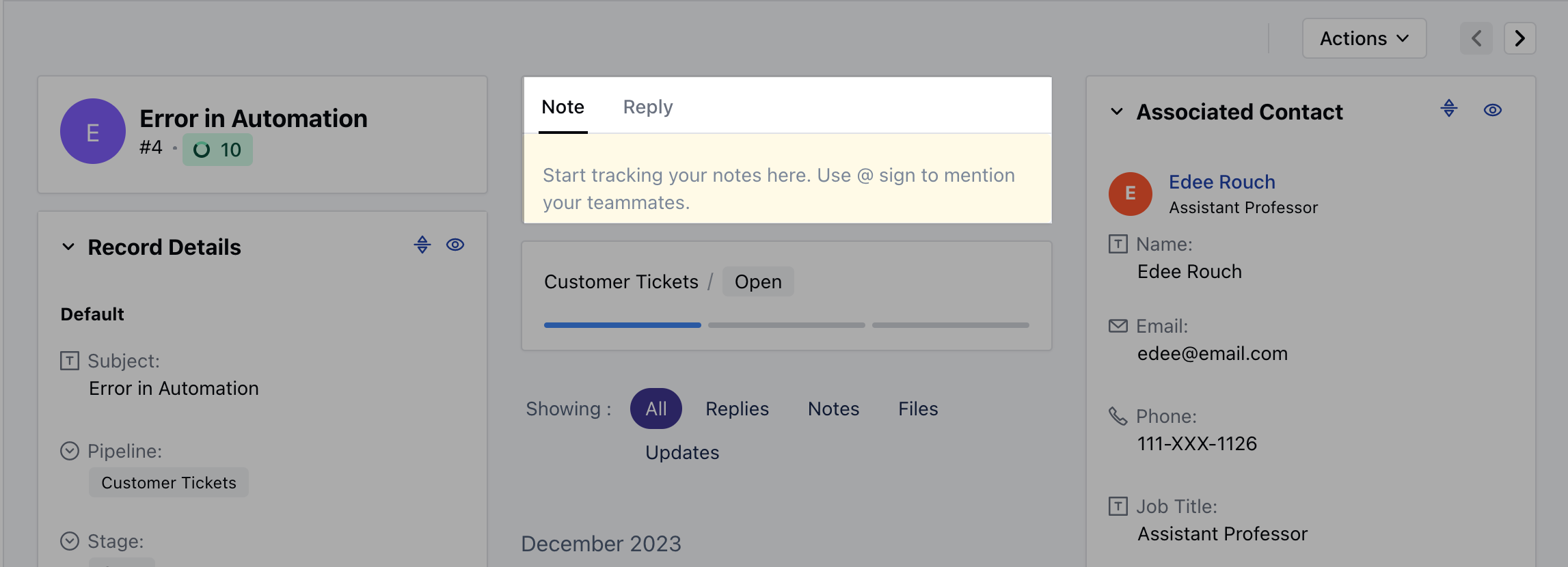
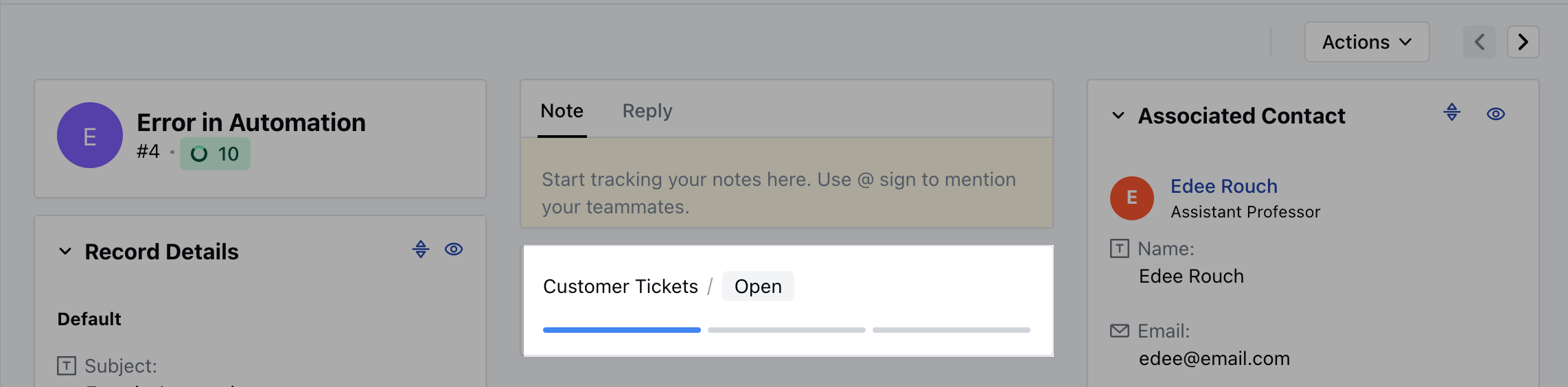
- This detail screen has the following widgets by default, * Ticket Card: This gives you the details of the Ticket Title, ID, Ticket Thumbnail which appears based on the title and, Upcoming SLA due time * Ticket Details: This Widget displays all the Ticket details * Stage Details: This will display the current pipeline and stage of the ticket * Editor: This allows you to post a reply or note on the ticket. * Associated Contact: This widget displays the details of the Contact associated with the Ticket *
- Company Details:* This widget displays the details of the Company associated with the Ticket * Associated Conversations: This widget will display the conversation that is associated with the ticket. * Files: This will display uploaded attachments that are associated with the ticket.
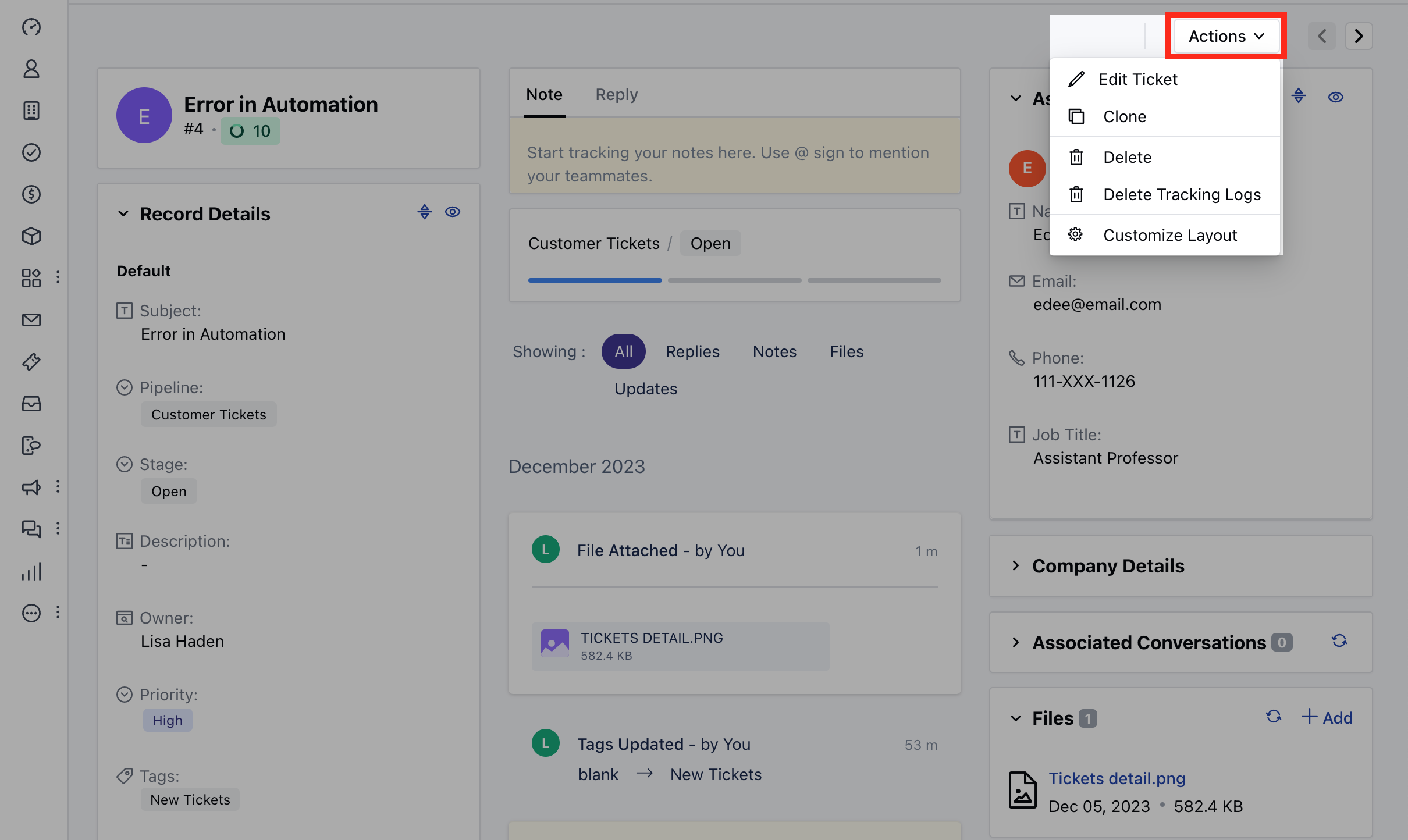
- You can perform the following actions on the ticket from the Action button
- Edit Ticket
- Clone
- Delete Ticket
- Delete Tracking Logs
- Customize Layout
- You can post a Note or Reply to the ticket
- You can also Update the Stage of the Ticket
- The timeline will display various timeline entries about the events that occurred in the ticket history, internal notes posted by users, replies posted by users, and contacts.