Topics covered:
How to Create a Ticket Pipeline Type
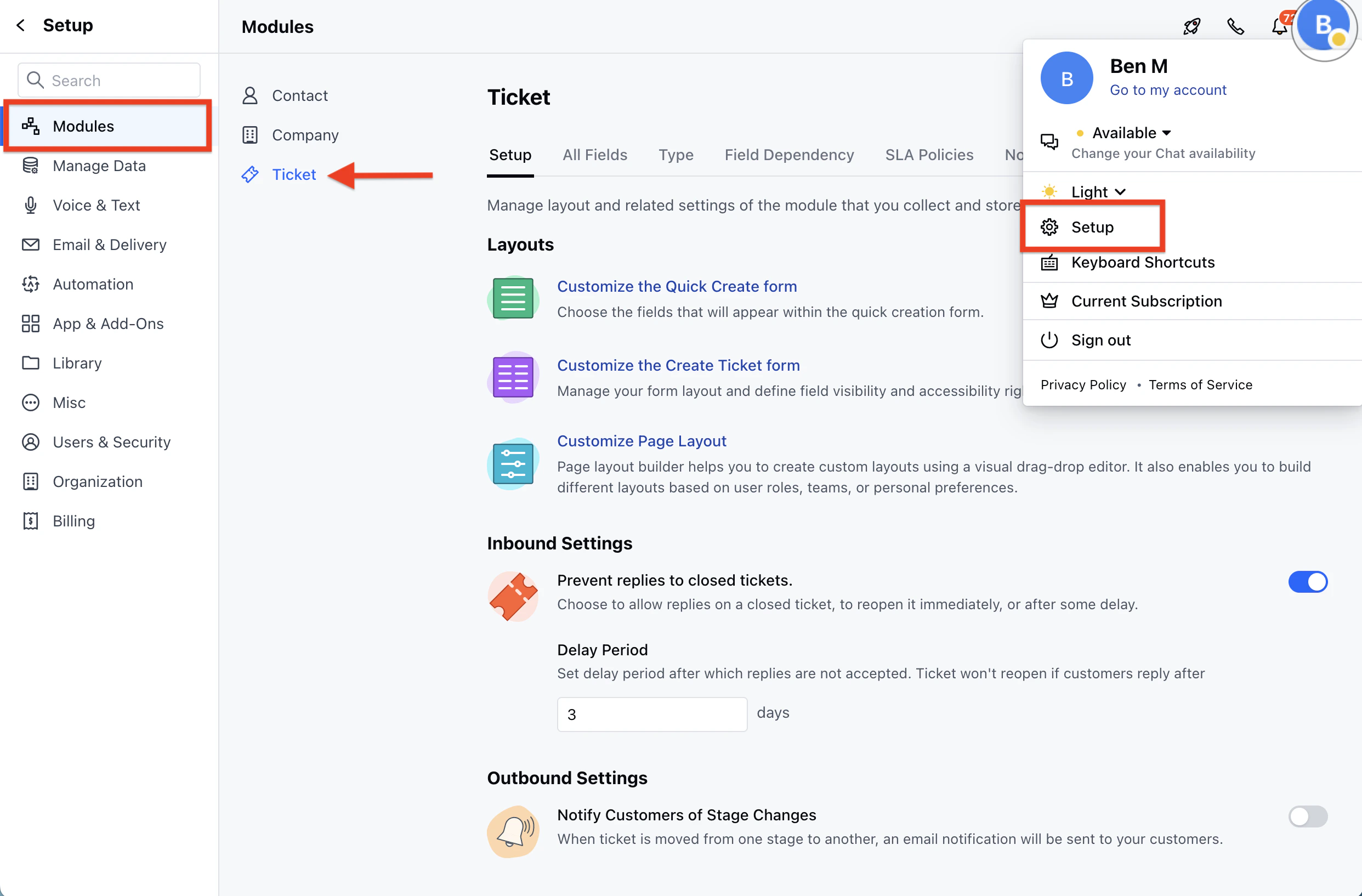
To create a Ticket Pipeline Type,- Navigate to the Profile Icon on the top right corner
- Click on Set Up
- Head over to the Modules category
- Click on the Tickets module
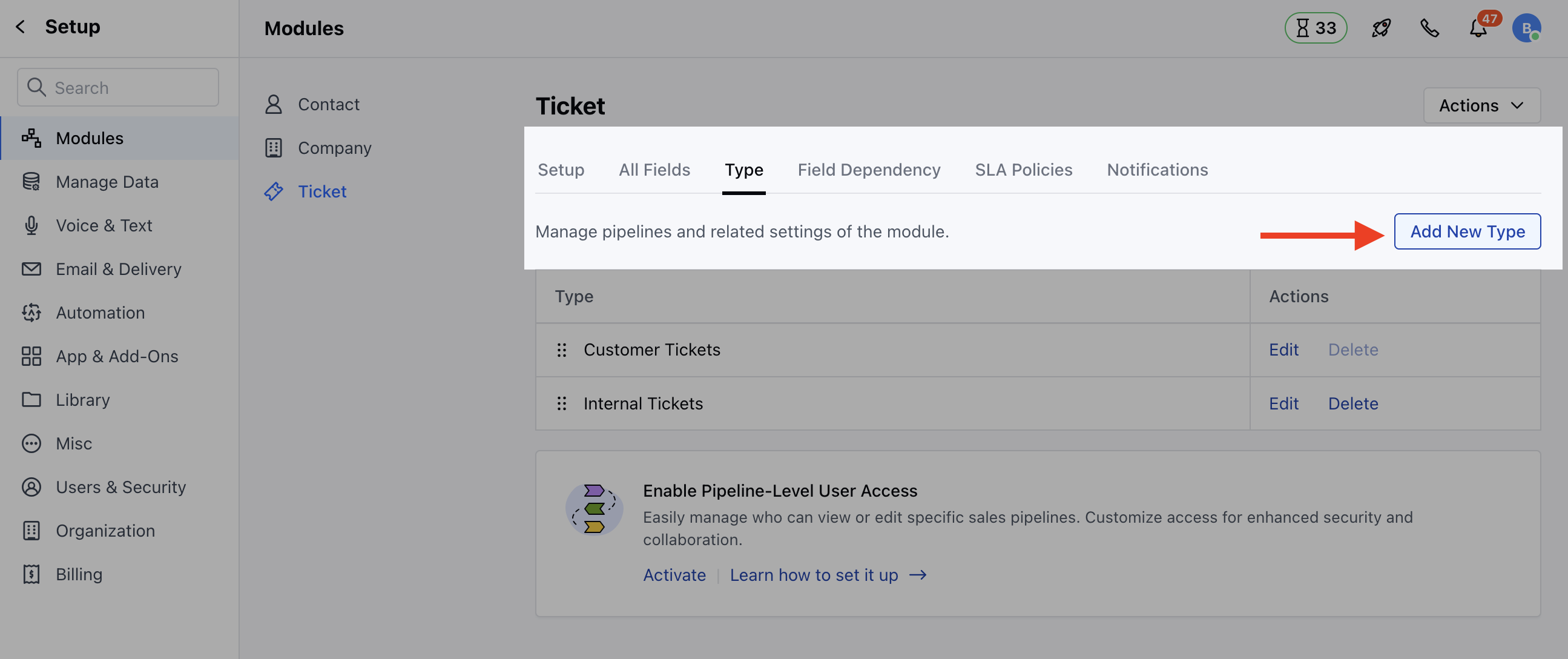
- Navigate to the “Types” section and select the “Add New Type” option to include a new category
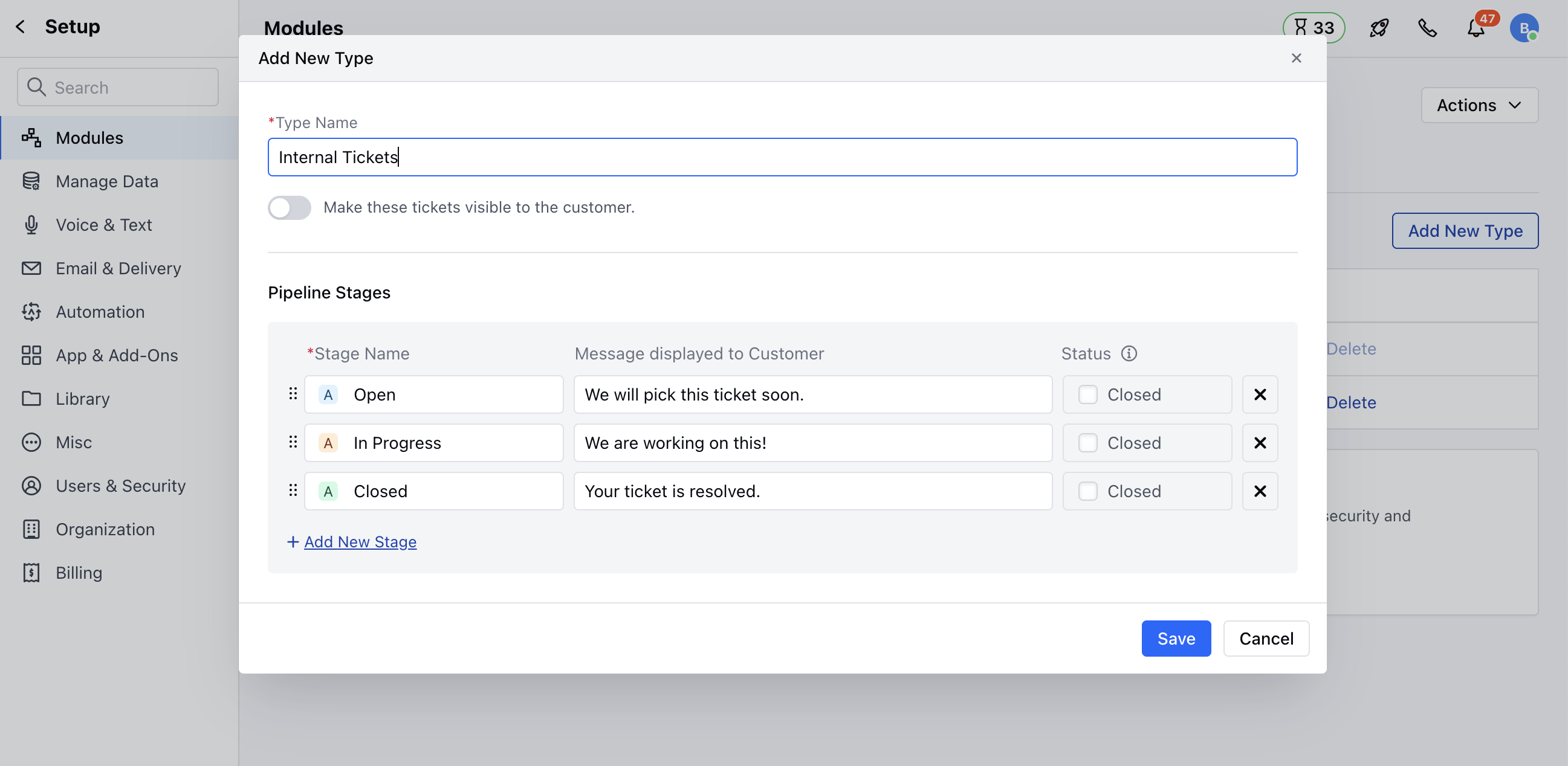
- A pop-up would appear asking for the following details that you need to provide:
- Pipeline Name - A name for your pipeline that will be displayed in board view, filters, reports, and other places.
- Make these tickets visible to the customer - Enable this option if you wish the pipeline to be visible to your customers. As soon as you enable this option, another option will appear. Let customers send replies on these tickets - Enable this option if you want your customers to engage in ticket discussions and add their comments on them
- Stage Name - You can rename the stage and change the color, which works the same as the current Stage Title in the pipeline. *
- Status - Choose whether the stage should be considered open or closed. * You can also add a new stage by clicking on the option “Add New Stage.” You can also reorder the stages here by drag and drop.
- Once done, hit the Save option to create a Pipeline Type
How to Edit the Default Pipeline Type
To Edit the default Pipeline Type,- Navigate to the Profile Icon on the top right corner
- Click on Set Up
- Head over to the Modules category
- Click on the Tickets module
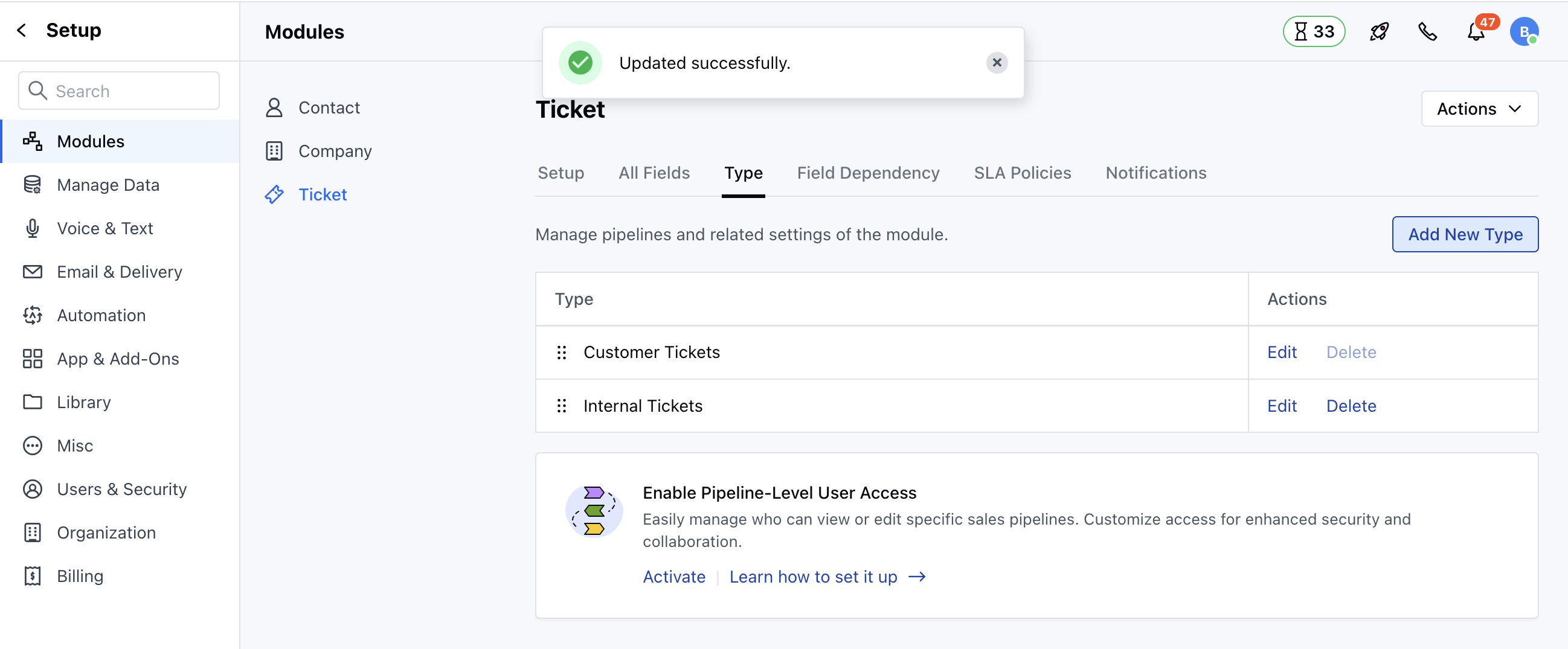
- Navigate to the “Types” section * Select the Pipeline Type you wish to edit and click on the Edit option
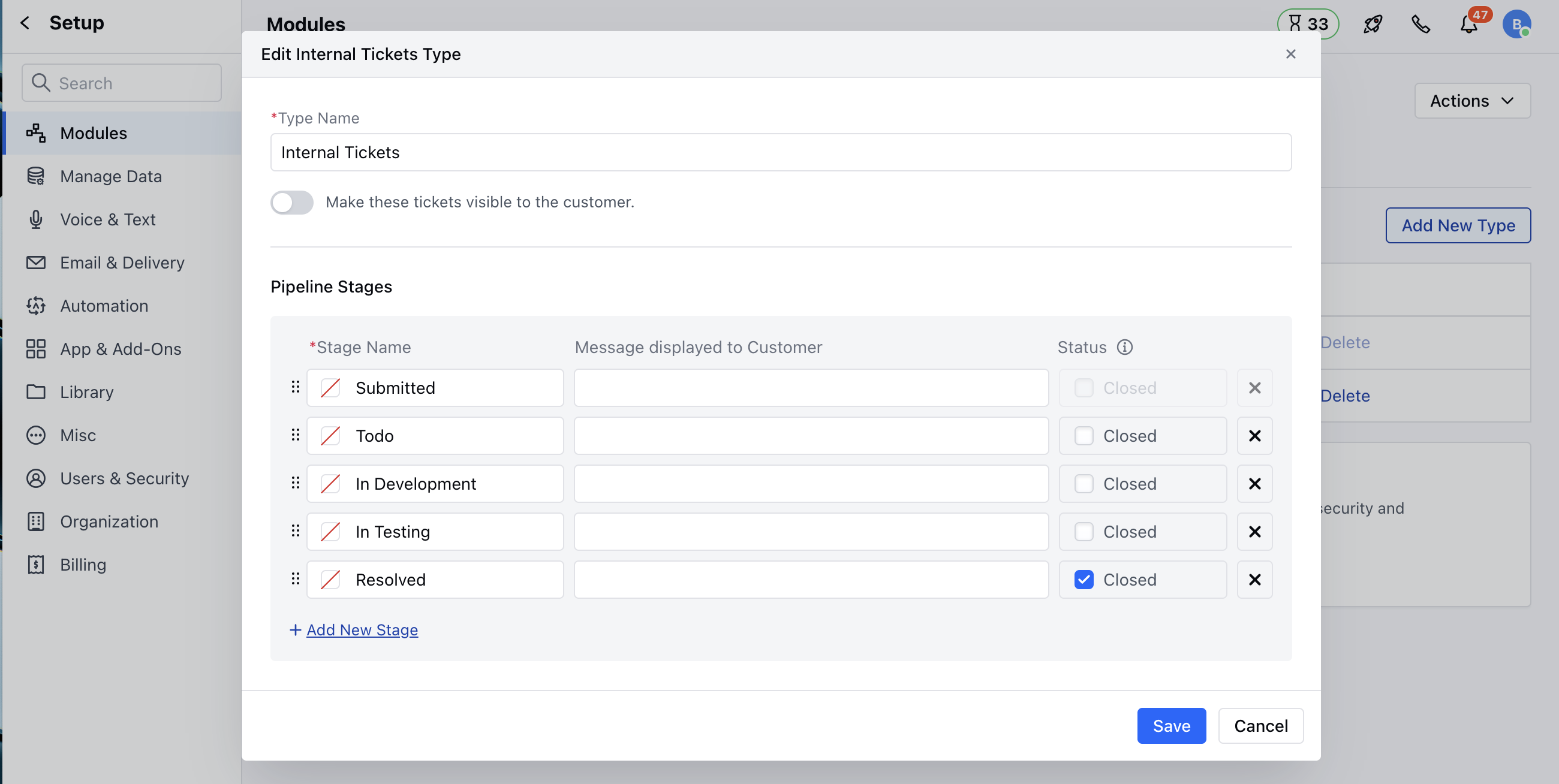
- Here you can make the necessary changes and the changes will get auto Updated with the “Updated Successfully” message