Form Questions
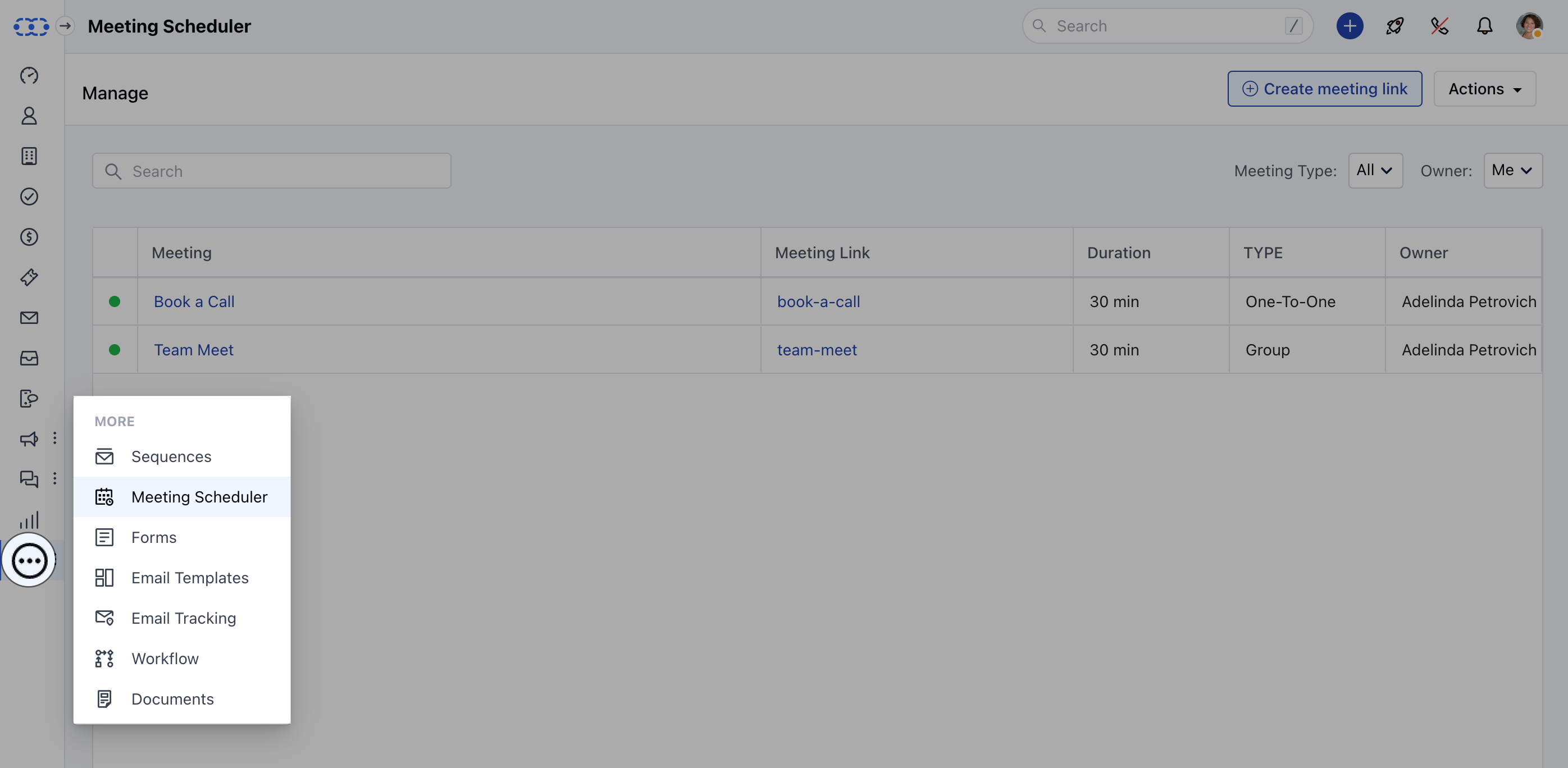
Ask your prospects and customers a few qualifying questions when they’re booking meetings with you. Contact properties will be automatically added to your Salesmate CRM. To customize the question form:- Navigate to the More option from your left sidebar menu
- Click on Meeting Scheduler
- Select the Meeting
- Complete the steps — Details and Date & Time Availability as per the selected
- Meeting Type
- Go to “Form Questions”
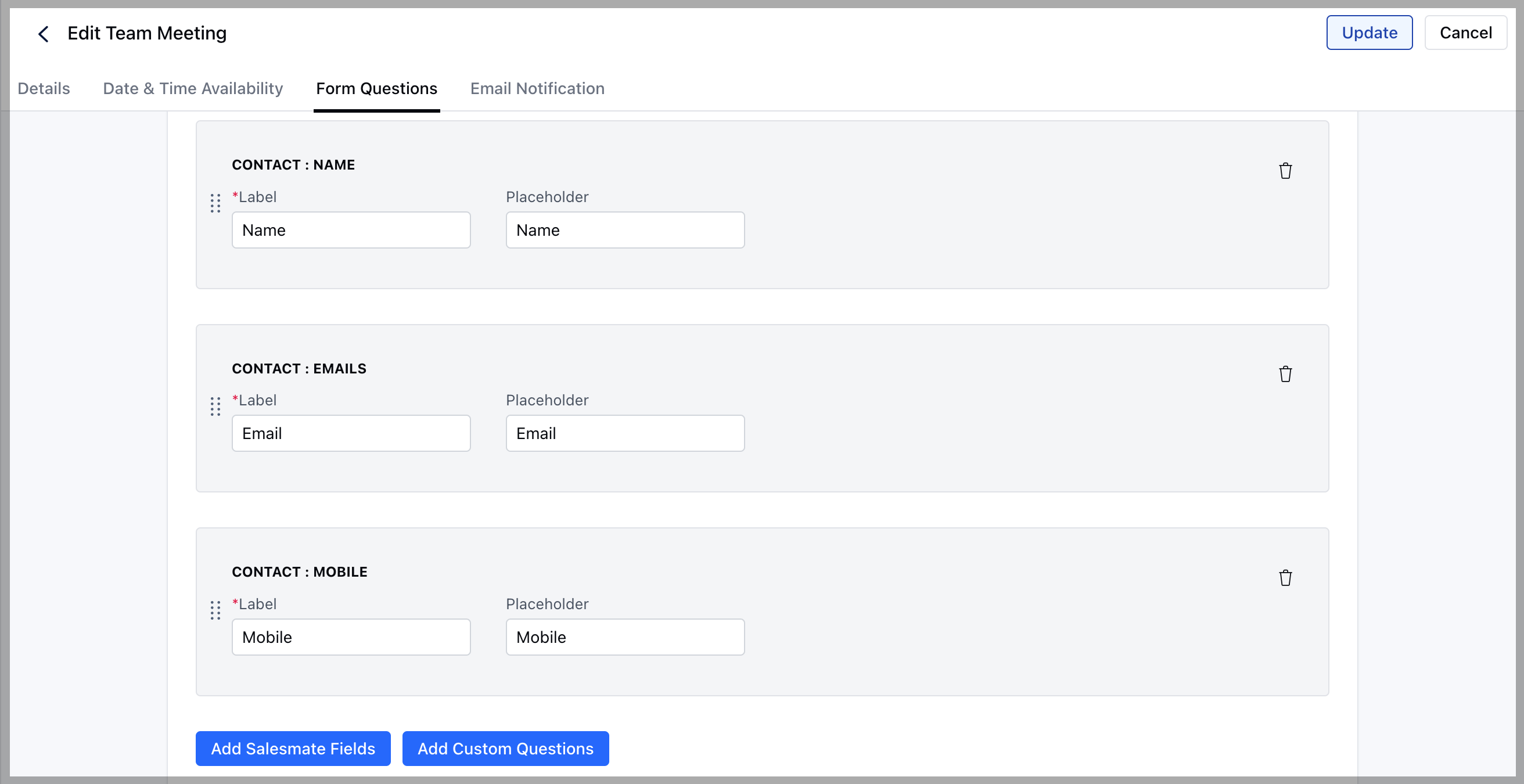
- Click on “Add Salesmate Fields” to add any existing fields from the Contact module
- Example: Description field to capture their requirements or purpose of the call.
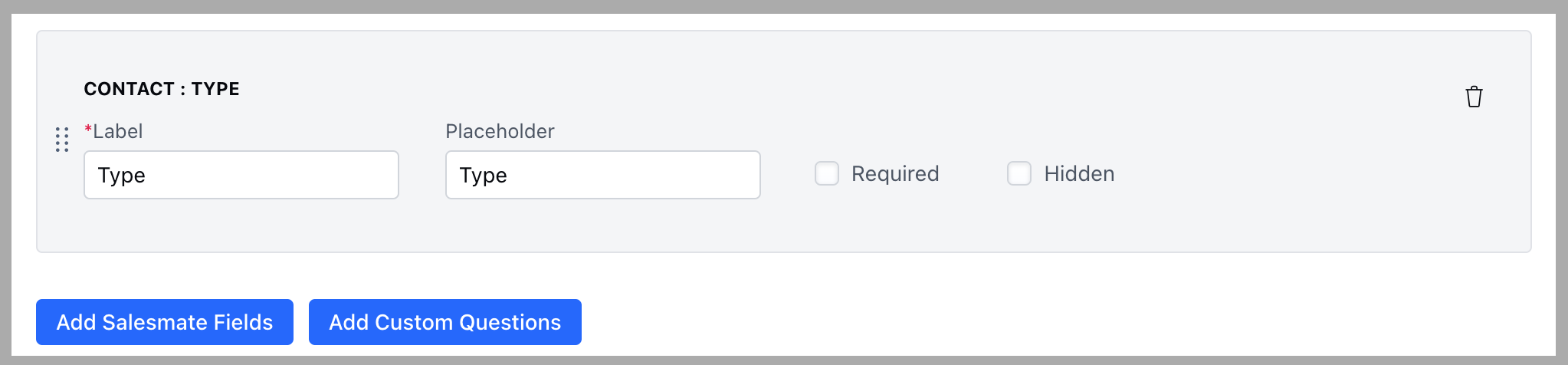
- Click on “Add Custom Questions” to add new custom fields as questions that are not part of your account as fields but are relevant to the meeting question form.
- Example: Select type custom field as a question to let invitees choose their preference.
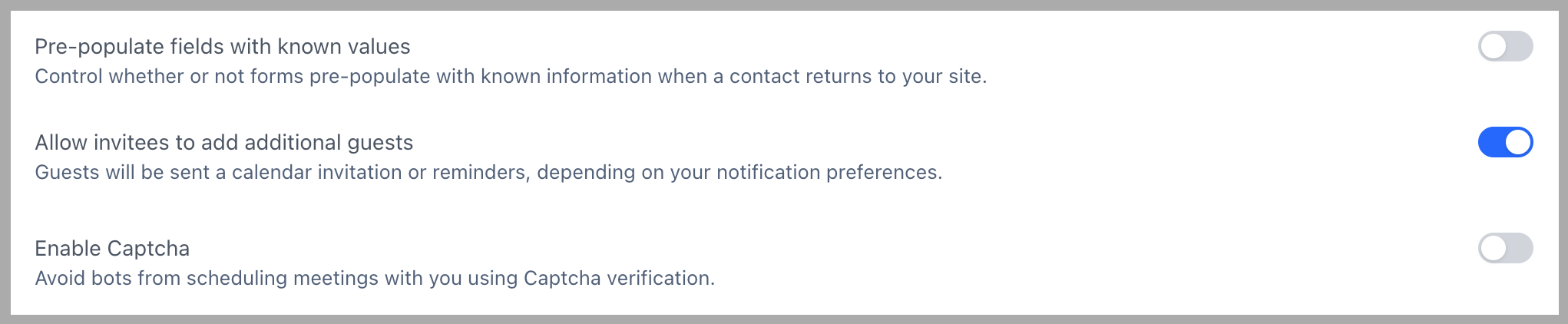
- Pre-populate fields with known values: Enabling this will automatically fill the fields with the value stored in the browser.
- Enable Captcha: Enabling this will avoid bots from booking repeated calls.
Confirmation Options
- Customize a meeting confirmation message on how you would like to notify the invitees on the scheduling page.
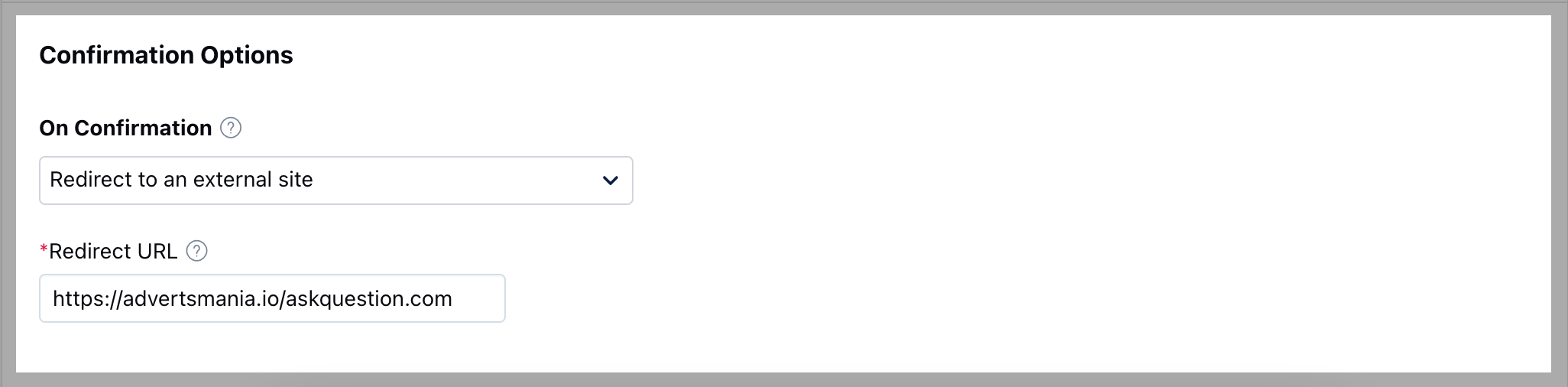
- You can choose whether to show a successful confirmation message to your customers or auto-redirect them to a website URL for the next steps.
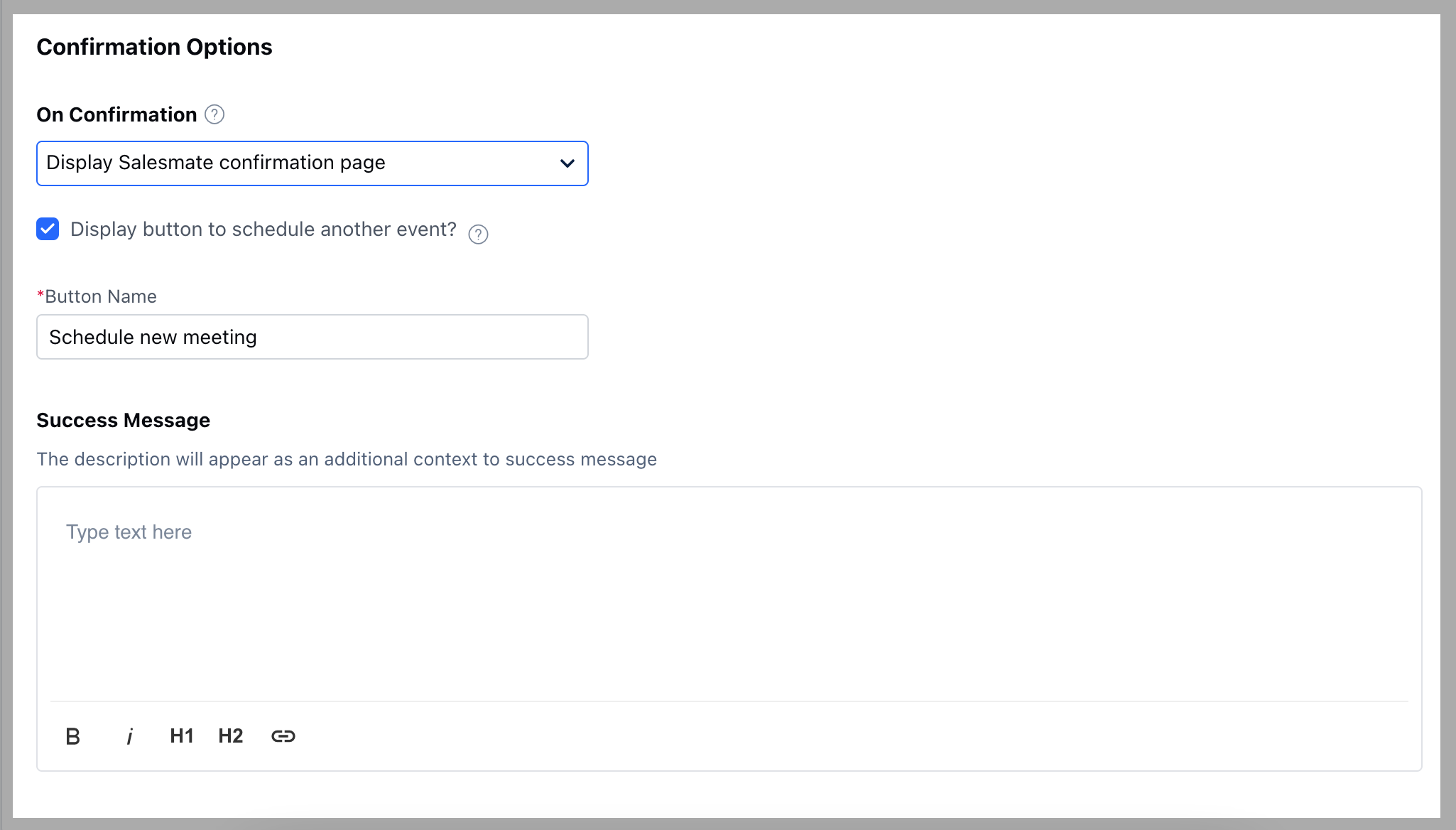
- On Confirmation:
- Display Salesmate Confirmation Message: Salesmate’s default confirmation message will be shown.
- Display button to schedule another event: If selected, it will display a button to the invitee to book another call.
- Button Name: You can customize the button name. By default, it is shown as “Schedule Another Meeting.” You can rename it (e.g., “Schedule New Meeting”).
- Success Message: You can include an additional message above the default message to make it look more personalized. Example: “Your meeting is booked with {Organization Name}.”
- If the user chooses “Redirect to an external site” for On Confirmation, they will be asked to provide the URL to which the invitee should be redirected after the booking.