

Note: You need Organize Categories permission to perform any action on categories.
- Navigate to the Profile Icon from the top right corner.
- Click on the Set Up
- Headover to the Library category
- Select the Knowledge Base option

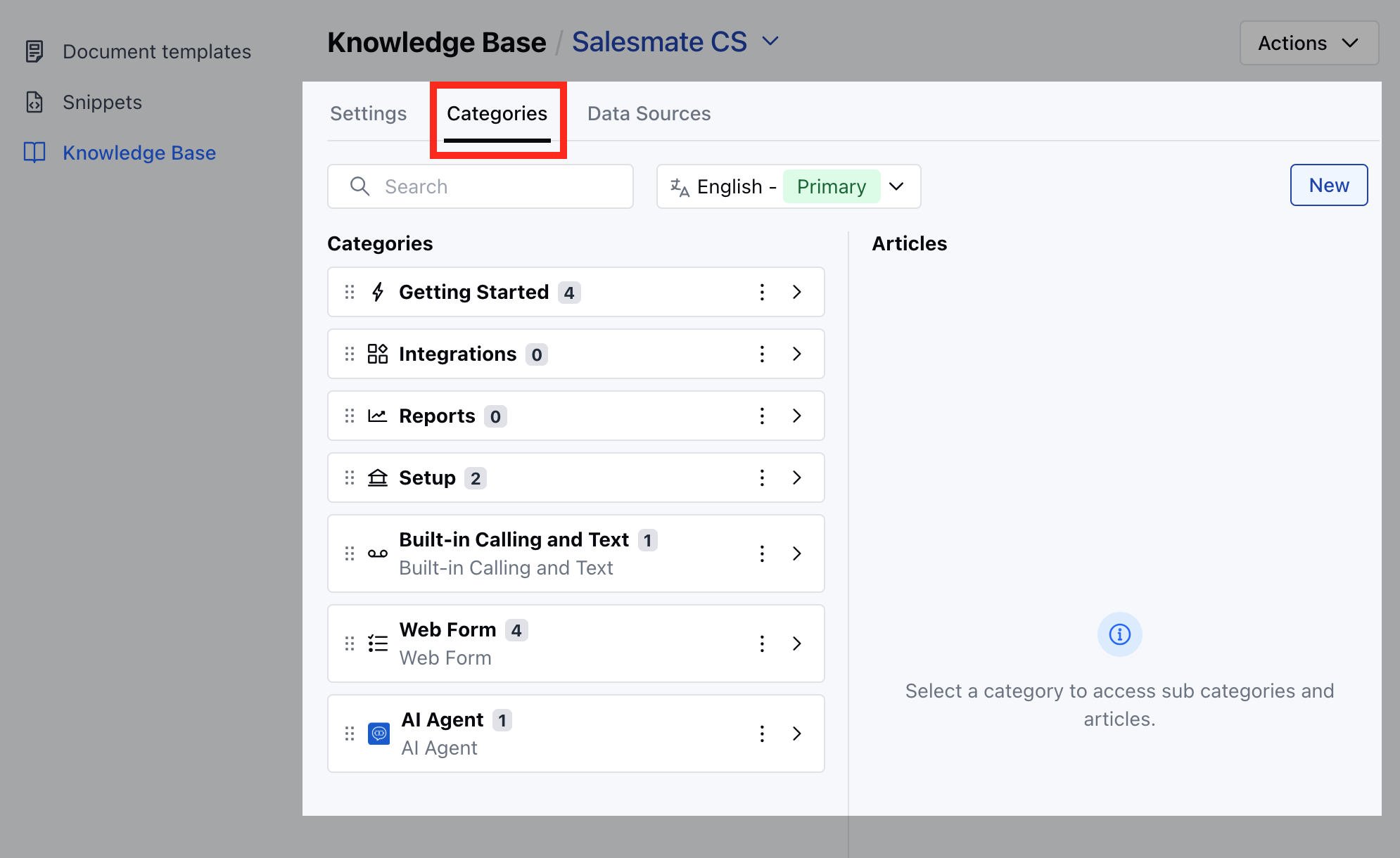
- Click on the Categories tab
- If multiple languages are supported, select your preferred language, then search for the category you wish to update.
- Once you’ve found the category you want to update, hover over it and click the “Edit” option from the available actions.
- You can modify any of the following details:
- Name:The title of the category as it will appear to users.
- Description: A brief summary explaining the purpose or contents of the category.
- Icon : A visual symbol representing the category for easy recognition.
- Click Change to select a new icon, or
- Remove to delete the existing one.
- Hit the Save button to update the category
- Upon successful update, a confirmation message appears as Updated successfully
Note: This icon is the same for all translations.
- You can modify the Name & Description in other languages, if they exist
- The category name field can’t be empty for any of the translations if they’re available to prevent removing translations once they are added.