

Note: To delete a knowledge base, you must have the Manage Knowledge Base permission.
Topics covered:
- Steps to Delete a Knowledge Base
- AI Pilot and AI Copilot Dependency
- Data That Will Be Permanently Deleted
Steps to Delete a Knowledge Base
- Navigate to Setup.
- From Setup move to Library > Knowledge Base.
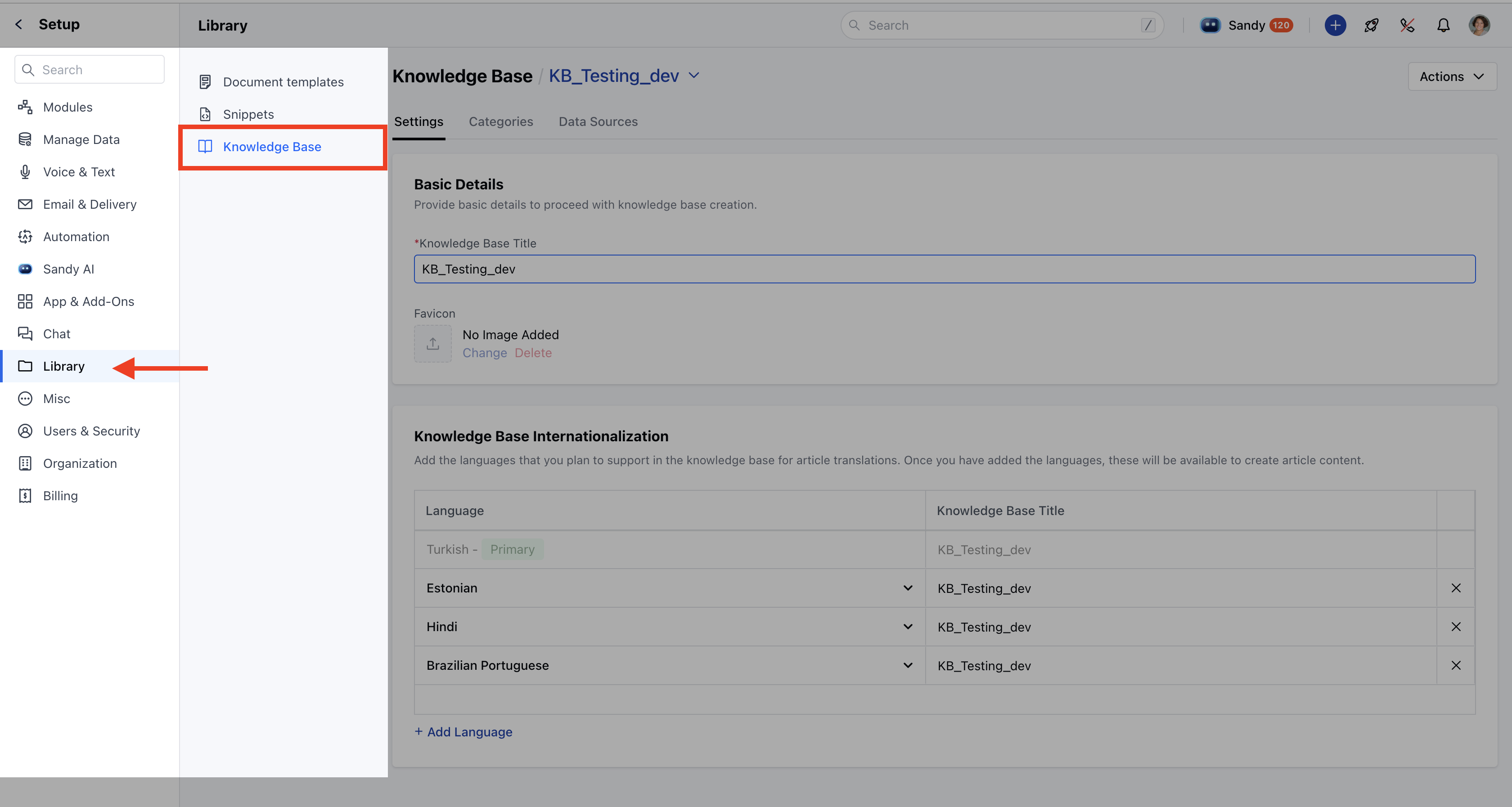
- Select the knowledge base you want to delete.
- Click on the Actions button at the top right of the screen.
- Choose the Delete option from the dropdown.
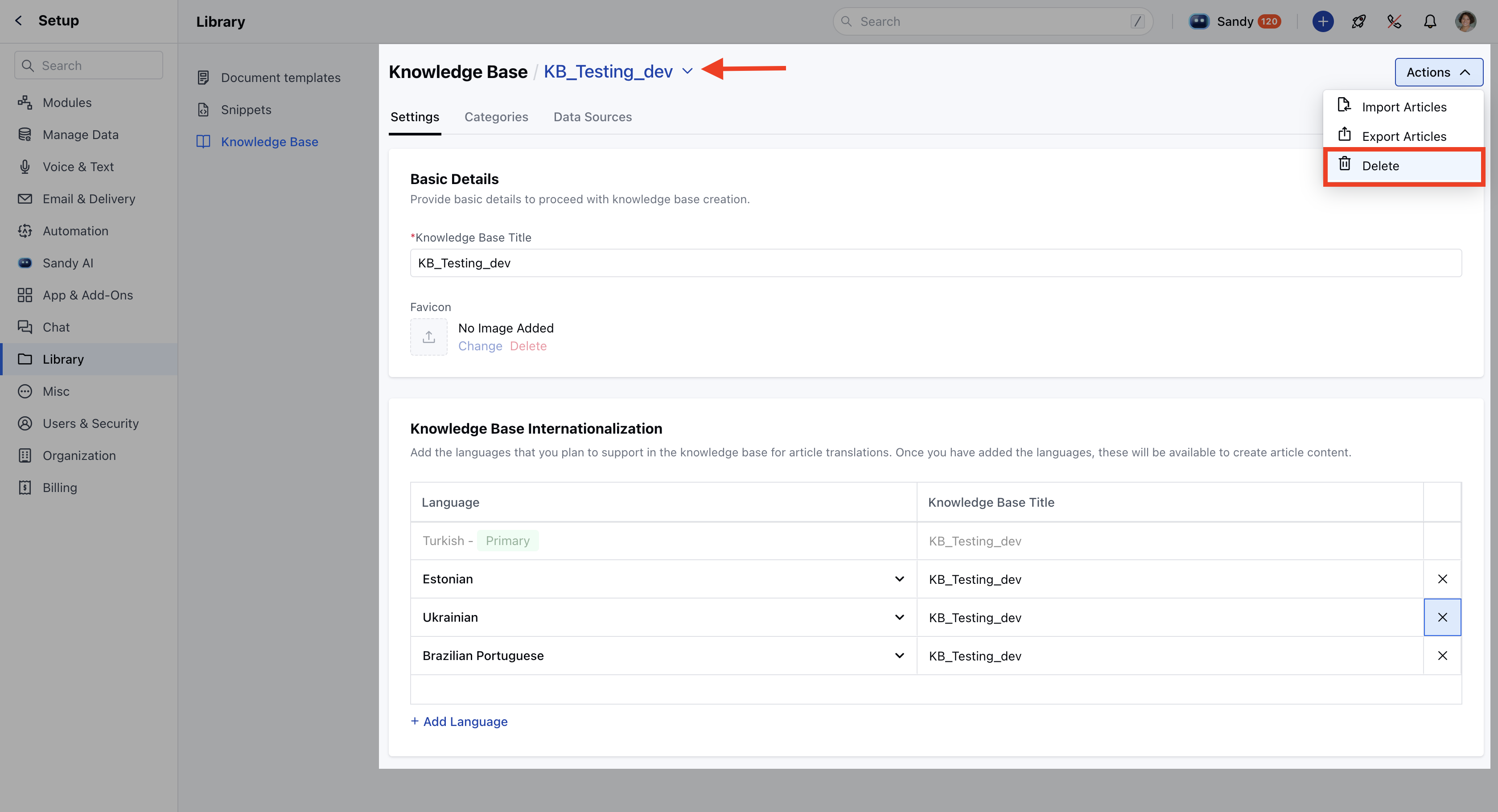
- A confirmation dialog will appear with a message “Are you sure you want to delete the knowledge base permanently?”
- A knowledge base serves as a crucial data source for AI Pilot and AI Copilot to operate effectively. To proceed, type the exact name of the knowledge base you are deleting to confirm.
Note: The name must be entered the same as the Knowledge Base name, as it is case-sensitive.
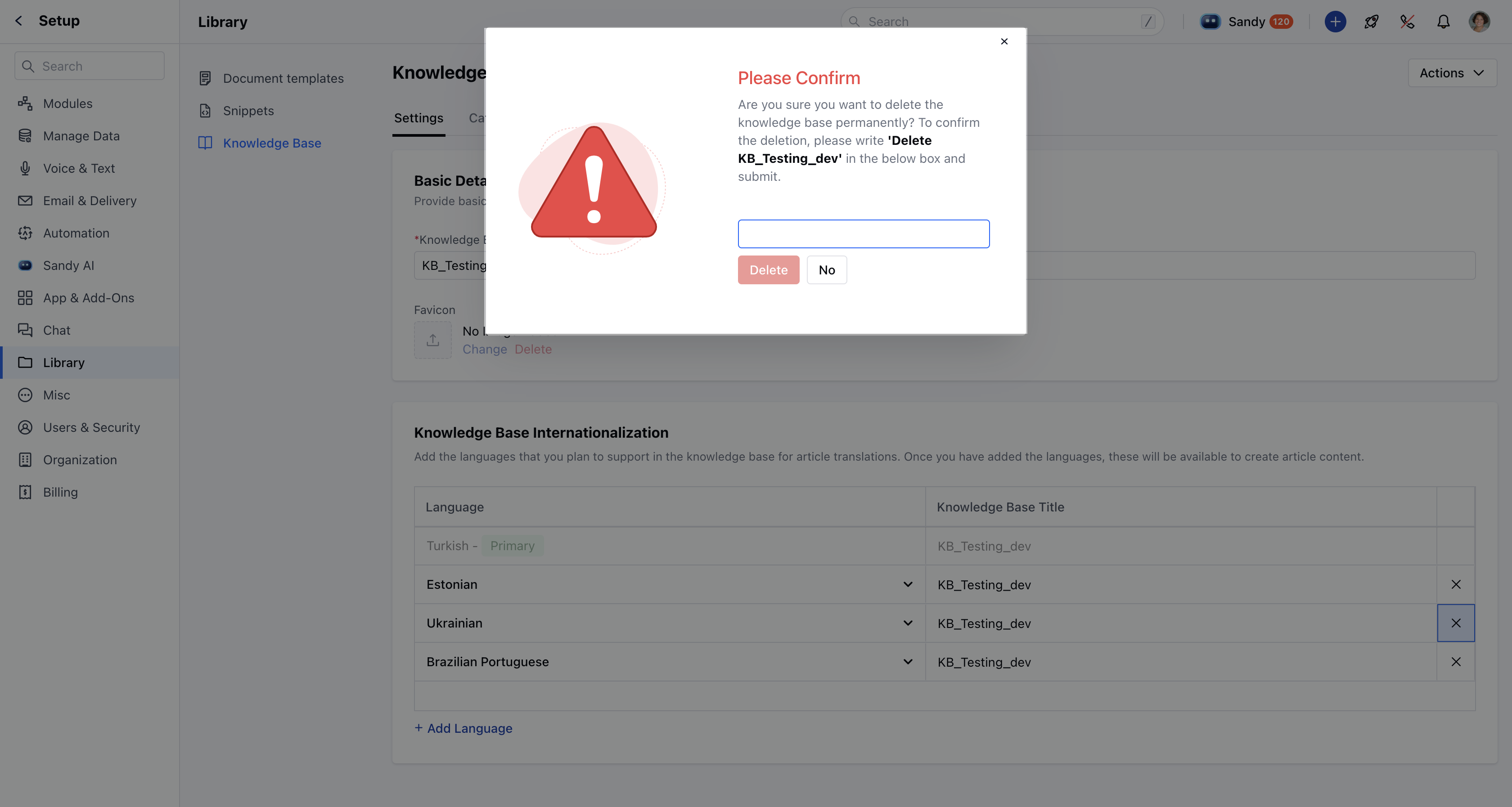
- After entering the correct name, click Delete .
- A success alert will appear indicating Deleted successfully .
AI Pilot and AI Copilot Dependency
If the knowledge base is actively used in AI Pilot or AI Copilot, you will see a warning message during deletion: “Are you sure you want to delete this knowledge base? Deleting it may result in feature failures.”Data That Will Be Permanently Deleted
Deleting a knowledge base will remove all of the following:- Articles
- Categories
- Sub-categories
- Article statistics and performance data
- Knowledge base visibility in chat and Messenger layout
- Copilot and AI Pilot configurations tied to this knowledge base