Note: To access and configure the Knowledge Base settings:
- Users must have the Manage Knowledge Base permission.
- If the user does not have permission to manage the knowledge base and organize categories, the Knowledge Base section will not be visible in the
- Library Setup.
- Steps to Customize Knowledge Base Settings
- Basic Details
- Internationalization
- Article Settings
- Actions
Steps to Customize Knowledge Base Settings
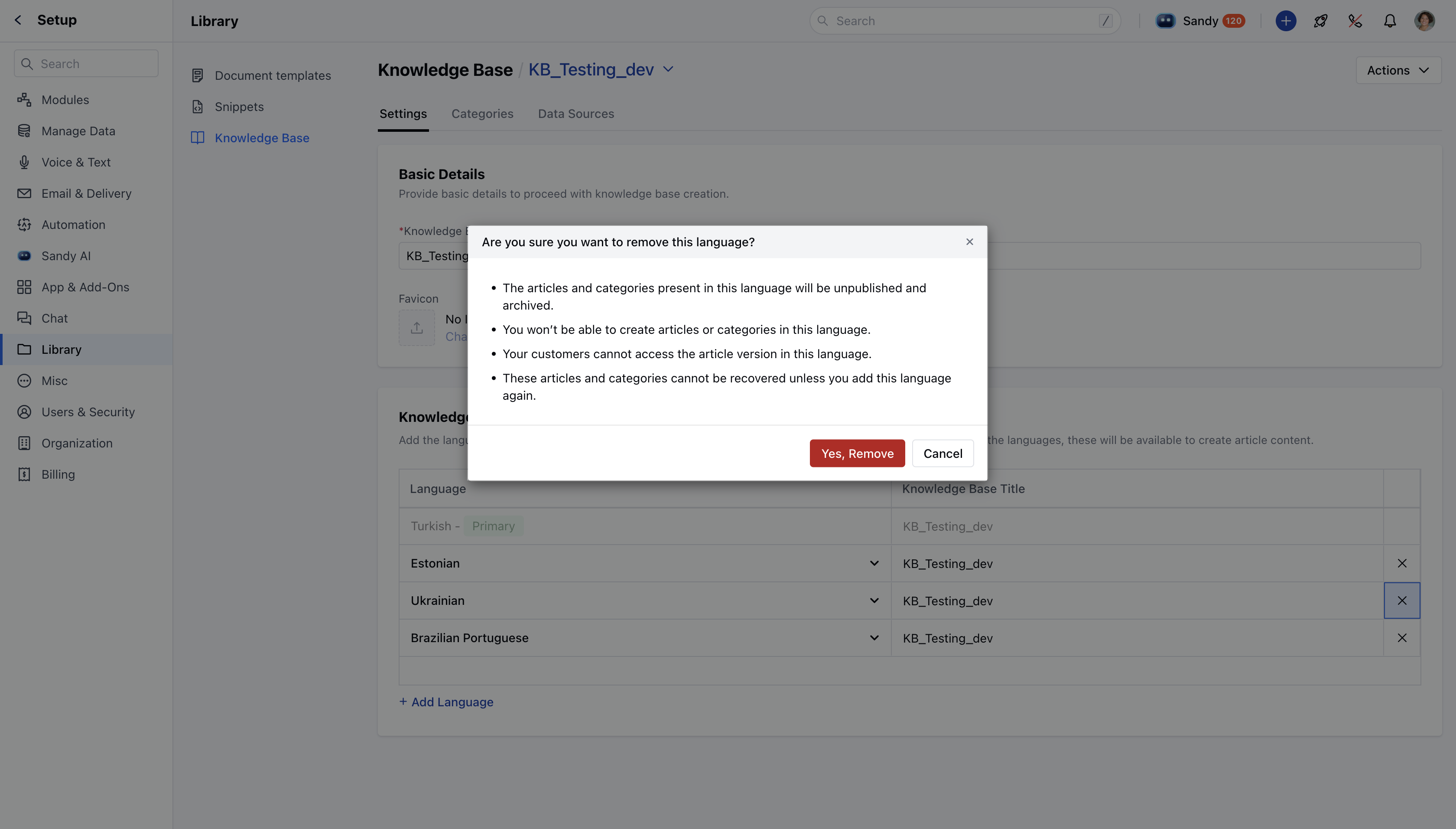
- Navigate to Setup
- From Setup Go to Library >> Knowledge Base.
- You will land on the Settings tab by default.
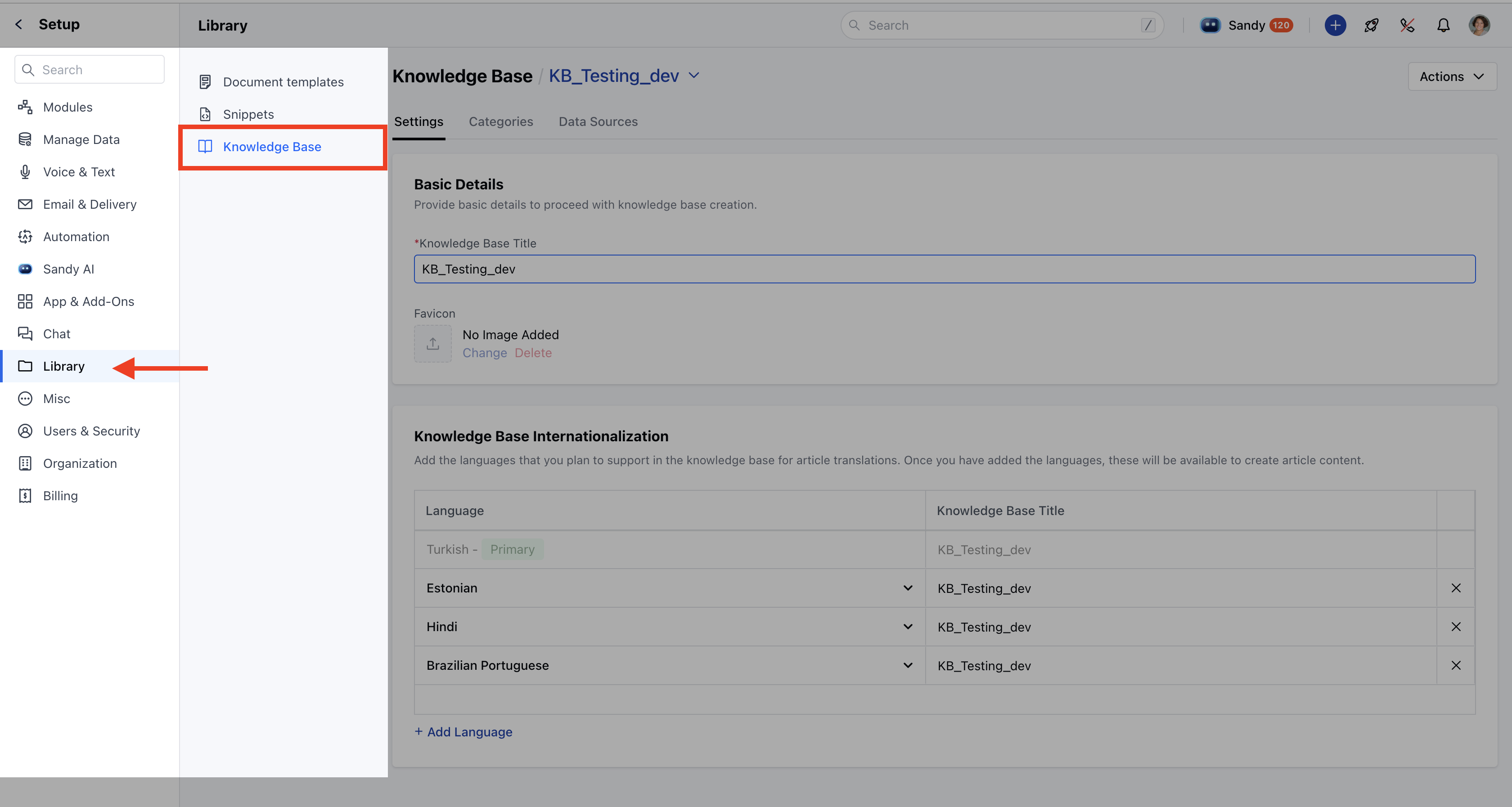
- Select the Knowledge Base you wish to configure.
- To create a new knowledge base, click on Switch Knowledge Base , then select
- Create New Knowledge Base.
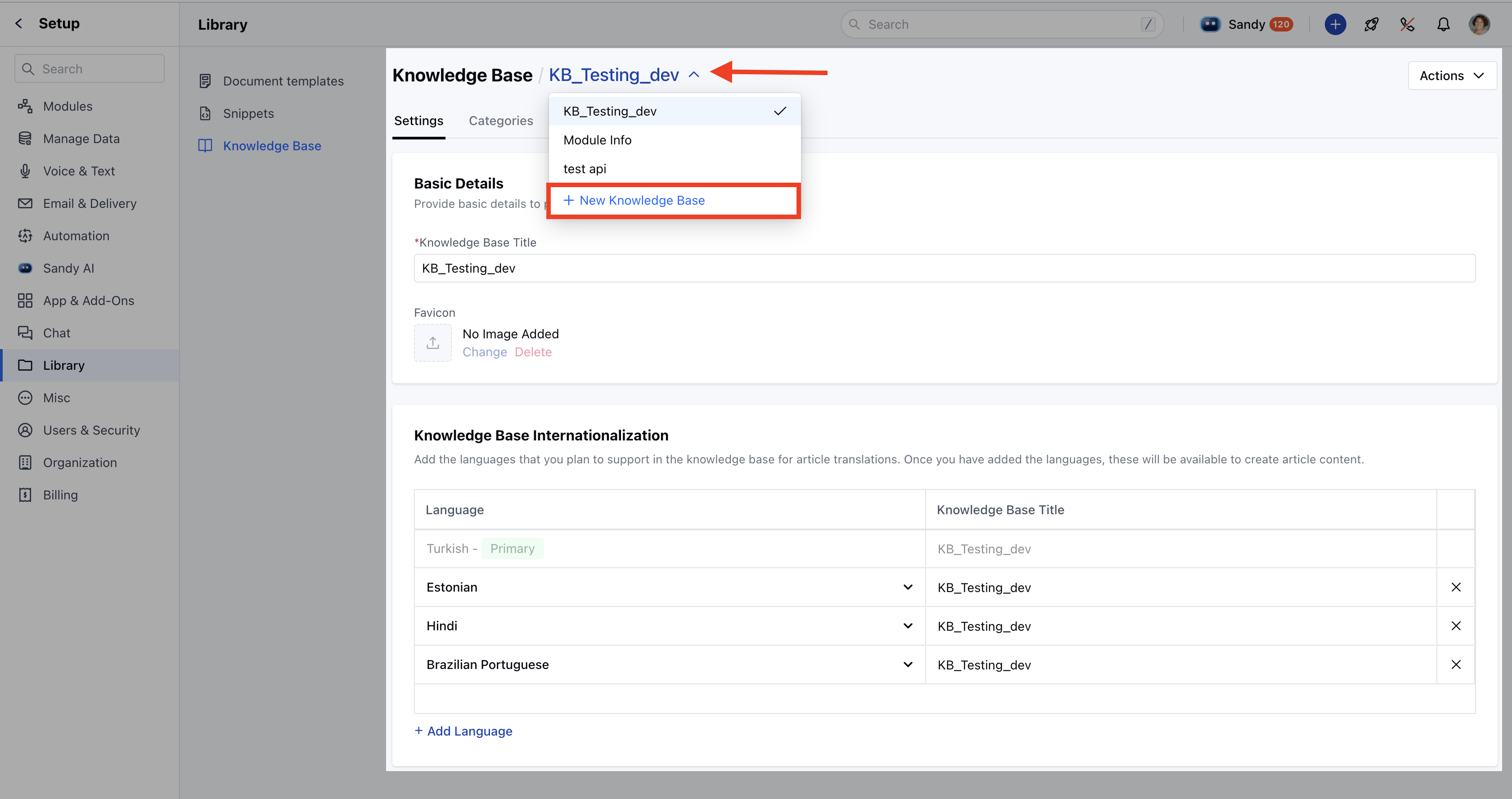
- This action will take you to a new screen where you can complete the setup. For detailed steps, refer to the Create Knowledge Base article.
- Changes made in this section will be saved automatically. A confirmation message will appear saying Updated successfully .
- Basic Details
- Internationalization
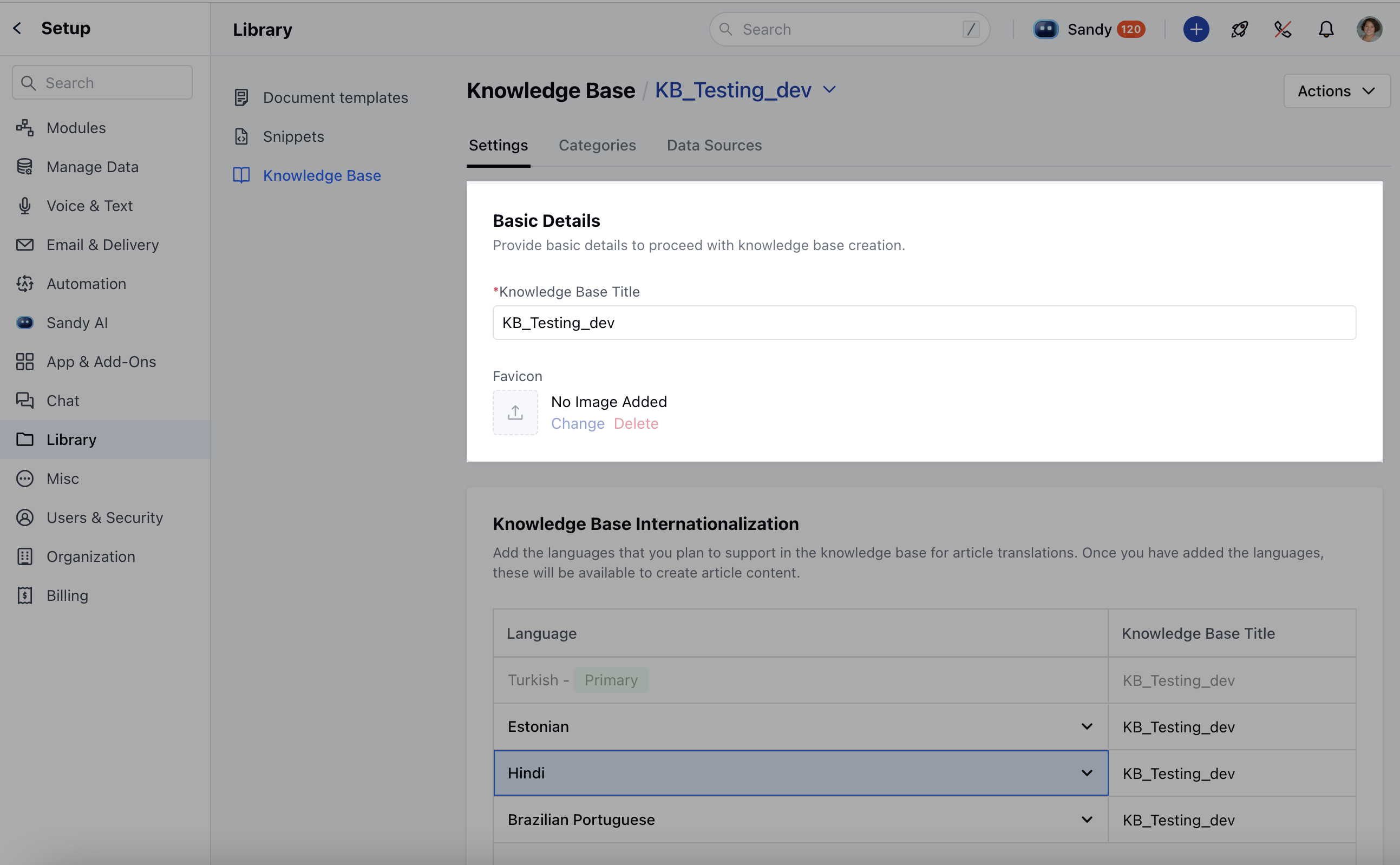
Basic Details
This section includes the core setup information for your knowledge base.- Knowledge Base Title: You can edit the name of your knowledge base.
- Brand: Displays the brand name selected during the setup.
- Favicon: You can upload a small icon that will appear on the browser tab.
Internationalization
This section allows you to add languages to support content translations in your knowledge base.- The primary language is added by default and cannot be removed.
- If your subscription plan does not support multilingual content, this option will be disabled and a tooltip will display: Your plan doesn’t support multi-lingual content. Contact our support team to upgrade your plan.
- Add a Language: Click on Add Language.
- Search and select the language from the list.
- The knowledge base title will automatically copy from the primary language but can be edited.
- The primary language will always appear at the top with a Primary badge and cannot be changed.
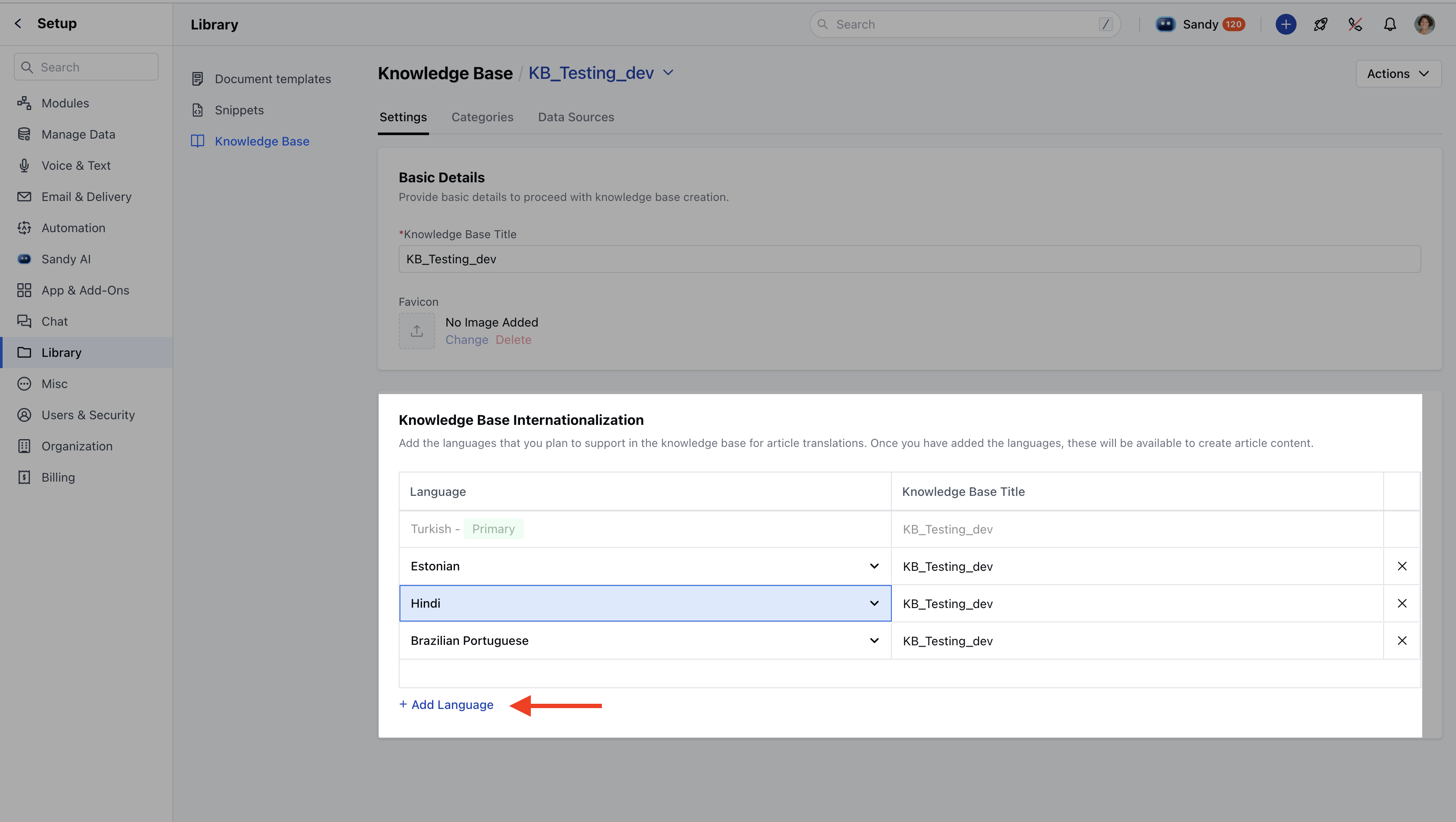
- Remove a Language: You cannot remove the primary language.
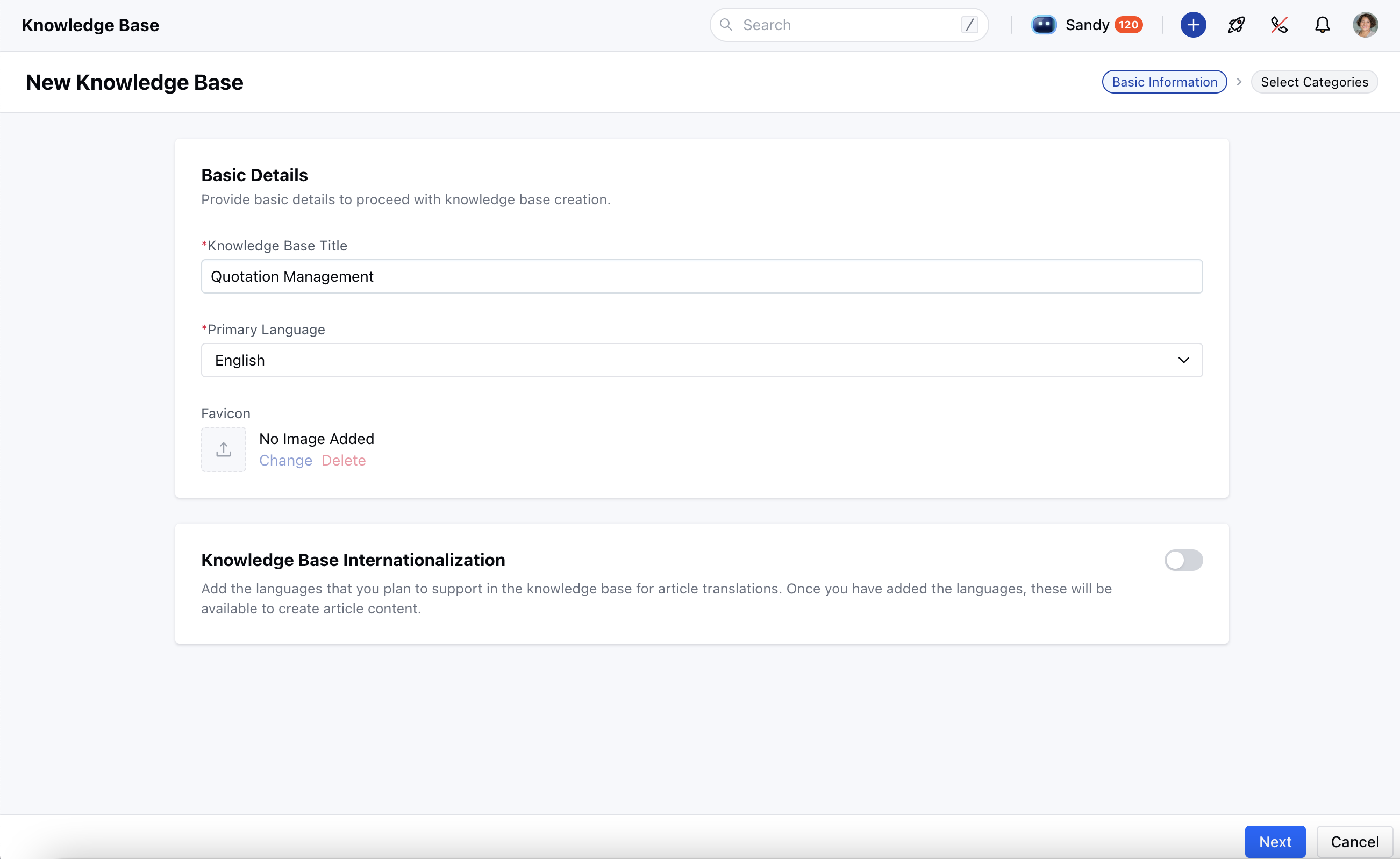
- If the language contains articles in draft or published state, a confirmation dialog will appear with the following message:
- Are you sure you want to remove this language? * The articles and categories present in this language will be unpublished and archived.
- You will not be able to create articles or categories in this language. * Visitors will not be able to access content in this language.
- The content will not be recoverable unless you add the language again.
- After confirmation, the language and its associated articles will be archived and removed.
- Translation options for this language will no longer be displayed.