Topics covered:
How to Create a Sub Flow
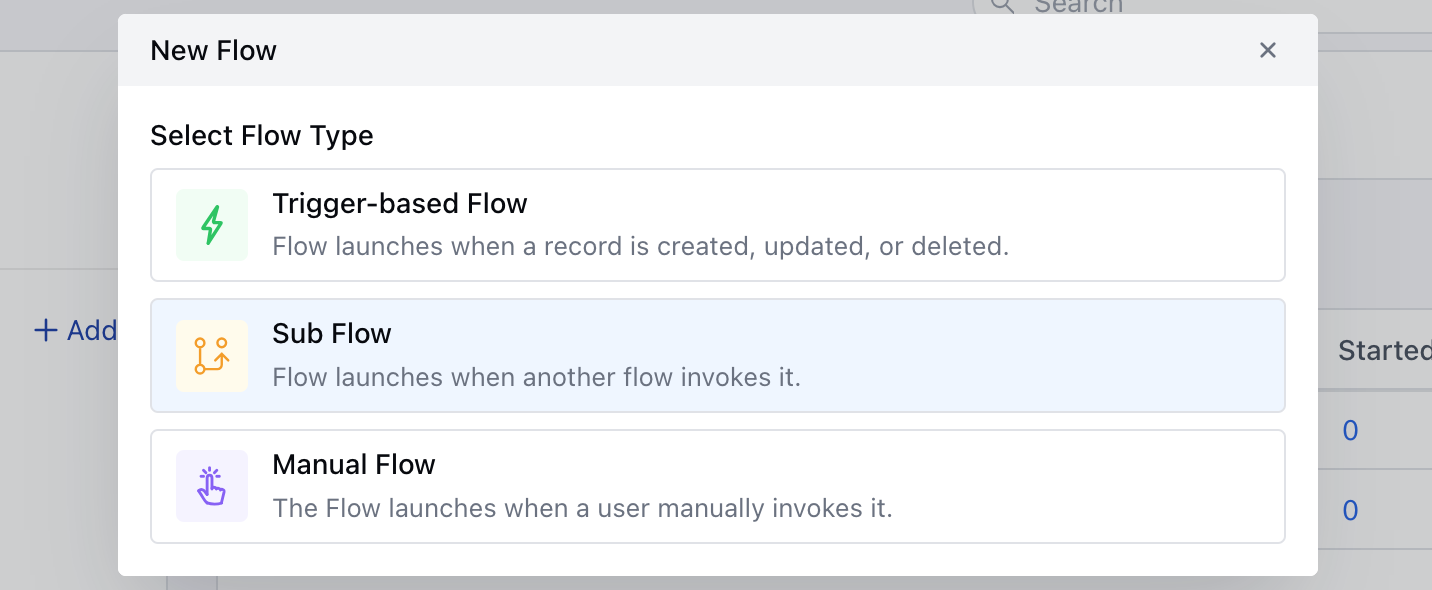
To Create a Subflow: Navigate to Smart Flows from left sidebarClick on New Flow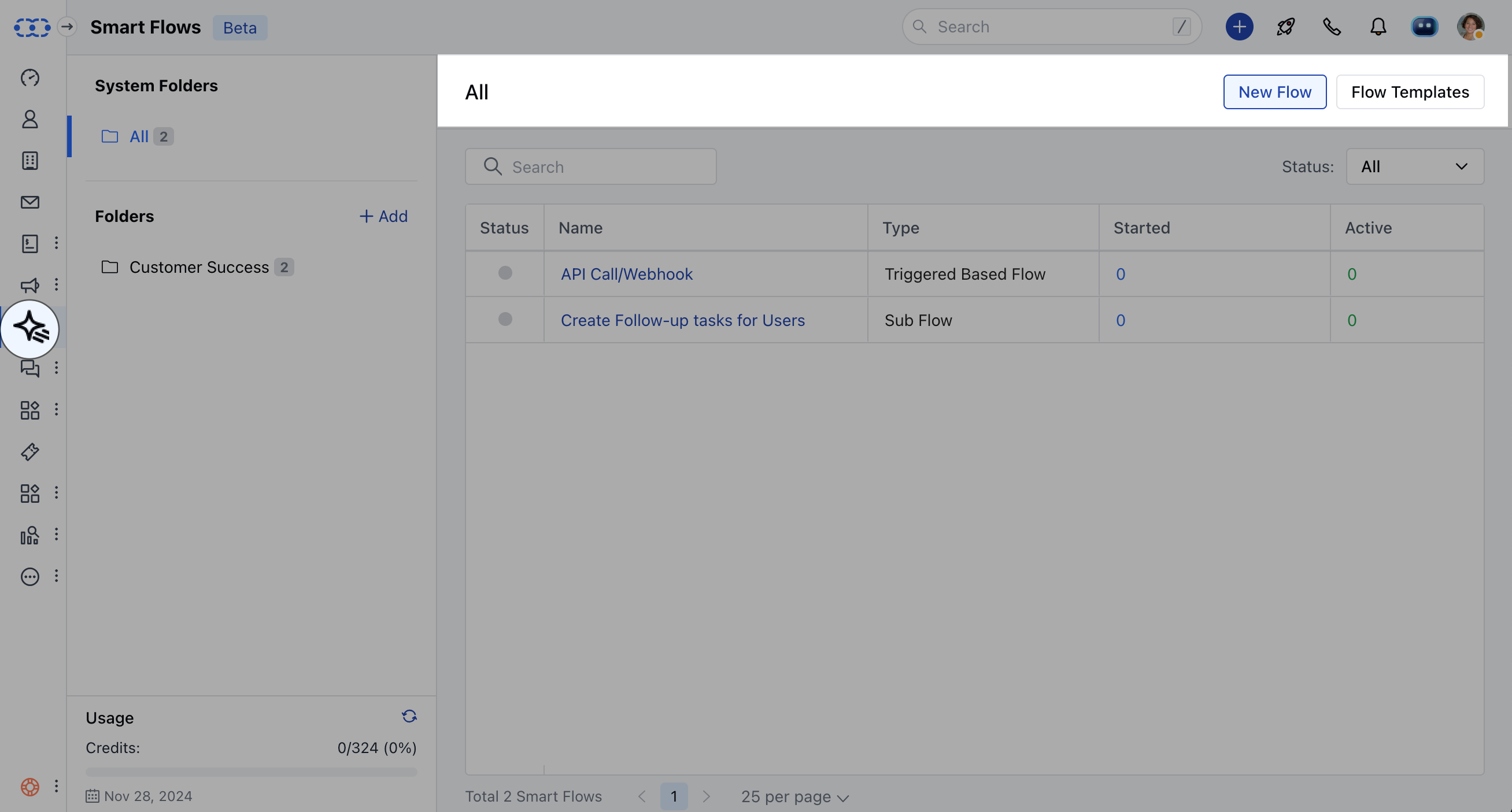
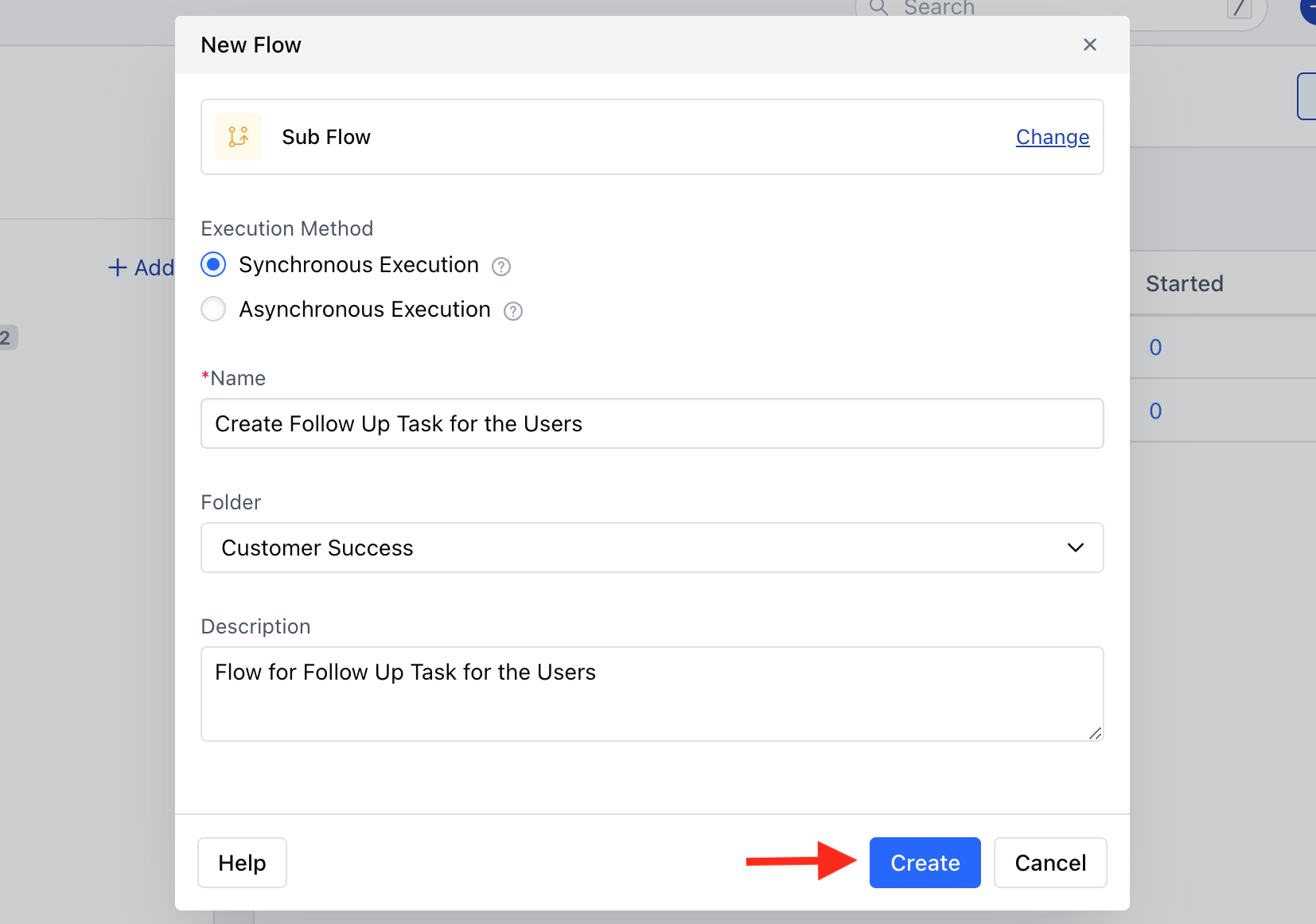
- In asynchronous execution: The subflow can include wait steps like pausing to wait for a response. However, you won’t be able to use output variables from the subflow in the main flow.Add the following details,
- Name: Assign a suitable title for the flow.
- Folder: Choose an appropriate folder for the flow.
- Description: Provide a brief explanation of the flow’s purpose.Once done click on Create.
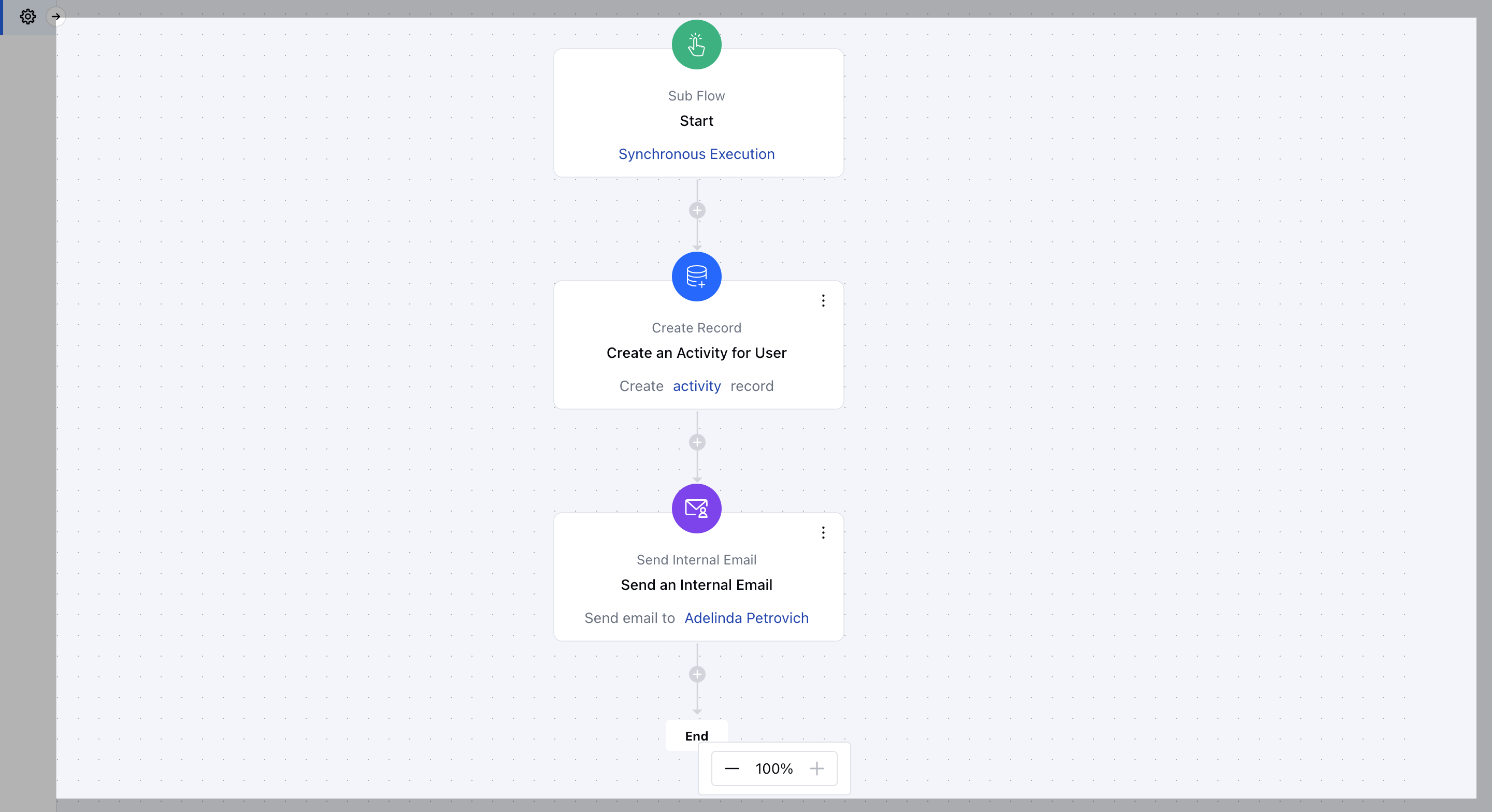
Practical Example
This subflow automatically creates a follow-up task and sends an internal follow-up email to the user, eliminating the need to manually add these steps in other Smart Flows. By incorporating this subflow, you save time and reduce repetitive work across workflows.