When a Flow is created and remains in draft status, Salesmate provides the flexibility to modify the trigger if needed. This allows you to adjust the starting conditions of the flow to better align with changing requirements, without needing to create a new flow entirely.
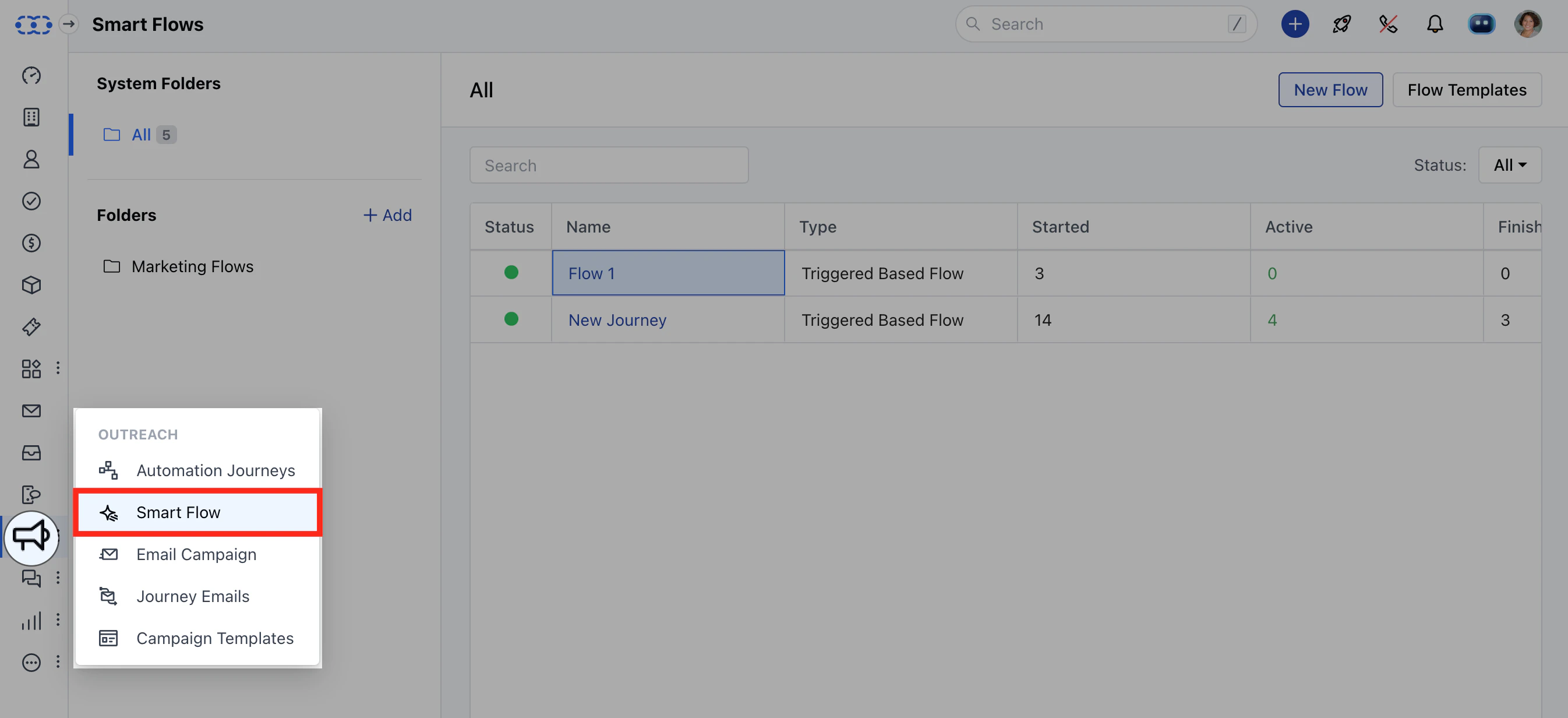
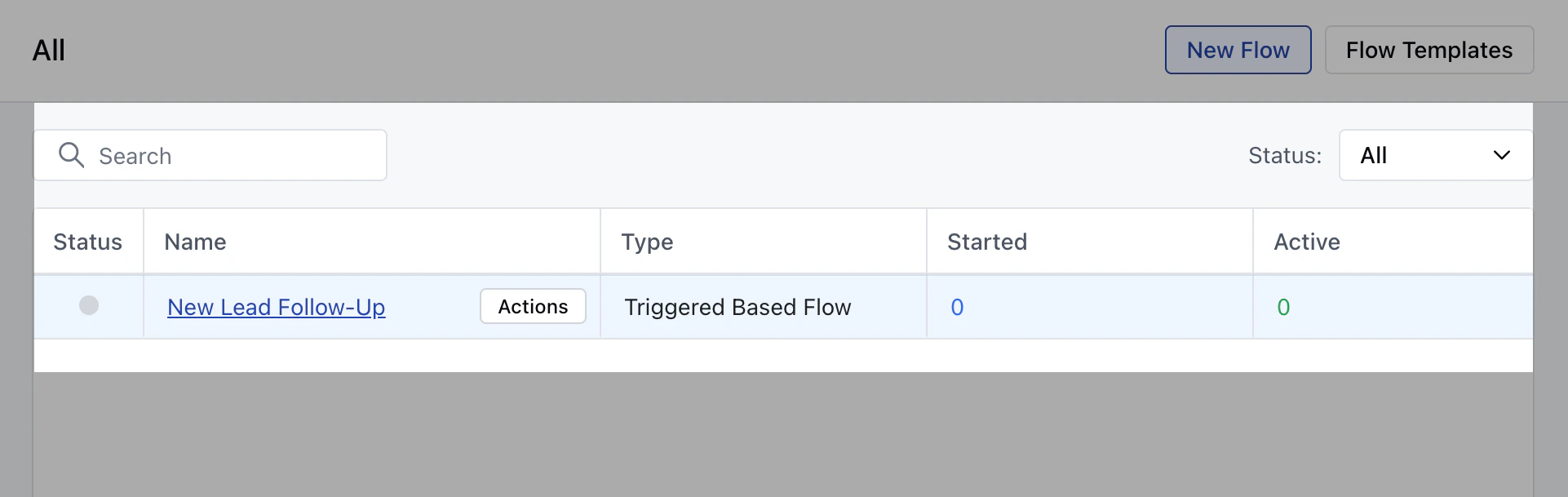
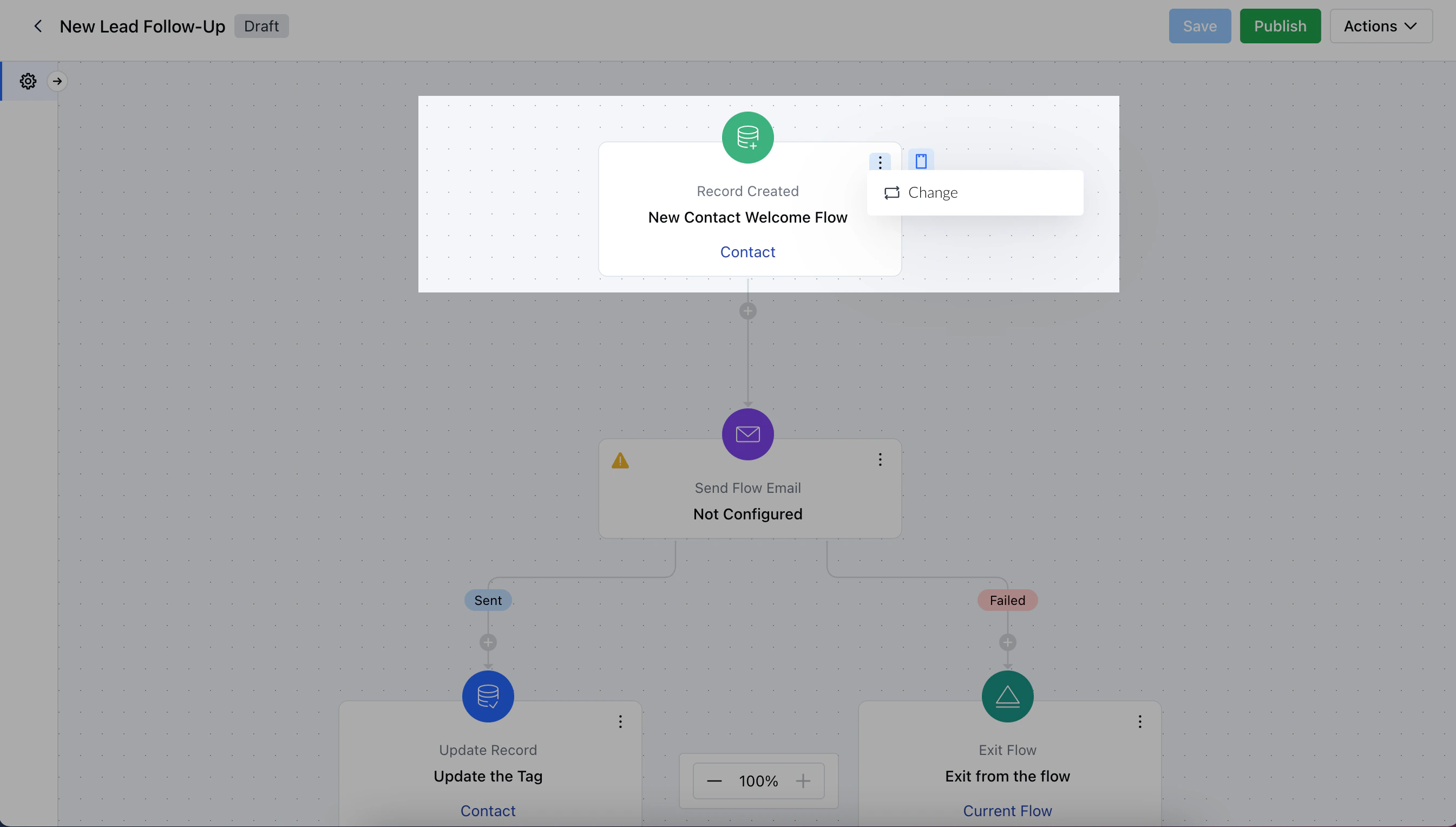
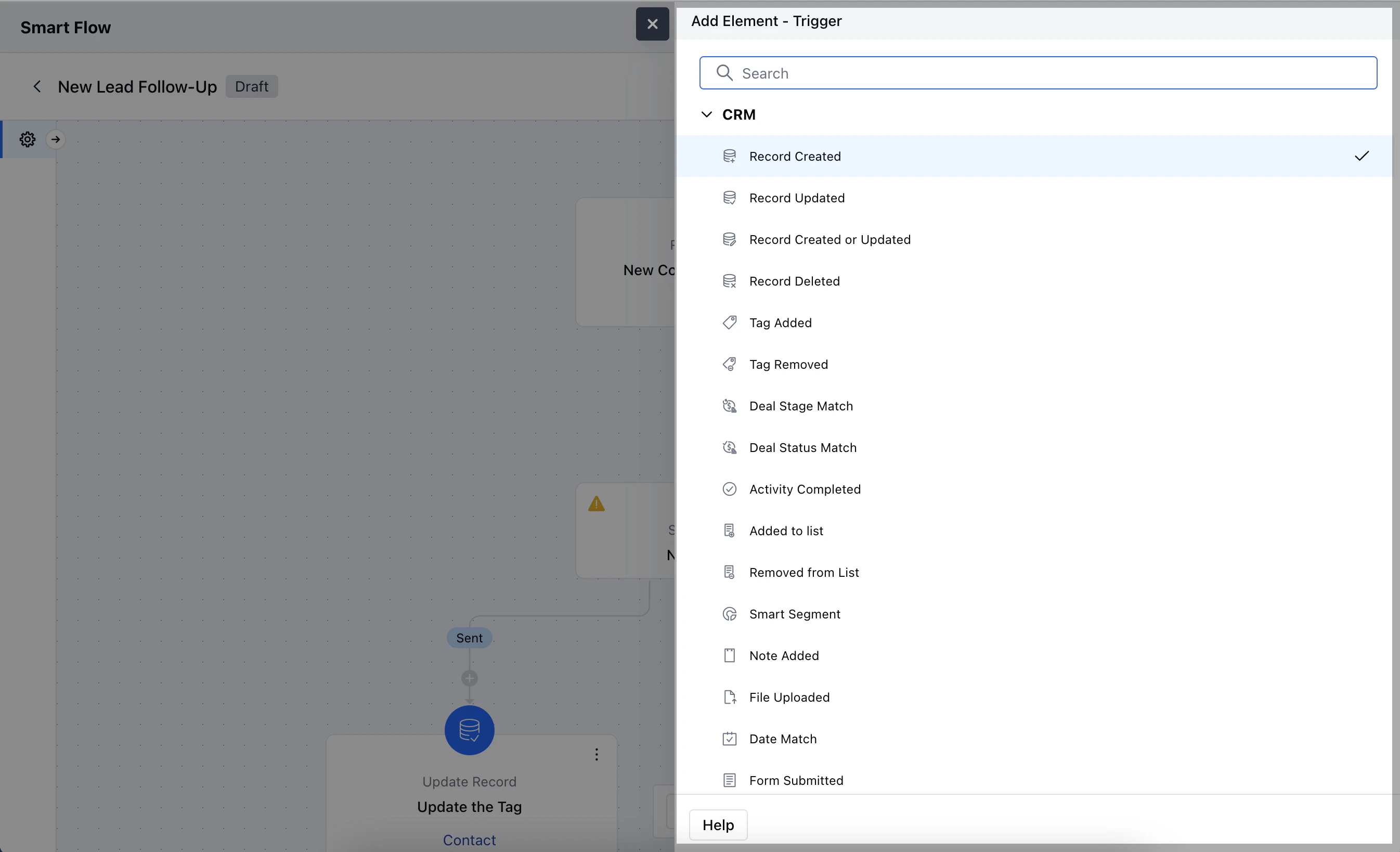
To change the Flow Trigger,Access Smart Flows feature from left menu bar.Select the desired Flow where you wish to change the Trigger.Hover over the trigger, click on the three dots, and select Change.A popup will show a list of available Triggers, select the new trigger from the listOnce done, click on Save to save the changes