

How to Archive the Snippets
Follow these steps to archive a snippet:- Navigate to the Profile Icon and Go to Setup .
- Select Library and then choose Snippets from the menu.
- Hover over the snippet you wish to archive.
- An Action button will appear. Click on it and select the ‘Archive’ option.
- Once the snippet is archived, a success message will appear stating, “Archived Successfully.”
How to Unarchive a Snippet
Recover important content effortlessly without the need for recreating it from scratch. If you need to restore a previously archived snippet for use, follow these steps to unarchive it:- Navigate to the Profile Icon in the top right corner.
- Go to Setup.
- Select Library and then choose Snippets from the menu.
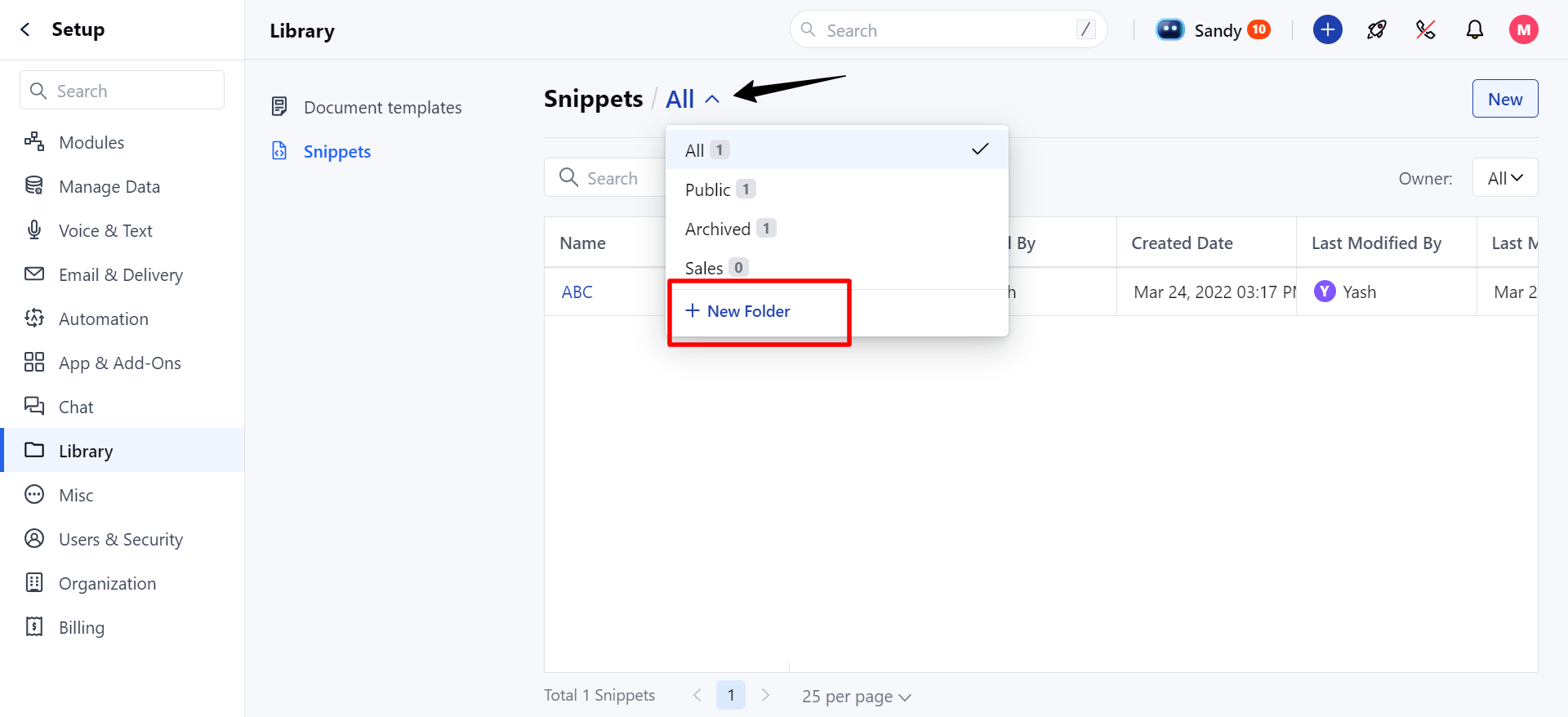
- Go to the archived folder and locate the archived snippet you want to restore. Use the search bar or filter options if the list is long.
- Hover over the snippet you wish to Unarchive.
- Click on the Action button that appears and select the ‘Unarchive’ option.
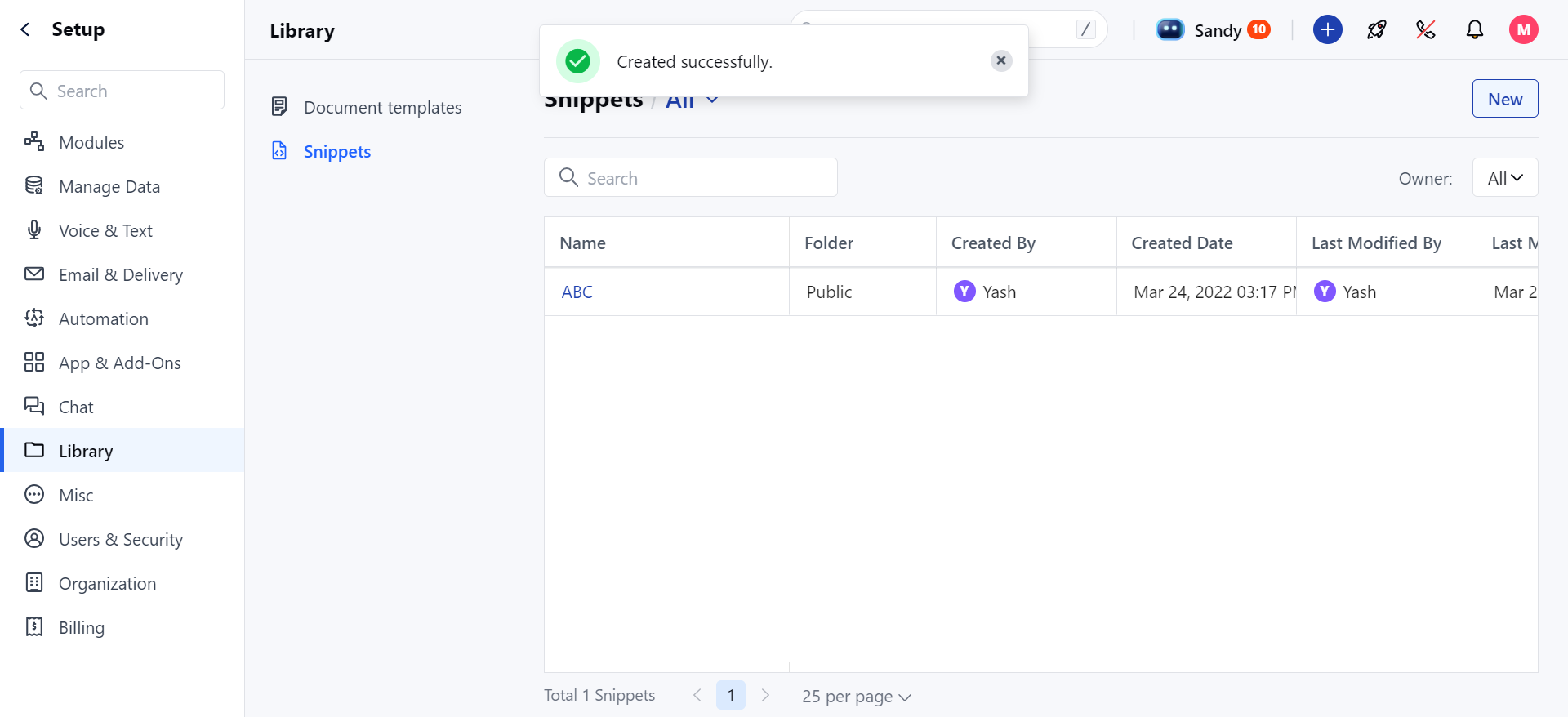
- Once the snippet is successfully unarchived, a success message will appear stating,“Unarchived Successfully.”
Note: When a snippet is unarchived, it will return to its original folder. If the original folder no longer exists, the snippet will appear in the “All” folder.