

Note: A User with Create snippets rights can perform this operation
How to Create a Snippet To create a new Snippet,
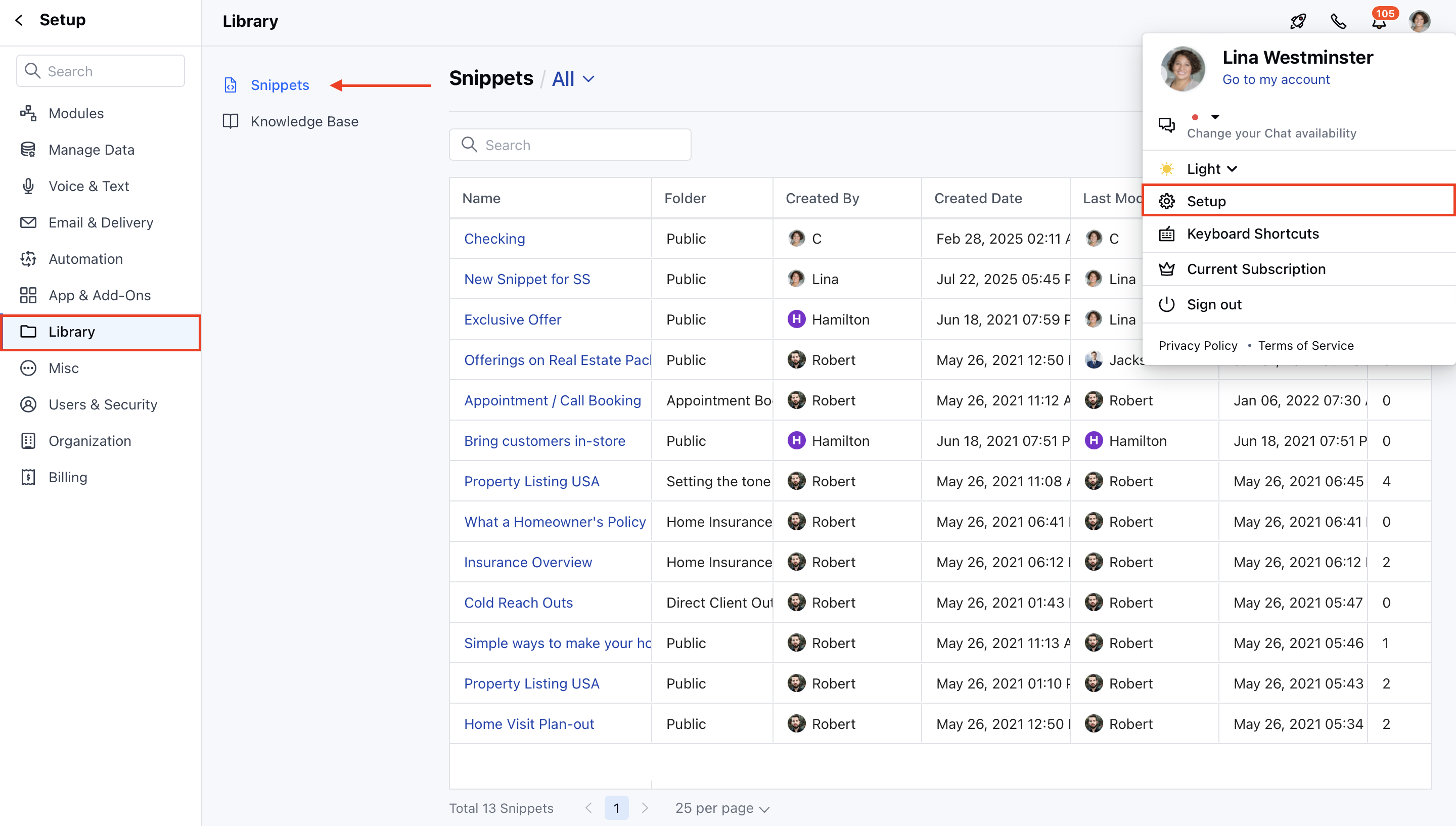
- Navigate to the Profile Icon on the top right corner.
- Click on the Set Up.
- Head over to the Library category.
- Click on the Snippets option.
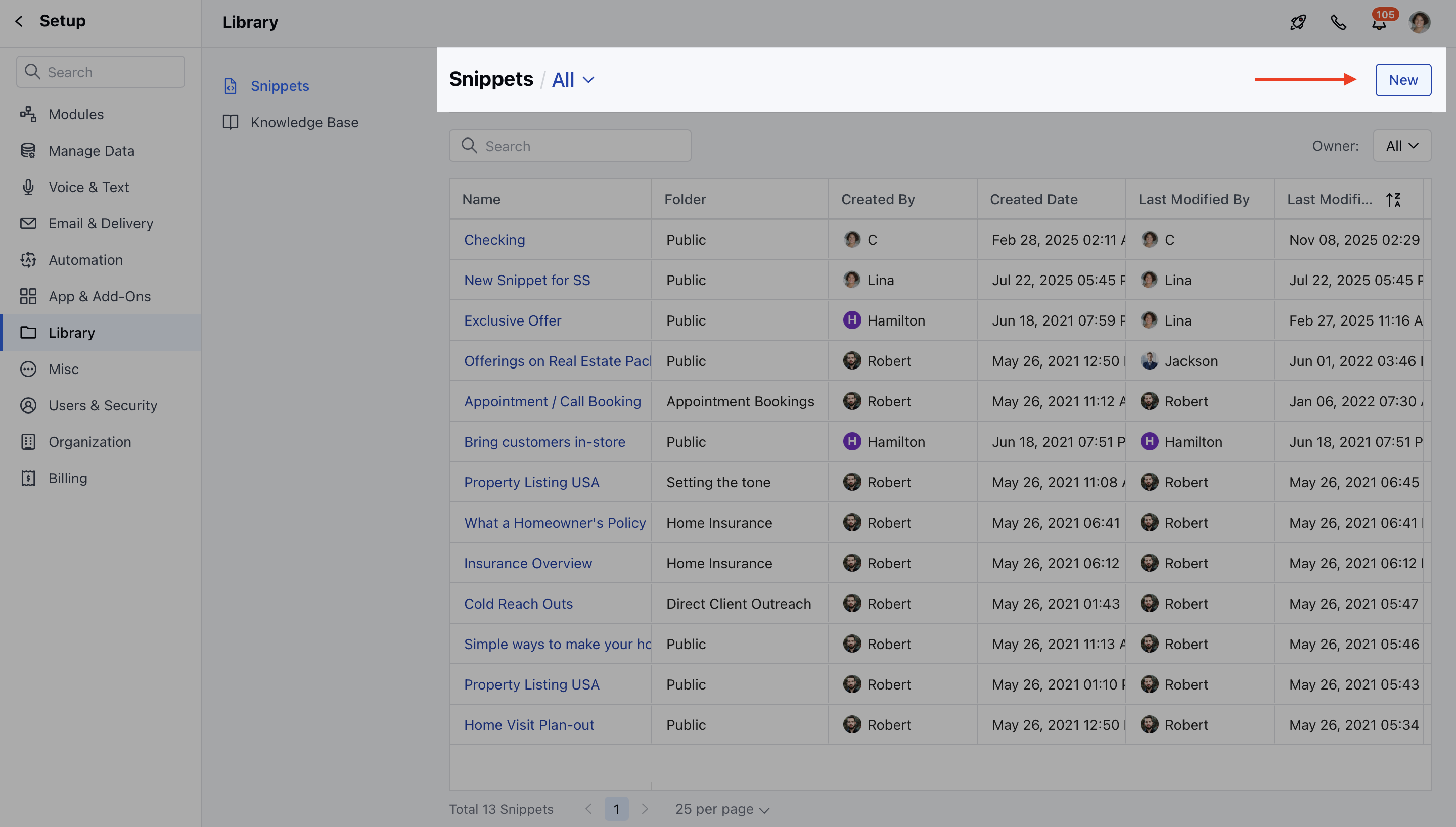
- Click on the New button to start creating a snippet.
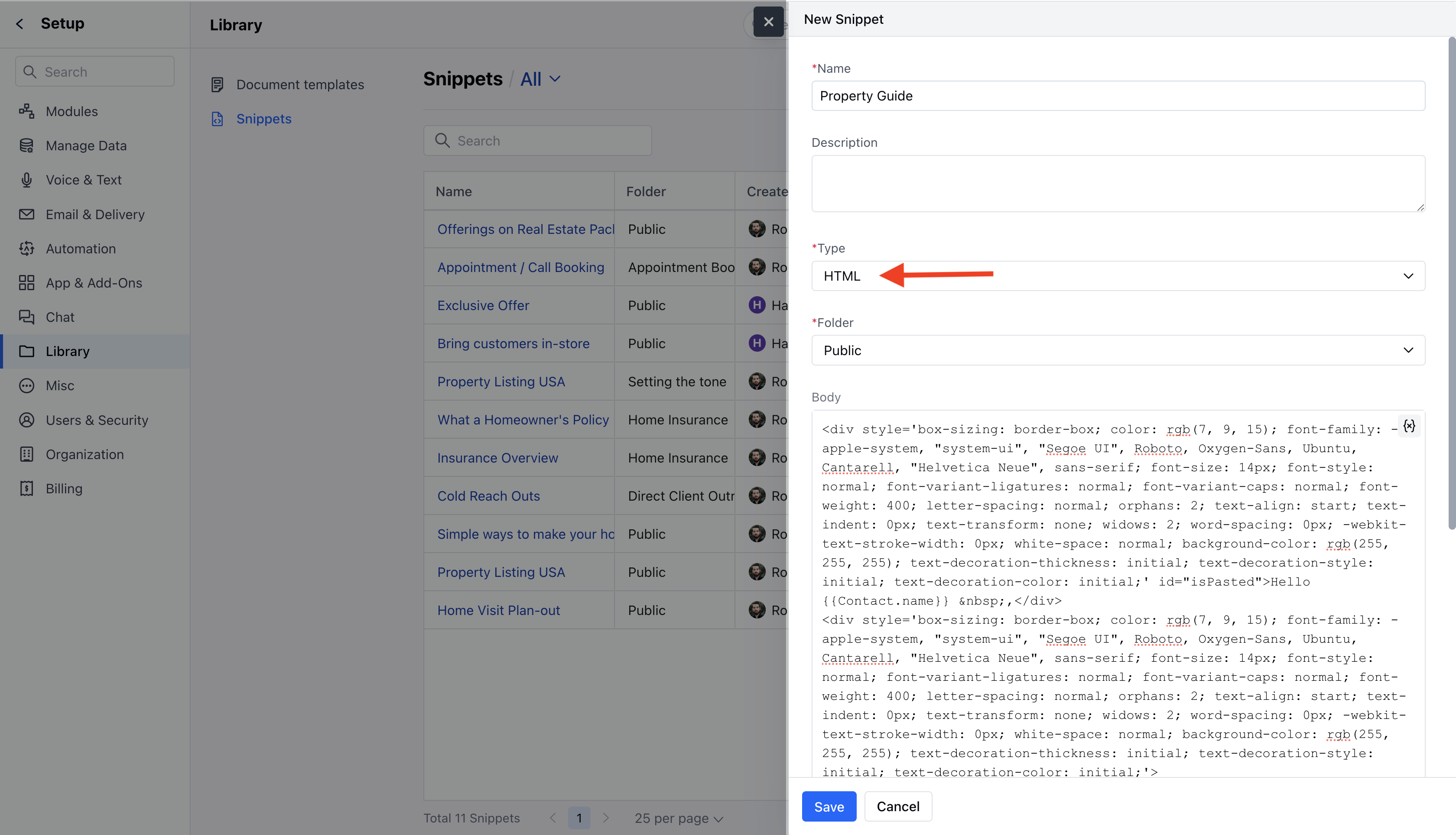
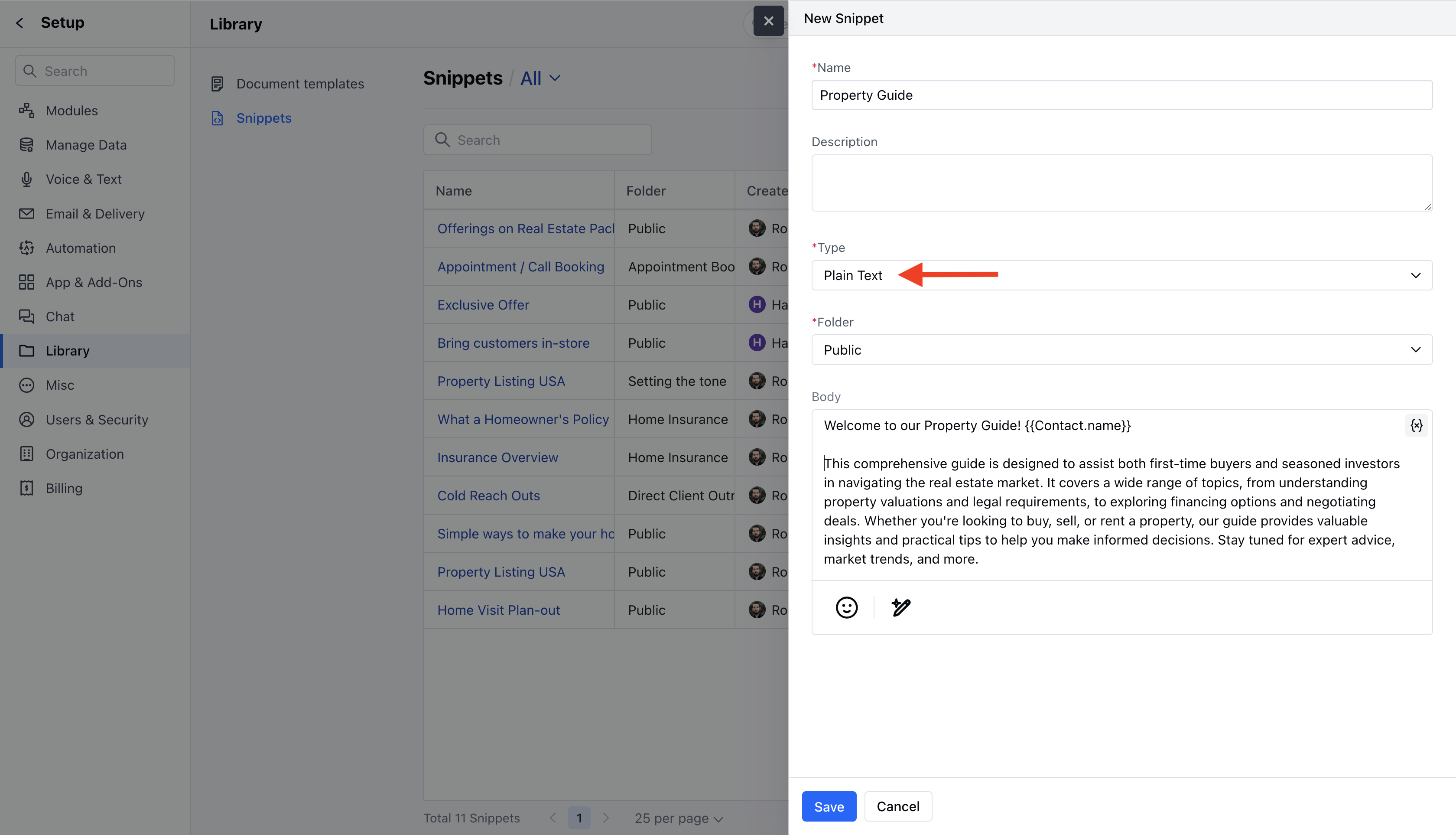
- Name: Enter the name for the Snippet.
- Description: Enter the brief information about the Snippet you are creating.
- Choose the type of snippet:
- Plain Text : Suitable for simple, unformatted text.
- HTML : Allows rich text formatting and personalization.
- Folder: Select the folder where you want to save the Snippet. Learn More.
- Body
- Text Snippets: Supports only plain text and emojis.
- HTML Snippets: Allows formatting (font size, color, alignment) and includes image insertion (max 20 MB) and variable personalization.
- Once all details are provided, hit the Save button.
- The snippet is now available for use by users with the appropriate permissions.