- Navigate to the Profile Icon on the top right corner
- Click on the Setup and Navigate to Library
- Navigate to Library Go to Snippets, all the active Snippets by default will be shown
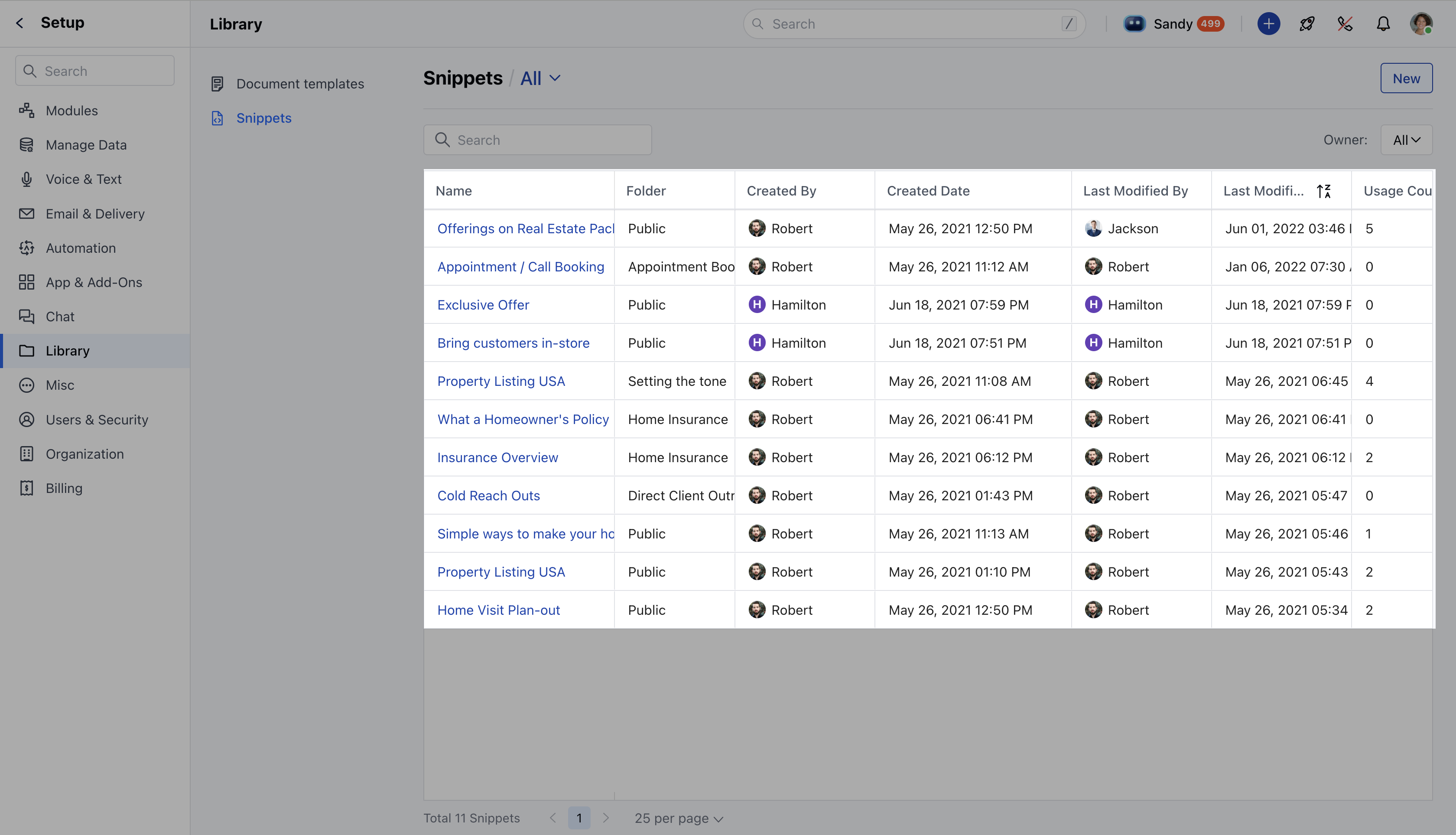
- You will see the snippets in a tabular format with the following columns:
- Snippet Name : The title of the snippet.
- Folder: The folder where the snippet is stored.
- Created By: The user who created and owns the snippet.
- Created Date: The date the snippet was created.
- Last Modified: The date the snippet was last updated.
- Usage Count: The number of times the snippet has been used.
Note: Only users with edit rights can archive or unarchive snippets.
- Snippet Preview: Click on a snippet to view its details on the Snippet Detail Page.
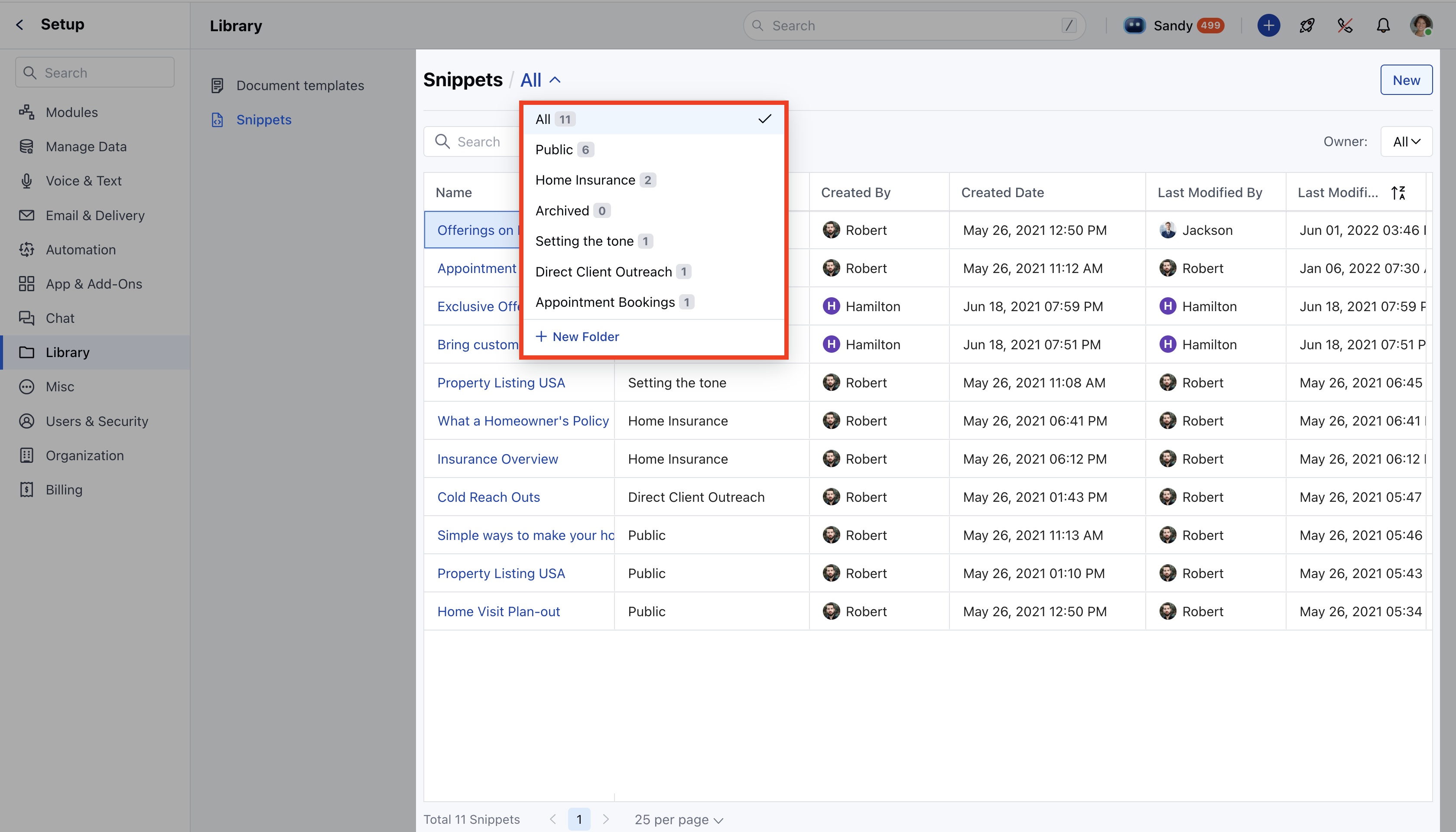
- Managing folders: We can add a new folder directly from the Snippet Listing Page, edit an existing folder and delete a folder. Learn more on how to organize folders.
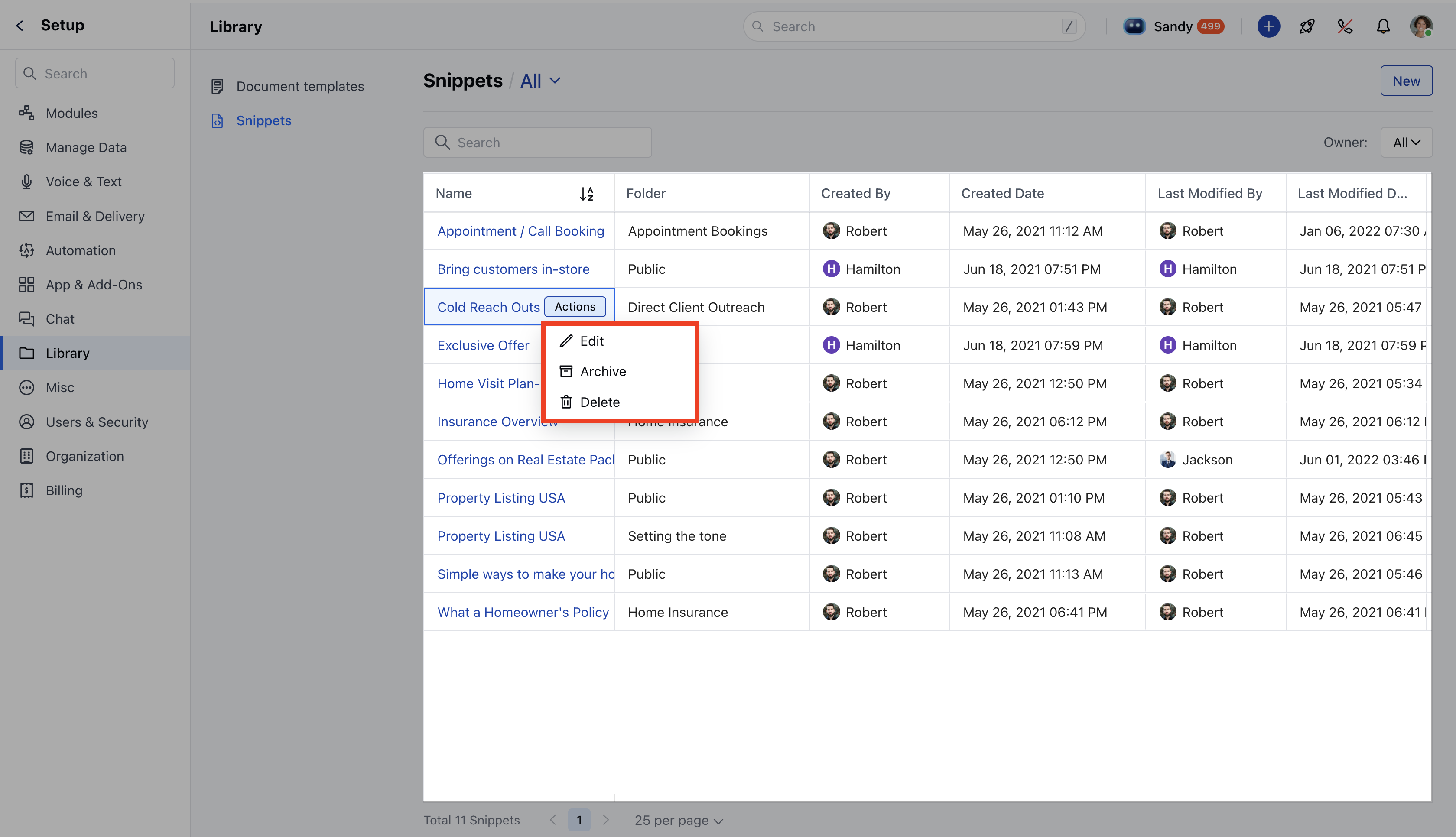
- Hover on the snippet’s name and click on the Actions button
- You can perform the following operations