

How to Edit a Snippet
Note: A user with edit snippet rights can perform this operation.
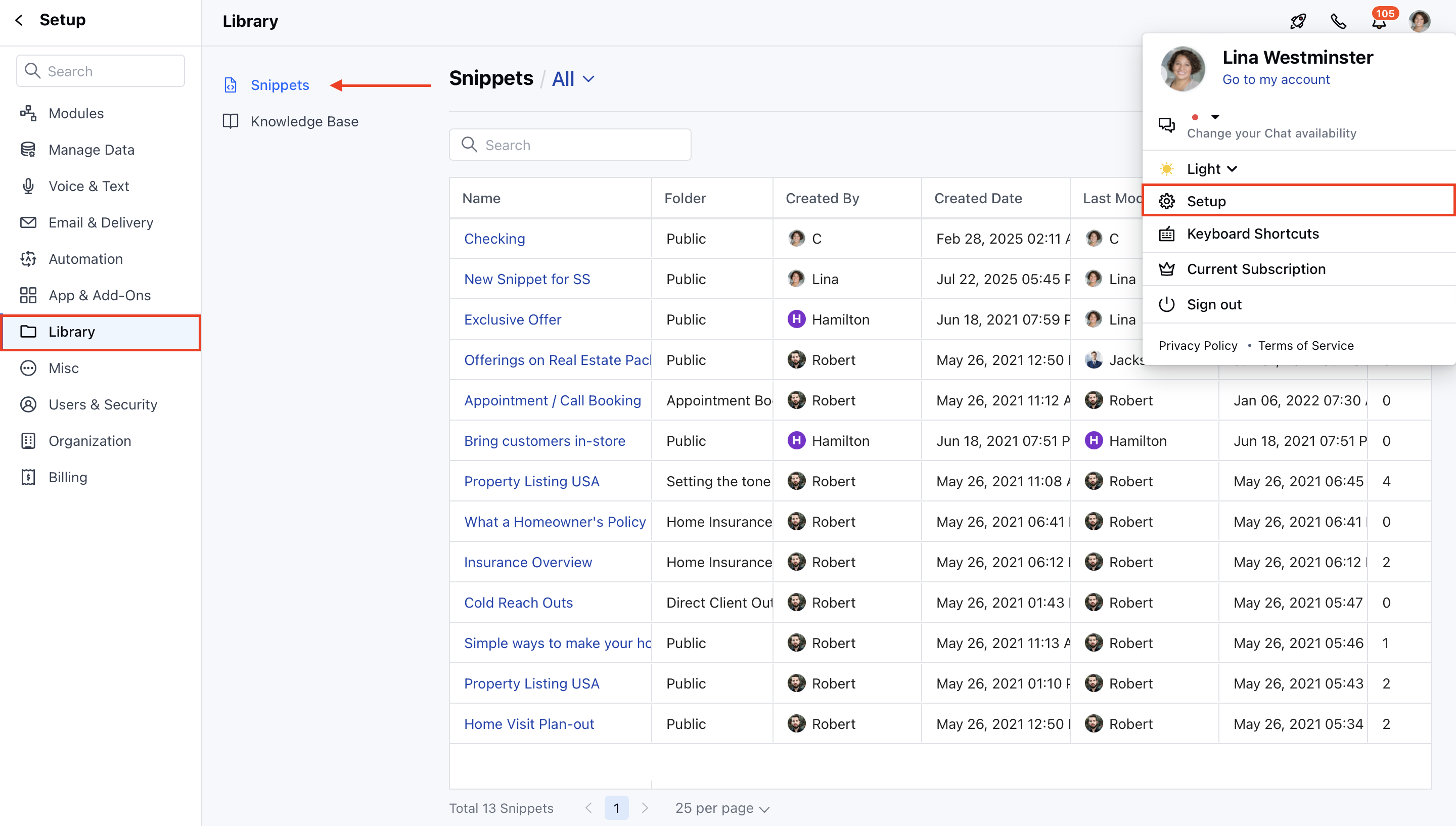
- Navigate to the Profile Icon on the top right corner.
- Click on the Set Up.
- Head over to the Library category.
- Click on the Snippets option.
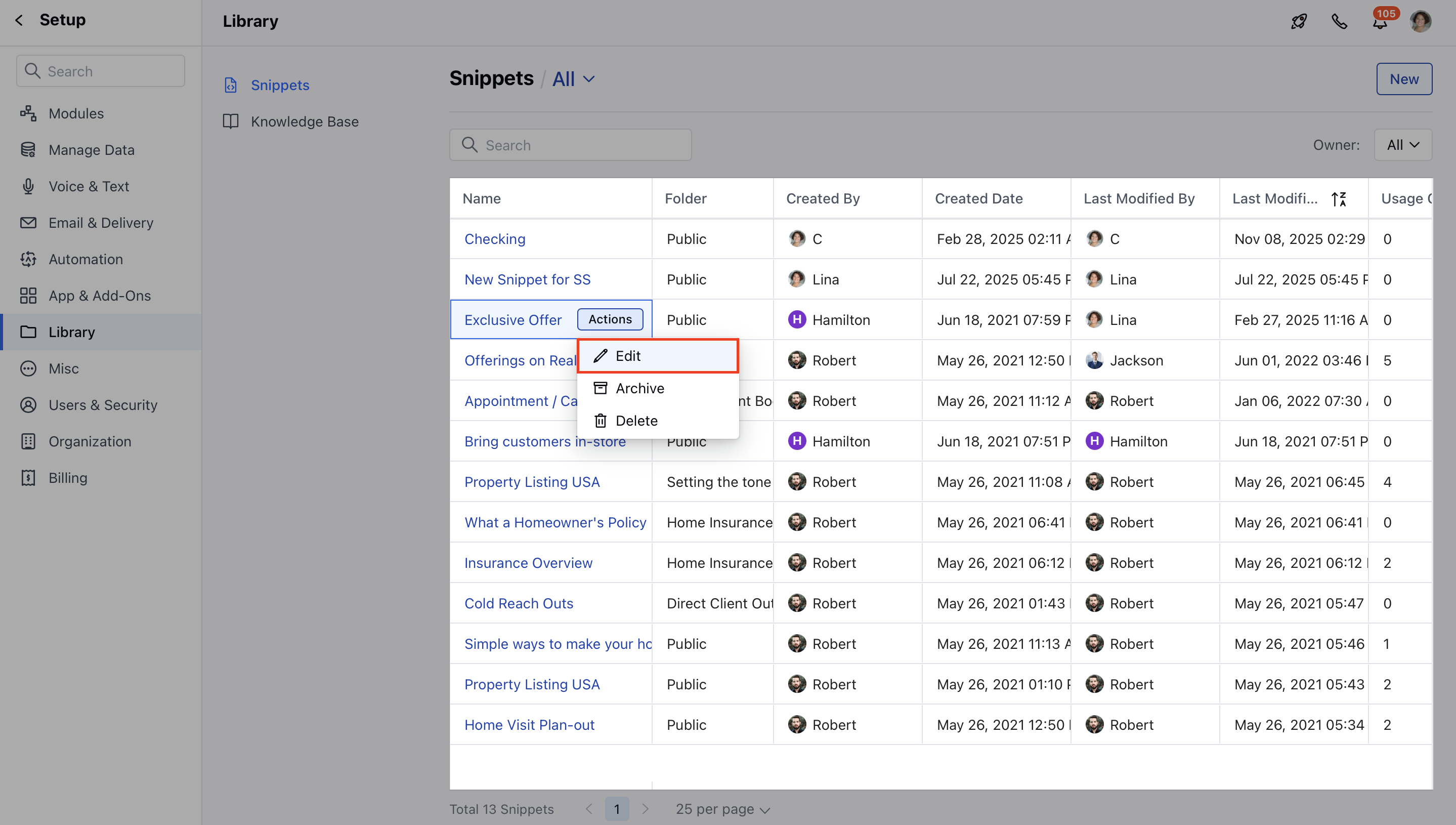
- Hover on the Name of the Snippet you want to edit and click on Actions .
- Click on the Edit option.
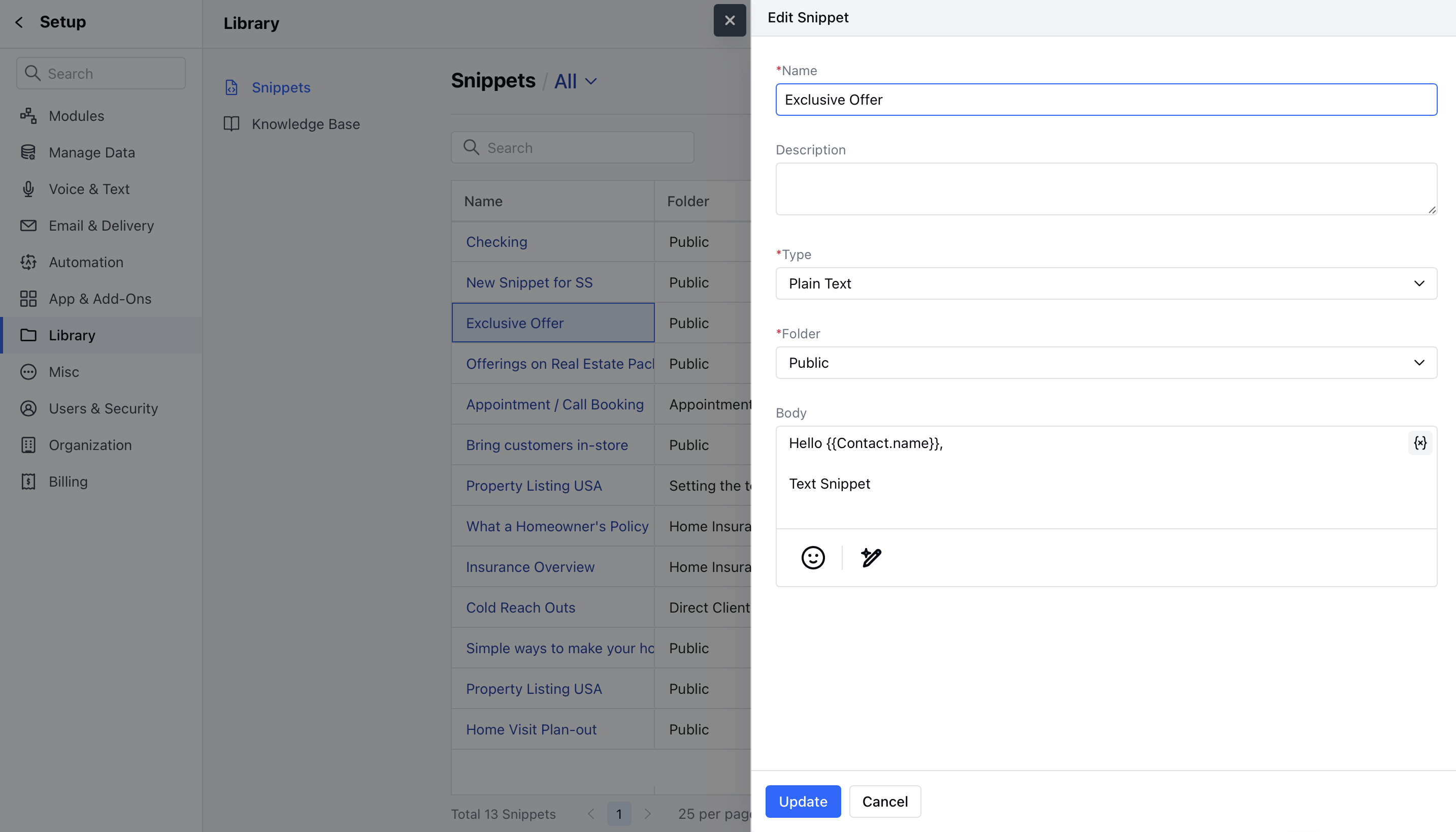
- Make the changes you require and then hit the Save Button.
How to Delete a Snippet
Note: A user with delete snippet rights can perform this operation.
- Navigate to the Profile Icon on the top right corner.
- Click on the Set Up.
- Head over to the Library category.
- Click on the Snippets option.
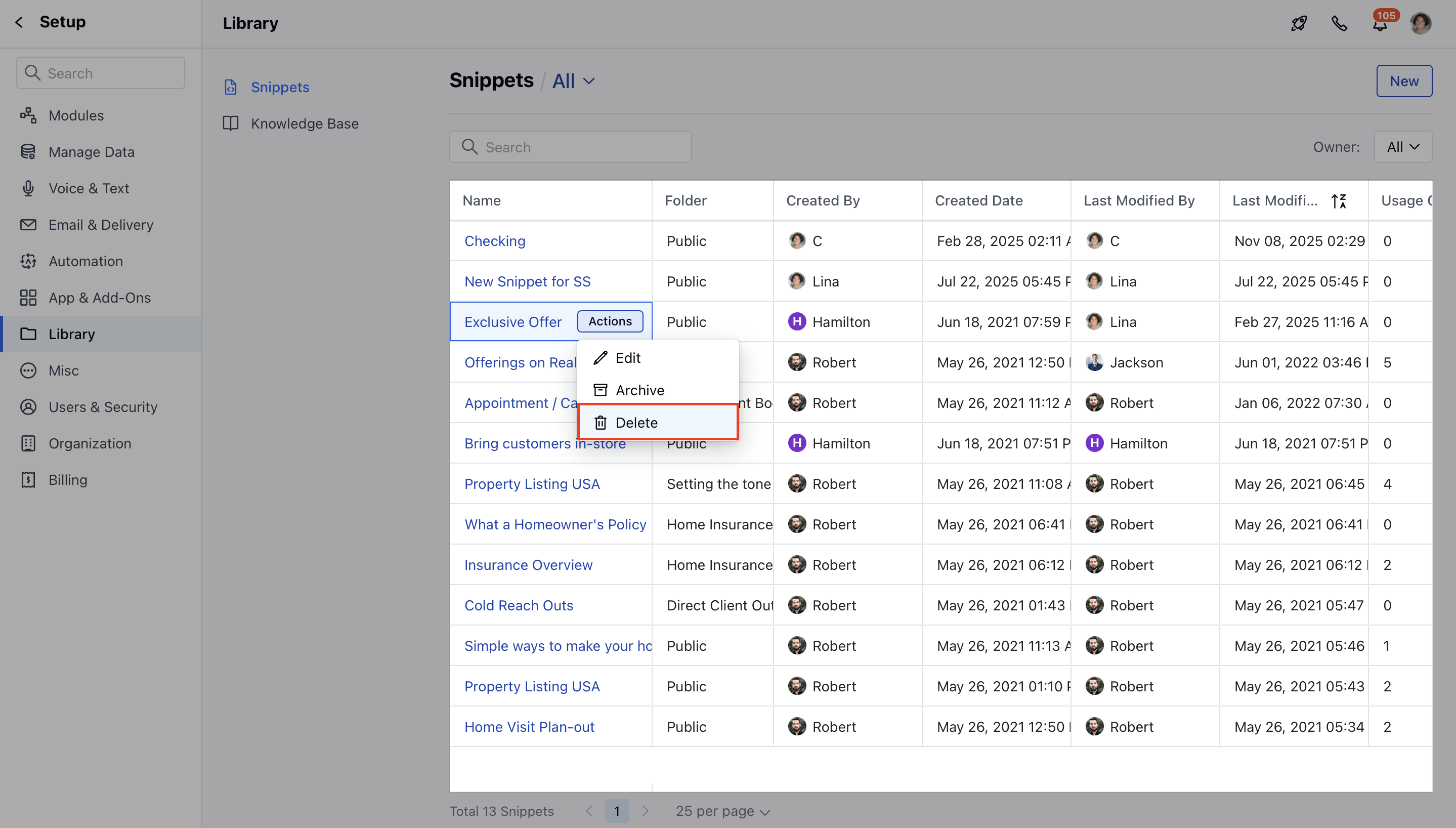
- Hover on the Name of the Snippet you want to edit and click on Actions .
- Click on the Delete option.
- Confirm your action to delete the Snippet.
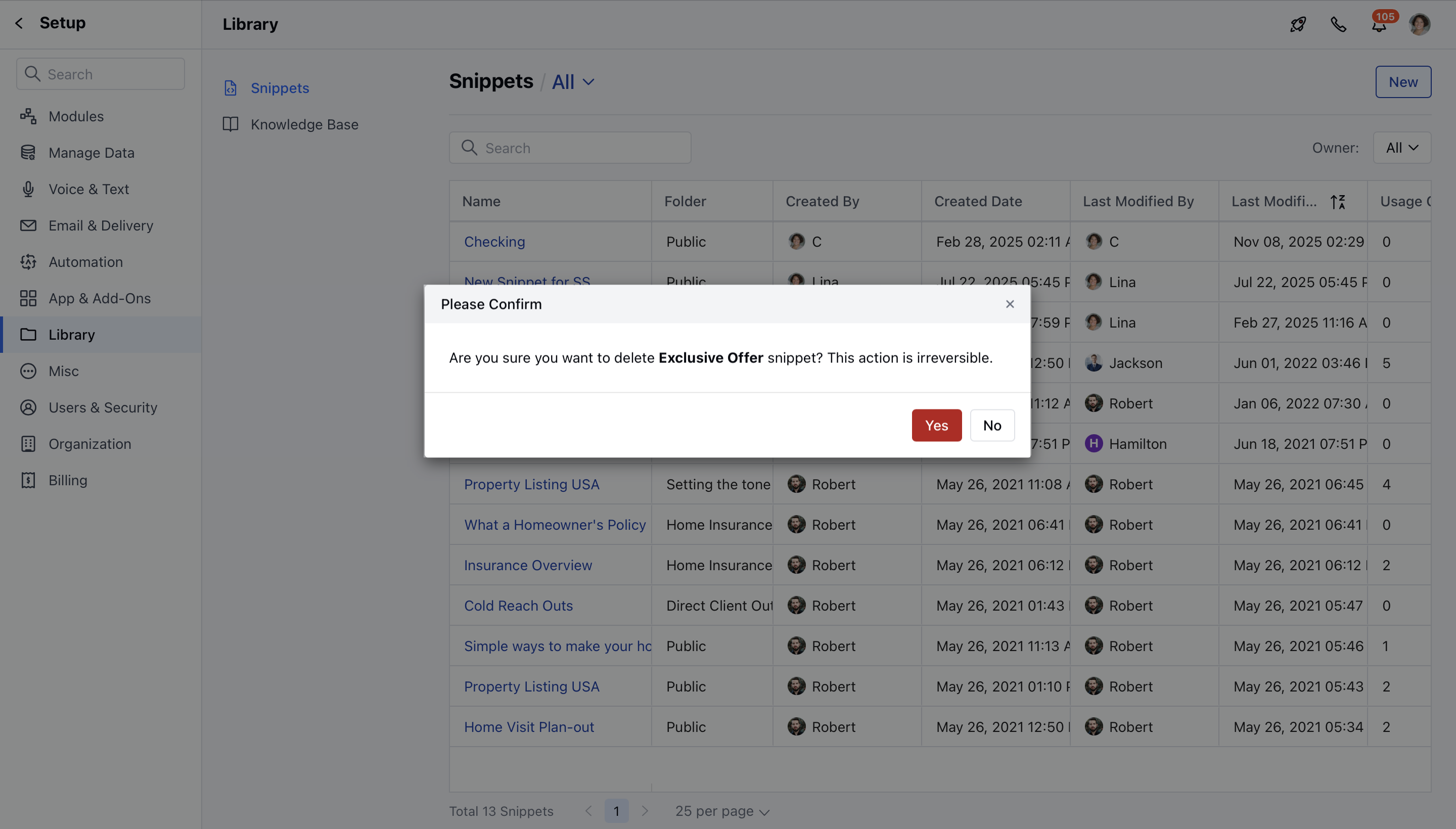
Note: Delete operations are irreversible; you can’t recover your snippet once done.