

How to Reply on Tickets
To Reply on Tickets,- Navigate to the Tickets Module from the left menu bar
- Select the ticket you wish to respond to
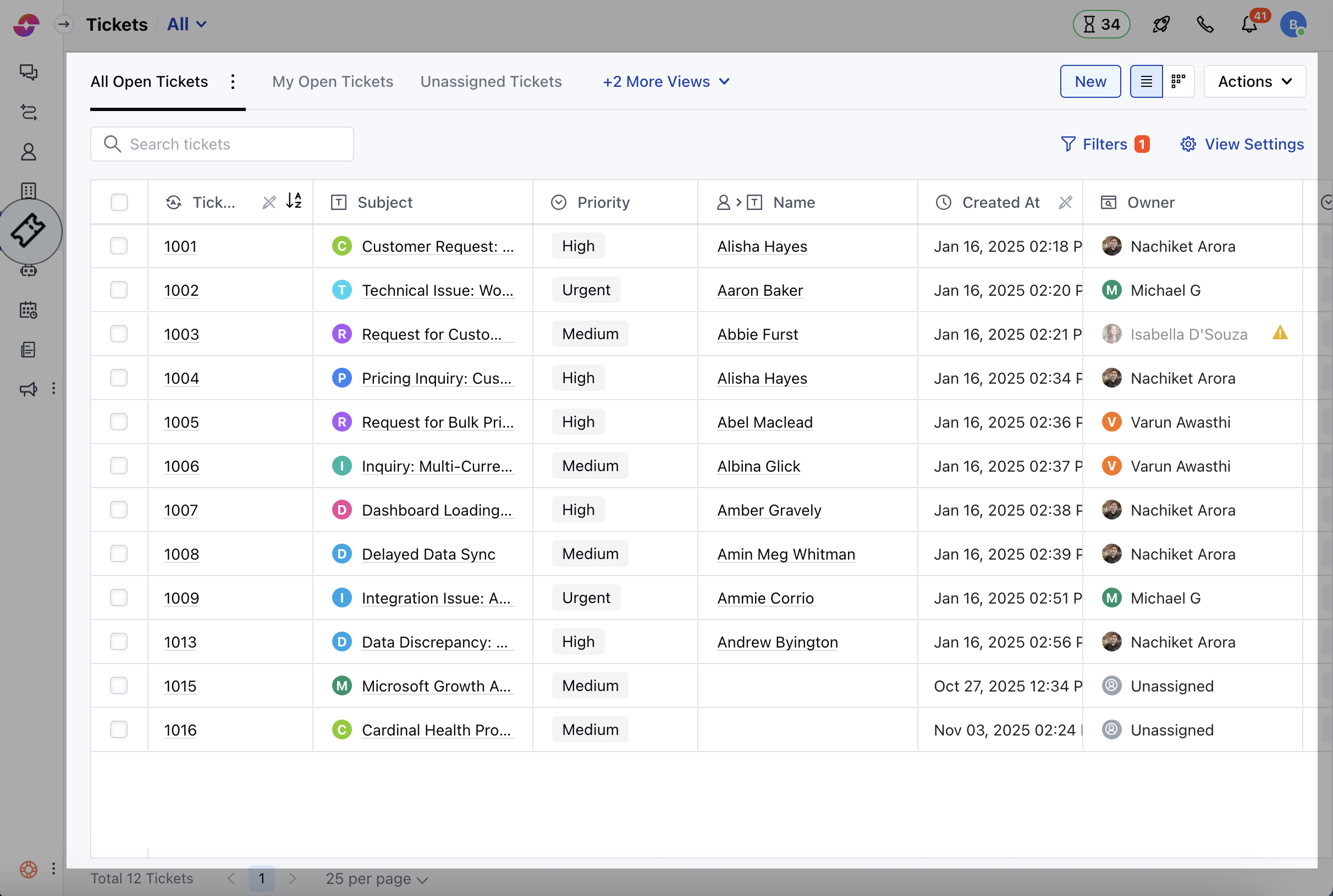
- Click on the Ticket to open it in the Detail View
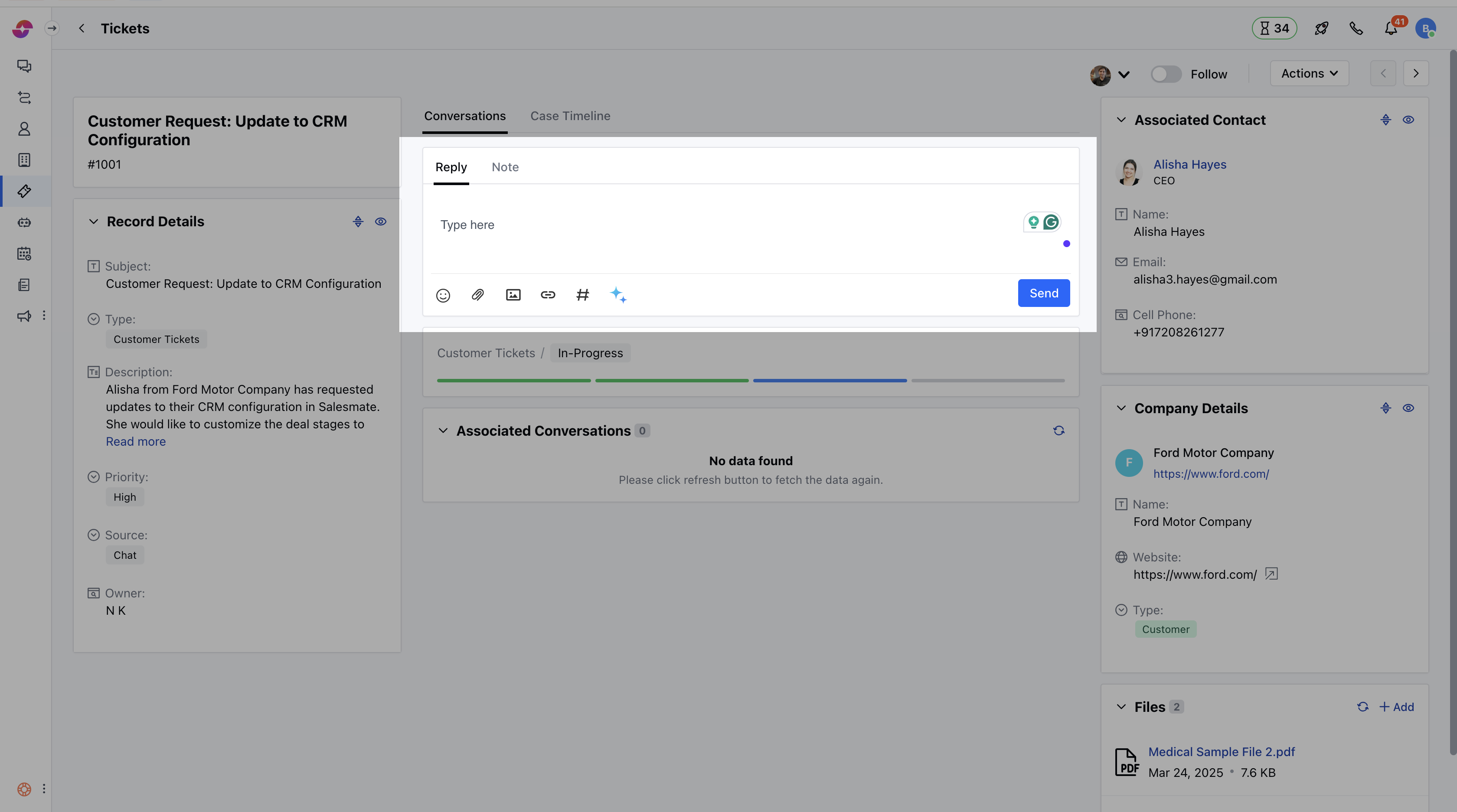
- Then, navigate to the Reply option and type your response using the text editor. You can also include the Attachments, Images, or the Links within the Replies, Once your reply is completed, send the response to the contact.
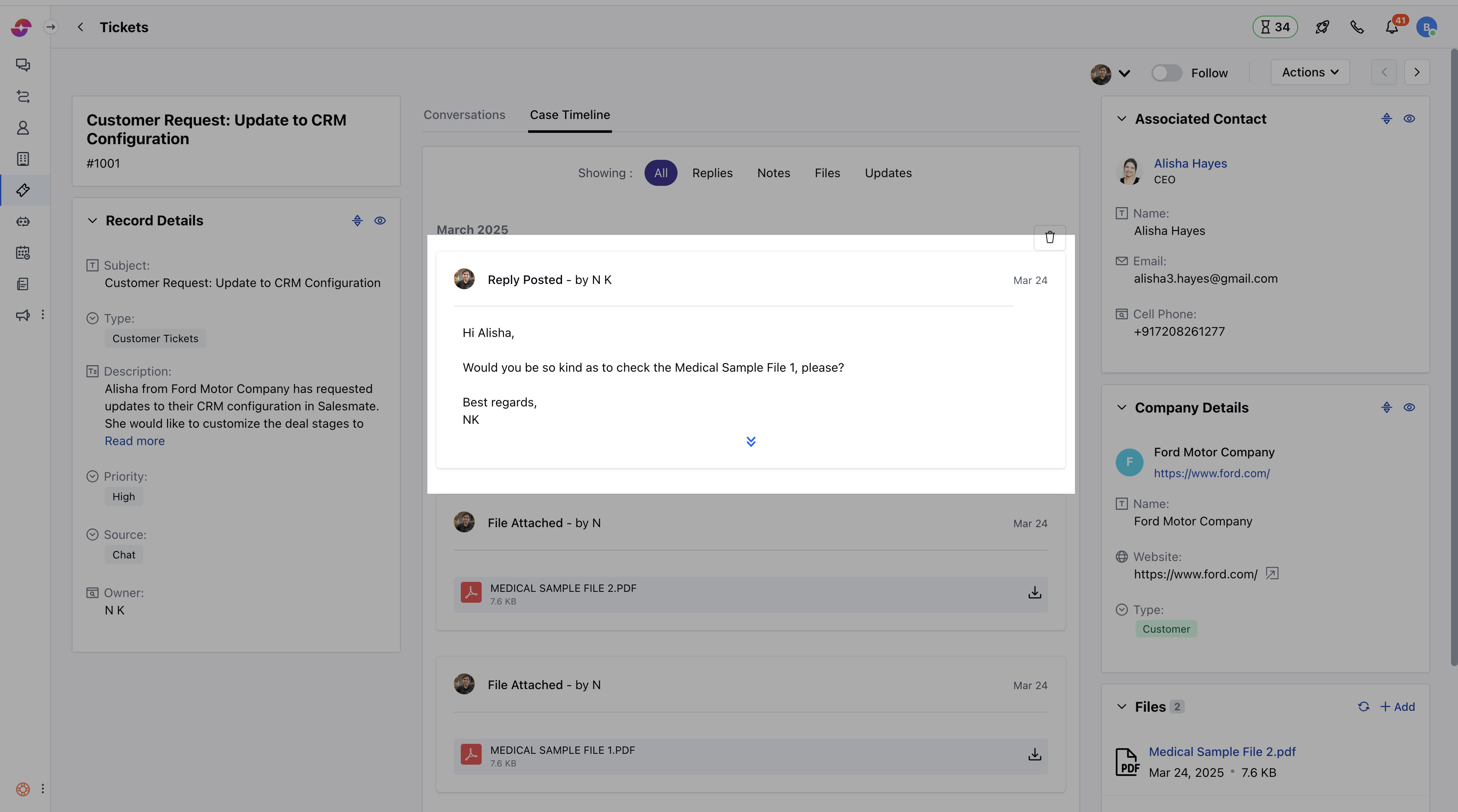
How does Reply appear in Tickets?
- As you click on the Send option, the reply will be added to the ticket timeline, and the contact will receive an email notification for that
- If there are any collaborators in the ticket, they will also receive the email notification as CC for this email.
- When a customer replies to any of these emails, the customer’s reply will be added to the timeline of the ticket
- When a collaborator replies to the ticket, their responses are added to the ticket timeline
Note:
- When a Contact Replies to a Closed Ticket, the Ticket will be reopened and the reply will get added.
- The ticket will not reopen if replies are disabled on the closed tickets.