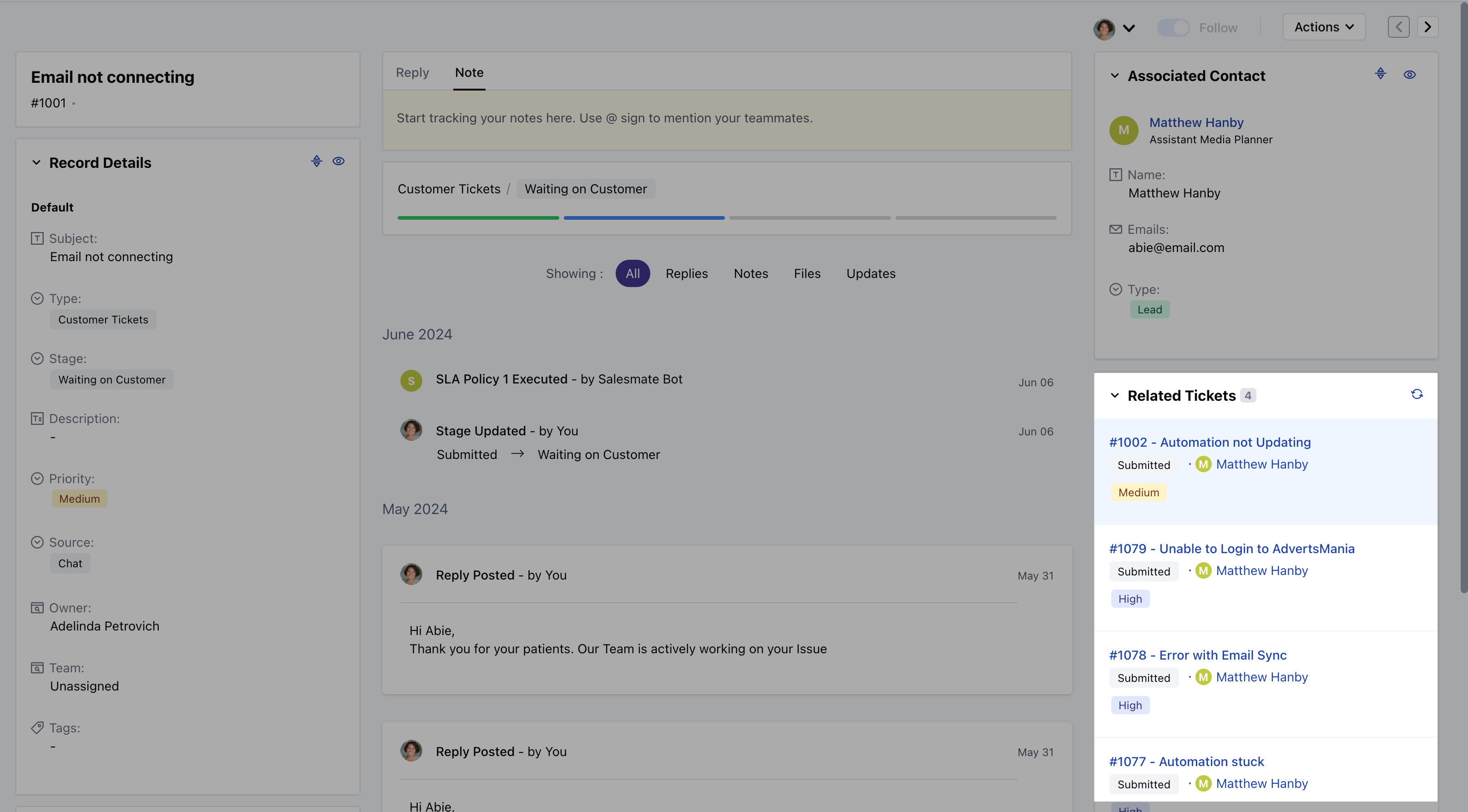
Note: This widget is only available for the Ticket Module.
Topics covered:
- How to add the Related Ticket Widget to the Layout
- Customize the Related Ticket Widget
- How would it appear in Detail Page
How to add the Related Ticket Widget to the Layout
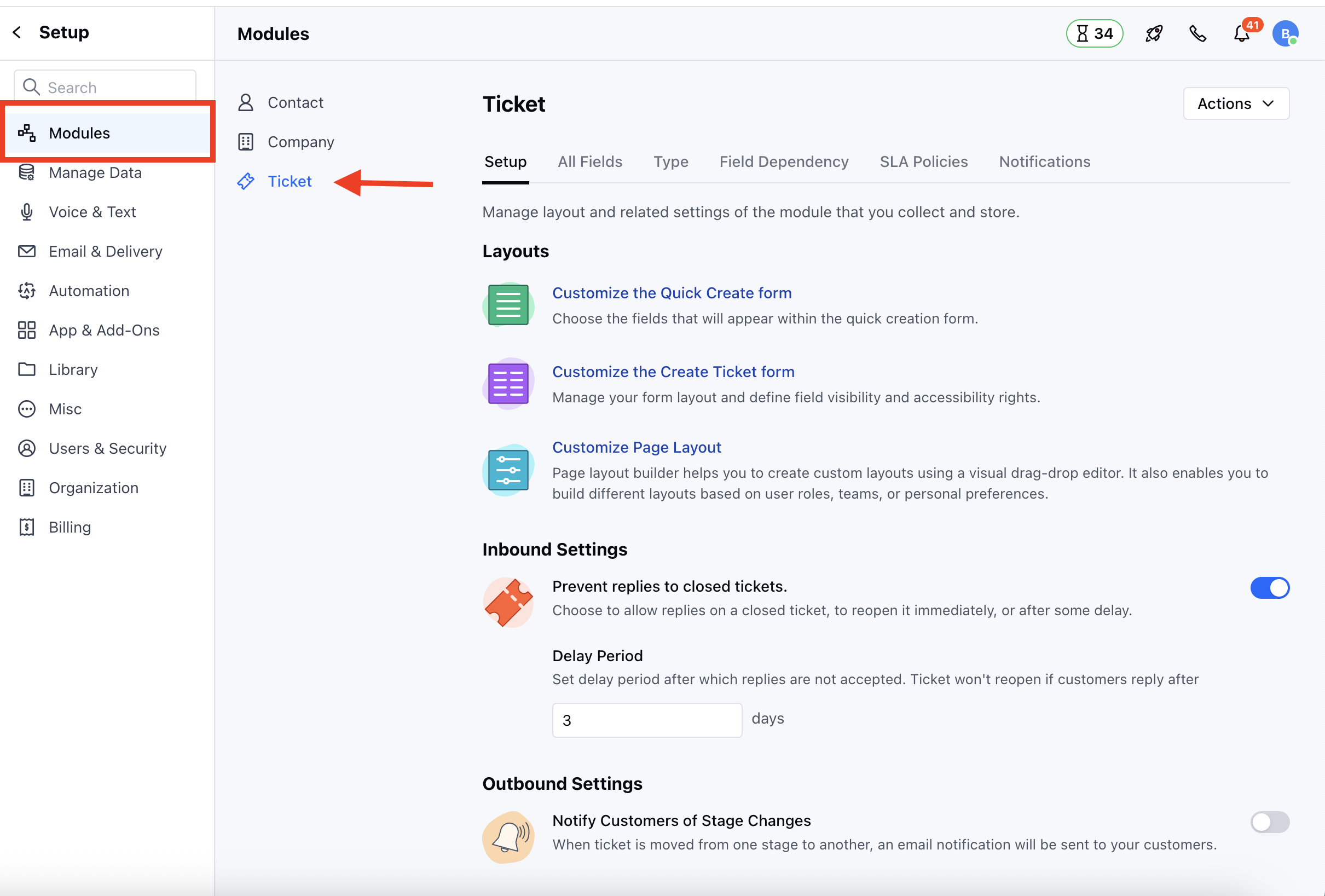
To add the widget,- Navigate to the Profile Icon on the top right corner.
- Click on the Set Up.
- Head over to the Modules Category.
- Select the Tickets Module.
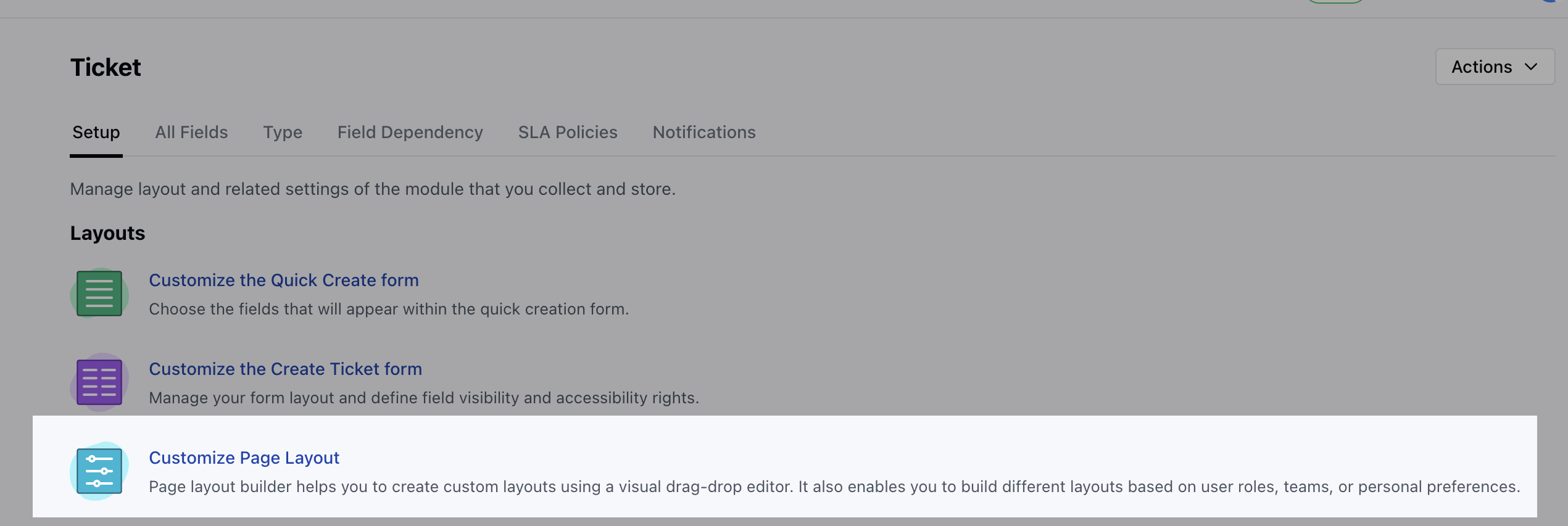
- Click on the Customize Page Layout option under Set Up section.
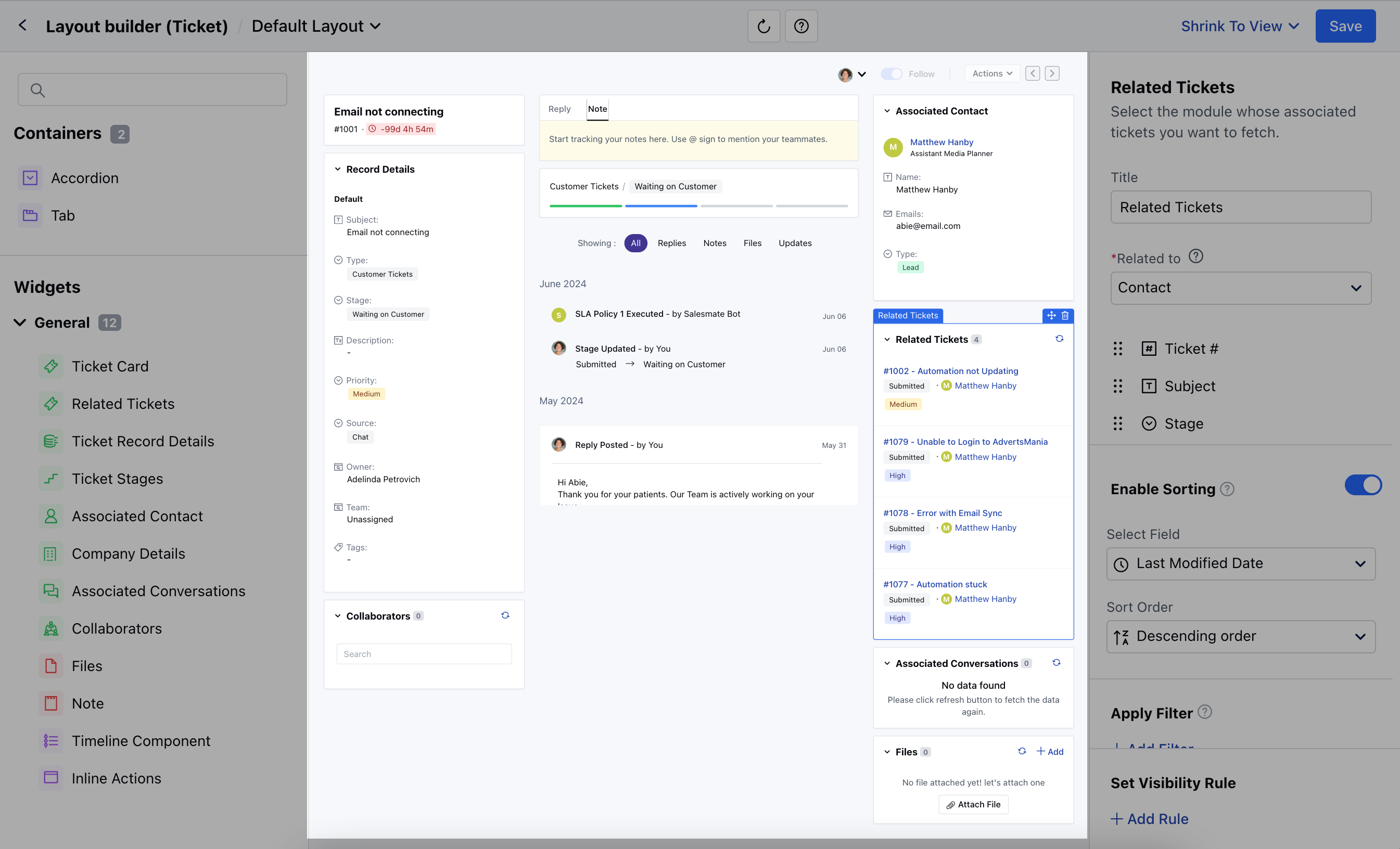
- Here you can either edit the Default Layout or create the new Layout - Simply drag and drop the widget to the Layout.
Customize the Related Ticket Widget
- Once the Widget is added to the Layout, as you click on the Widget the following options will appear
- Title: Customize the Widget as per your preference
- Related to: Select the module whose associated tickets you want to fetch.
- (Contact, Company, or Product)
- Fields: Select which ticket fields should be displayed in the widget.
- Enable Sorting: Choose a field to apply default sorting. Learn More
- Auto Hide: Enable this option to hide this widget automatically when no tickets are found.
- Apply Filter: Apply filters to view specific data only.
- Set Visibility Rule: Set a visibility rule to control when the widget is displayed, based on specific conditions.
- Once you’ve configured the widget to your liking, Save the changes.
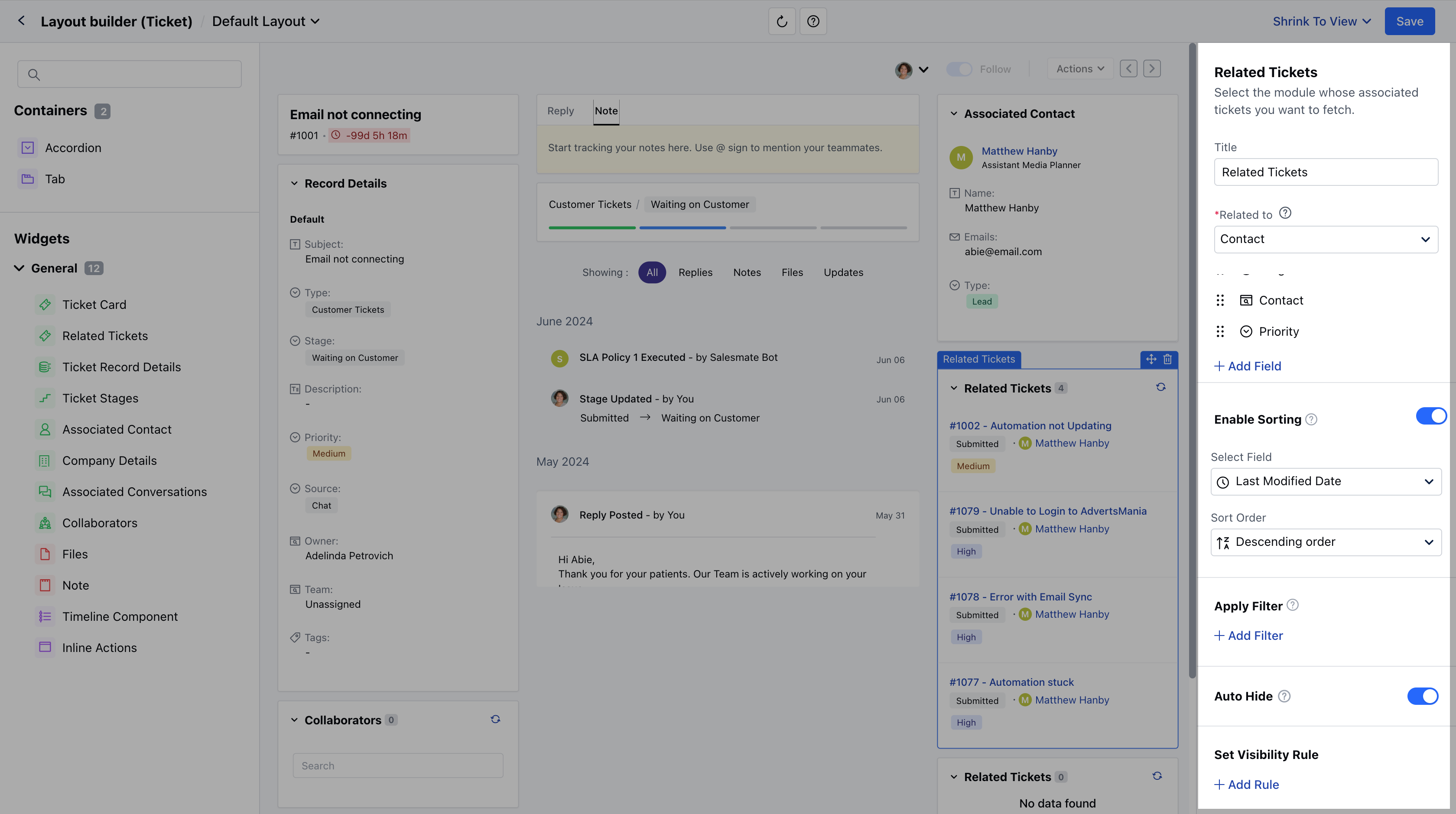
How would it appear in Detail Page
- When you view a ticket, this widget will automatically fetch and display related tickets based on the Related To setting:
- If set to Contact: It will show other tickets associated with the primary contact of the ticket you’re viewing.
- If set to Company: It will show other tickets associated with the primary company linked to the ticket.