Using Salesmate, you can set a caller id (mask) your Salesmate number with your existing one; this helps give your conversations a personal touch with your customers and maintain a closer relationship with them. Avoiding you of the hassle of having to update the number where it is already published.Topics Covered:

Masking Phone Number

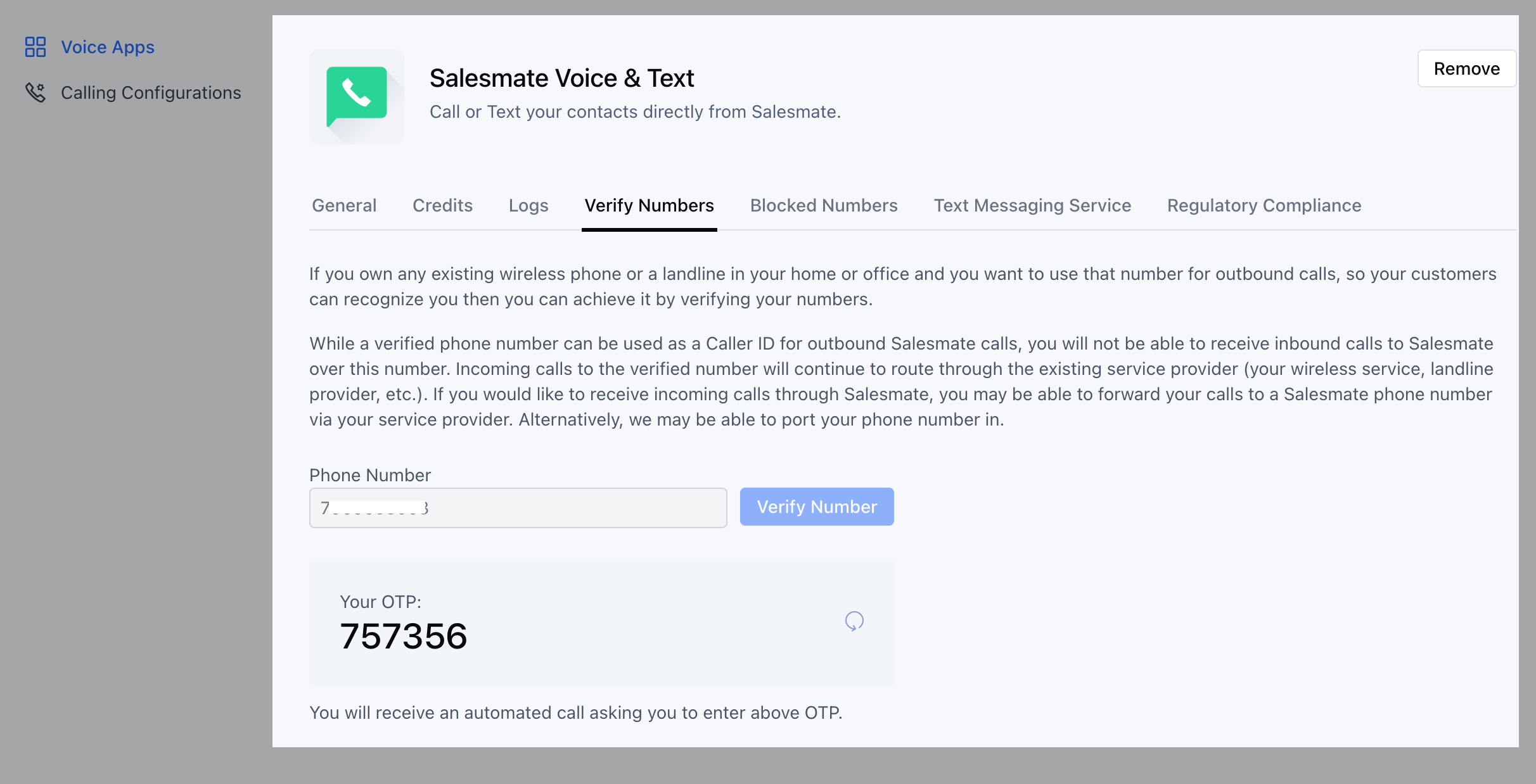
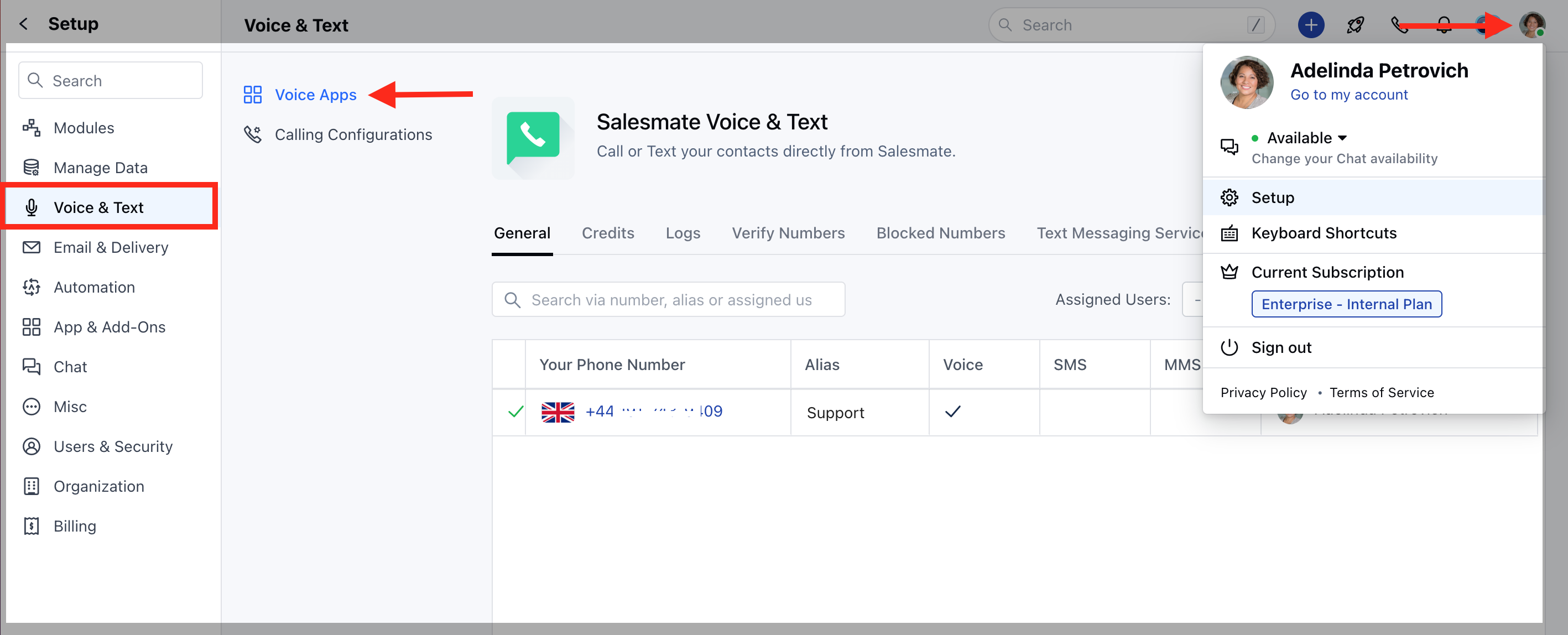
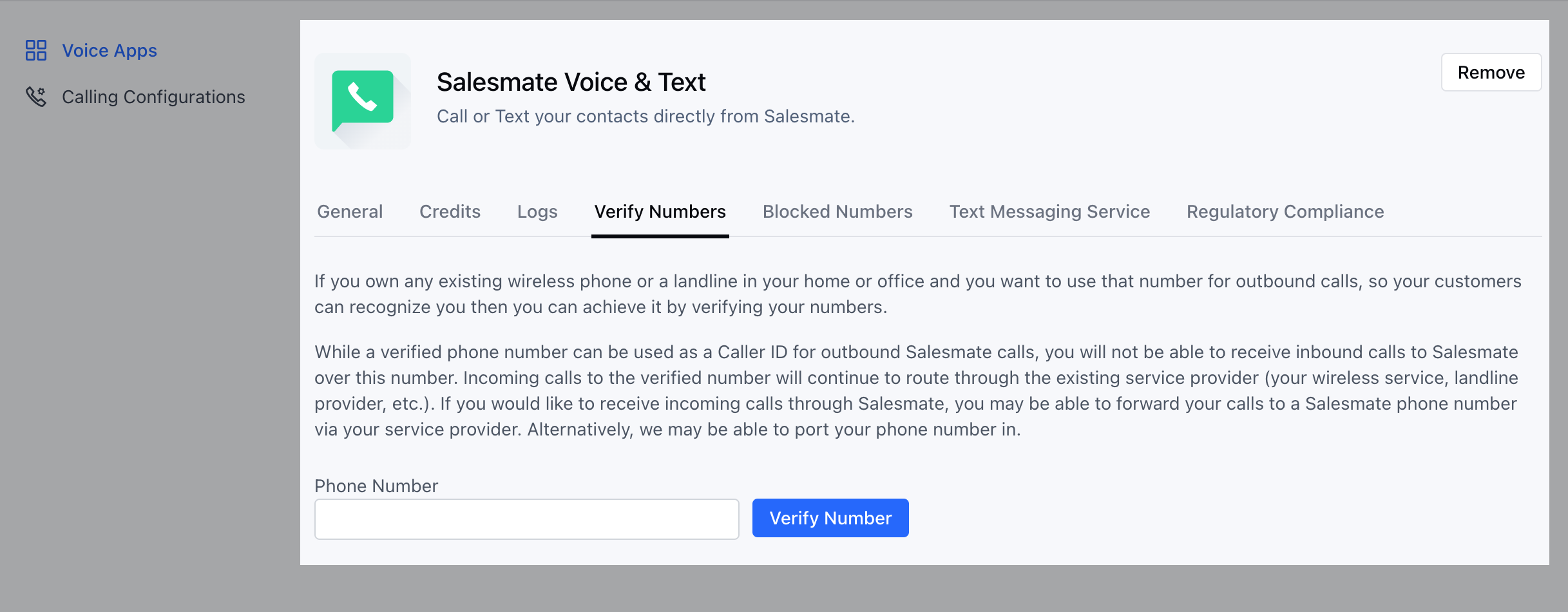
Navigate to the Profile Icon on the top right cornerClick on Setup Head over to Voice & Text categoryClick on Voice Apps mceclip0.png Click on the “Verify Numbers” Tab. mceclip1.png Add the number you would like to verify.Click on “Verify Number” mceclip2.png An OTP will be generated on the screen.You will receive an automated call asking you to enter the above OTP.Once verified successfully the number will be listed in the list of verified numbers tab. Now you can use this number as a Caller ID for your Salesmate number.
Setting up Phone Number as Caller ID

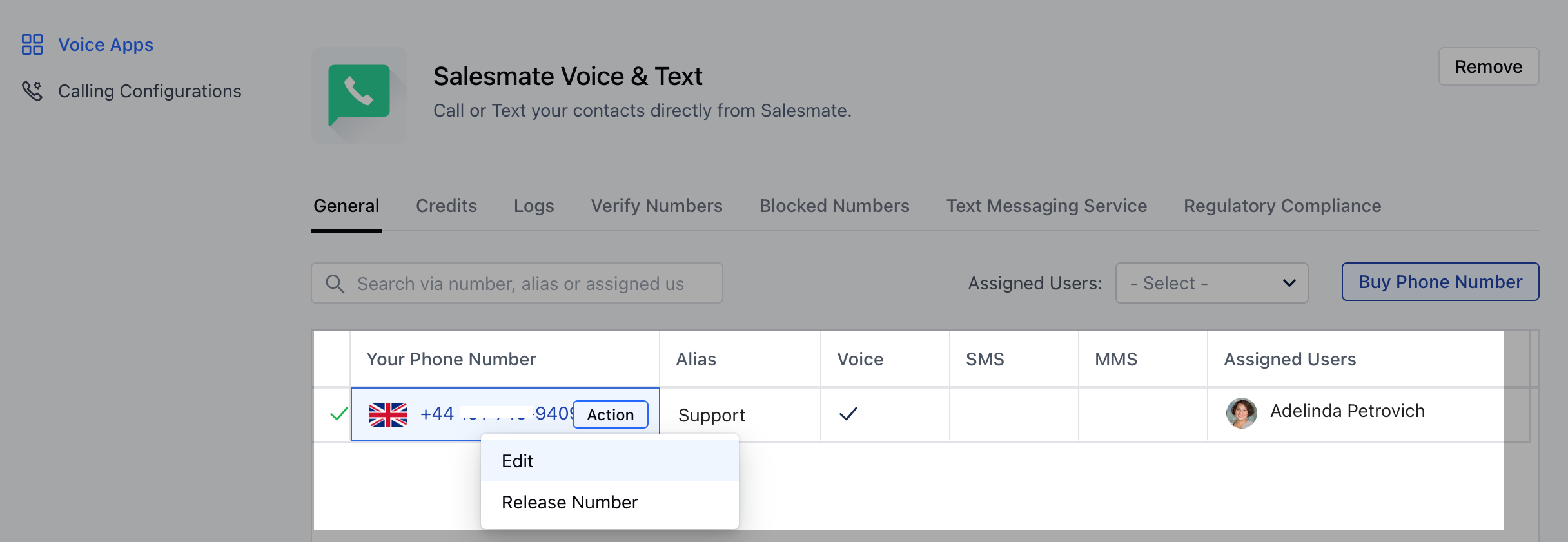
Head over to the General tab.Your existing numbers will be listed hereClick on the Edit button(under actions) for the number you want to mask it against mceclip6.png Enable the “Call Masking” option for this number.Select the number you would like to mask from your list of verified number/sClick on Save.mceclip3.png
  • *Note:**Verified numbers can be used as a Caller ID for outbound calls through Salesmate only.You will not be able to receive inbound calls to Salesmate over this number.Incoming calls to the verified number will continue to route through the existing service provider (your wireless service, landline provider, etc.).If you would like to receive incoming calls through Salesmate, you may be able to forward your calls to a Salesmate phone number via your service provider.Alternatively, you may port (transfer) your phone number over to Salesmate