

- Navigate to Conversations Icon on the left menu bar
- Click on Chats
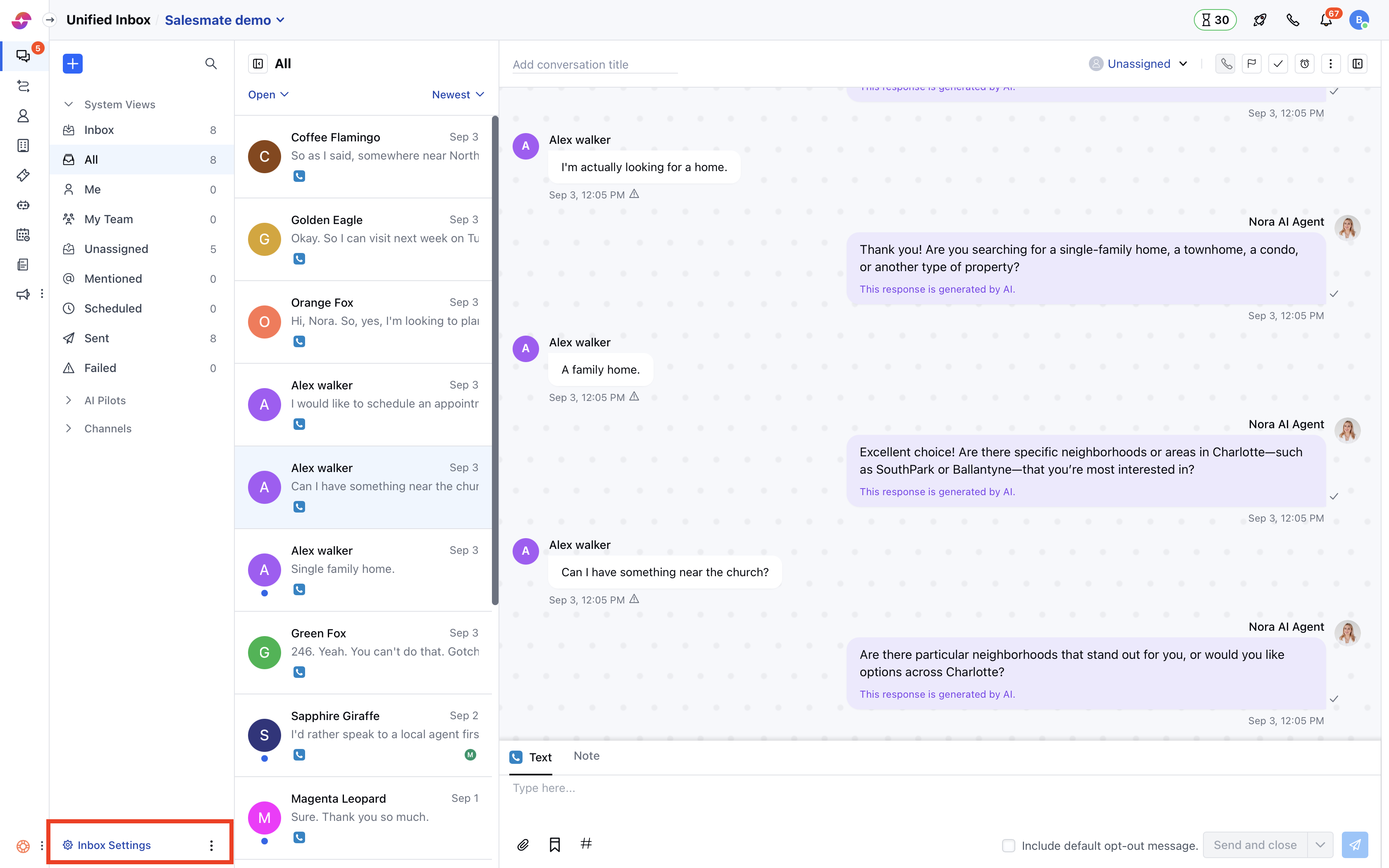
- Head to Inbox Settings on bottom left.
- Select a Channel from the list of the available channels
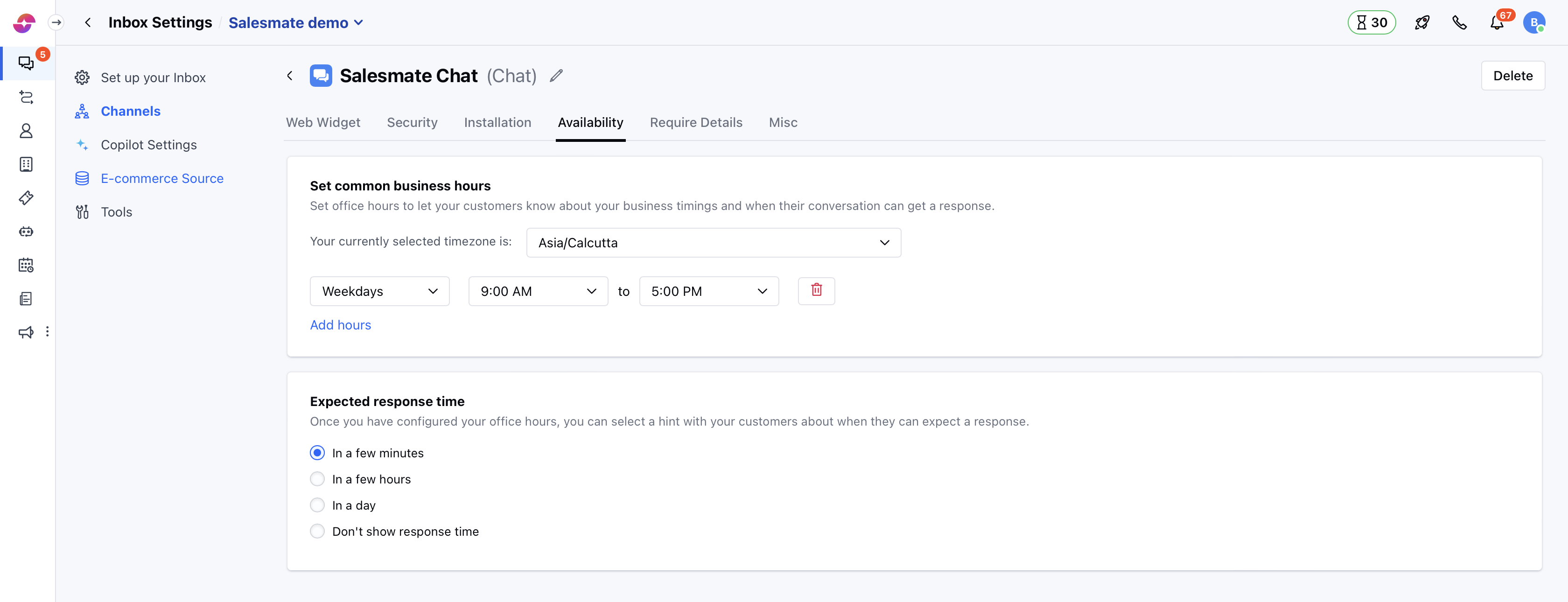
- Switch to the Availability tab and select the timezone in which your team operates
- Set your working hours from the option available and you can add more hours if your team operates in different time zones
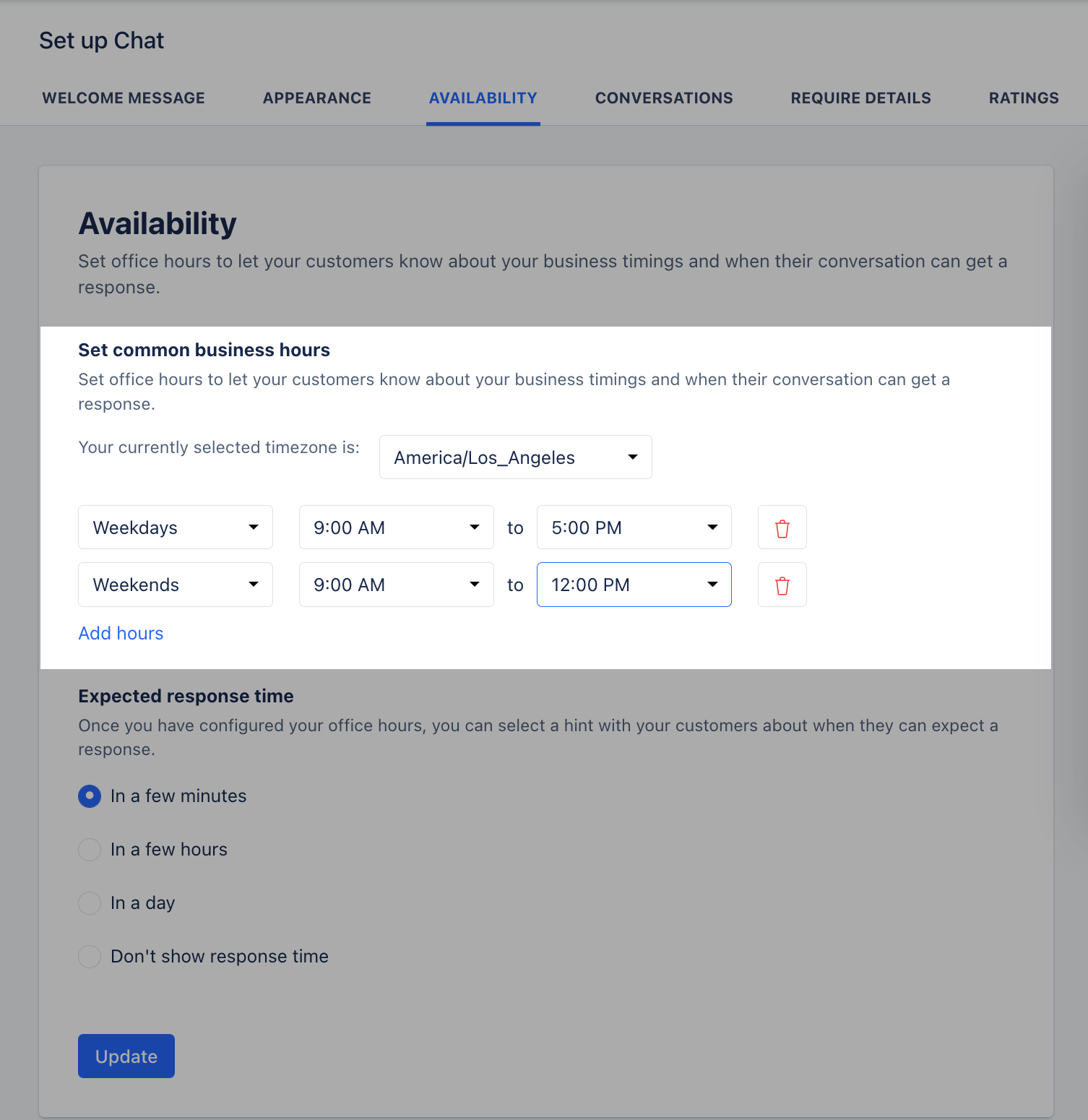
Note: By default, the working hours are set to Weekdays (9 AM - 5PM) and if you remove all hours then it would mean your team is available 24x7.
- Set the expected response time for your customers on how quickly they can get a response from you, choose from the below options:
- In a few minutes
- In a few hours
- In a day
- Don’t show response time
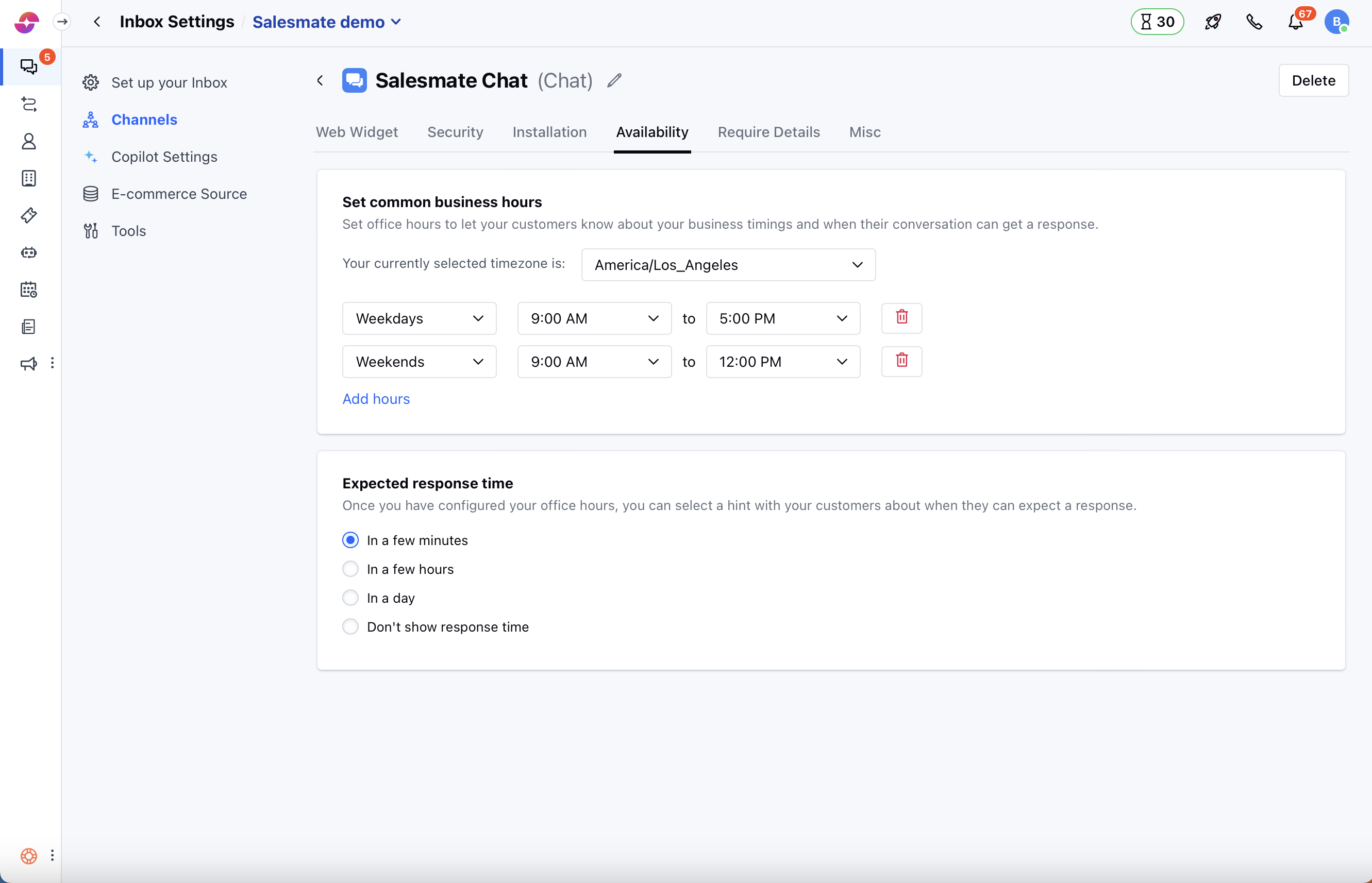
- Once done, hit the Update button to save your changes.