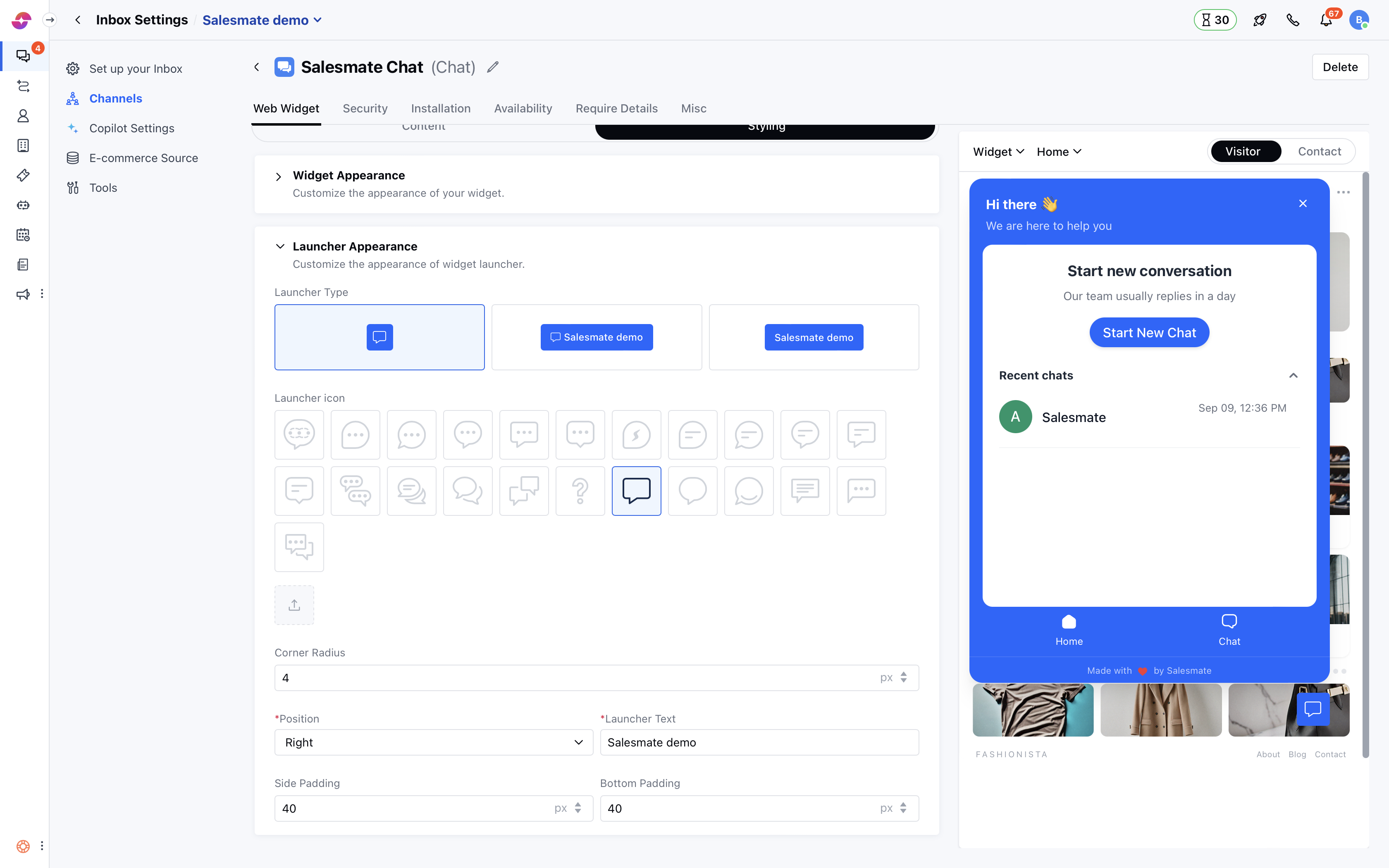
- Navigate to Conversations Icon on the left menu bar
- Click on Chats
- Head to Inbox Settings on bottom left.
- Select the Channel from the list of available channels in your Unified Inbox.
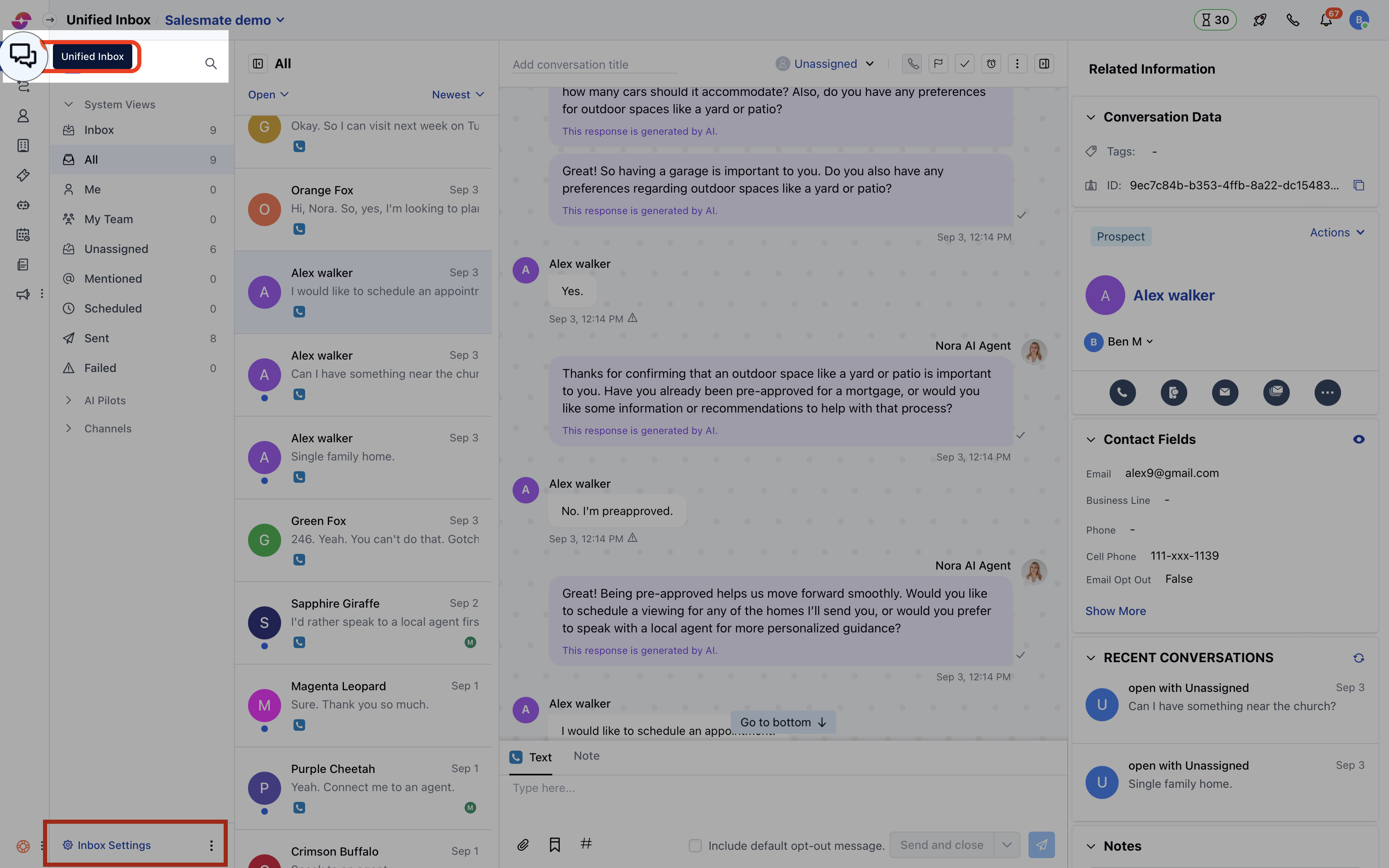
- Header Logo: You can upload the header image which can be of PNG, JPG, or GIF type with a file dimension of 160pixels * 40pixels
- Background Color: Set the background color that will appear behind your welcome message, team profile, and chat header
- Action Color: Select the action color that will be used to assign primary colors for the buttons, links, and highlighted options
- Background Pattern: Select the background pattern from the given samples that will appear in the background of the background color you set
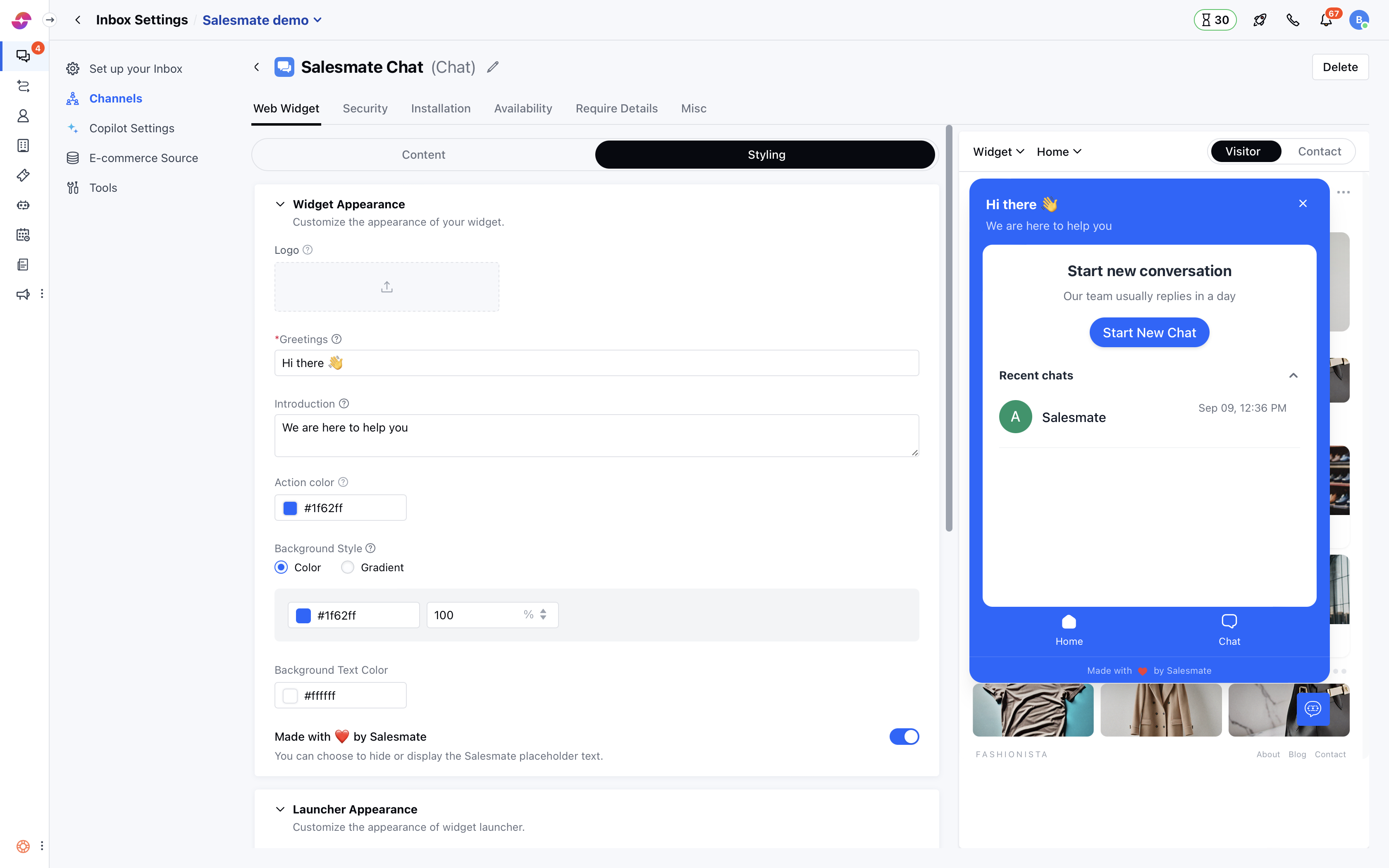
- Launcher Icon: Select the launcher icon that you want to display on the website. Learn more
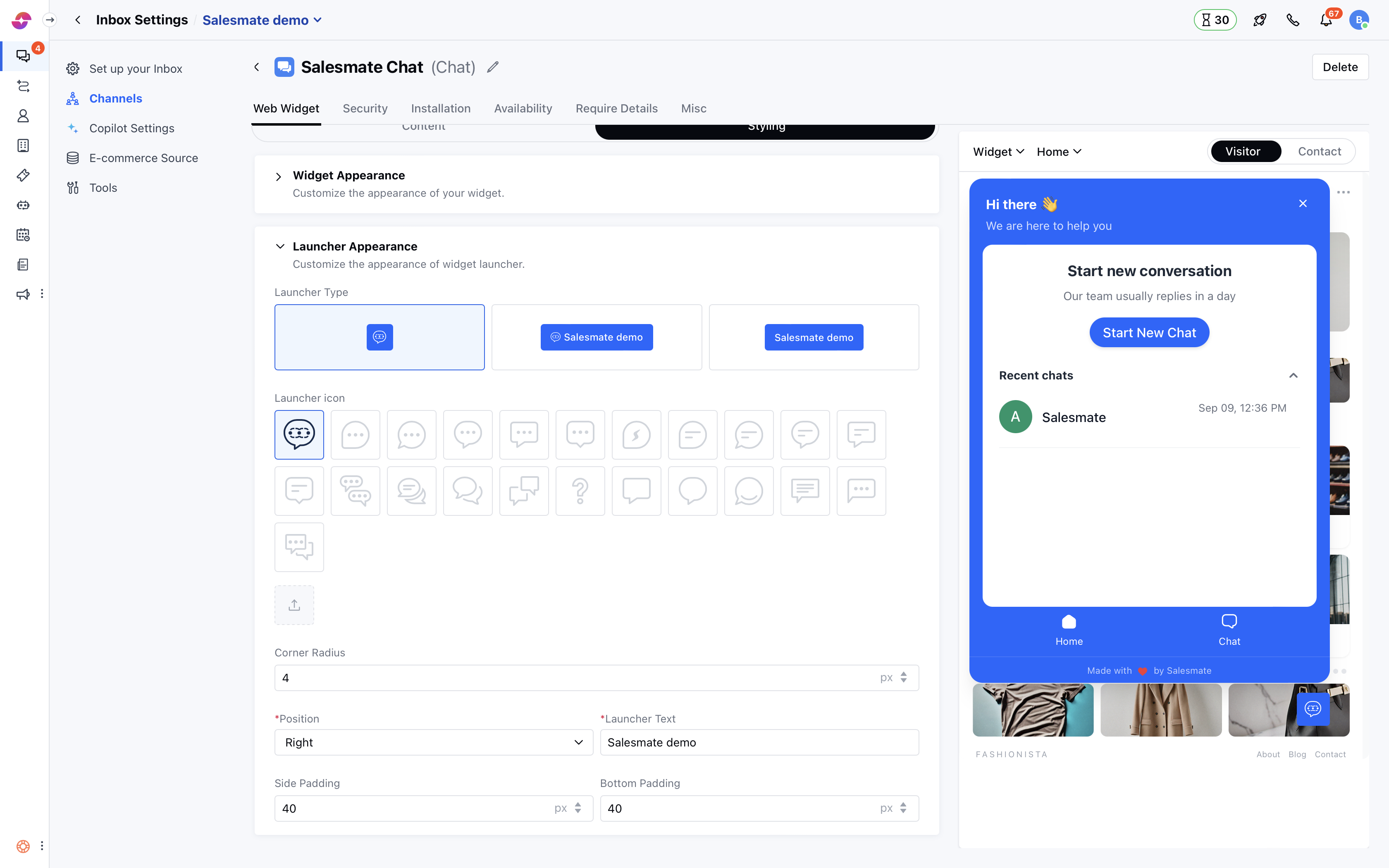
- Launcher Position: Select if the launcher should appear left or right side of the screen on your website and how much spacing is needed from the bottom and side
- Skara Link: Select to display Salesmate link at the bottom of the launcher by turning the toggle On/Off