

Configure setting to prevent replies
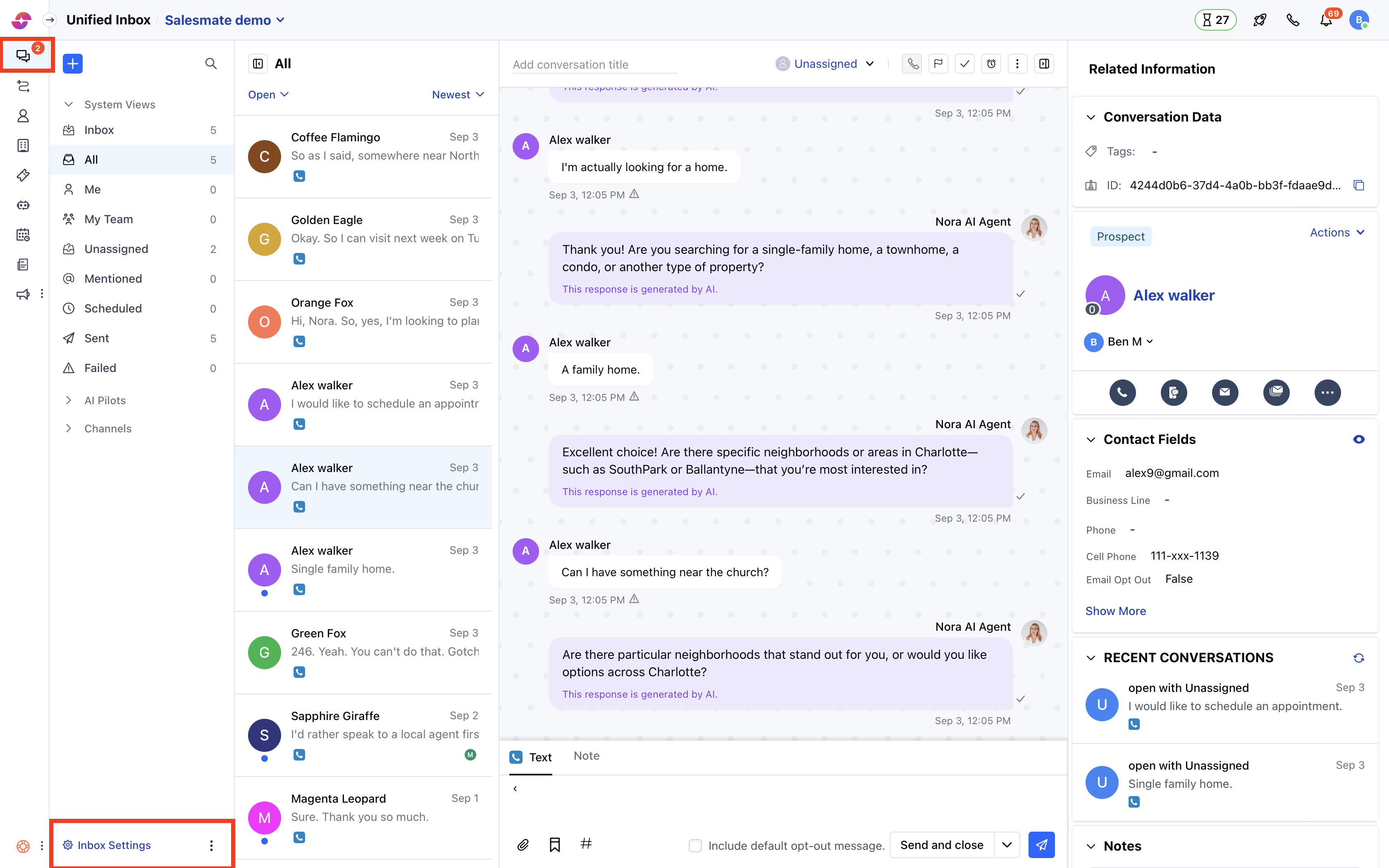
- Navigate to Conversations Icon on the left menu bar
- Click on Chats
- Head to Inbox Settings on the bottom left.
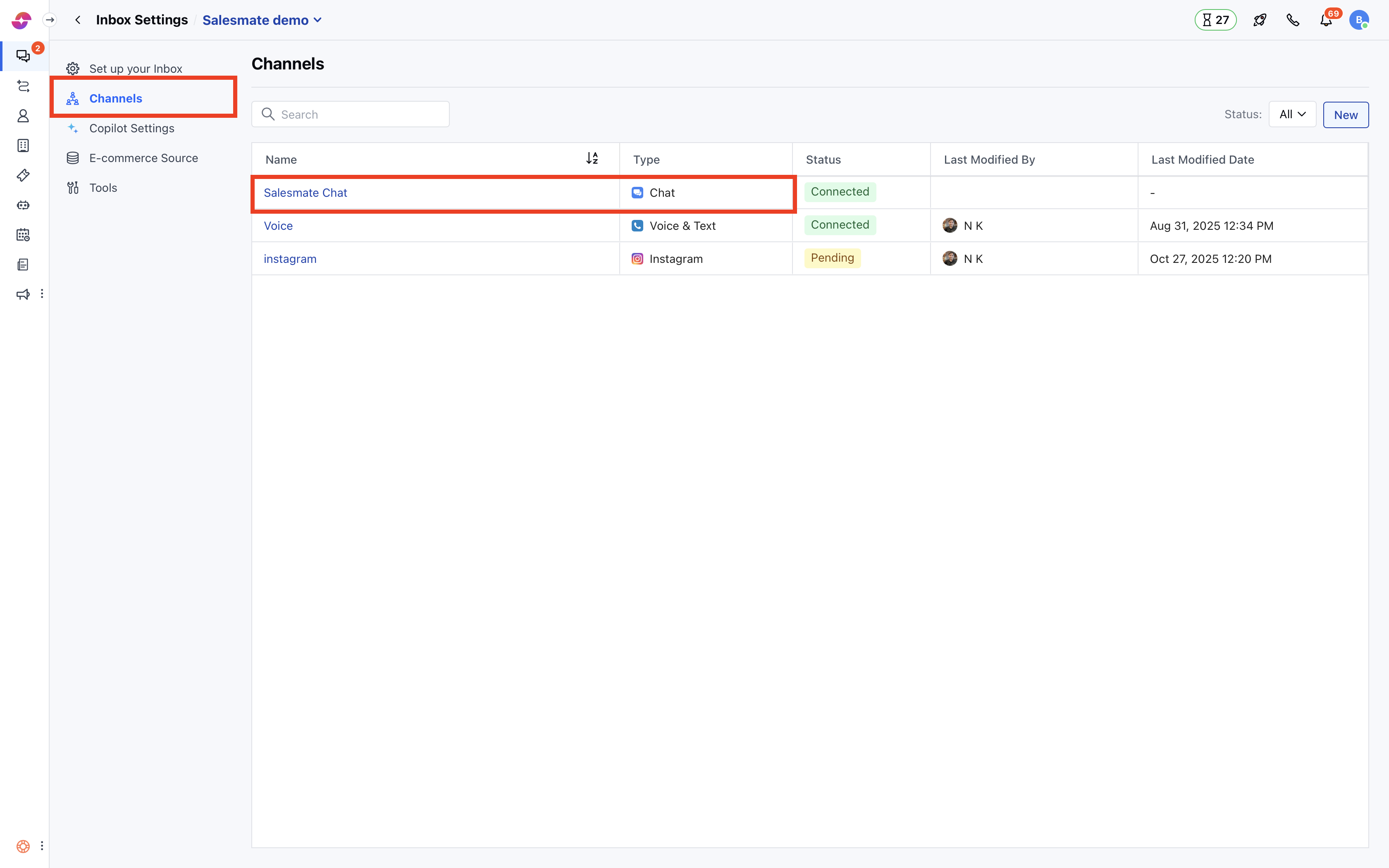
- Click the Channels option in the left sidebar.
- Click on Skara Chat.
- Select the Web Widget tab
- Go to Conversations
- You can configure different options for visitors and contacts.
- Enable Prevent replies to the closed conversation.
Note: The system recommends a 3-day limit by default to prevent replies in closed conversations.
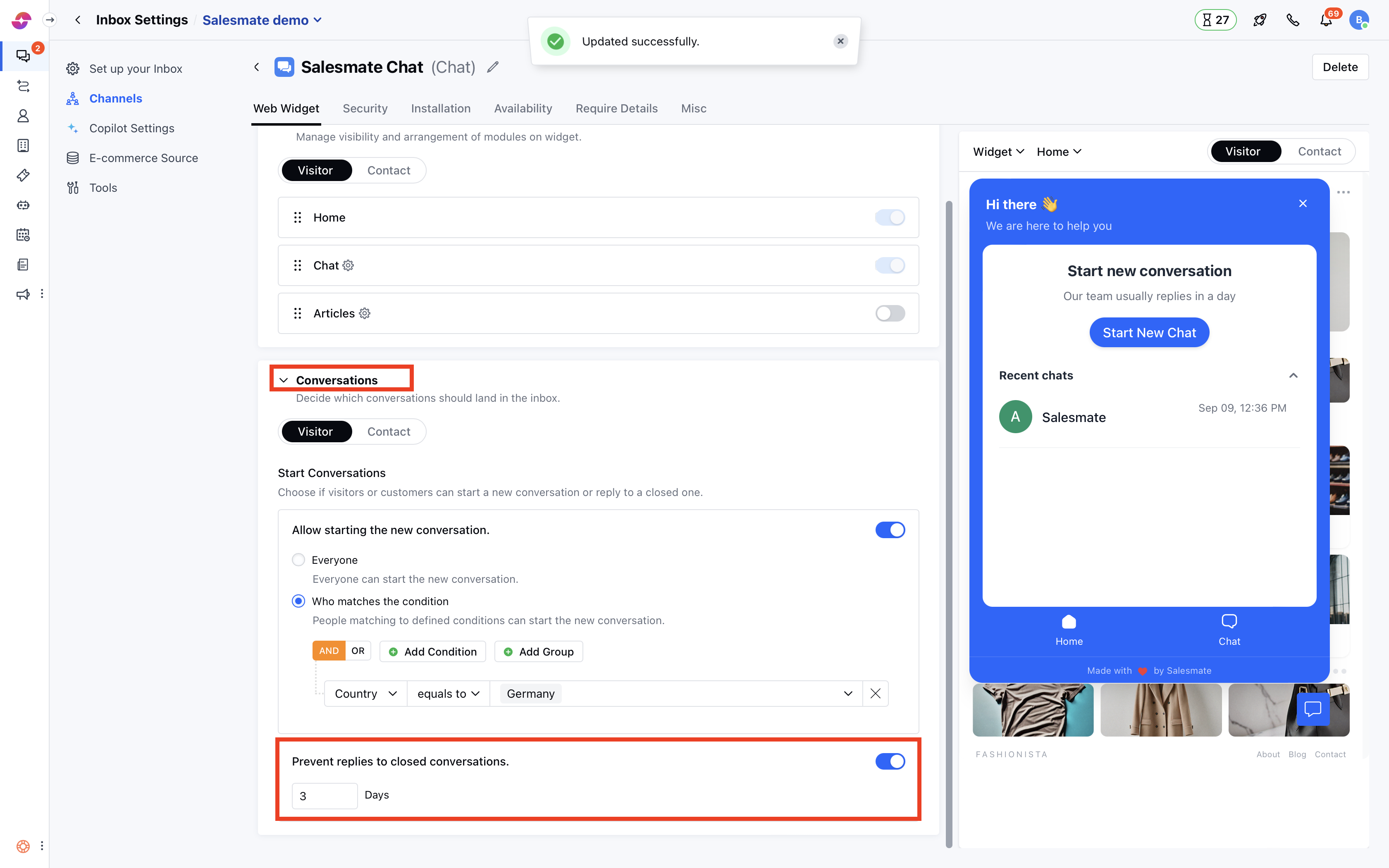
- Once enabled, you can also choose the number of days until replies will be accepted after closing the conversation. In short, the conversation can be reopened within that time.
- Once this limit is exceeded, the system won’t allow the customer or visitor to reply in a closed conversation.
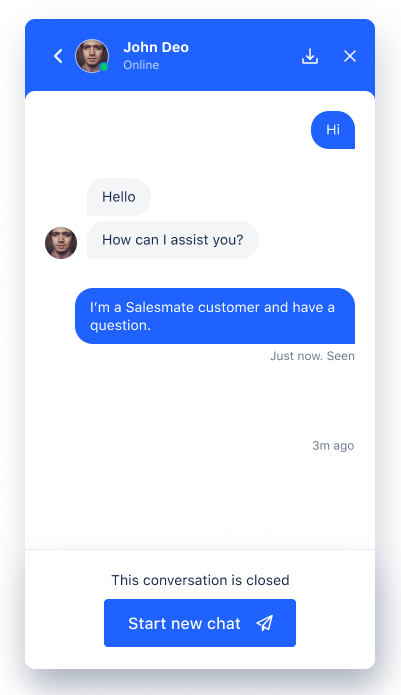
What do customers see on the widget?
- Contacts or visitors can always see the closed conversations but can’t post any new replies. The system will encourage them to boot a new conversation for further queries. Such a mechanism is helpful to keep conversations more organized and helps measure the effectiveness of teammates for replying and closing conversations on time.
Note:
- Only users with “Manage messenger settings” permission can access this setting.
- If a contact replies to a closed conversation via email, then that message will start a new conversation if the time limit has been reached, otherwise, the conversation will be reopened and the message will be posted.
- If the user replies in a closed conversation, then the conversation will be reopened and a message will be posted, as these settings do not affect the user behavior.