

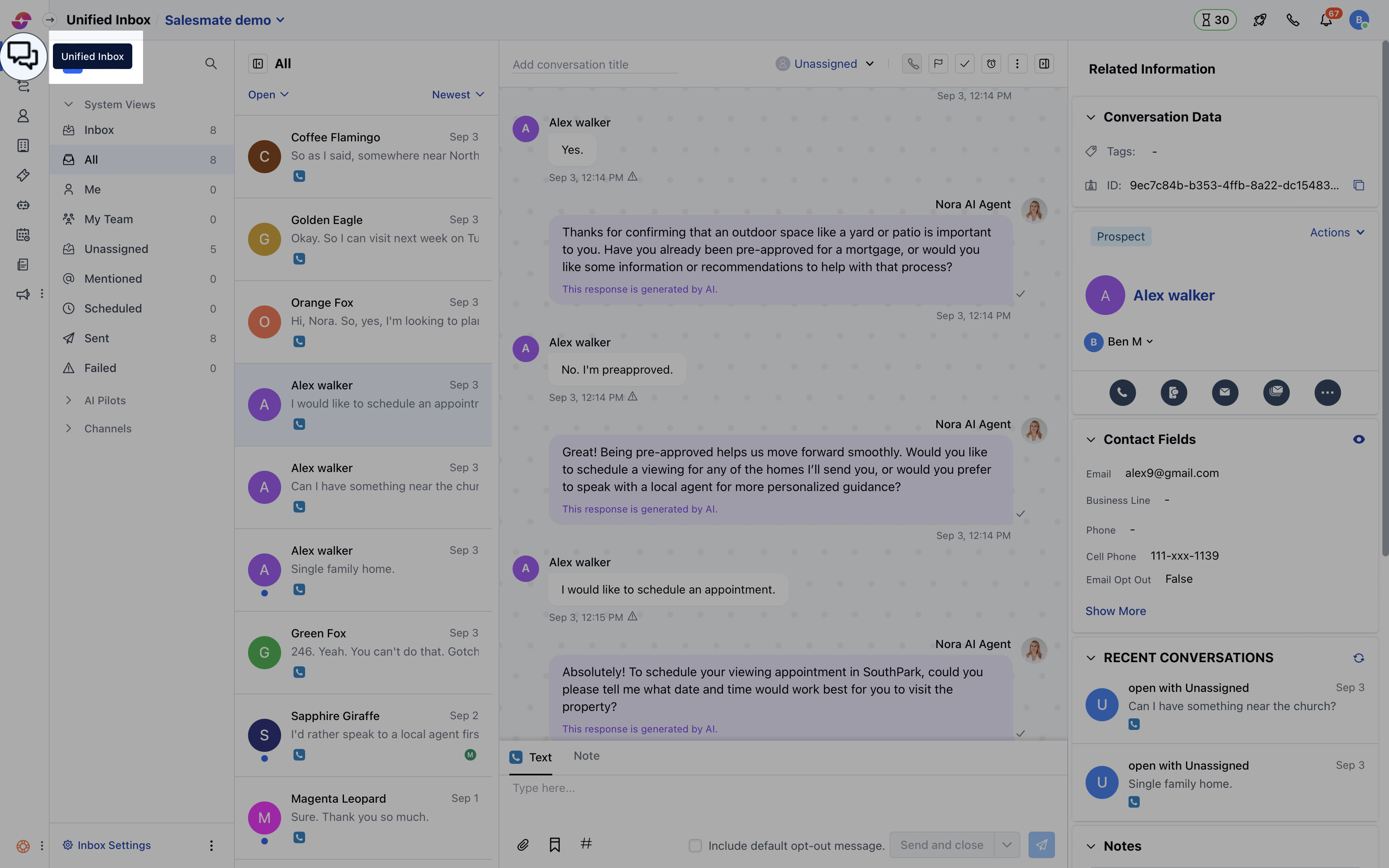
- Navigate to Conversations Icon on the left menu bar
- Click on Chats
- Head to Chat Settings on bottom left .
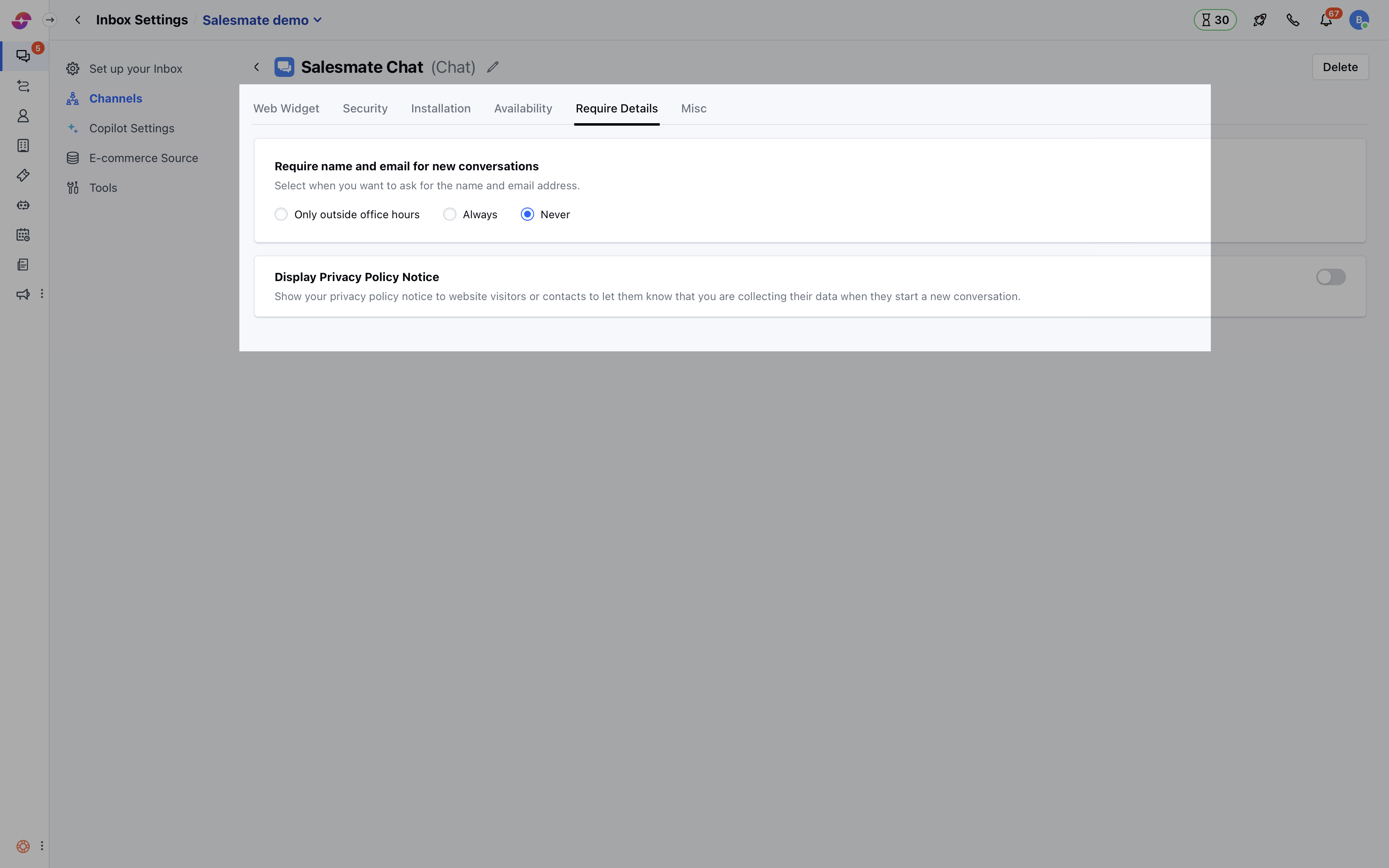
- Switch to the Require Details tab and select the option which fits your requirement.
- Select when you want to ask for the name & email address for starting a new conversation:
- Only outside office hours: Chats will ask for the name and email address whenever the visitor starts a new conversation outside your working hours. Learn more about how to set up office hours.
- Always: Chats will ask for the name and email address every time the visitor starts a new conversation, no matter what time it is.
- Never: In this case, the visitor can start a new conversation and won’t be asked for the name & email address.
- Hit the Update button to save your changes.
Note:
- In all the above cases, Chats automatically asks for the name and email address of visitor, if they don’t receive any response within 2 minutes. This only happens if Salesmate does not recognize the visitor i.e. if the name and email address are captured previously then it won’t be asked.
- Only users with “Manage Chat Settings” permission can access the above settings.