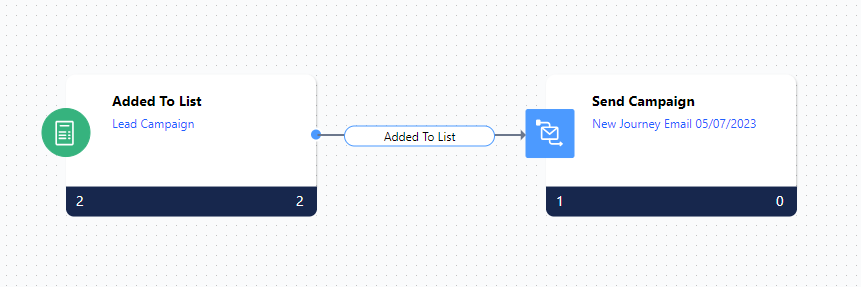
Journey emails are special Email Campaign that is automatically sent to contacts when they reach the “Send Campaign” action within an Automation Journey .Topics covered:** How to Create Journey Emails ** How to Configure Automation Journey ** ** Journey Email Listing Page **

How to Create Journey Emails

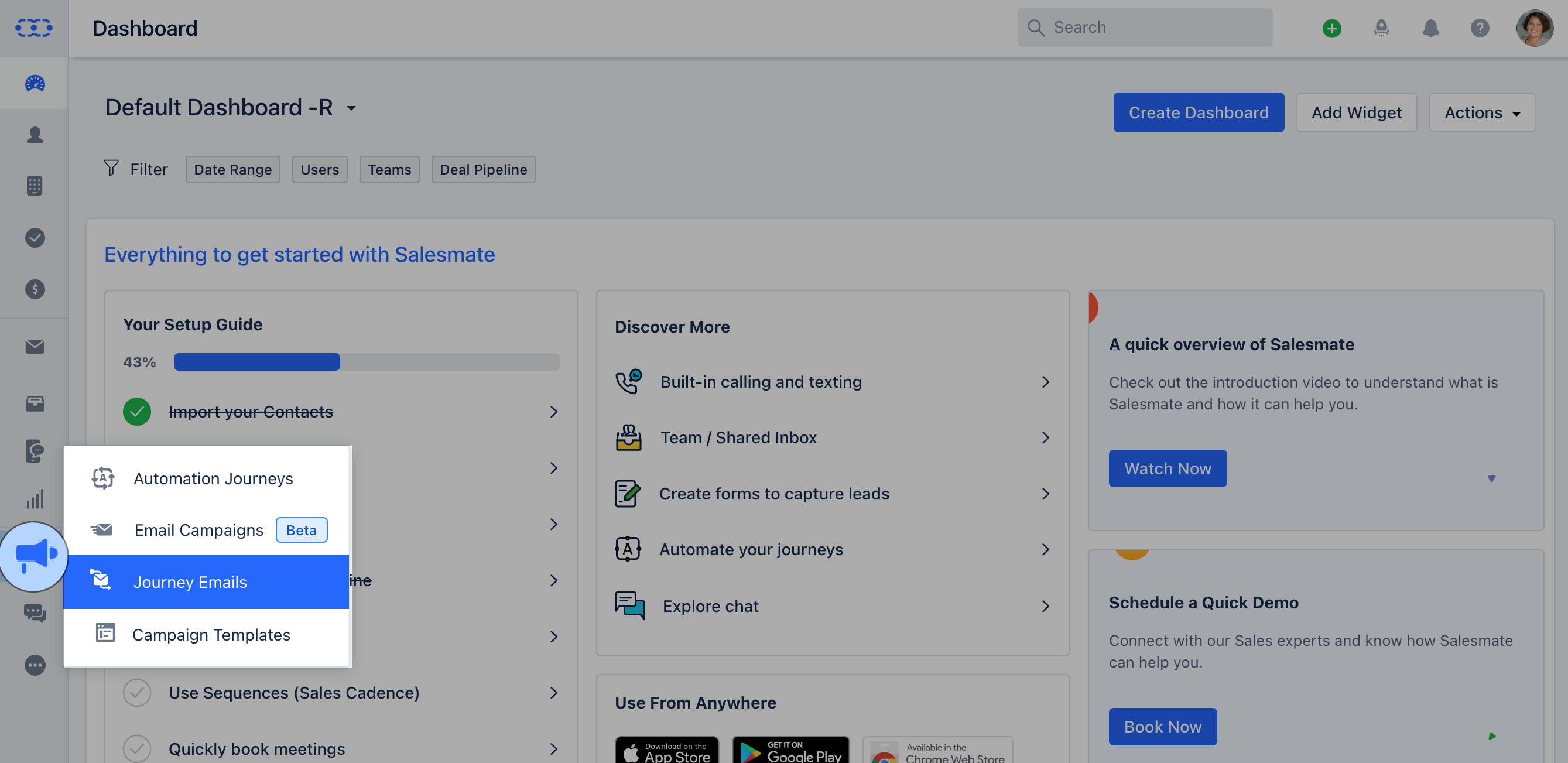
Navigate to the Outreach Icon on the left menu bar.Click on **Journey Emails. Screenshot 2023-09-08 at 2.54.11 PM.png If you haven’t created any Journey Emails It will take you to the page where you can click on Create Journey Email.Screenshot 2023-09-08 at 2.55.32 PM.png
  • Create a new Journey* by selecting a Campaign Template you’ve previously created.
  • **Subscription Type:**Subscription types are carefully crafted to precisely capture the email subscription preferences of your contacts.
  • Email Content:- Subject: Subject line of your Email.
  • Preview Text: Text to appear after the subject line.
  • From Name: Sender’s Name.
  • From Email: Sender’s Email address that will appear in the recipient’s inbox.
  • Footer Details: The email footer is the section where subscribers can find the sender’s information.
  • Tracking: Enable the tracking option according to your preferred tracking method.
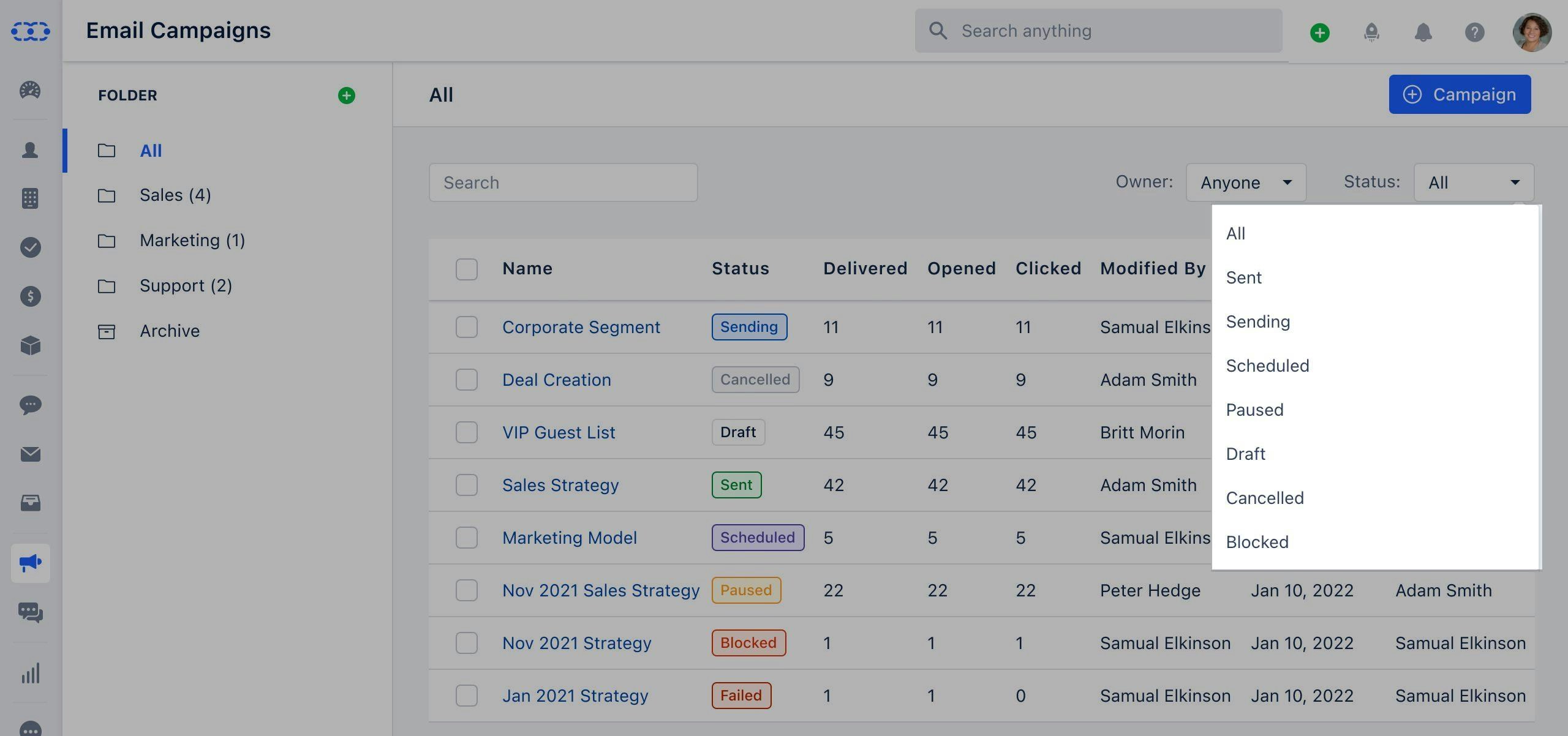
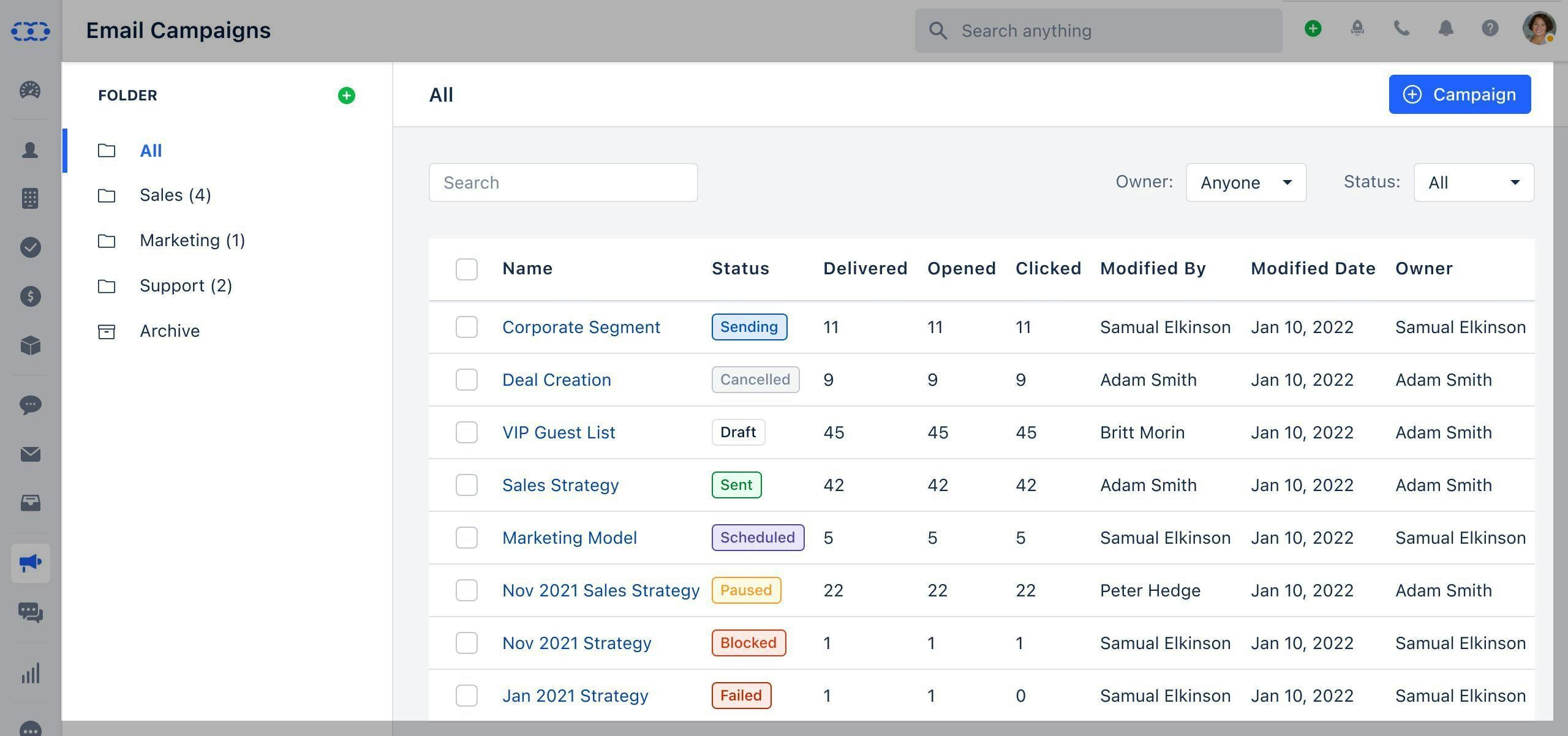
Note: The process for creating a Journey Email is similar to creating a new Email Campaign, with a few differences: Few actions in configuring Campaign Settings will not be displayed for Journey Emails. These include:**Recipients **Delivery Options **Email Throttle The option to enable A/B Testing is not available ** for Journey Emails. screencapture-staging17-salesmate-io-2023-09-08-15_07_04.png Proceed to the next page, preview the template, and voila! You are now ready to **publish. screencapture-staging17-salesmate-io-2023-09-08-15_13_49.png

How To Configure Automation Journey

Once published, head to the Automation Journey section.Create automation and set up a trigger for when the Journey Email should be sent to the contacts.Use the “Send Campaign” action in the automation and select the recently created Journey Email. mceclip0.png Publish the automation with the assigned trigger and the selected Journey Email will be set to be sent whenever the trigger condition is met.