Topics covered:
- Campaign Listing Page
- How to Cancel the Campaign
- How to Edit the Campaign
- How to Delete the Campaign
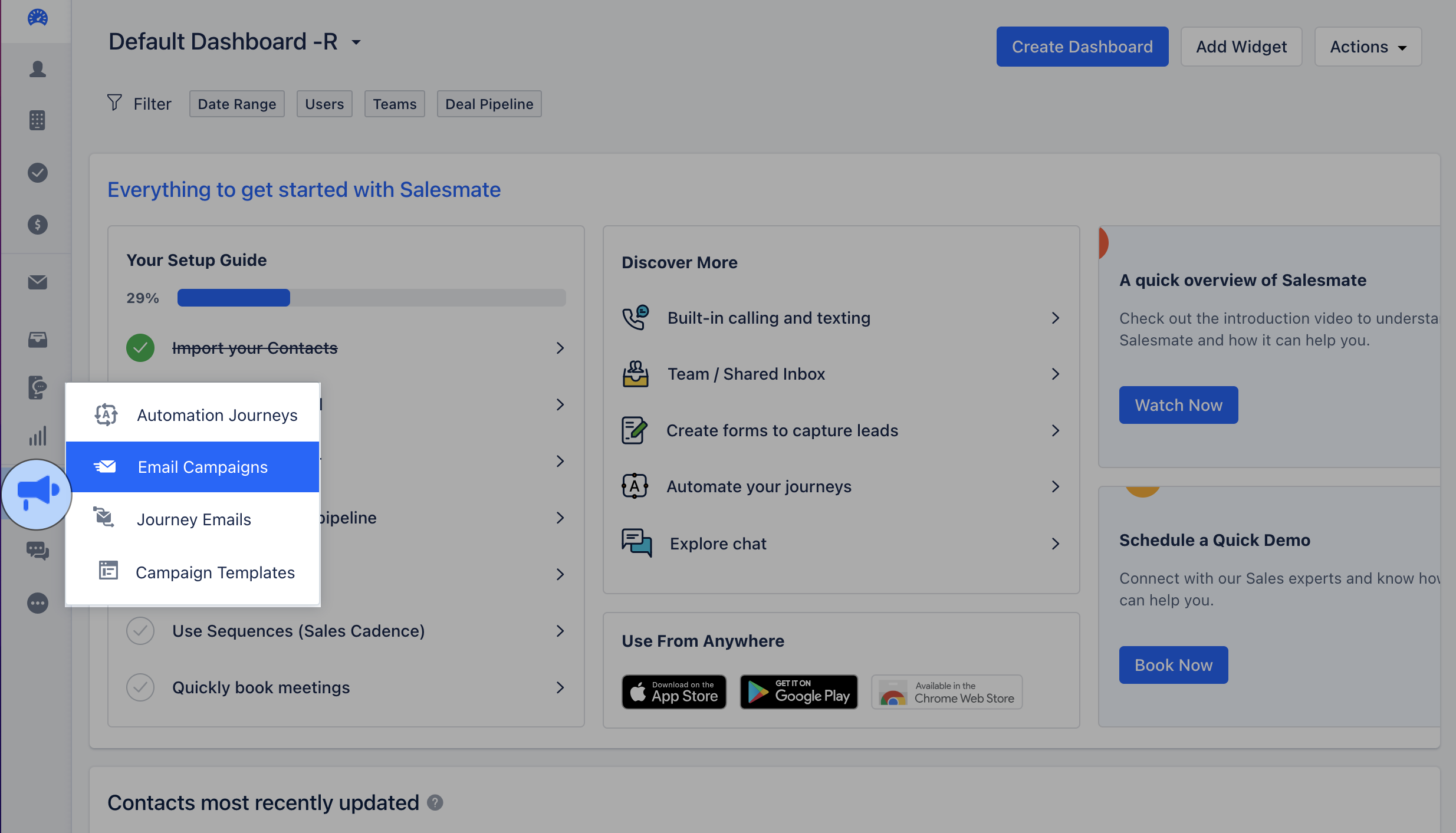
- To perform the above actions you would have to navigate to Email Campaign,
Campaign Listing Page
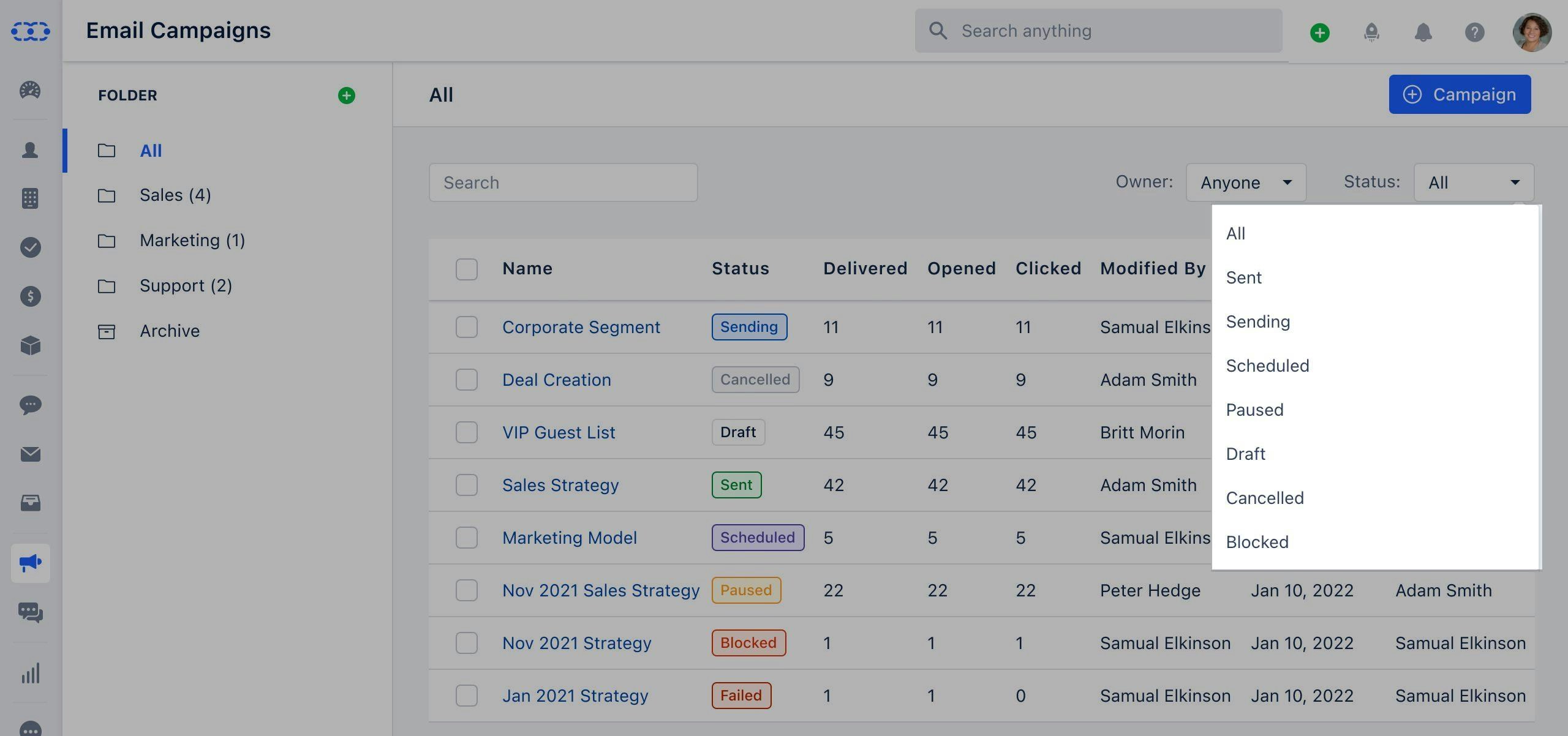
Once you click on the Email Campaign you will be directed to the Listing Page.You can Filter the option using the following options Owner: Options available here are,** Me(default)**Anyone **List of all Active Users Status: Options available here are,All(default)Draft- When you create a campaign and do not send it yet, it will get saved in “Draft” mode.- Canceled- When a campaign is canceled by the user then its status changes to “Canceled”.
- Sending- When a campaign is still been getting sent, its status will get displayed as “Sending”.
- Sent- When emails are sent to all recipients, then the status is set as “Sent”.
- Scheduled- When a campaign is scheduled for later, its status is “Scheduled”.
- Paused- When a campaign gets blocked the account is flagged for verification, and other campaigns will get paused automatically.
- Blocked- When the campaign is blocked due to a high bounce rate or DKIM, its status is set to “Blocked”.
- ** Failed **- When the list or view selected by the recipient gets deleted before execution time, the campaign is marked as Failed.
- **Free-Form Search
- **This will allow users to search for a campaign by its name.

- Status- Current status of the campaign.
- Delivered- Count of emails delivered to the contacts.
- Opened- Count of emails opened by the contacts.
- Clicked- Count of emails in which links were clicked by the contacts.
- Modified By- The name of the user who last modified the campaign.
- Modified Date- The date on which the campaign was last modified.
- Sent By- The name of the user who last sent the campaign. The value will appear once the campaign has been sent.
- Sent Date- The date on which the campaign was sent.
- Owner- The name of the user who created the campaign. This value will never change.
How to Cancel the Campaign
To cancel the Email Campaign, Click on the Name of the Campaign that you wish to Cancel, the Action button will appear next to it.Click on the Action button and select Cancel
- *Note:**Please note that you can only cancel the Campaigns that are in Sending status or are been Scheduled for later.
How to Edit the Campaign
To Edit the Campaign, Click on the Name of the Campaign that you wish to Cancel, the Action button will appear next to it.Click on the Action button and select ** Edit ** Note: You can only Edit the campaign with the following status:
DraftScheduledFailed
Note: You can only Edit the campaign with the following status:
DraftScheduledFailed
How to Delete the Campaign
To delete the Campaign, Click on the Name of the Campaign that you wish to Cancel, the Action button will appear next to it.Click on the Action button and select** Delete ***
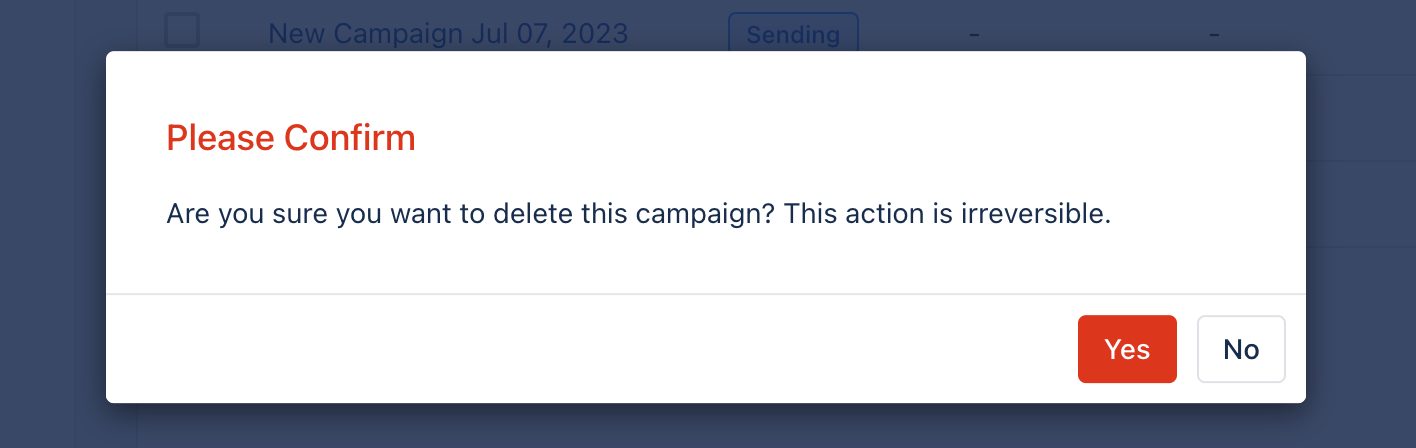
- Confirm the* Delete **