

Topics covered:
**To create Campaign templates:**Navigate to the Outreach Icon on the left menu barClick on Campaign Template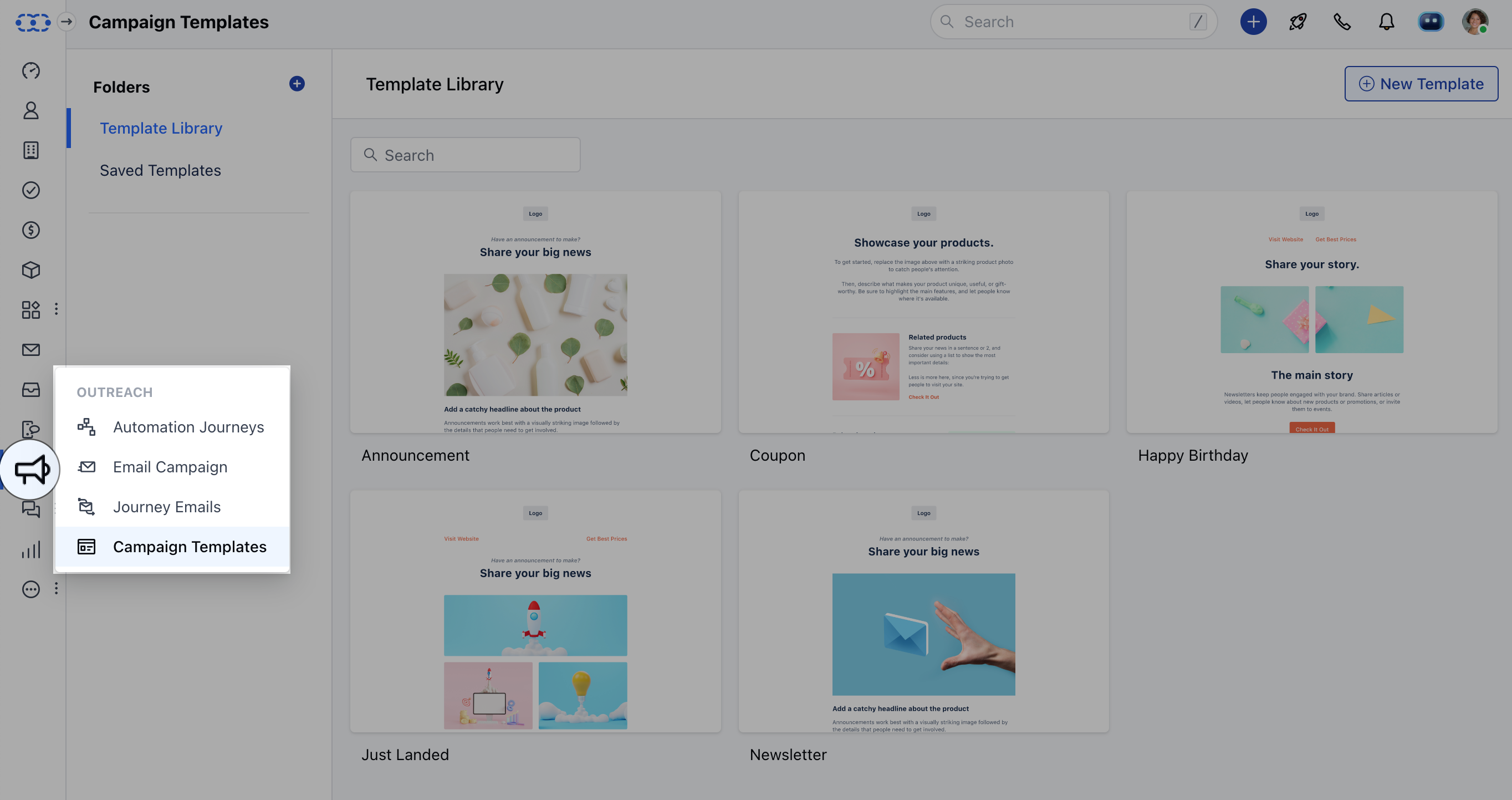
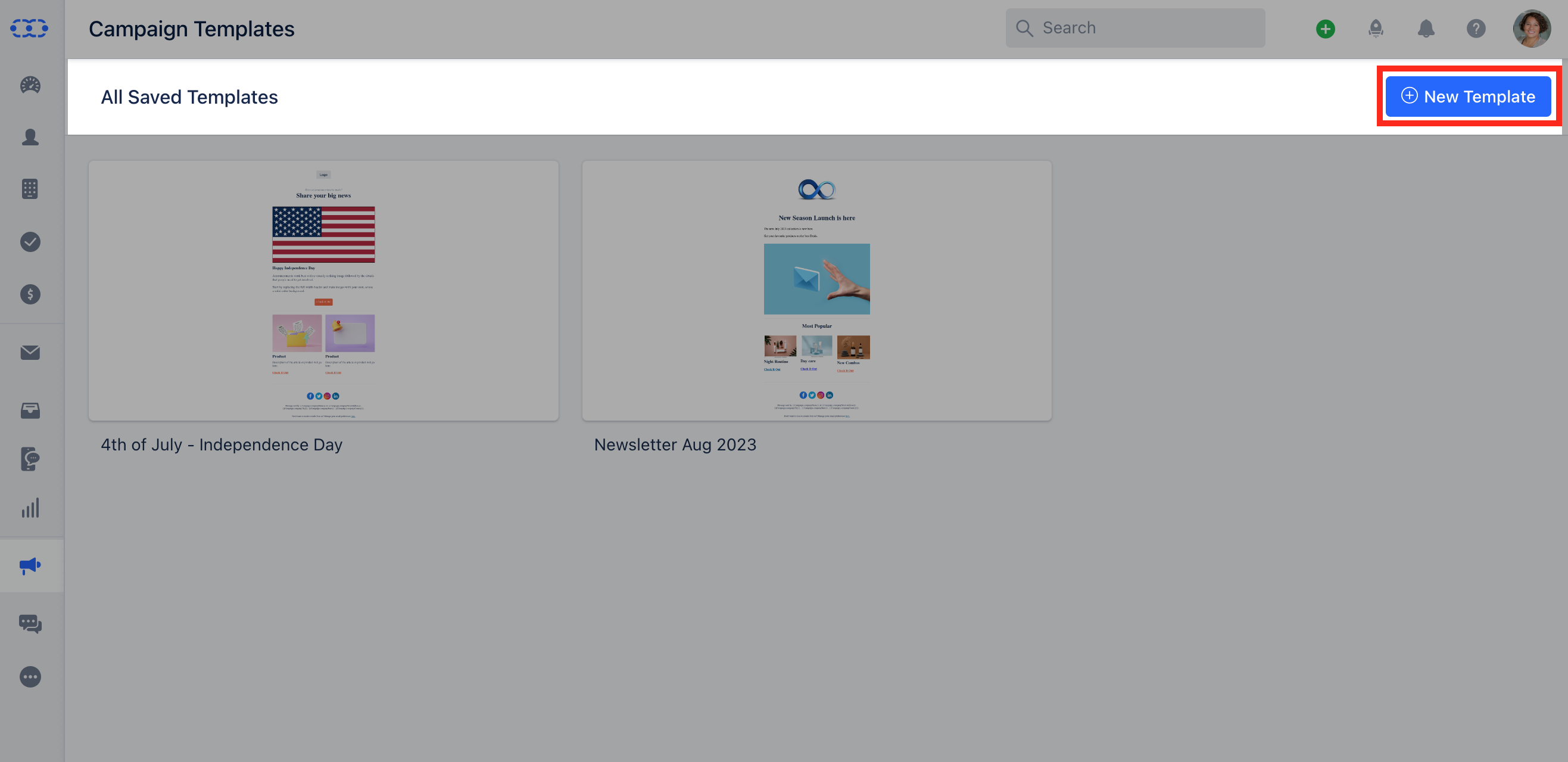
How to Use the Prebulid Templates
To use the Pre-build Templates, Click on the Template that you would like to use.The Template will get opened in a Preview mode Click on Use Template. Edit the Template as per your choice.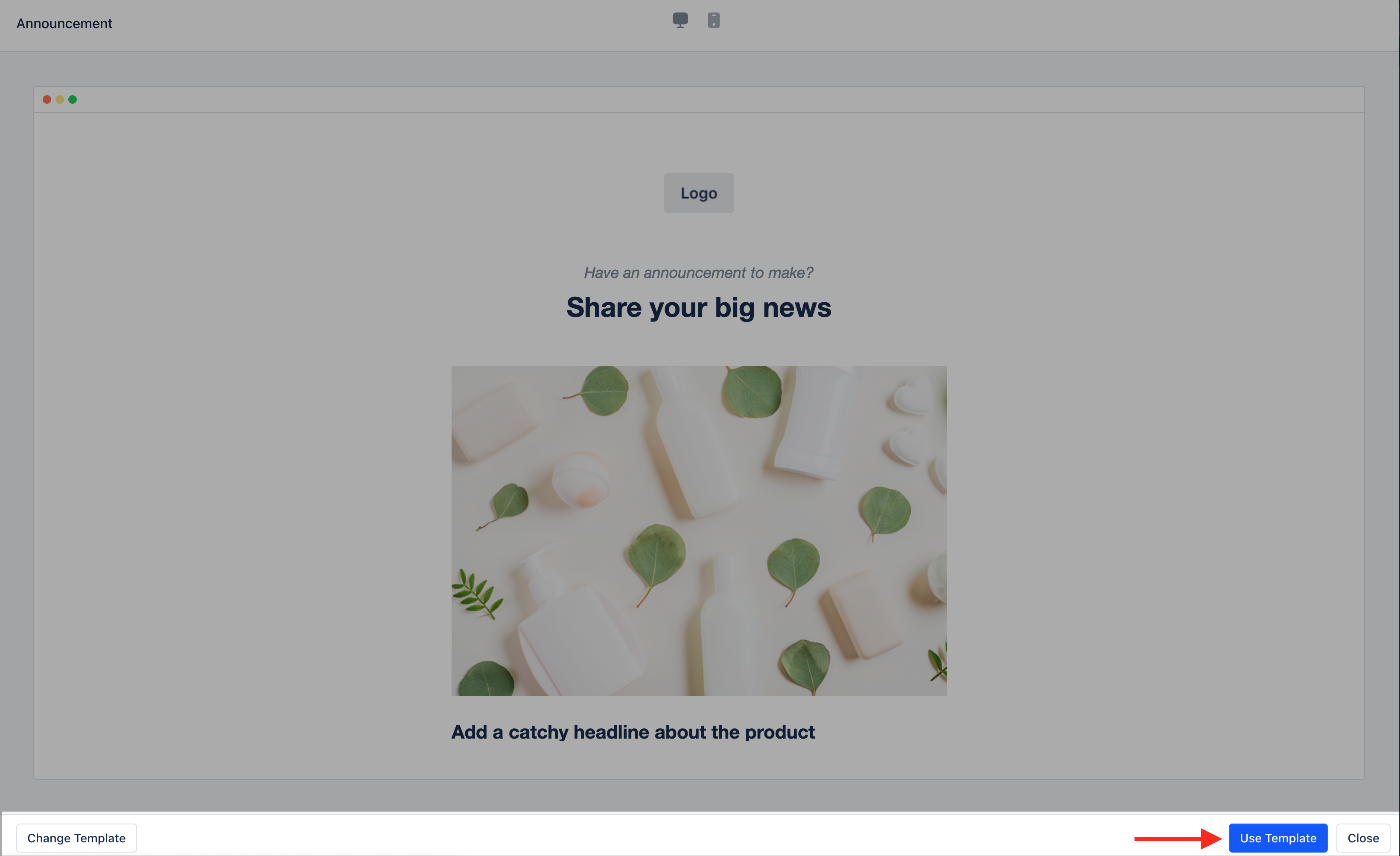
How to Create a New Template
To create a New Template Click on Blank Template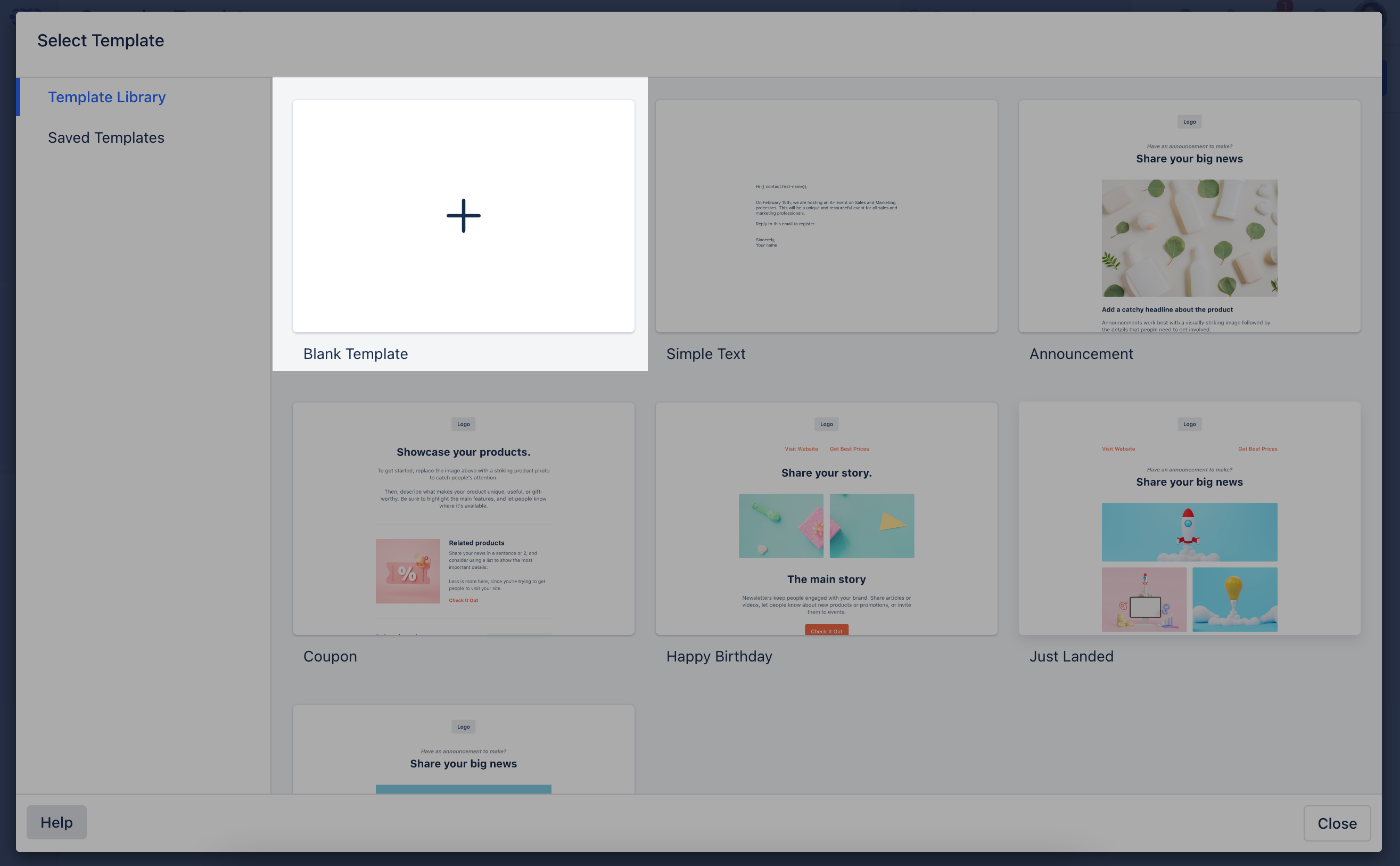
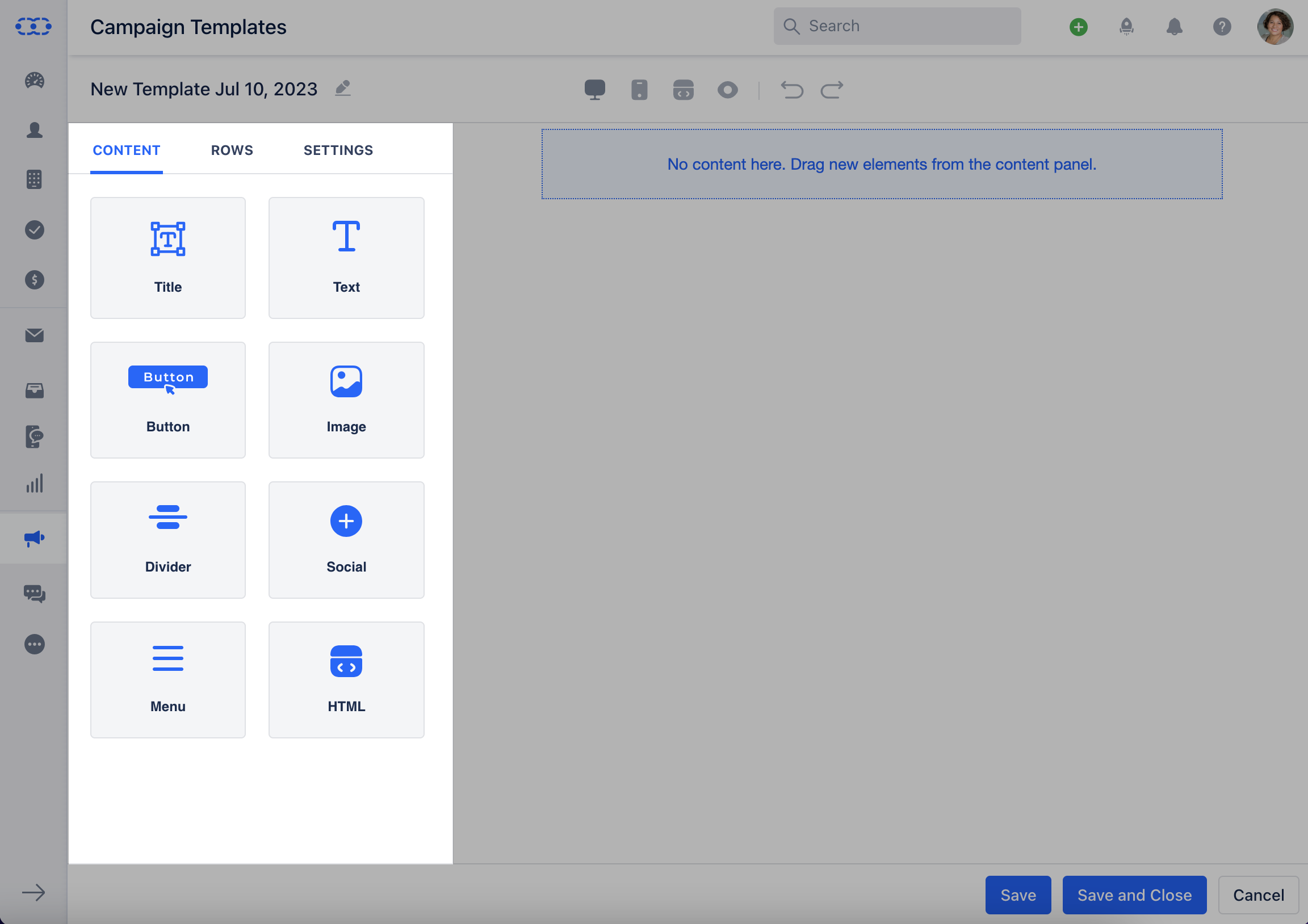
- Title: Can be used to display your product Titles in different formats.
- Text: Can be used to add your Text Content, you can use the text toolbar to change the formatting of the text.
- Button: This is useful for offering the message recipient options to choose from, such as pre-determined responses to a question, or actions to take or to redirect them to the specific page.
- Images: Can be used to add Images or gif’s to your Templates
- Divider: Cab be used to divide the Content into parts
- Social Links: Can be used to add your Organizations social links
- Menu: Can be used to provide different options in a Template
- HTML: Can be used to create a Template using the HTML code
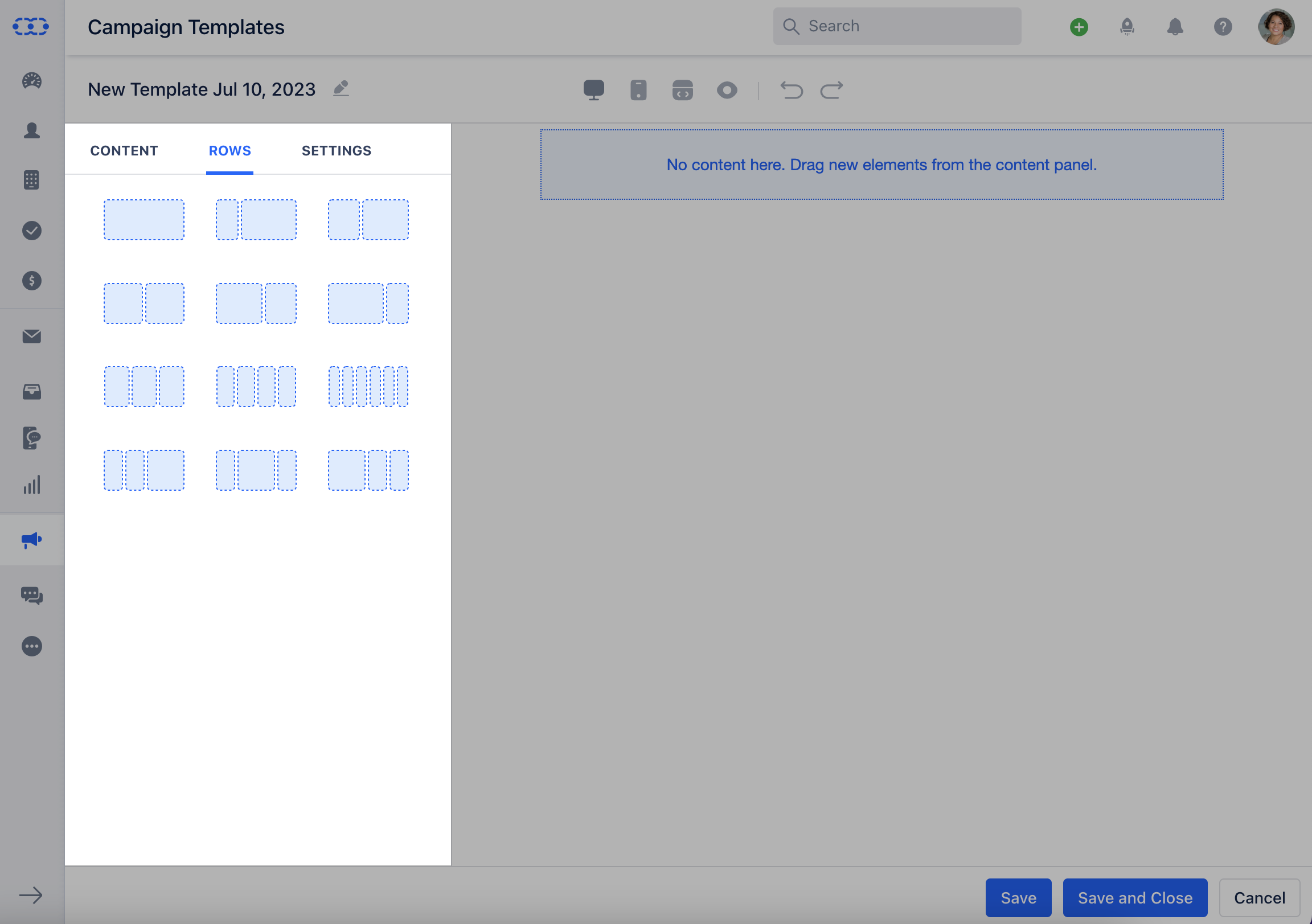
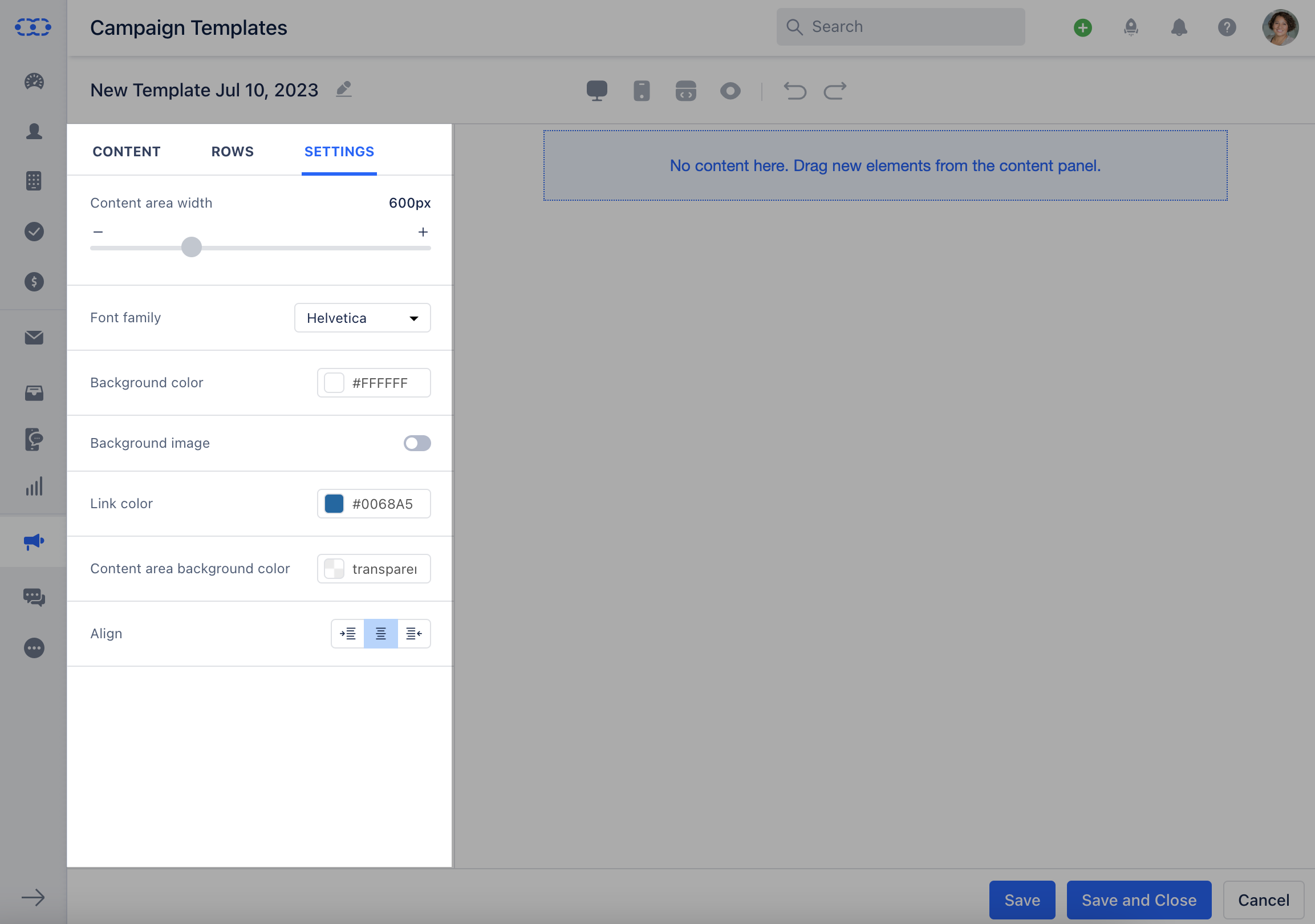
- **Hit ** Save **
How to Create New Template Folders
To create new Template Folders, Navigate to the Outreach Icon on the left menu barClick on Campaign Template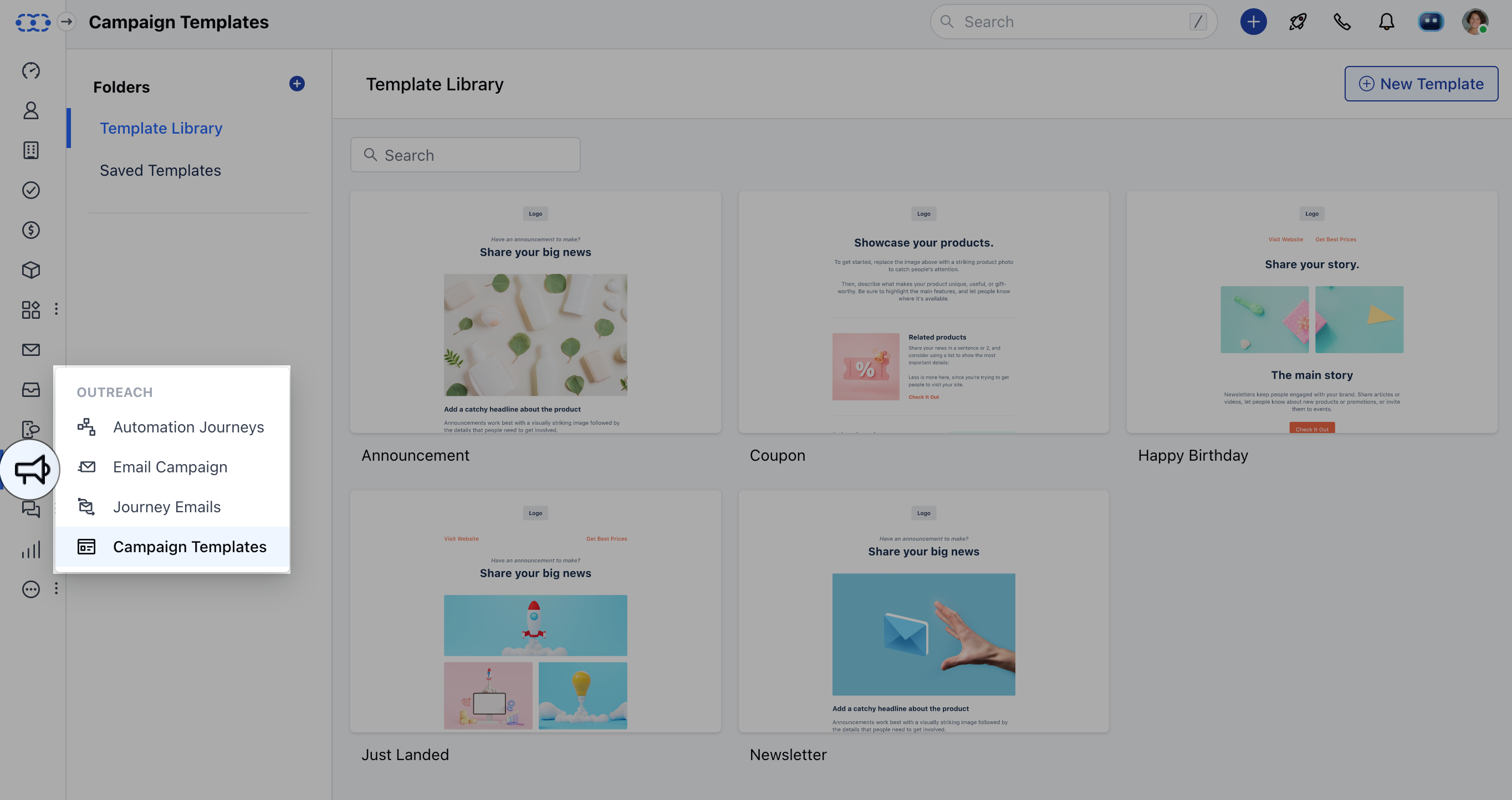
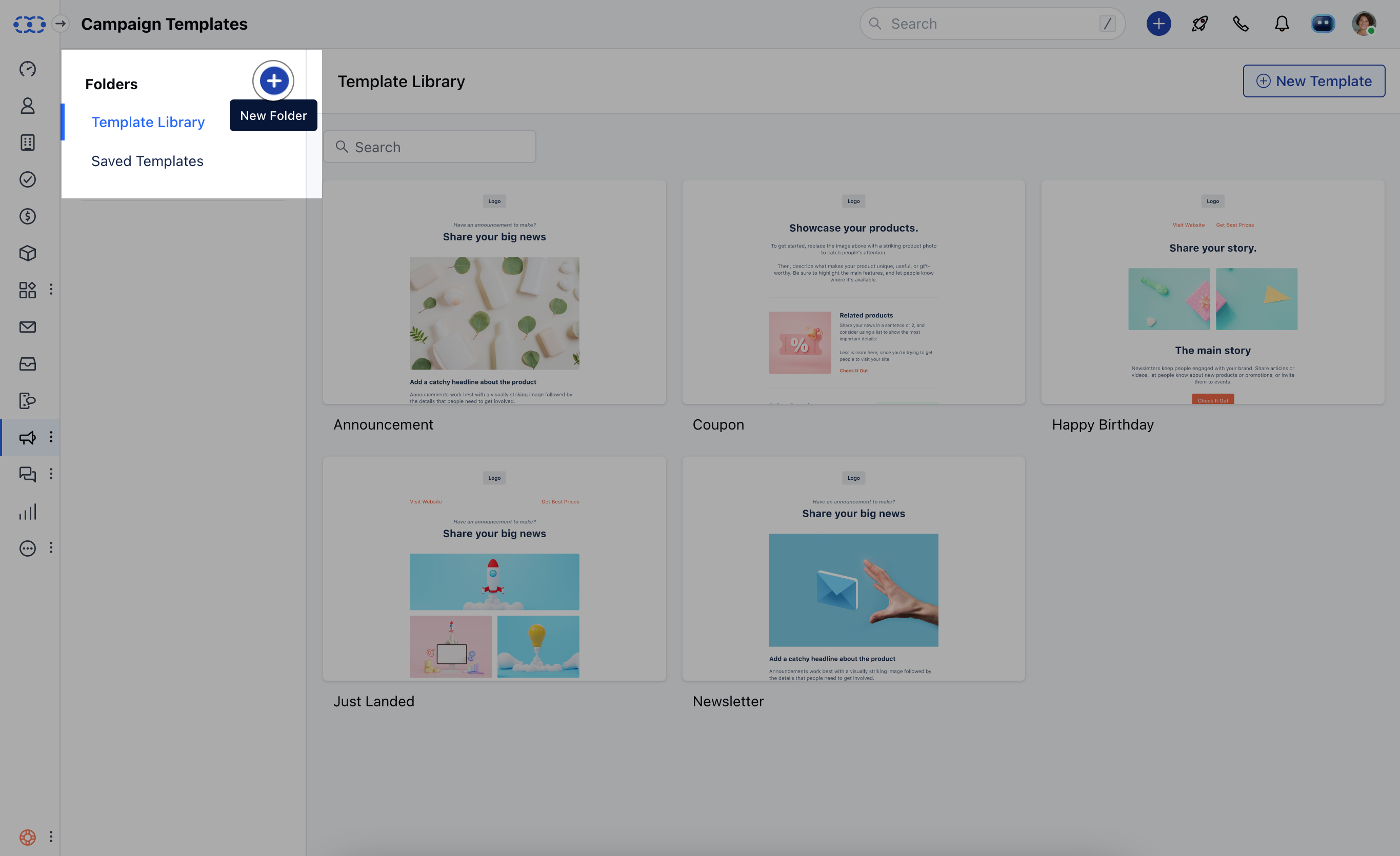
 **
**