Salesmate CRM can work best when you would like to schedule text messages. It helps you to be in touch with your prospects on their special days and avoid procrastination from your busy schedule.

How to Schedule Text Messages?

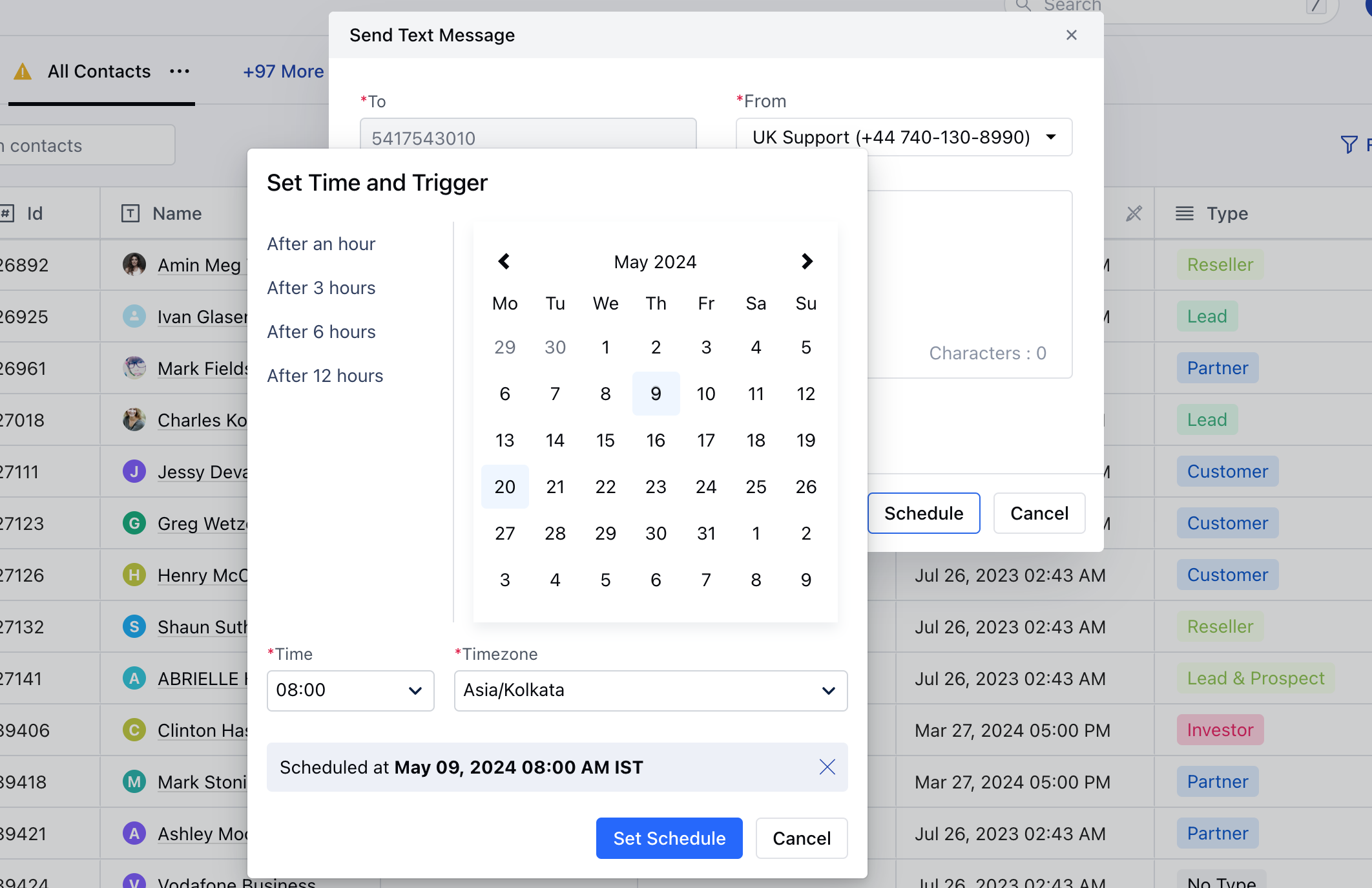
While trying to send a text message, hit Schedule to Schedule sending the messageYou can select the date and time and hit the Schedule buttonMessages will land inside the** S **chedule ** Folder and be sent at the particular Date and TimeIn case of an error, then the user will be notified about sending failure. mceclip1.png
  • Note*:
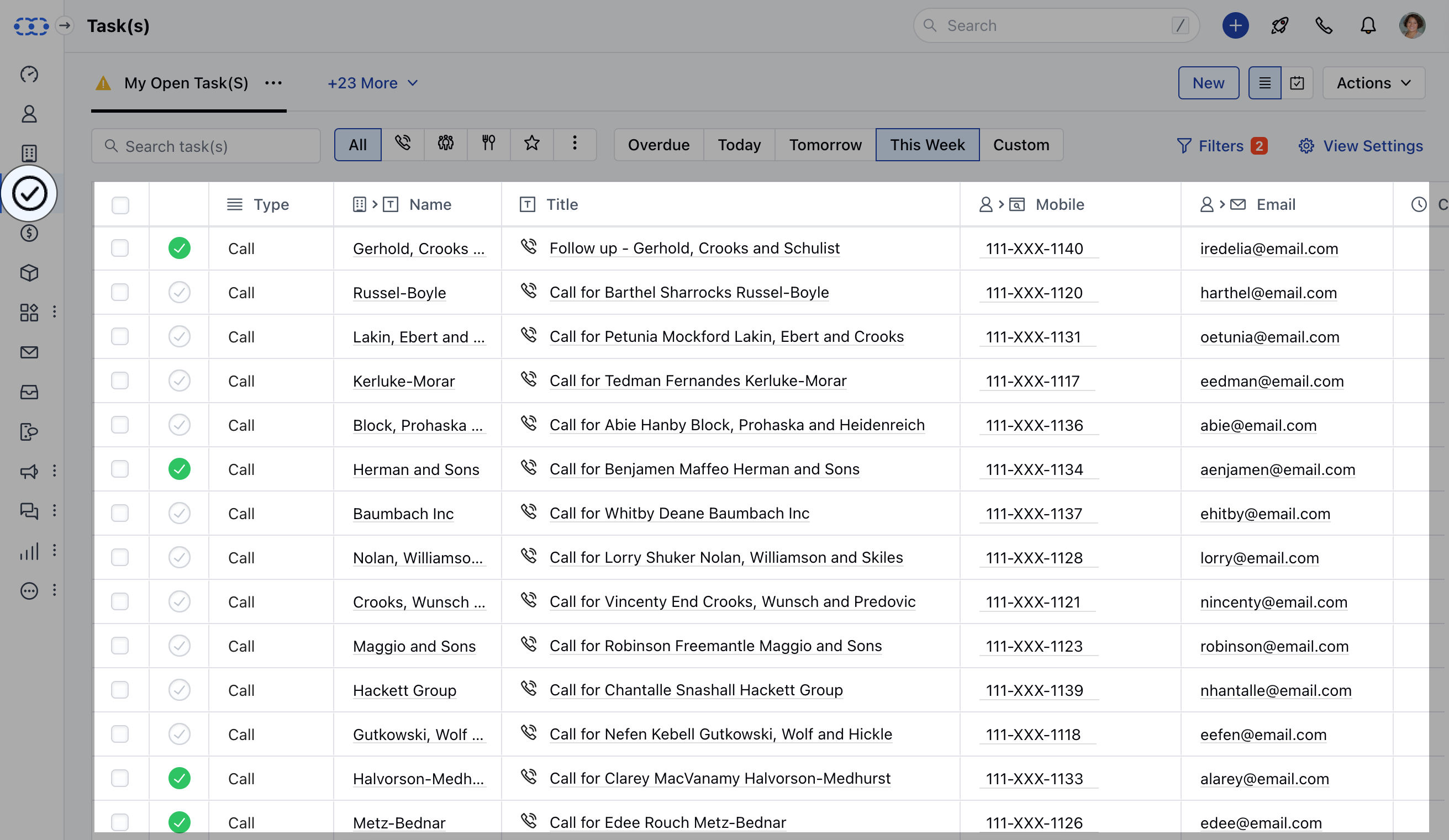
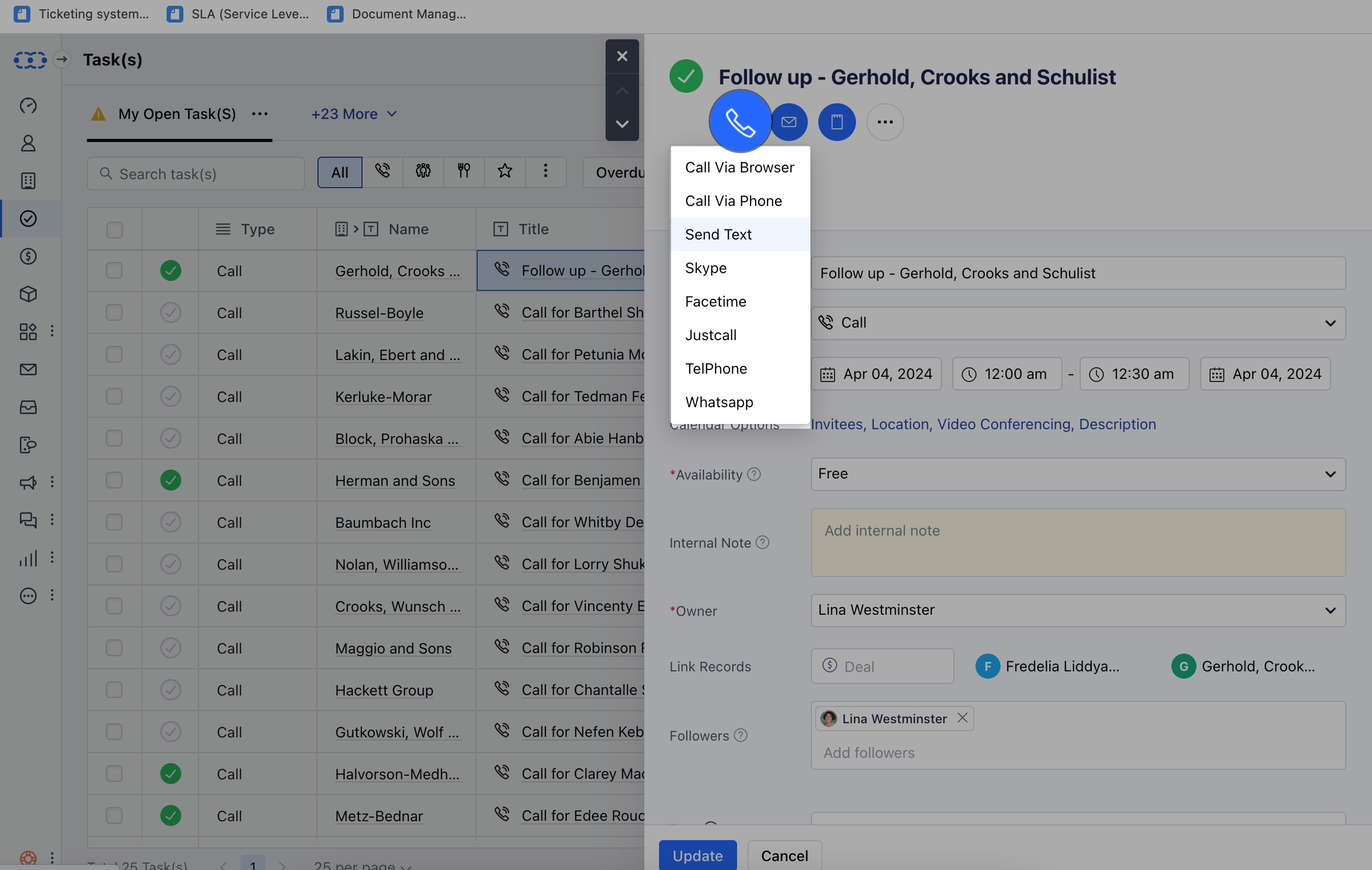
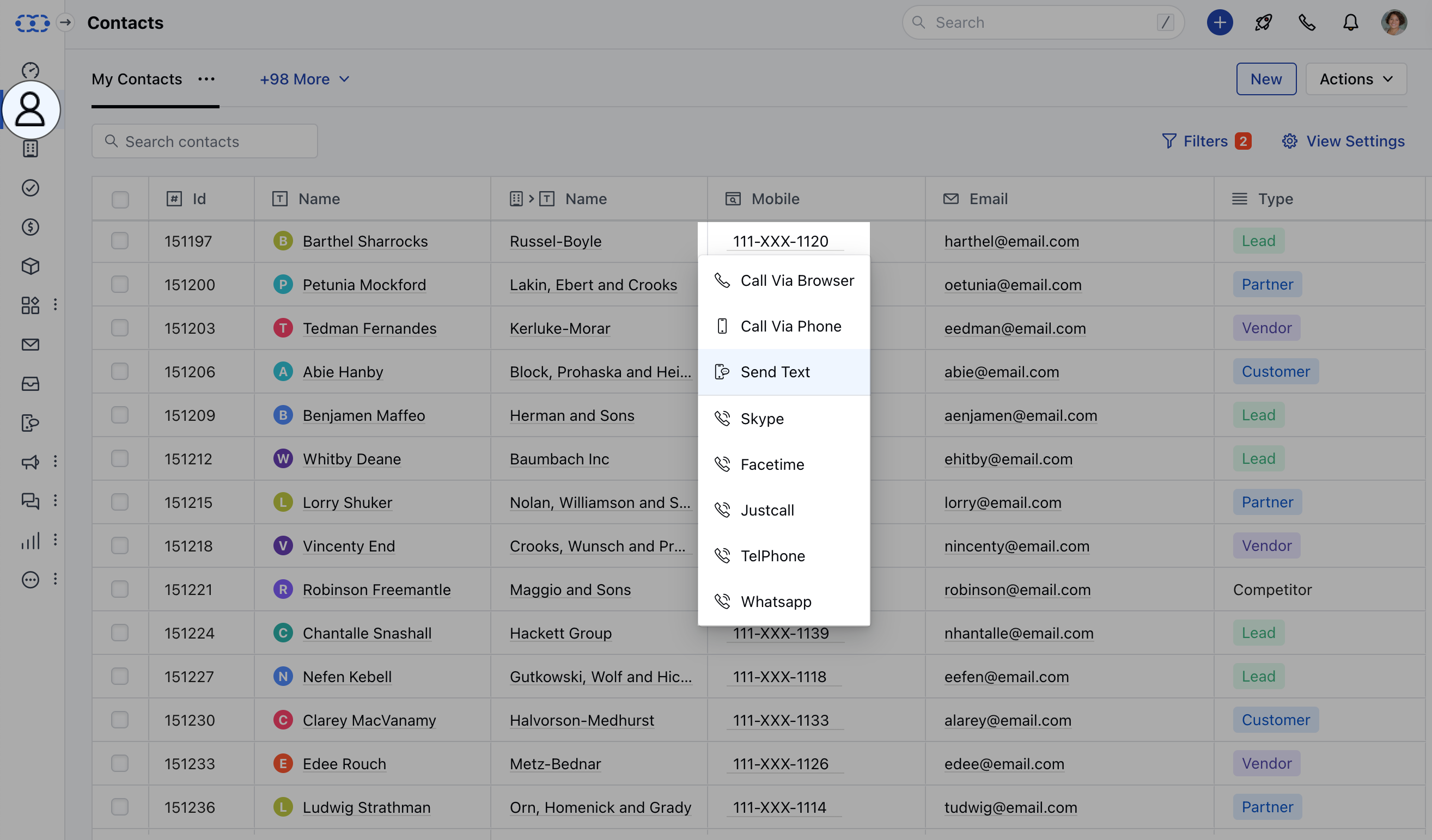
Salesmate voice and text should be enabledEnsure the phone number is in the correct format to ensure proper delivery.If you are using variables inside your templates, the actual character length can change at the time of sending the message.If a text message is fired from the deal then it will get auto-attached to the deal too. You can send from the deal detail page, deal’s listing grid, or deals listing grid using bulk message. It will also replace deal variables inside the text body. Navigate to the Activity Module from the left menu bar mceclip0.png Click on the desired Activity TitleClick on the Call Icon and select Send Text mceclip1(1).png Compose and Send or Schedule your Message as required (Refer steps above for sending Text Messages)Similar operations can be performed for other modules **From:**Contact/Company/Activity/Deal List Page mceclip2.png

**From :**Contact / Company / Activity / Deal Detail Page

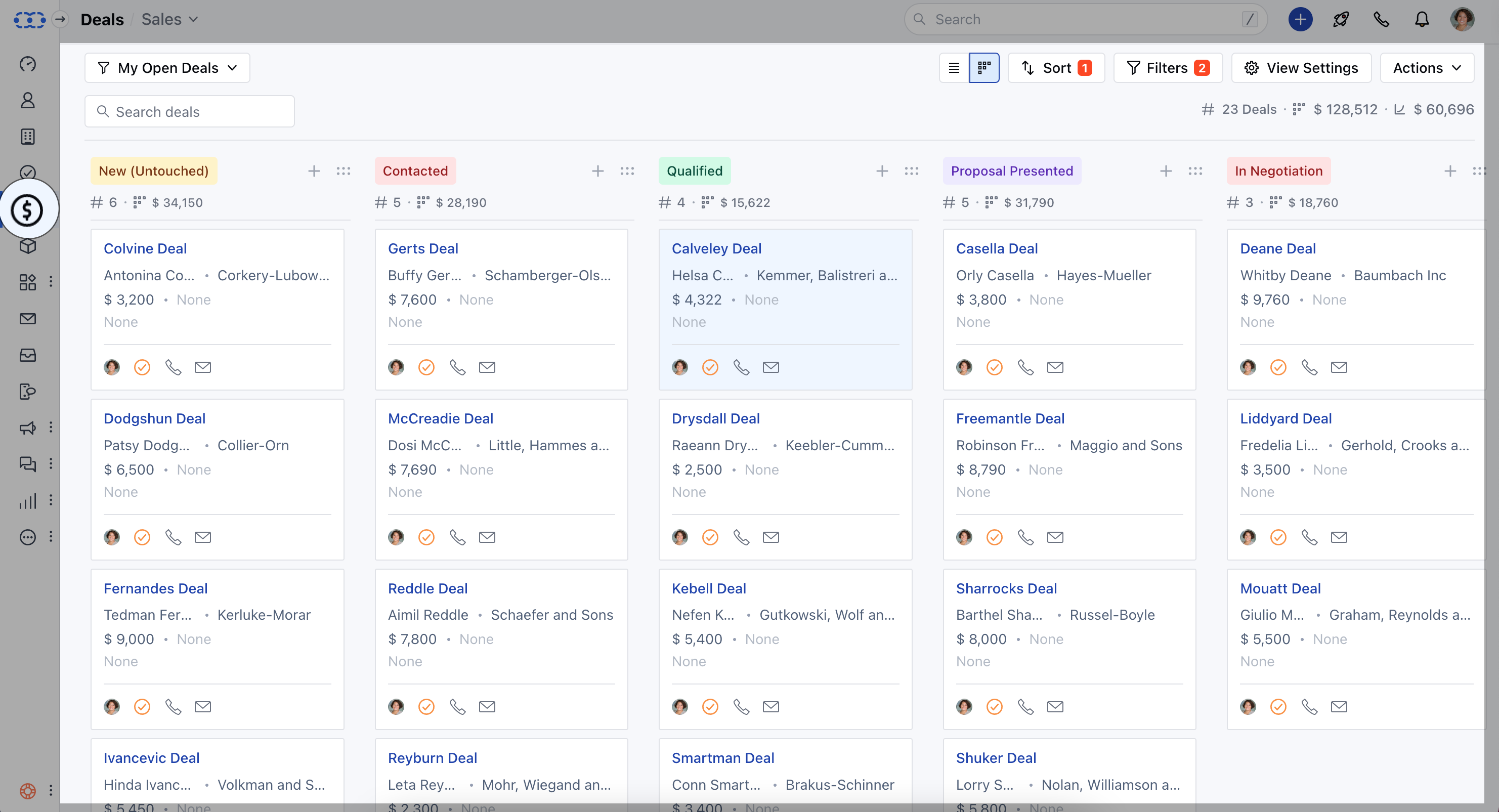
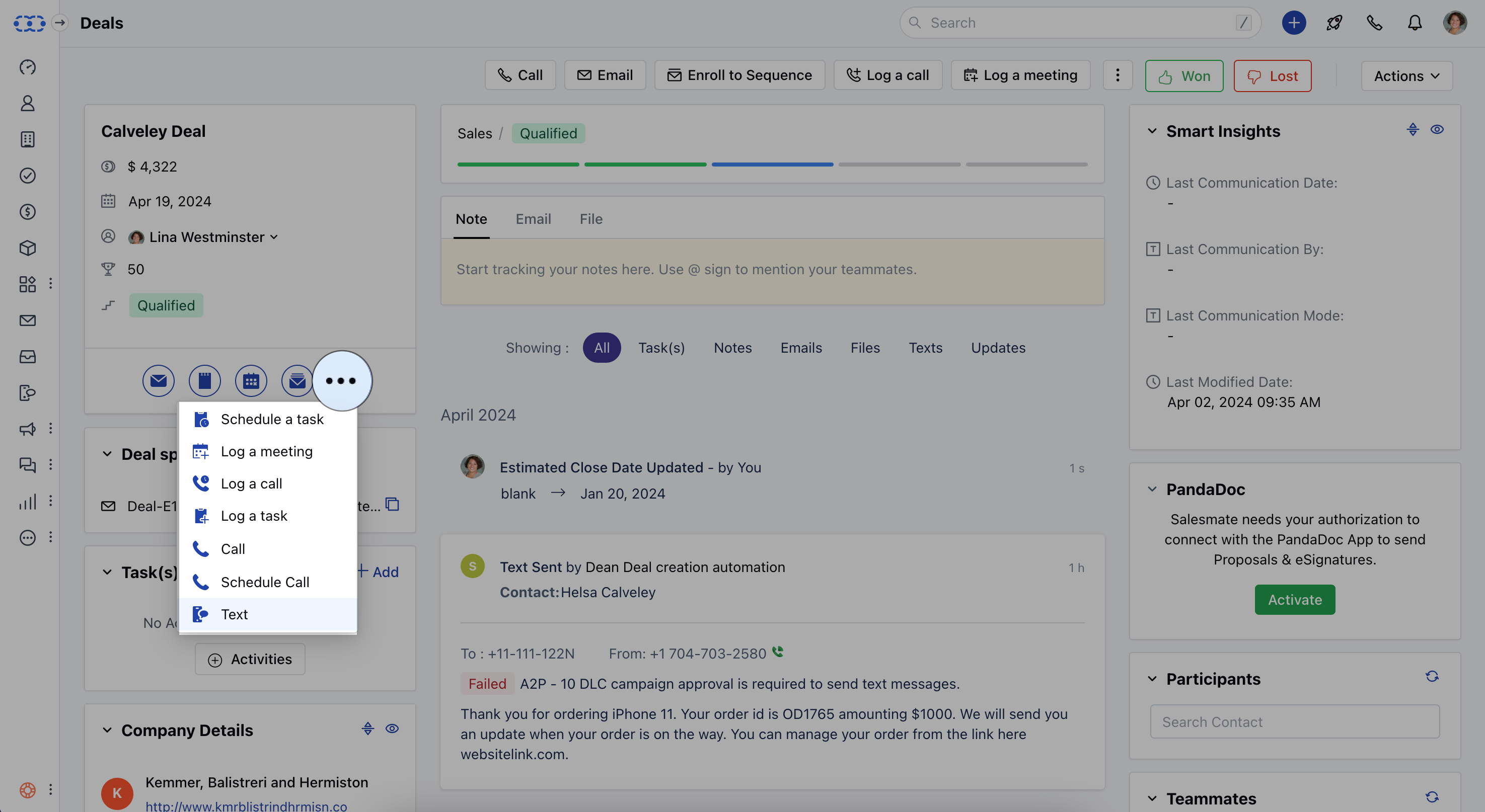
Navigate to the Deal ModuleClick on Deal Title (Board or List View) mceclip3.png Navigate to the Detail Page of the dealClick on the three dotsClick on Text option mceclip4.png Compose and Send or Schedule your Message as required (Refer to steps for sending Text Messages here)
**From:**Text Conversation View

Communication isn’t a one-way street. To ensure you have effective two-way communication Salesmate CRM has added the conversation view to its text messages.