

Note: You’ll need “Create Articles” permission to create an article.
Topics covered:
Steps to Create a Knowledge Base Article
- In the left sidebar, click Articles to view your knowledge base.
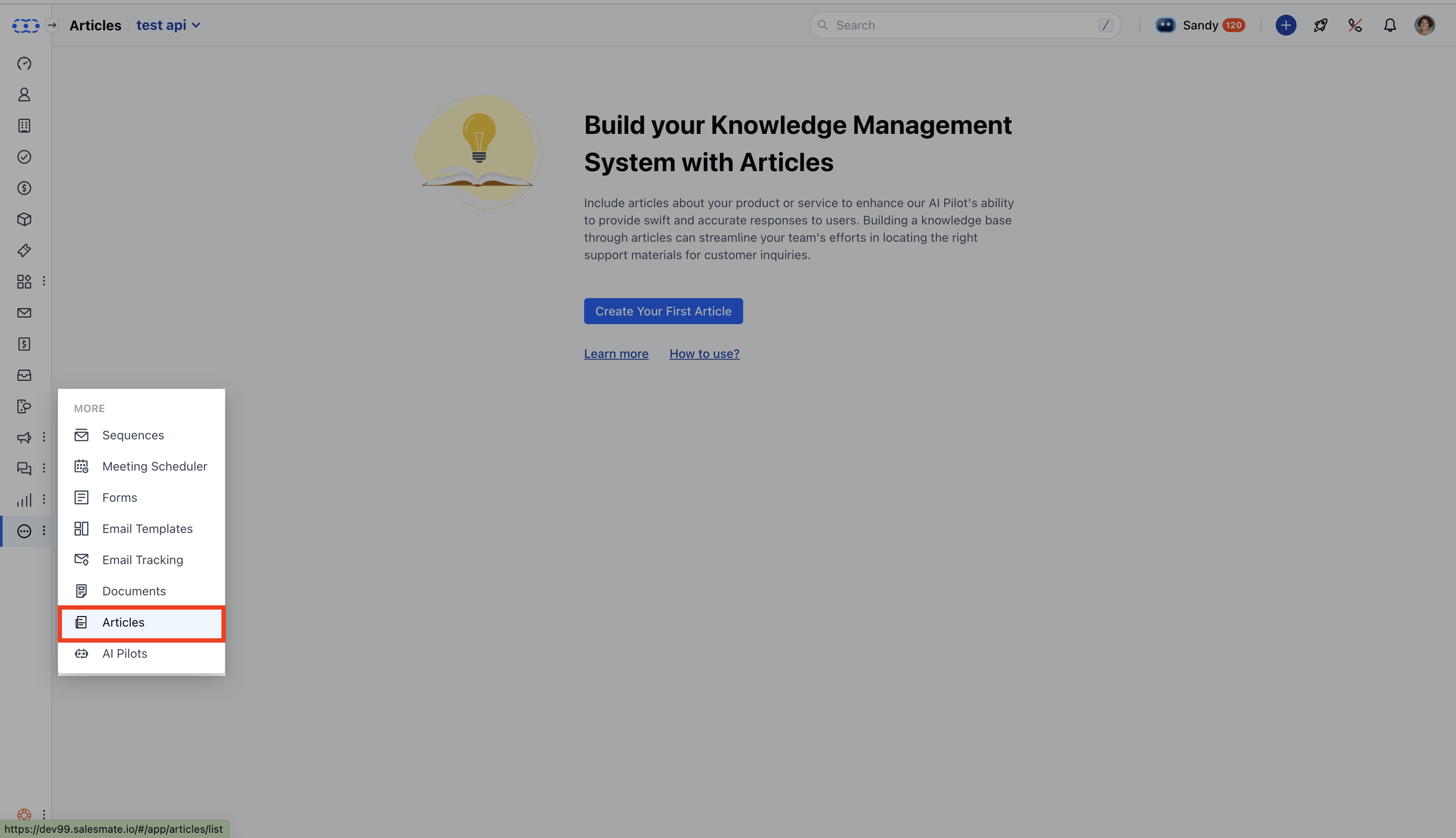
- If you have more than one knowledge base, choose the one you want to add the article to.
- Click New on the article list page to begin drafting your article.
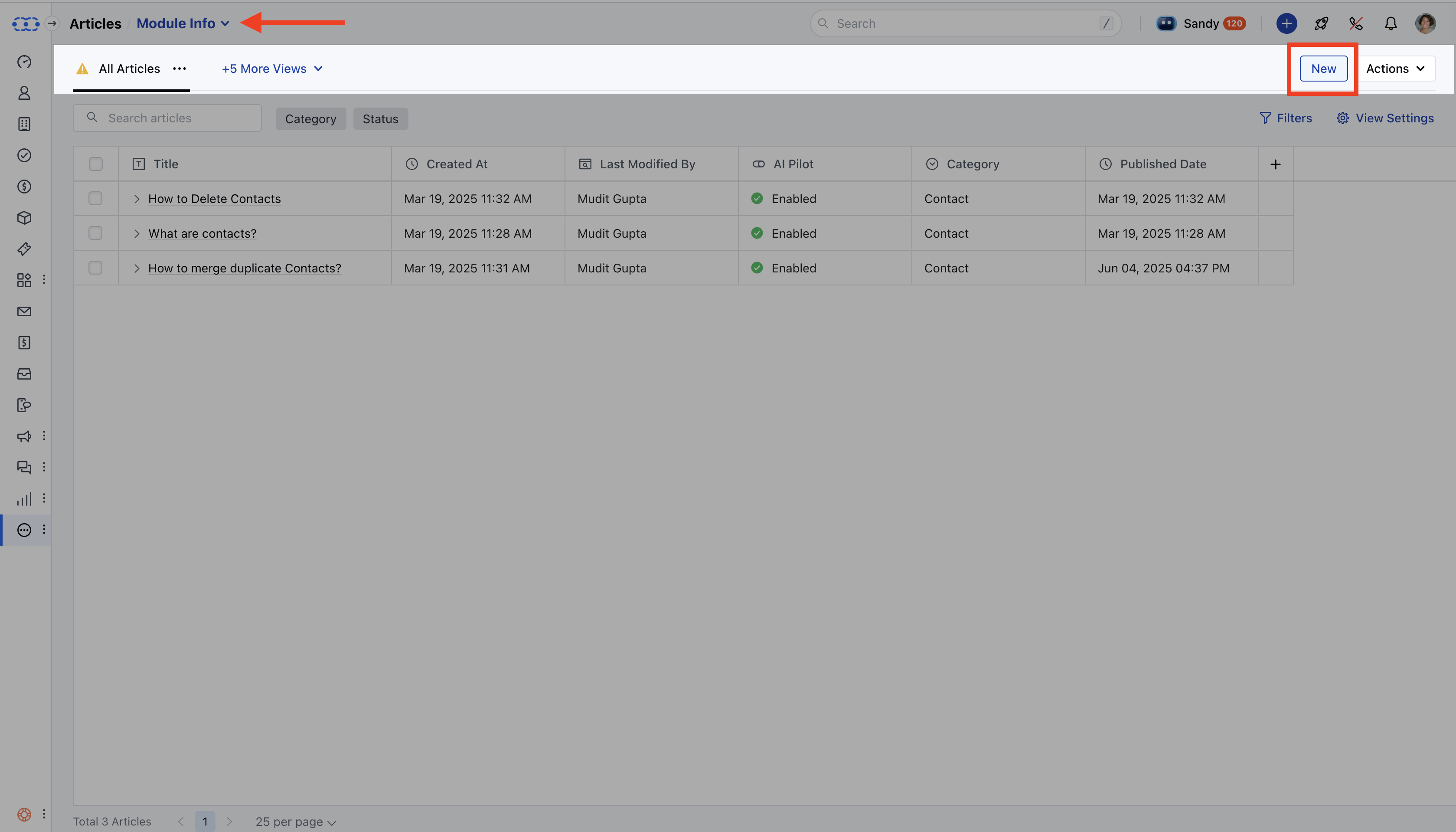
Fill in the Article Details
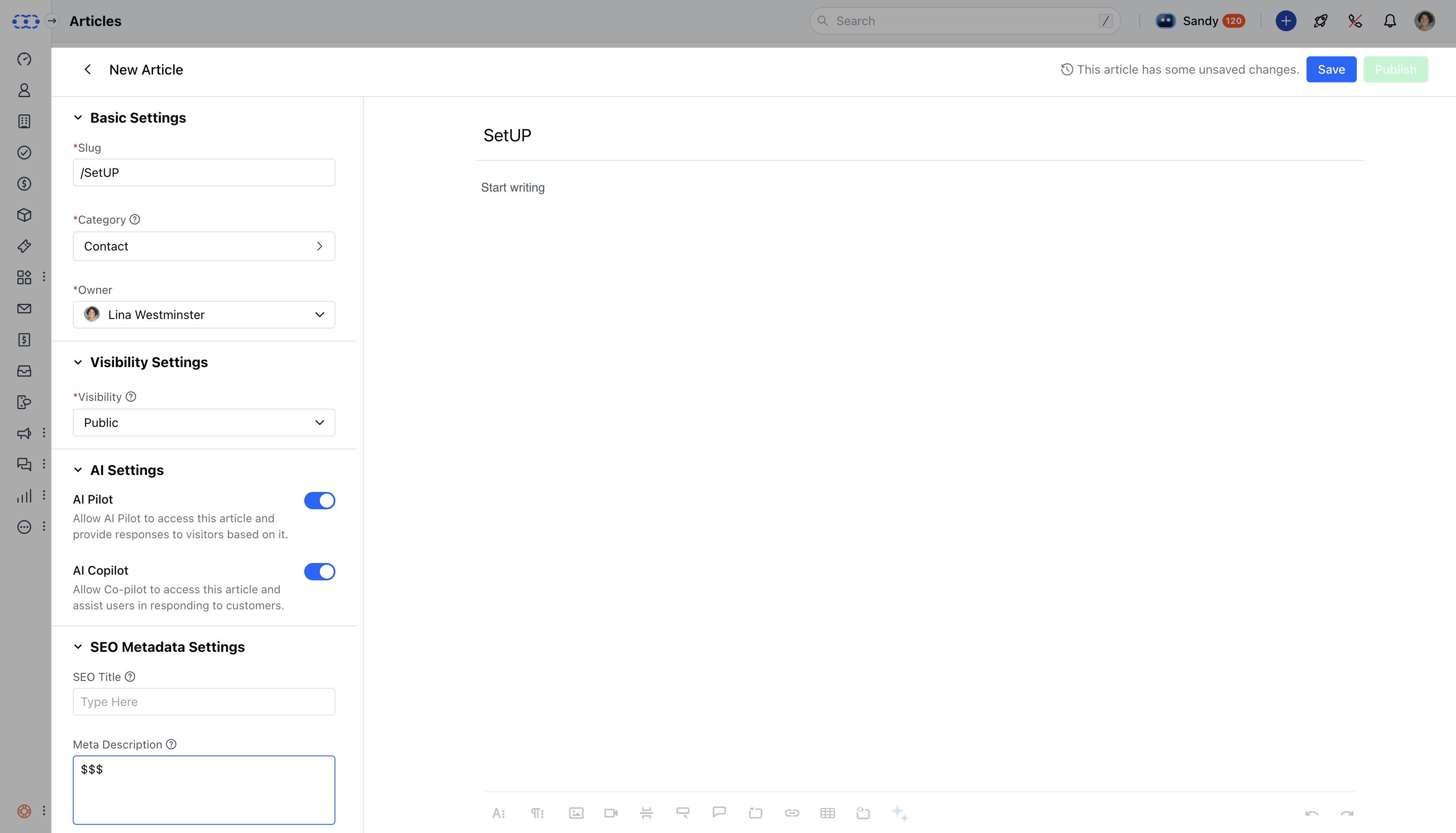
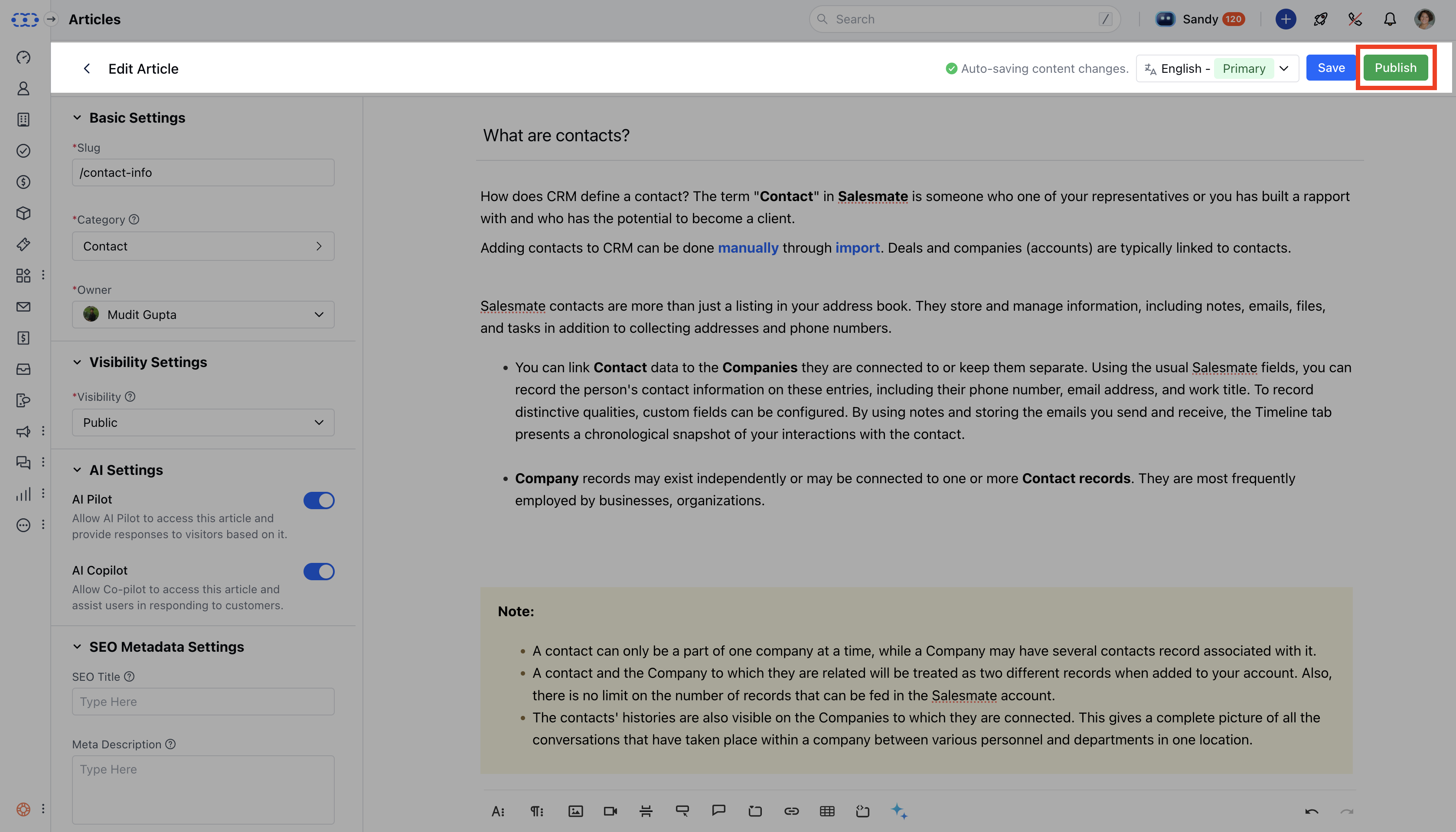
Once inside the editor, here’s what you’ll need to complete:**Language **: Default is English or your main KB language. If multiple languages are available, you can choose one.- **Title **: Enter a clear title (max 150 characters).
- **Body **: Add your content using the rich text editor. You can format text, add links, images, code blocks, tables, and more (max 3000 characters).
- **Slug **: The article’s URL, auto-generated from the title. You can edit it—just make sure it’s unique and valid.
- **Category **: Pick an existing category or create a new one to organize your article.
- **Owner **: By default, you’ll be listed as the author, but you can assign it to someone else.
- **Visibility **: Decide who can see this article: * Public – Visible to everyone, including customers
- Internal – Only your team can view it * Restricted – Limit access based on specific contact rules (must set at least one rule)
- **AI Settings **: If Sandy AI is enabled, the article can be used to respond to visitor questions or assist your team with replies.
- **SEO Settings **: Add a title and meta description (up to 150 characters) to help your article appear in search results.
- **Tags **: You can add searchable keywords to make your article easier to find.
- **Attachments **: Upload up to 10 files (max 20MB each) in supported formats like PDF, DOCX, PPT, XLS, CSV, and more.
- **Allow Comments **: Let logged-in users leave comments. If not logged in, they’ll be asked to enter their email.
Save or Publish Your Article
- **Save as Draft **: Use this if you’re not ready to publish yet. Title and body are required to save.
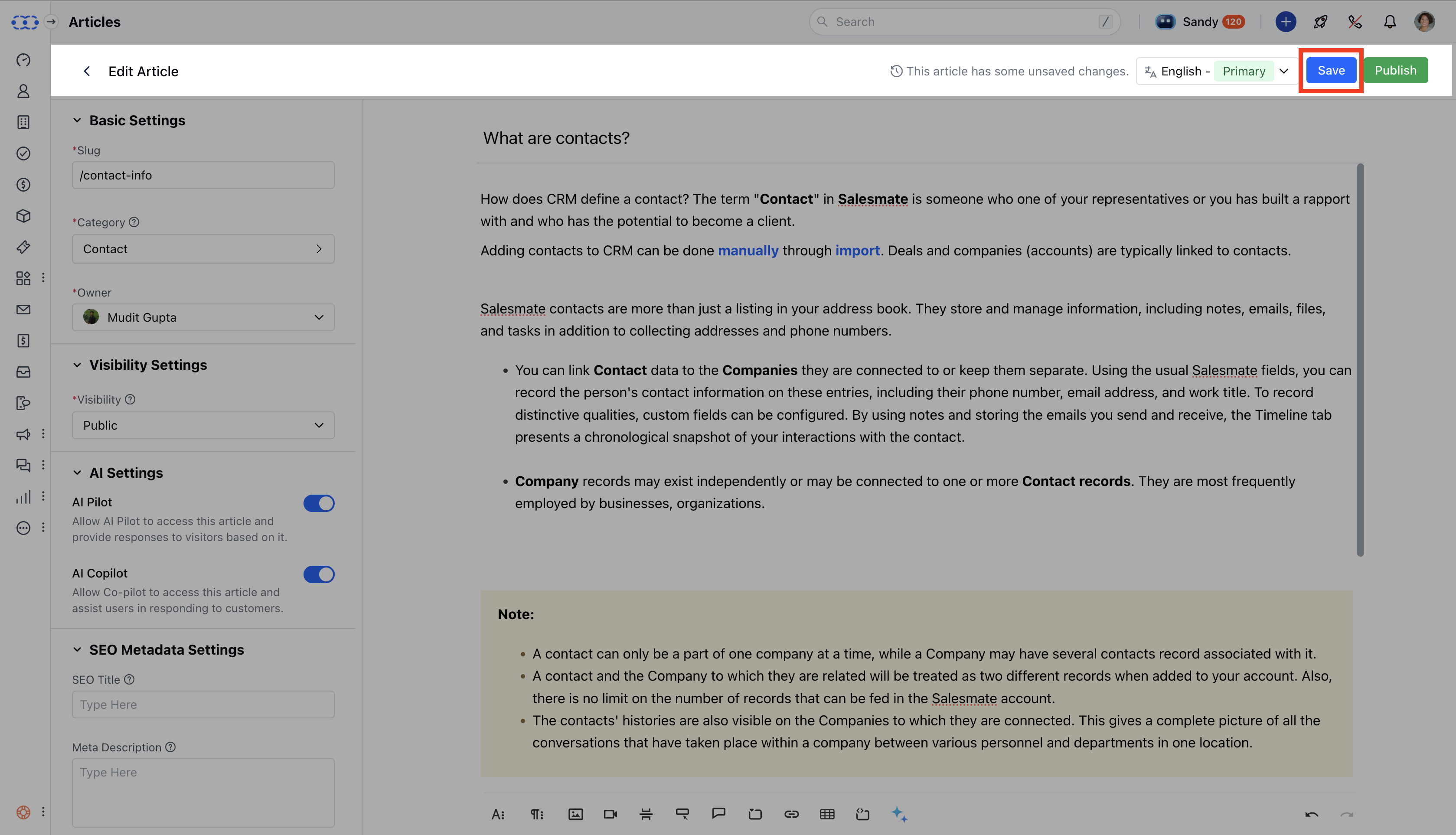
- **Publish **: Make the article live once all required fields are filled in.
Additional Features
- **** Version History : Every save or publish creates a new version. You can restore previous versions anytime.
- **** Sandy AI Integration : Published articles automatically update Sandy AI’s knowledge base (if enabled).
- **** Permissions : Only users with the right permissions can create, edit, or publish articles.