

Note: You’ll need “Create Articles” permission to clone articles.
Steps to Clone a Knowledge Base Article
- In the left sidebar, click Articles to view your knowledge base article list.
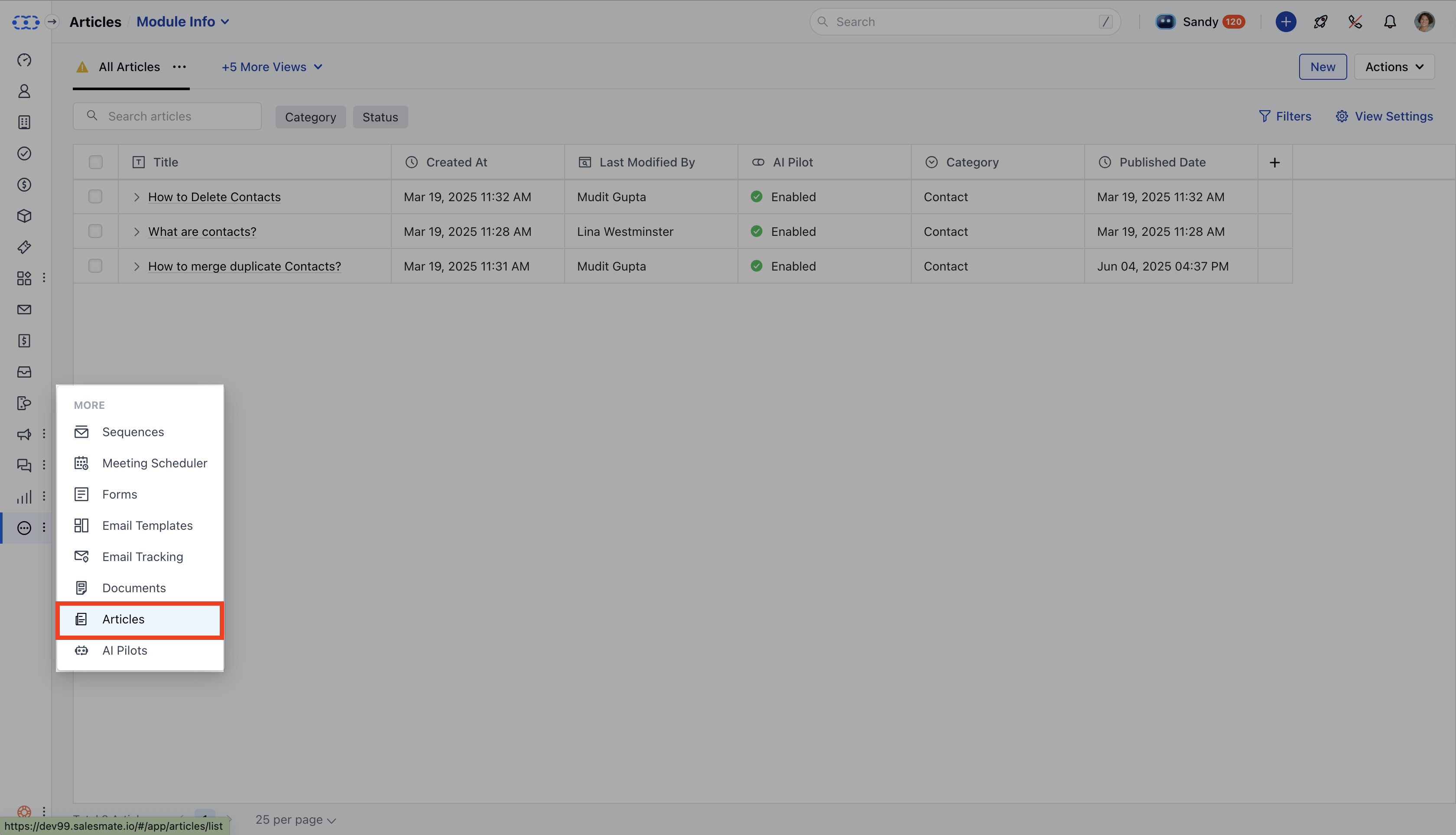
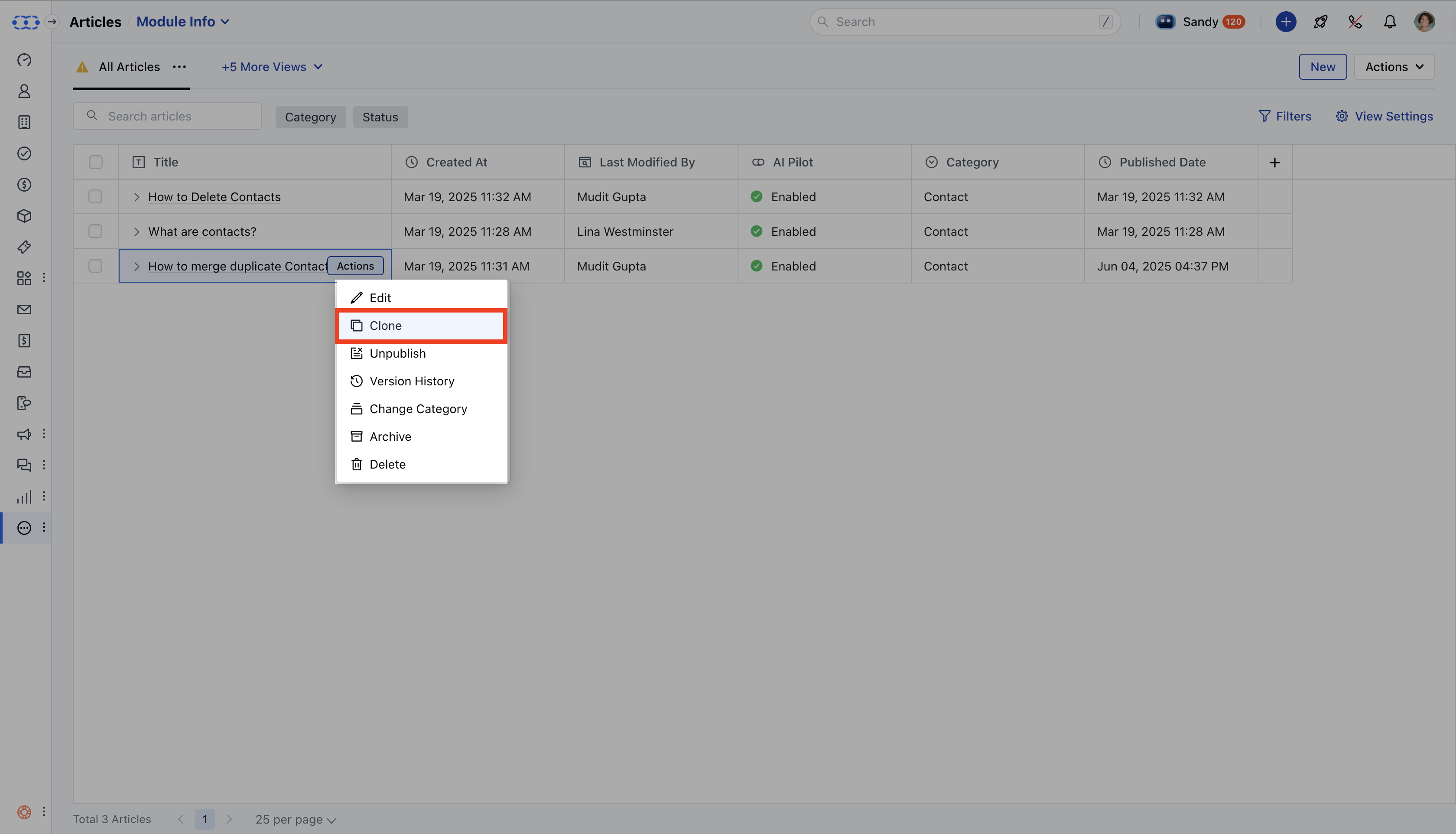
- Find the article you want to clone. Hover over it and select Clone from the action menu, or you can also open the article’s detail page and click
- Clone.
- You’ll be taken to the article editor with all settings copied from the original article.
Clone the Article Details
The cloned article is set up with these details:- **Title **: The original title is copied with “-clone” added (e.g., “Introduction to Messenger” becomes “Introduction to Messenger-clone”).
- **Slug **:: The original slug is copied with “-clone” added and must be unique. A slash (/) is included at the start.
- **Language **: The cloned article is created in the primary language of your knowledge base, no matter which language the original article was in.
- **Draft Status **: The cloned article starts as a draft, which you can edit or publish if you have “Publish Articles” permission.
- **Success Message **: After cloning, you’ll see “Cloned successfully” message pop-up.