

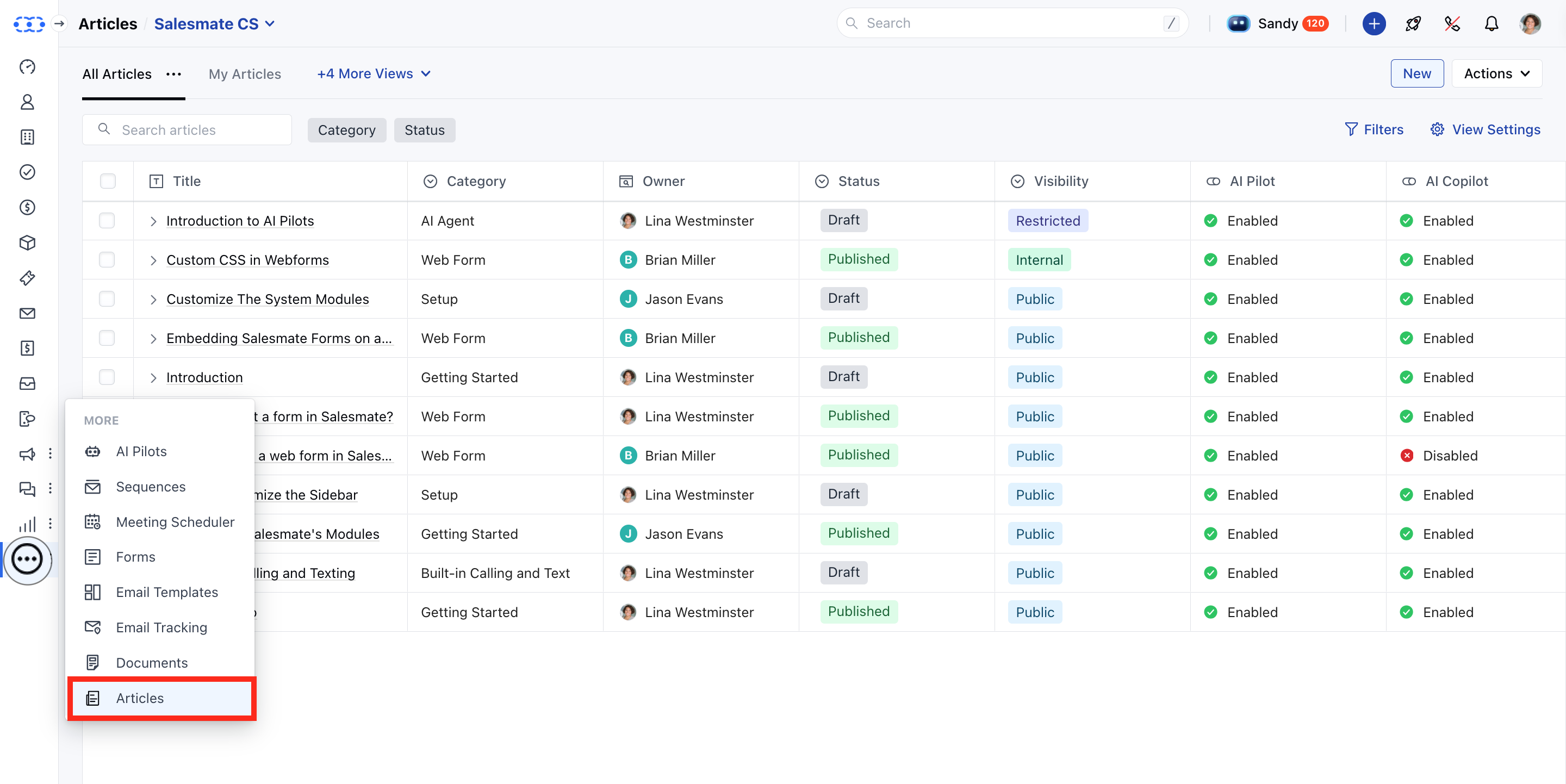
- Published Articles: Clicking the title opens a read-only preview of the article.
- Draft Articles: If you have edit permissions, you’ll be taken to the article editor. * If you do not have edit permissions, you’ll be taken to a read-only detail page.
Note: To view an article’s detail page or take any related actions, you must have the “View Article” permission and additional permissions to perform actions.
Learn more.
Default Widgets on the Detail Screen:
- Basic Settings: Displays the fields configured during article creation, like category, slug, and owner.
- Visibility Settings: Displays the visibility of the article, such as public, restricted, or internal.
- **AI Settings:AI Pilot: Allow AI Pilot to access this article and provide responses to visitors based on it. AI Copilot: Allow Co-pilot to access this article and assist users in responding to customers.
- **SEO Metadata Settings:SEO Title: Display the title that has been added as the SEO title for the article. Meta Description: It will display the meta description that has been added to this article.
- **Other Settings:Tag(s): This will display the tags that are added to the article. Attachments: It displays the attachments that you have added to your article.
Actions You Can Perform on the Article:
- Edit Article: Opens the article in edit mode to update its content or settings.
- Clone Article: Creates a duplicate copy of the article with the same content and configuration.
- Publish / Unpublish: Publishes the article to make it publicly visible or unpublishes it to hide from viewers.
- Change Category: Moves the article to a different category within the knowledge base.
- Version History: Displays a list of saved versions, allowing you to review or revert to a previous version.
- Archive / Unarchive: Archives the article to remove it from the active list or restores it for use.
- Delete Article: Permanently removes the article from the knowledge base.