

Topics covered:
Validations Before Publishing
Before publishing, ensure the following validations are met:- **Title **: Must be unique, non-empty, and under 150 characters.
- **Body **: Must contain content
- **Category **: At least one category must be selected.
- **Visibility **: Set to “Public,” “Internal,” or “Restricted.”
**Note:**You need “Publish Articles” permission to publish articles.
How to Publish an Article
- Navigate to Articles from left side outreach.
- If multiple knowledge bases exist, select the appropriate one.
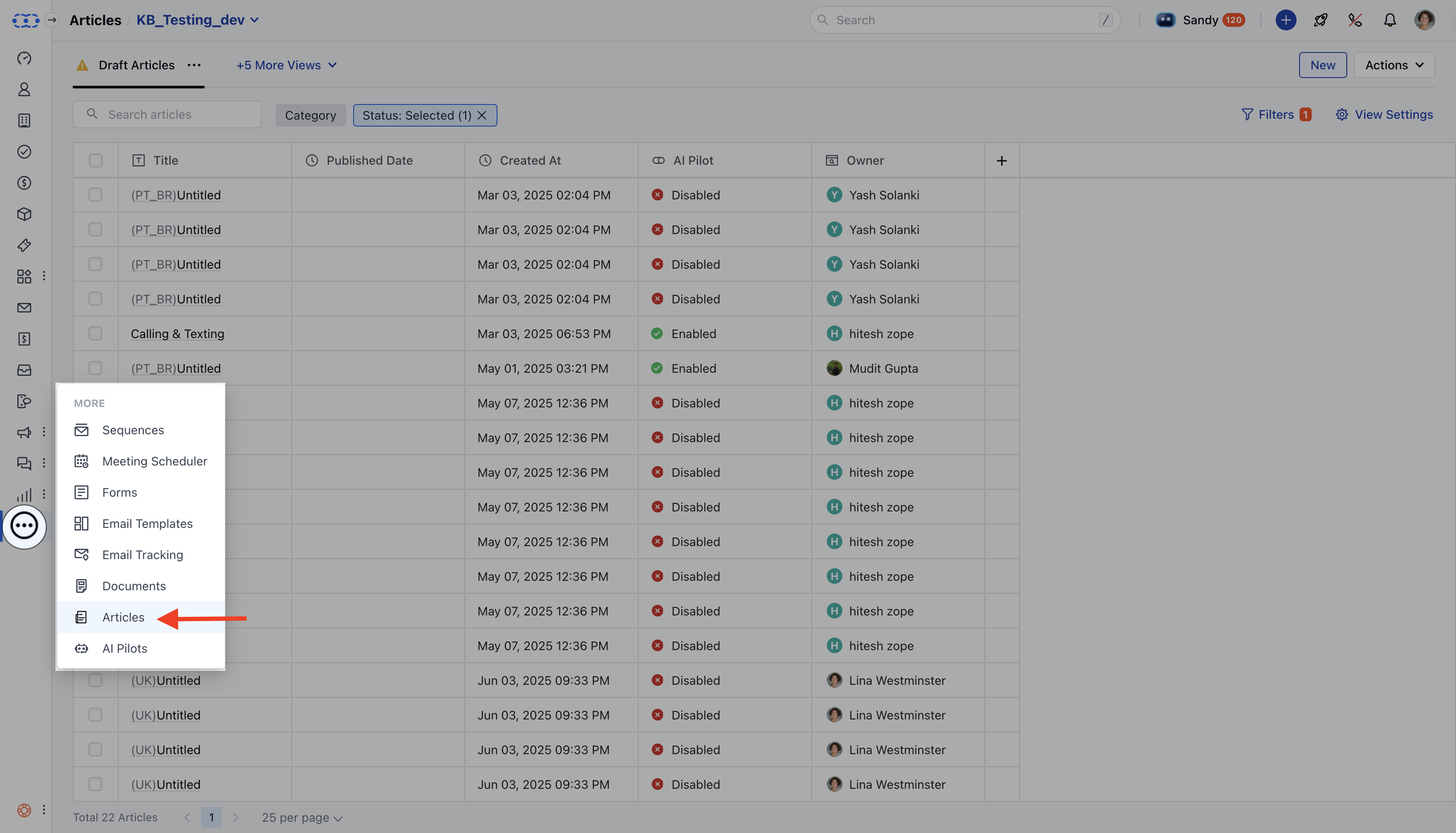
- Click New to create an article. You can refer to the article here.
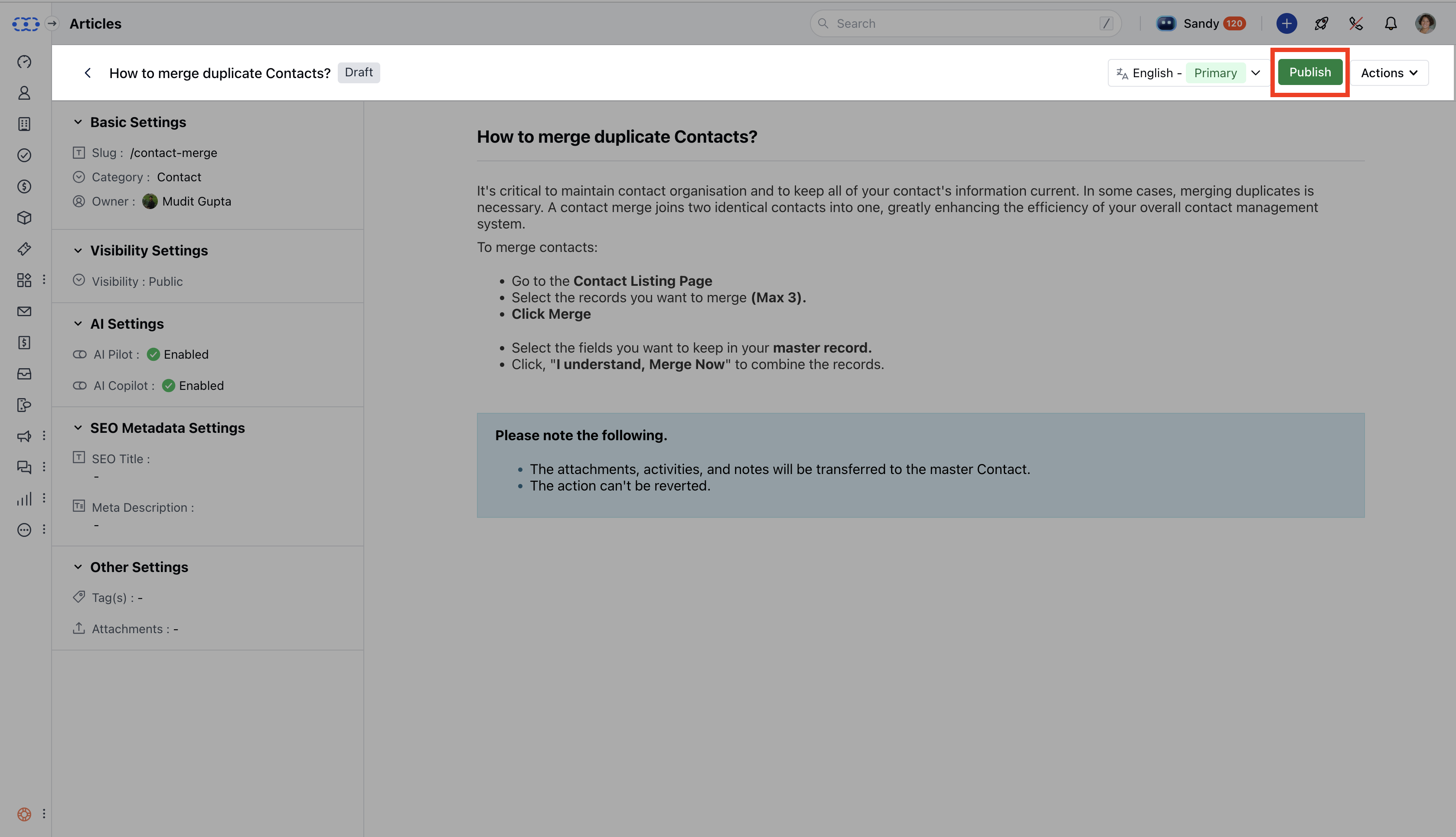
- To publish an existing article, search or filter the list and select the article.
- On the article detail page, click Publish.
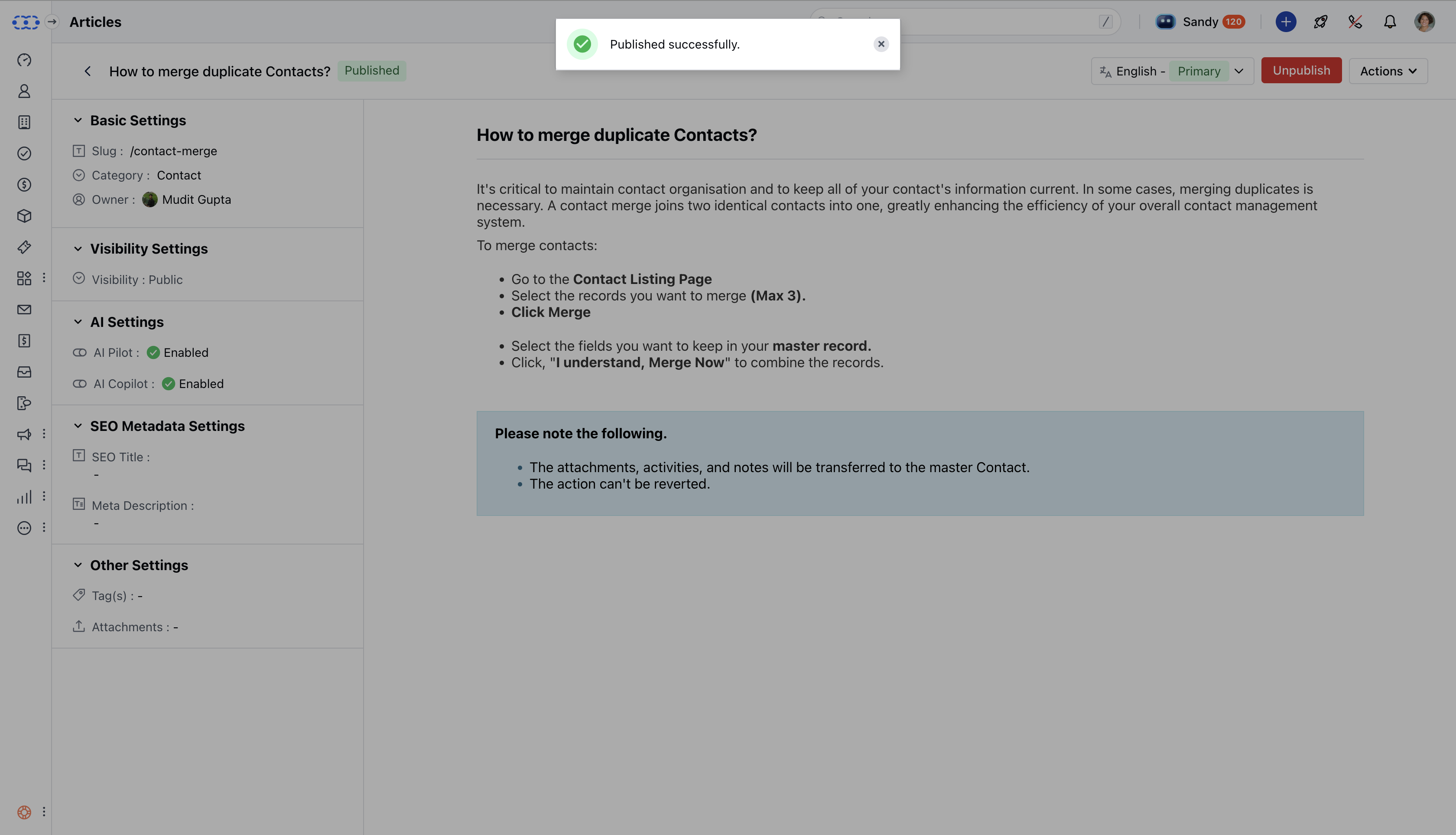
- A success message confirms the article has been published.
What Happens When You Publish an Article 1. Status & Dates are changed: Status changes to Published.
- **Published Date and Last Modified Date ** are updated.
- **Version number increases.
- ** 2. Visibility changes according to the choice you configured:**Public **: Shown to everyone.
- **Private **: Only for internal users.
- **Restricted **: Shown to selected contacts based on rules (e.g., country = Canada).
- ** 3. Search Article is added to search with its title, tags,and content.
- Re-indexed if updated. 4. Bot Update ** Bots using the article get the latest content.
- **Bot keywords and answers are refreshed.
- ** 5. Version Control
- New version saved.
- Only published version is visible to users. 6. Audit Log
- Logs who published it, when, and key details.