

Note: You must have “View Articles” permission to access version history. Additionally, to restore a previous version, you must have both edit and publish permission.
Learn more.
To check the Version History
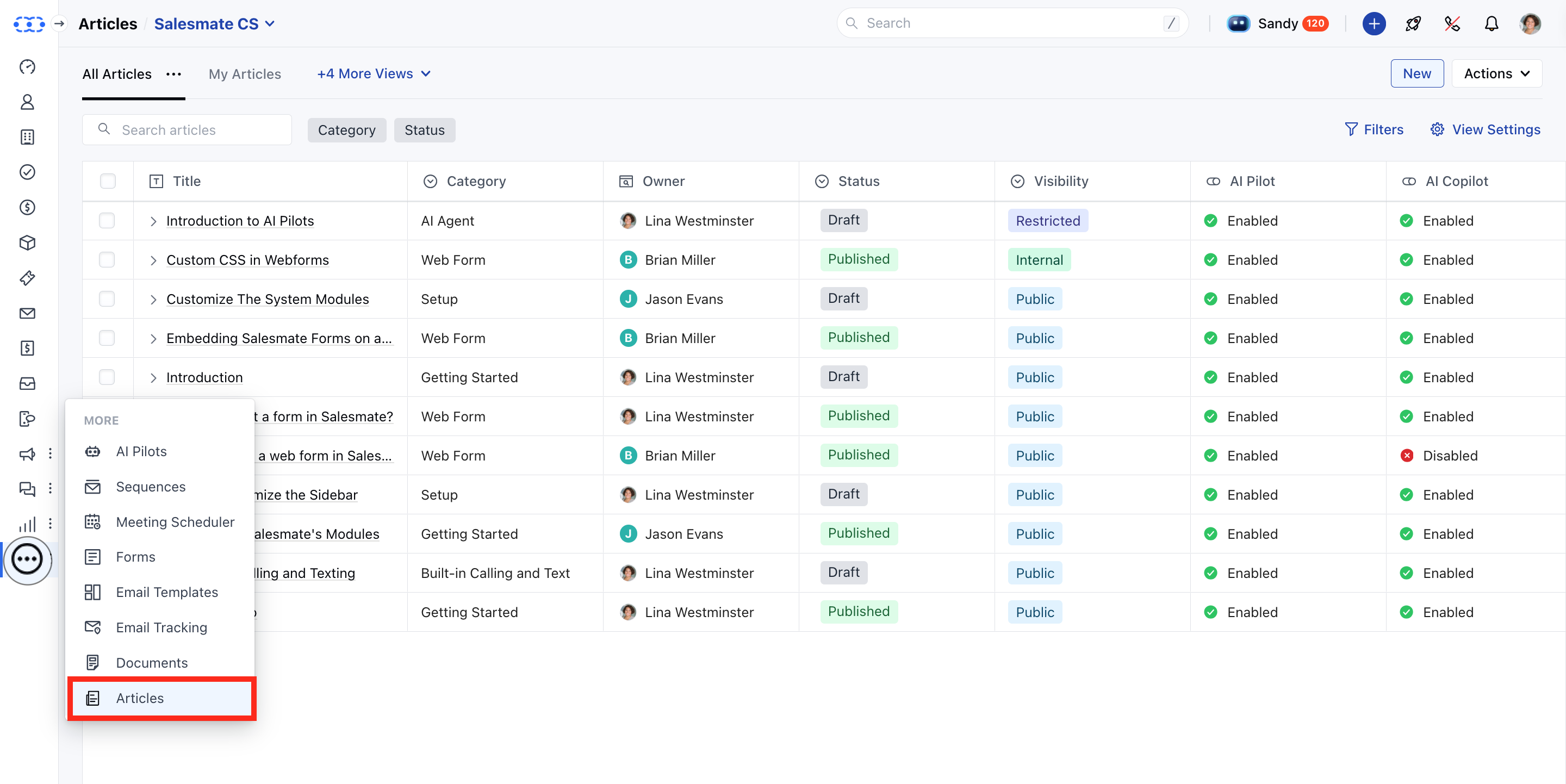
- Navigate to the Articles module from the sidebar.
- Locate and click on the article title you want to review.
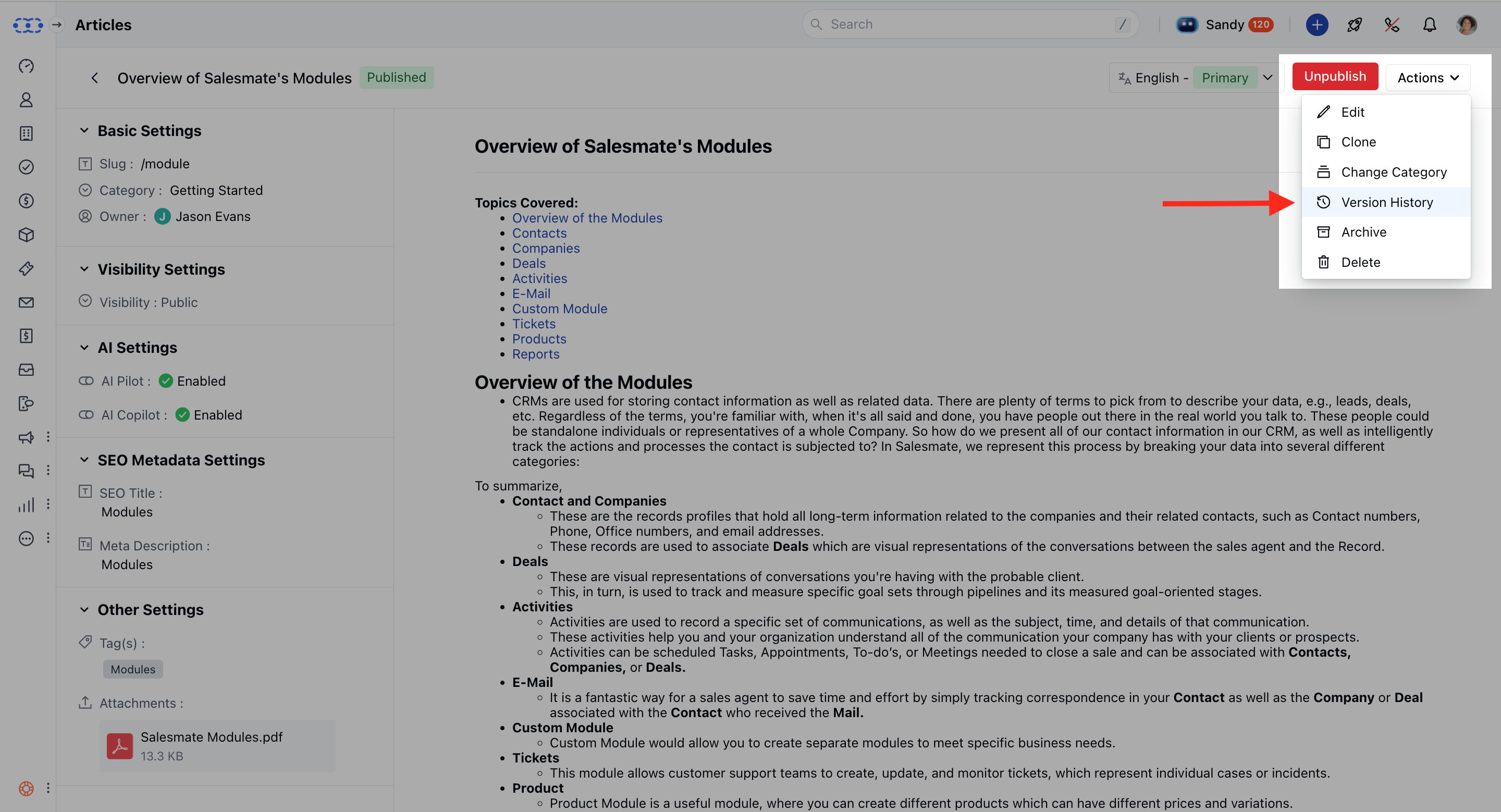
- On the article detail page , click the
- Actions button.
-
Select Version History **
- There would be two filters visible, **Period:**To view the versions published under the filtered duration.
- User: To find the versions published or modified by selected users.
-
**
- The user who published it
- The date and time of publication
- The version number #
Restore the version:
- If you have both edit and
- publish permissions, you’ll see a “Restore this version” button once you move to the older versions of the article.
- Hit Yes to restore the selected version.
Highlight Changes:
When you select a version, you’ll also have the option to “Compare with previous version”. This helps you understand what changes were made compared to the version just before it.- Content Added: Highlighted in green **(e.g., new text or images).
- Content Deleted: Highlighted in red **(e.g., removed paragraphs).
Note: This comparison only applies to the selected version and the one immediately preceding it. Example: Selecting version 7 and making a choice will compare with the previous version. It will compare it with version 6 and display the changes.
- We only highlight text-related changes in the title and body of the article when compared with the previous version.