

Note: You’ll need “Edit Articles” permission to make any changes. Users without “Publish” permission can still update articles, but cannot make them live.
Topics covered:
- Steps to Edit a Knowledge Base Article
- Editing an Article in Draft Stage
- Editing an Article in Published Stage
- Editing Articles in Other Languages
Steps to Edit a Knowledge Base Article
- Navigate to the Articles section from the left sidebar.
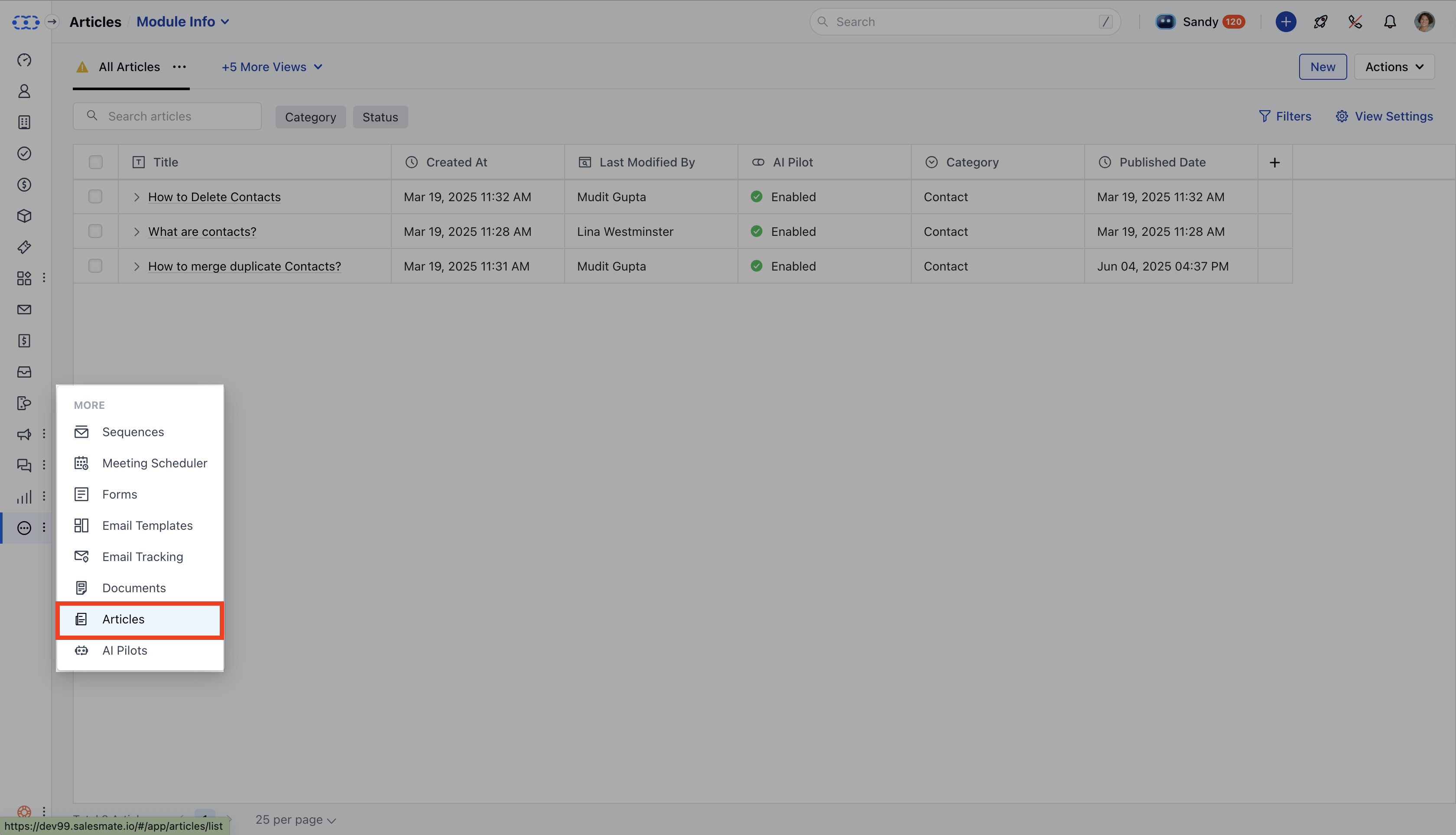
- Locate the article you want to modify from the listing page.
- Hover over the article, then click Edit from the action menu or click directly on the article title.
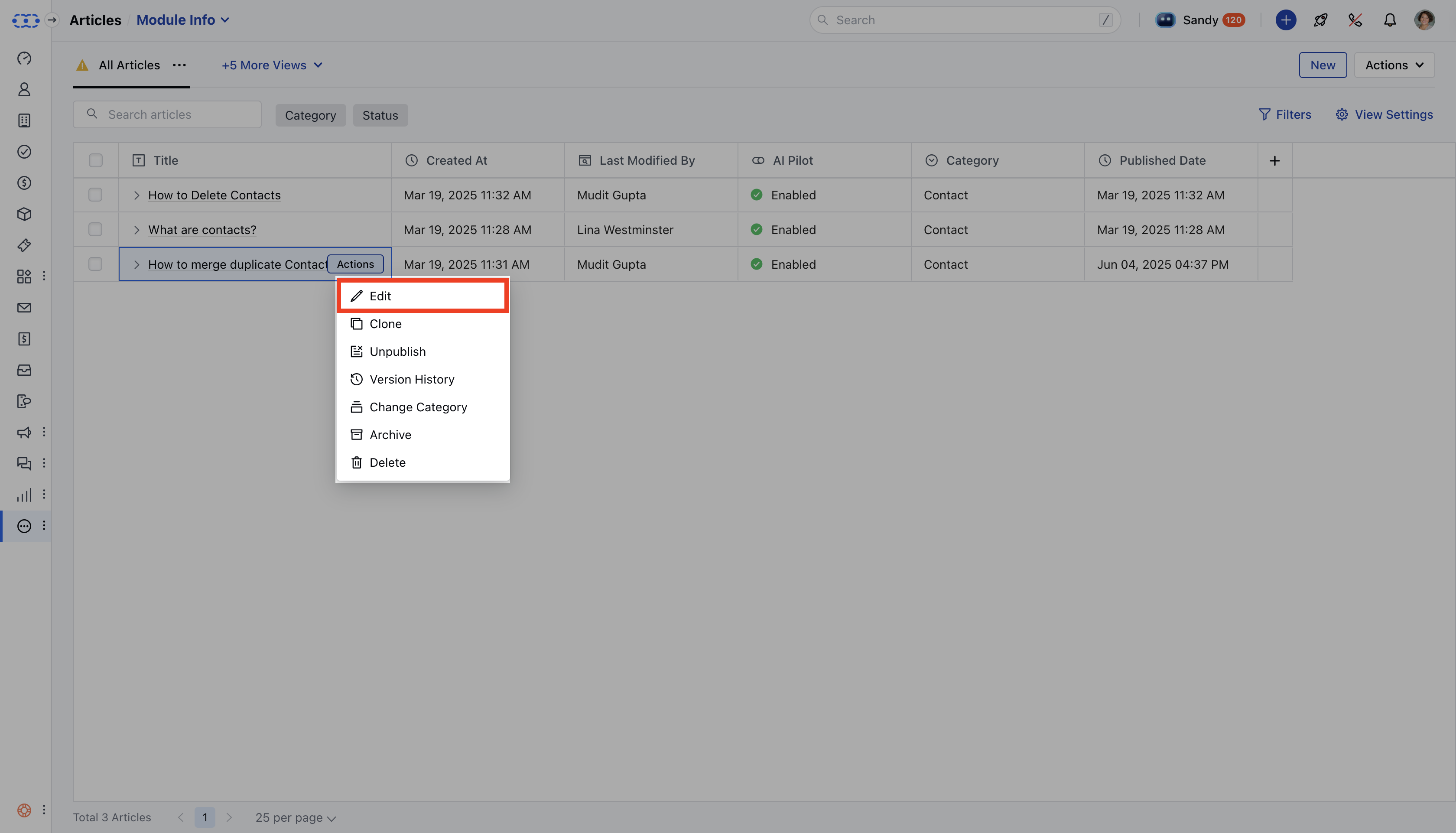
- If you have edit permissions , you’ll be taken to the editor; if not, you’ll be redirected to the
- article detail view instead.
- The article opens in either Draft or
- Published mode based on its current status.
Editing an Article in Draft State
- If the article is still in draft , you’ll be taken directly to the editor.
- Make your changes, and then:
- Click Save to save the draft manually, or wait for auto-save (every 60 seconds). * Click Submit for Approval or Publish when you’re ready to proceed.
Editing an Article in Published State
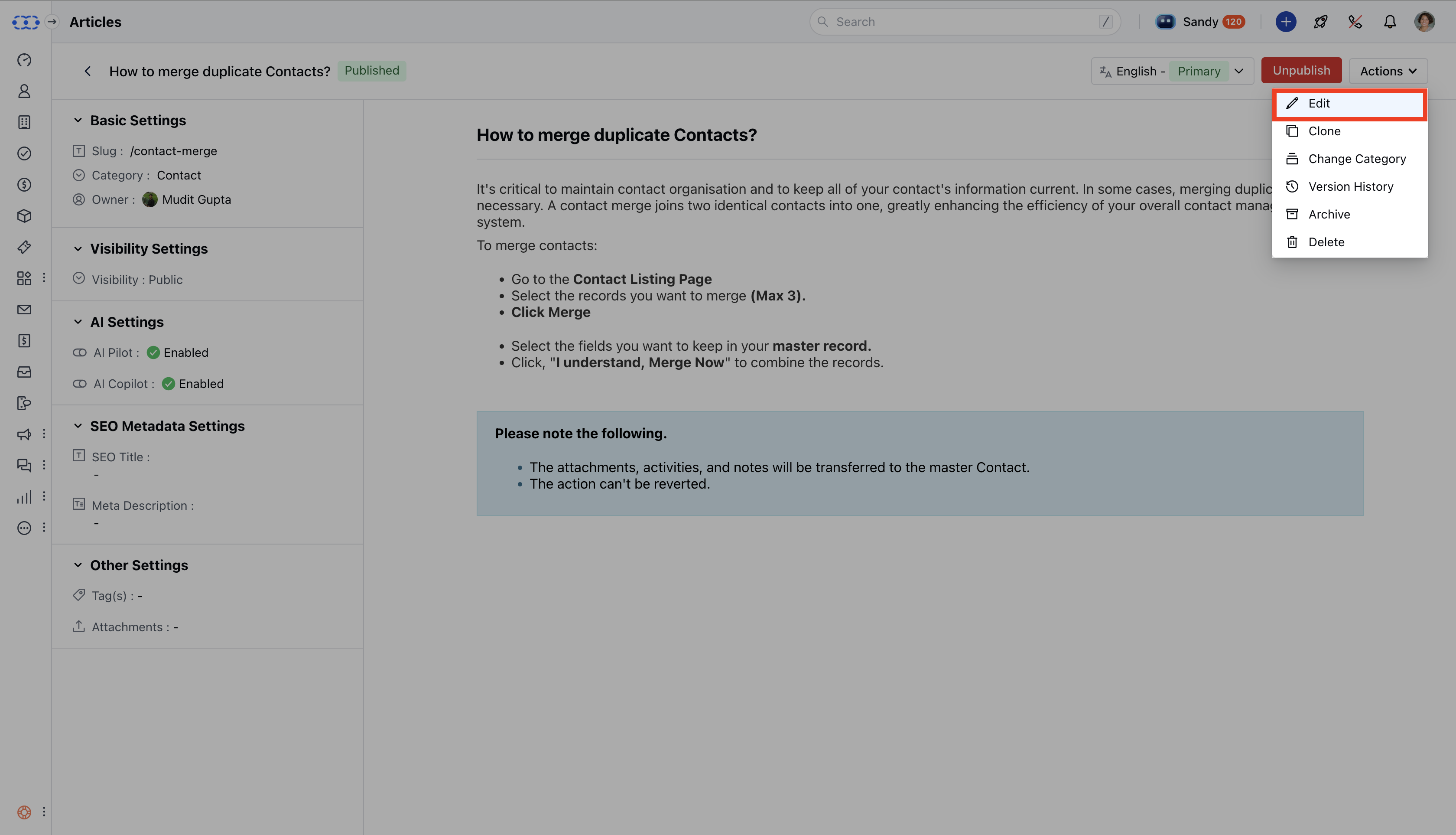
- Clicking a published article takes you to the
- detail view.
- Any content changes you make here will:
- Be saved in a new draft version. * Not affect the live article until you click Publish.
- To view or edit these changes, open the editor, it will display the draft version.
Configuration Changes:
- Configuration updates (like changing Slug, Category, Visibility, or AI Settings) require publish permission and when these changes are saved, the article is automatically published.
- Without publish rights, you won’t be able to edit these settings.
Additional Actions for Published Articles
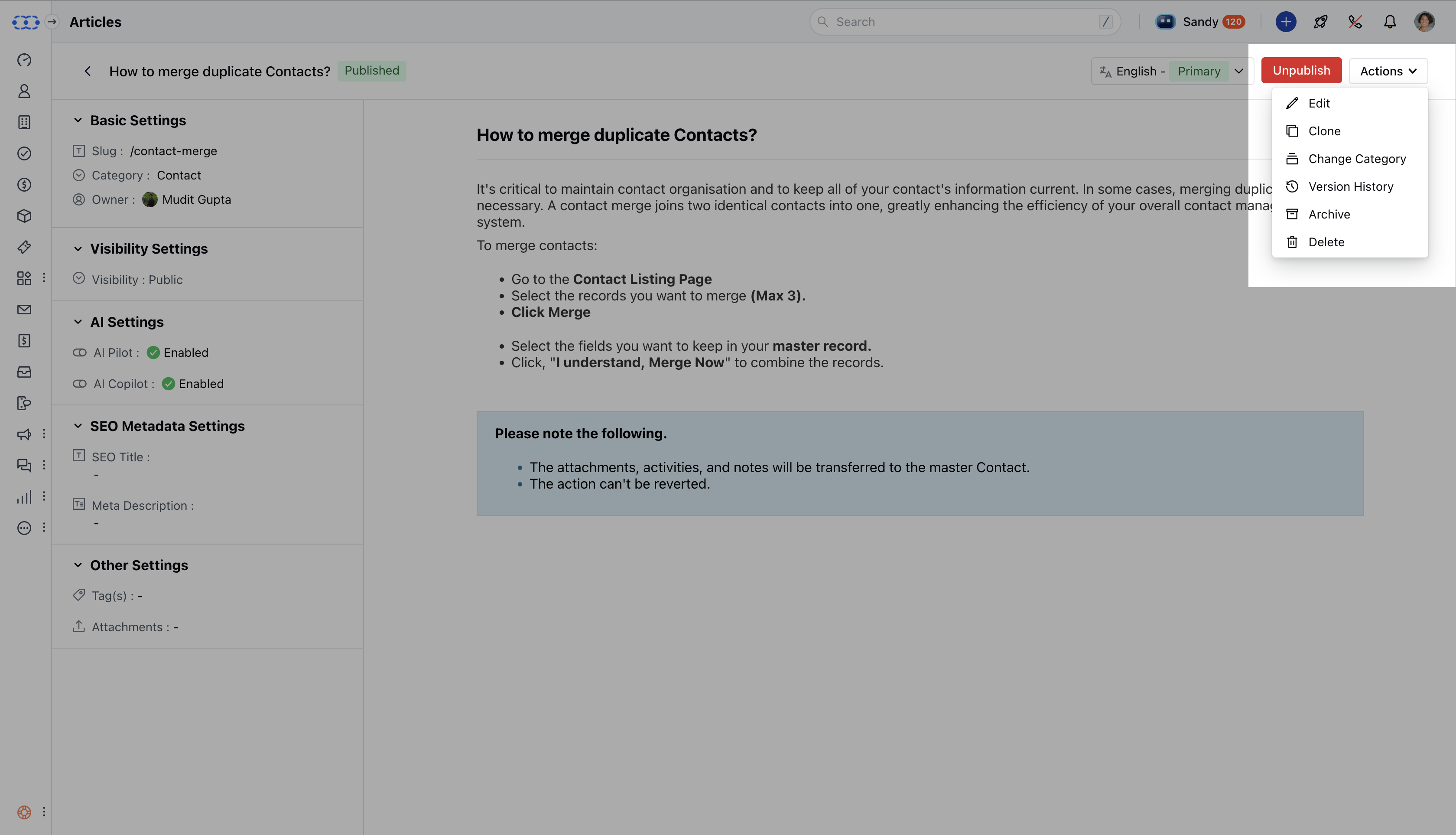
While viewing a published article, you can also:- Edit the content (saved as a draft)
- Clone the article
- Unpublish it (which reverts it to a draft)
- Reassign or change the category
- Review the article’s version history
- Archive the article
- Permanently delete it
Editing Articles in Other Languages
If you’re working with a translated version of the article (i.e., not in the primary language):- You can freely edit the body content.
- However, certain fields will remain locked, including:
- Slug * Category
- Visibility * AI settings