

How Skara users can download or Email transcripts?
- Send chat transcripts to your customers as a text file or directly via email.
- Skara messenger allows you to download or email a copy of the conversation history - chat transcript, and share it with your customers.
- Customers and Visitors can also download the transcript via Unified inbox or request it at any time during a chat session.
- To download the transcript, please follow the below steps:
- Go to Unified inbox and open the required conversation
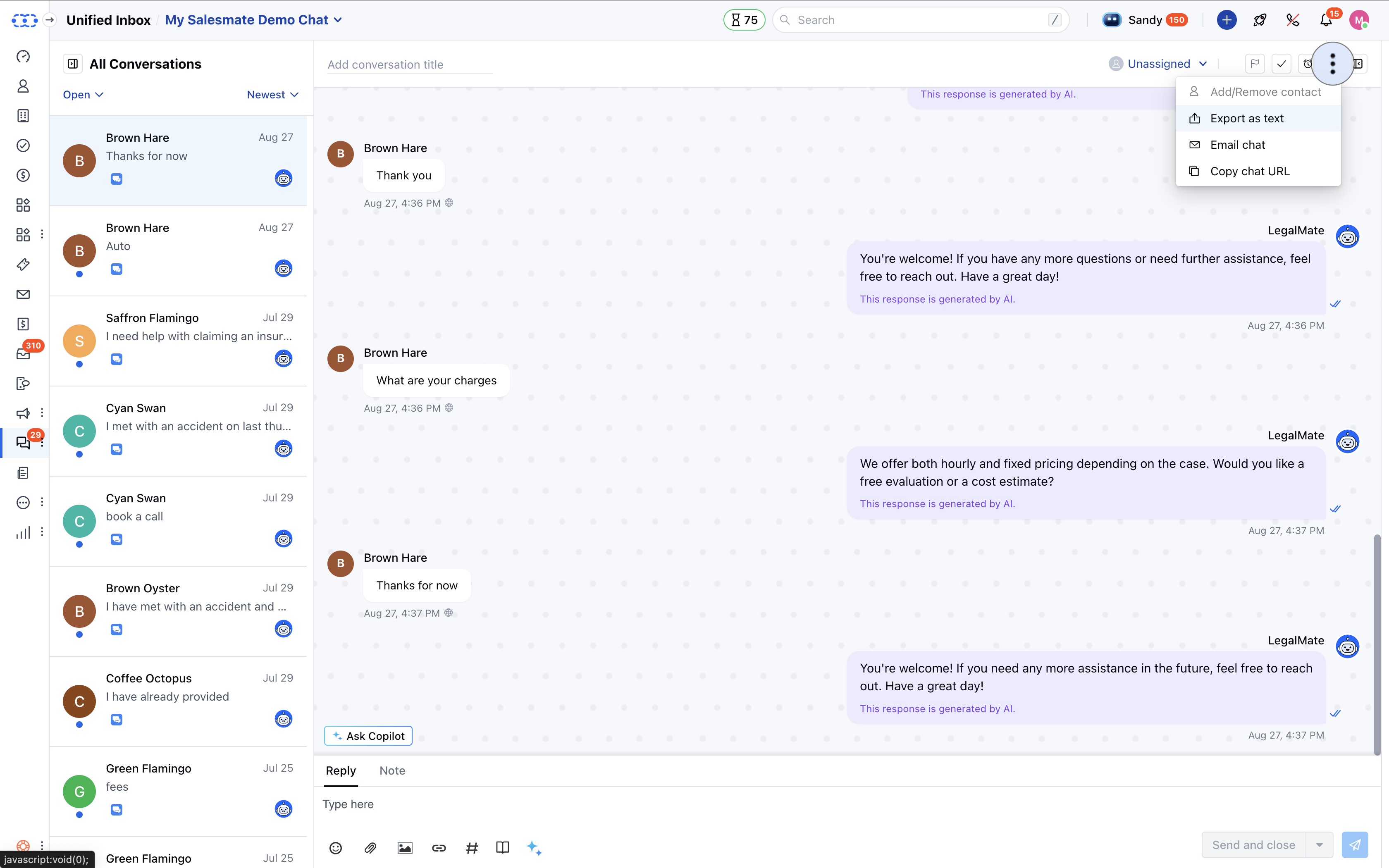
- Click on the More Icon shown as three dots at the top of the conversation panel
- Click on the Download Chat option
- Choose Export as text option
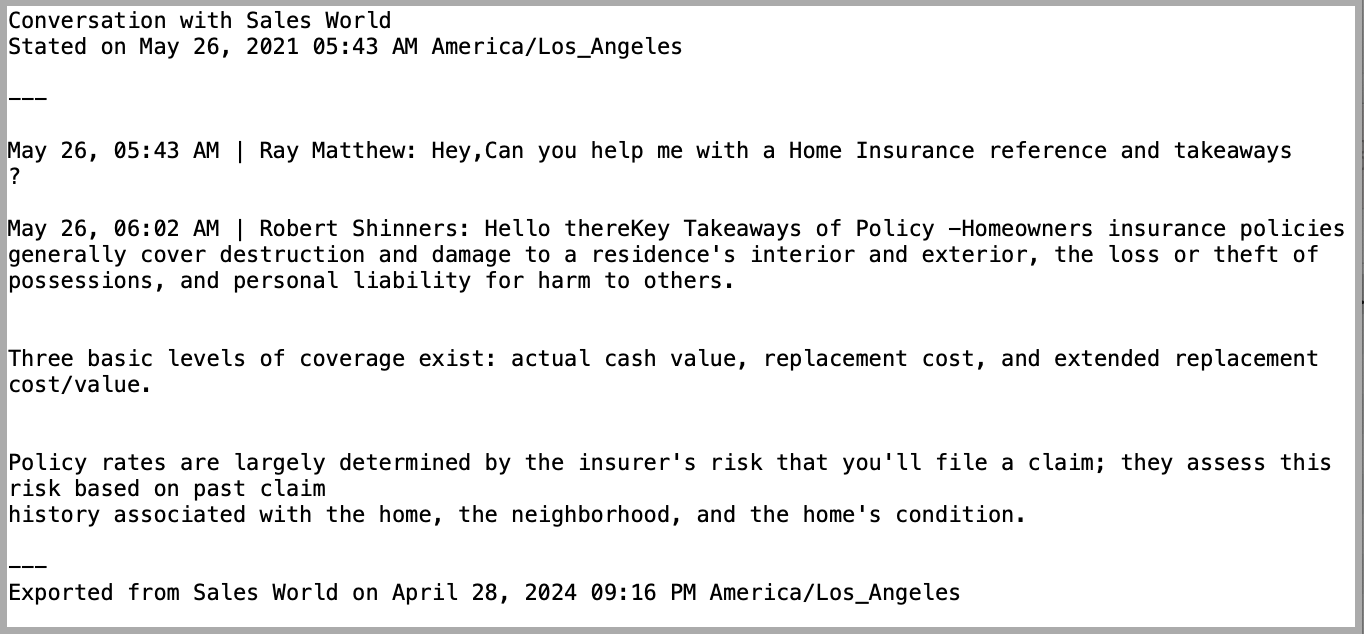
- Chat transcript will download in the form of a text file
- User’s can further share the text file as an attachment to an email.
- Sample Format of Text Transcript:
- To email the transcript, please follow these steps:*
- Go to Unified inbox and open the required conversation
- Click on the “Action” button shown as three dots at the top of the conversation panel
- Click on the Email Chat option
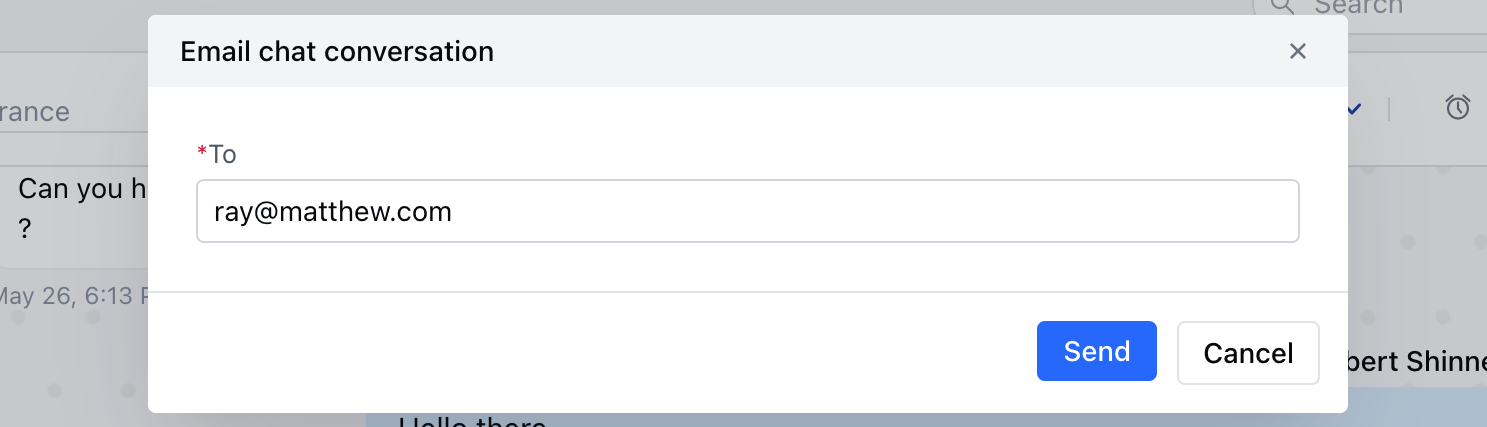
- A popup will appear
- Filled with the primary contact’s email address, but you can change it
- Review the email provided in the To field, change if required
- Hit Send
- The chat transcript will be sent to the email address as mentioned below
Chat transcript contains the following information:
- Date and time with timezone
- Conversation start date and time
- All replies in the conversation with respective timestamps
- Name of participants that is customer and agents involved in the conversation
- Name of files, attachments shared in the conversation
- Date and time of transcript export
Note: By default, the email transcript is sent from noreply@salesmatemail.com, but If the user wants to send the email from his domain, then Salesmate also allows
that by enabling
DKIM, and then the transcript will be sent from the user’s email address instead of noreply@salesmatemail.com.