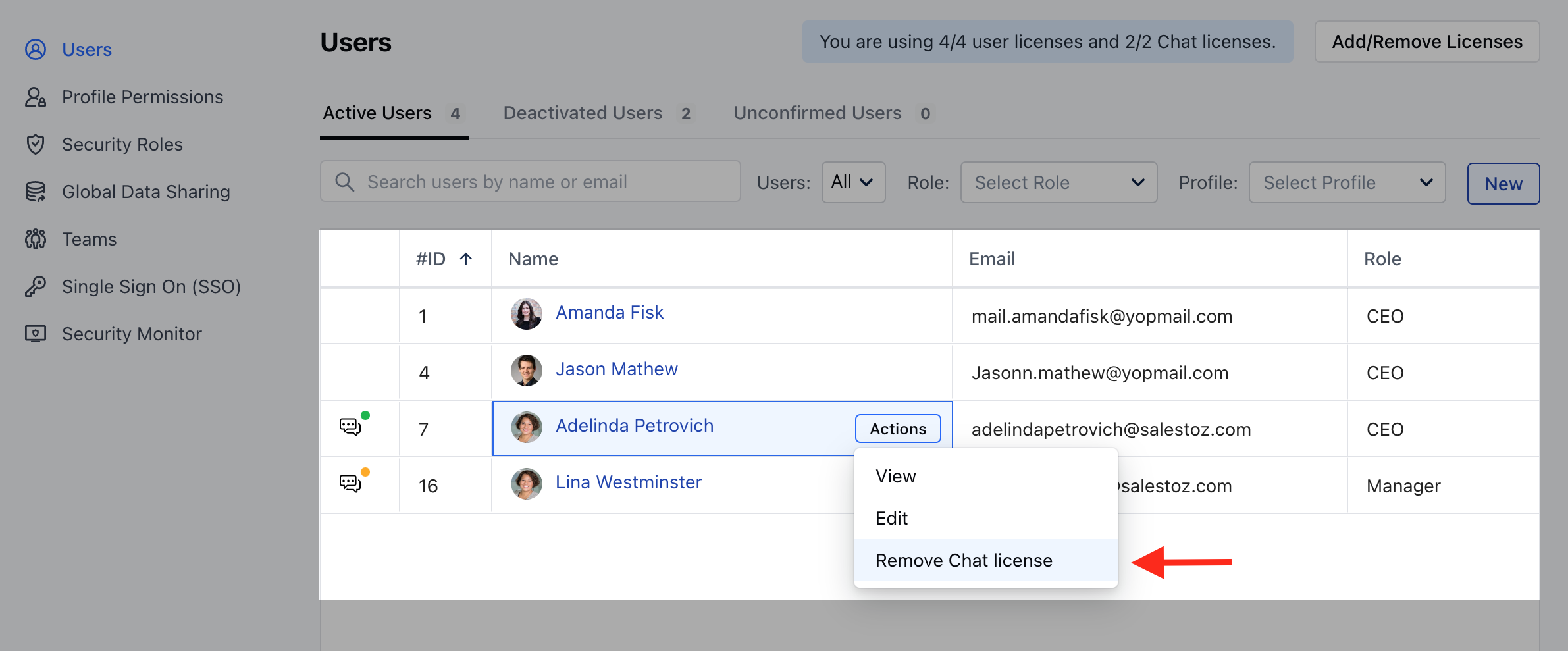
To assign a Unified Inbox license to users, please follow these steps:
- Navigate to the Profile icon in the top right
- Click on the Setup
- Head over to the Users & Security
- Click on Users
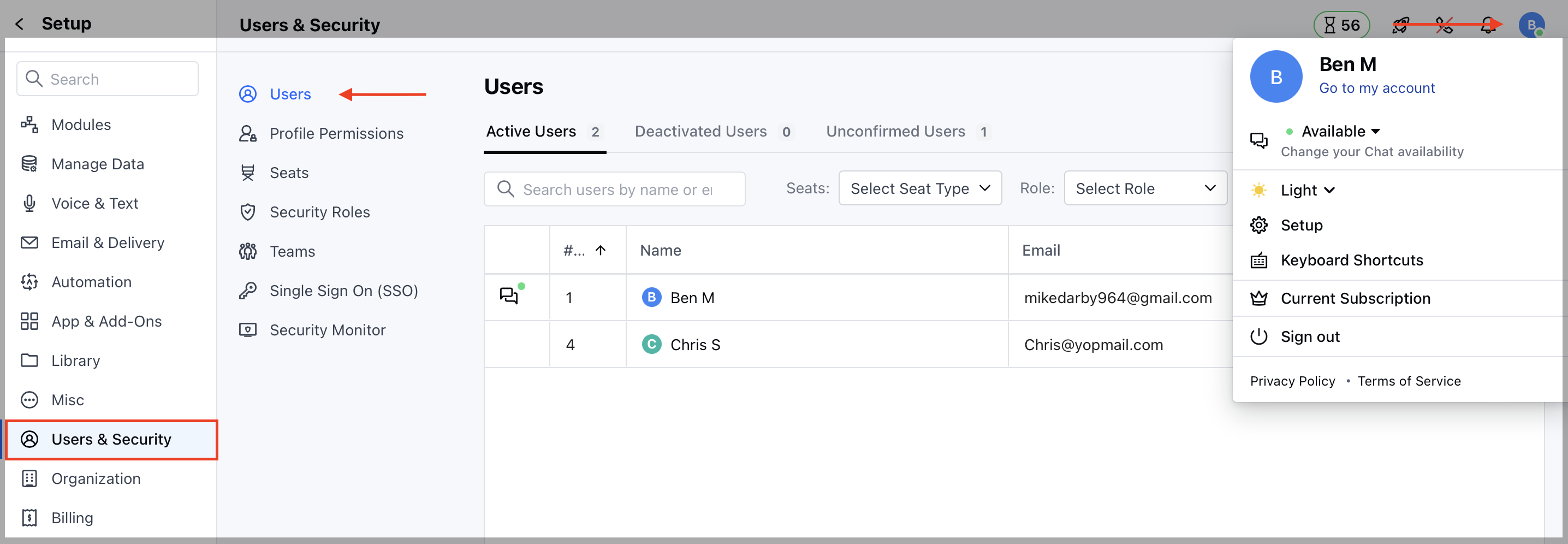
- You will be able to see the list of all users.
- Click on the Actions button and choose “Change Seat”.
- If you are on the Messenger trial, then the Unified Inbox license will be auto-assigned.
- But If you are on the paid plan, then the system will check for two cases.
- Available License - If there is any available unused purchased license then it is assigned to the user.
- No License- If no license is available then the user will be asked to purchase a new license and assign it. The system will auto charge your credit card and add a license to your system.
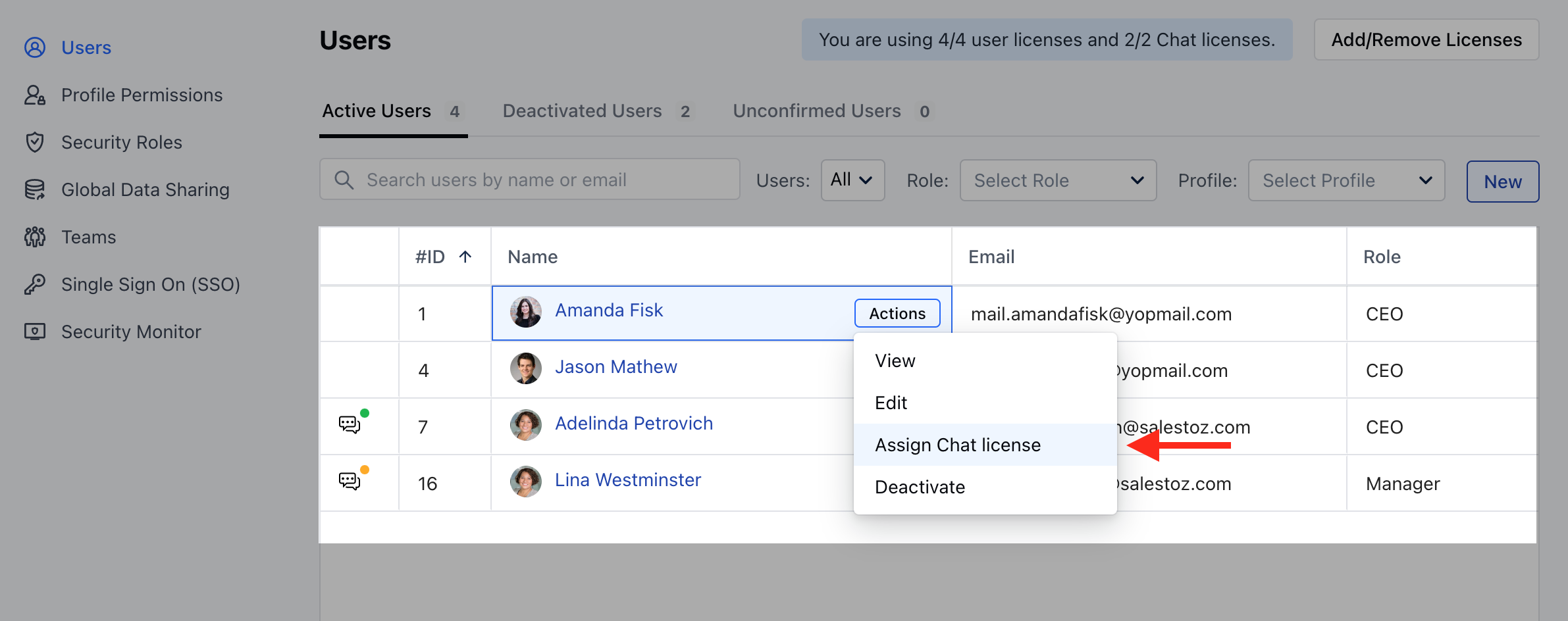
To remove Unified Inbox license from users, please follow these steps:
- Same steps as above to see the list of all users.
- Apply filter “Users with Unified Inbox license”
- Find the user
- Click on the Action button and choose “Remove Unified Inbox License”
- The license will successfully be removed.
- Refer to the below image: