

Topics covered:
- How to Create Canned Responses
- Managing Canned Responses in Folders
- Using Canned Responses in Chat
- Manage Canned Responses
How to Create Canned Responses
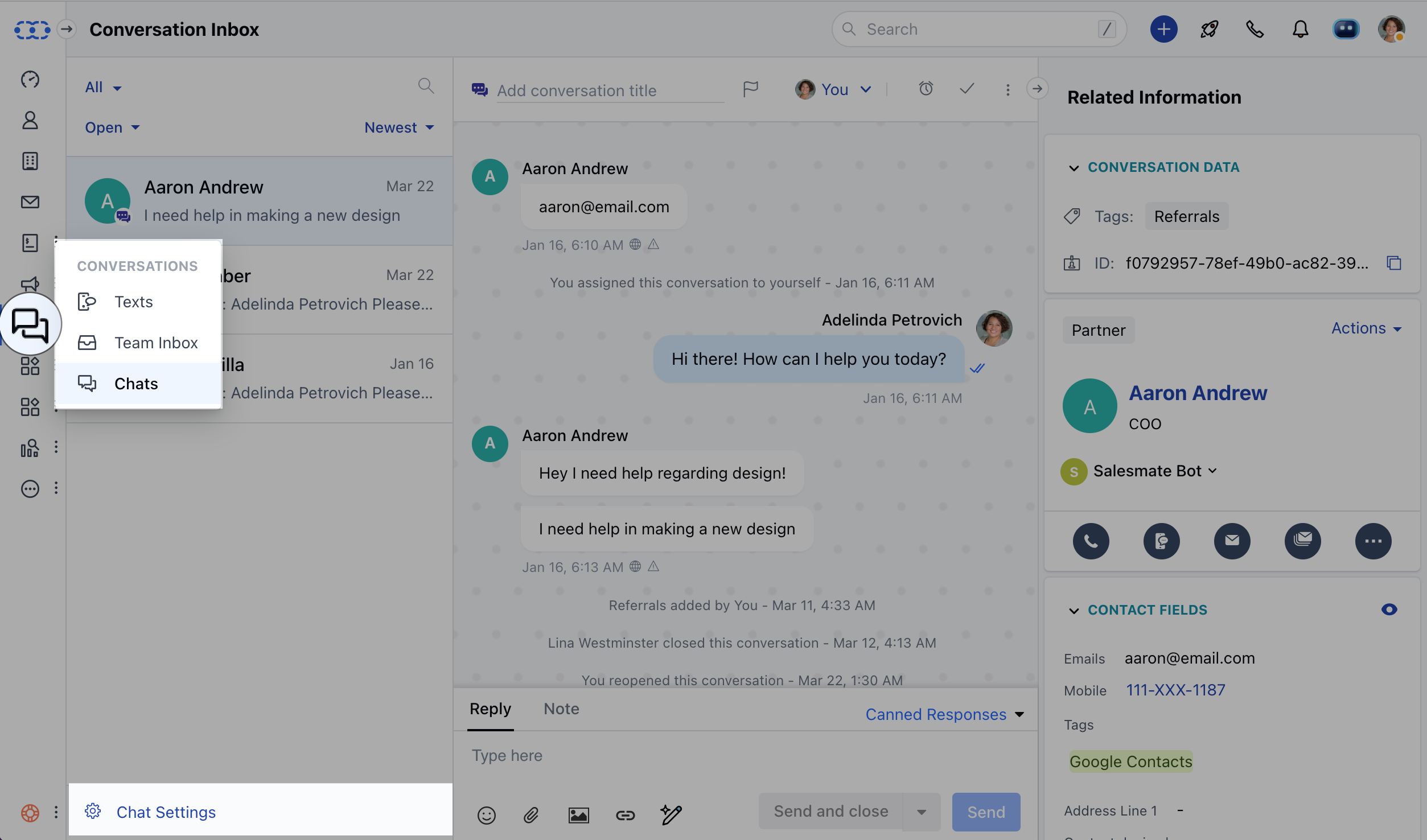
To create a Canned Response, please follow the below-mentioned steps:- Navigate to Conversations Icon on the left menu bar
- Click on Chats
- Head to Chat Settings on bottom left
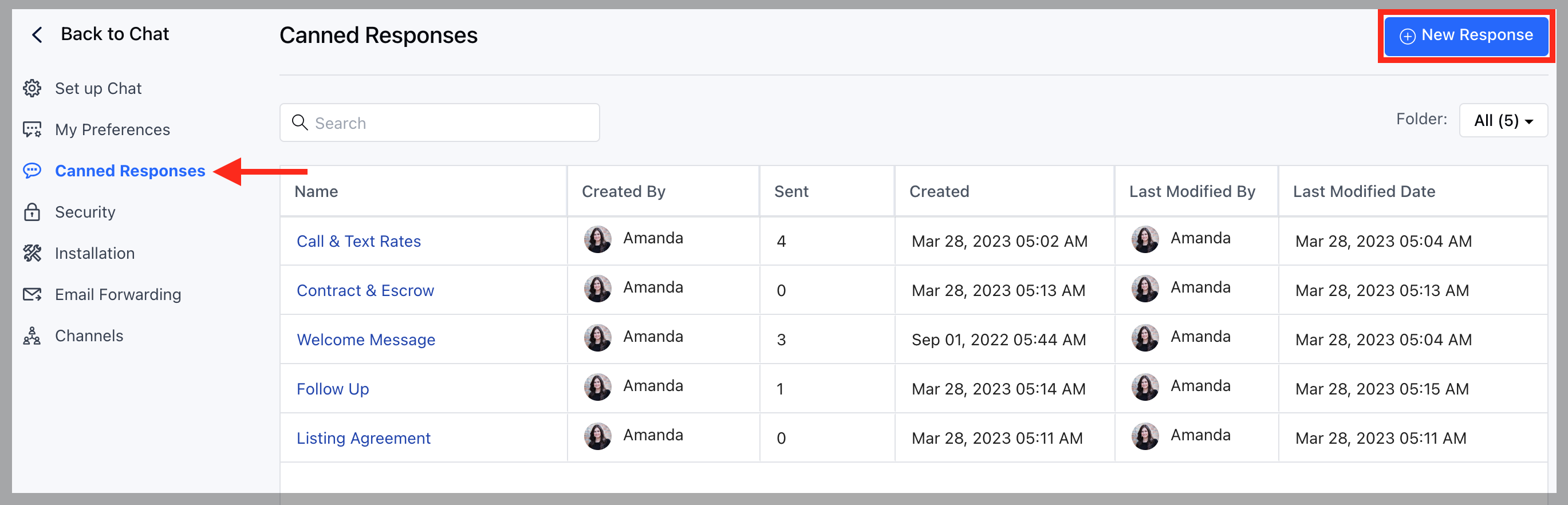
- Select Canned Responses in the settings menu
- Click to Create + New Response
- Provide the Title and Response Message
- Choose the Folder if you want to categorize or group canned responses.
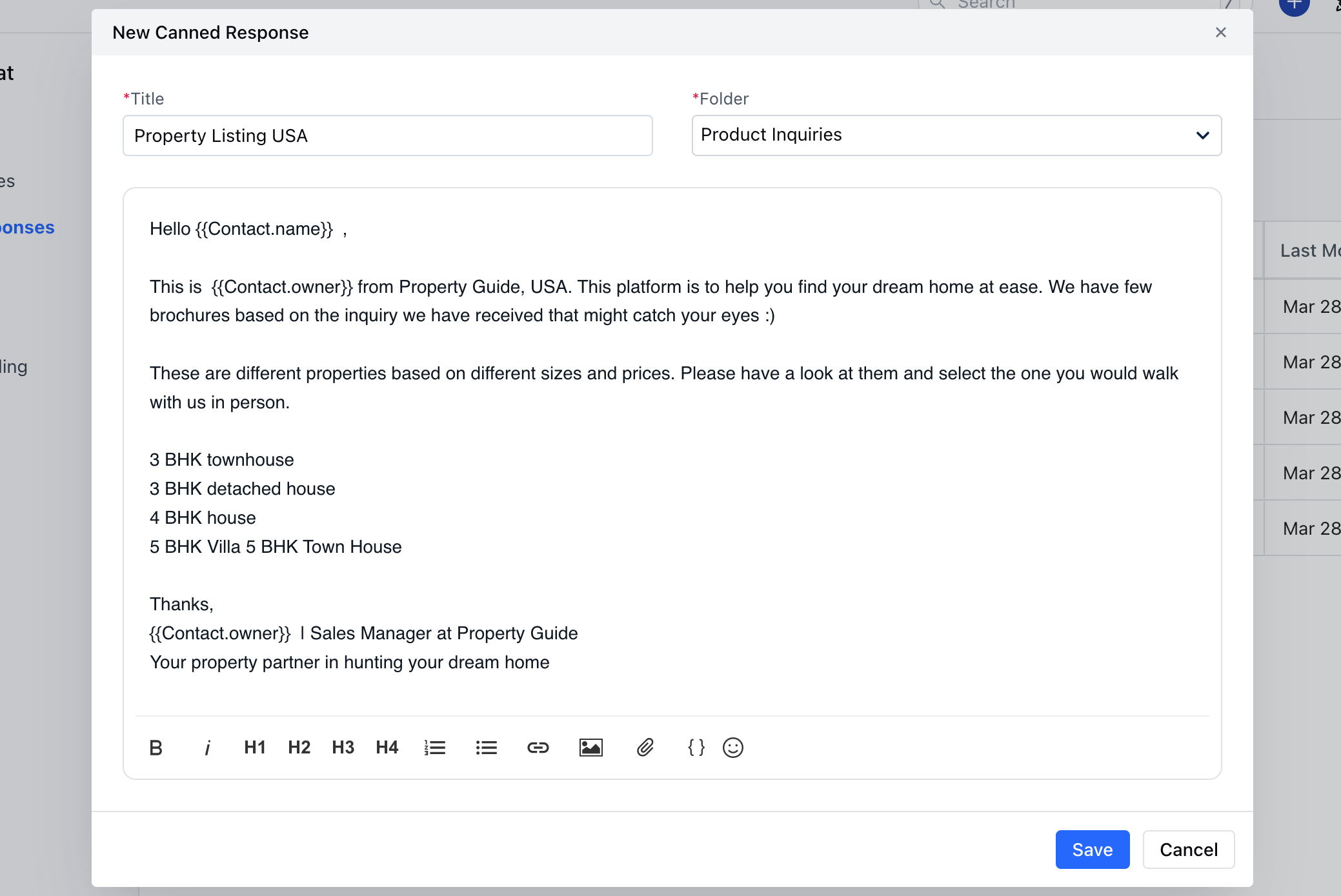
- Hit Save
- While you provide a Title in the Canned Response, make sure it has proper reference as it will be the primary way your teammates will search for, share and use Canned Responses, so make it more clear and concise.
- You can apply attributes e.g. {{Contact.name}} to address your Customers and Leads, Salesmate offers Merge Fields for all available Custom Fields in the account.
- The content is not sent immediately when you apply the Canned Responses, so you’ll always have the opportunity to customize it further.
Managing Canned Responses in Folders
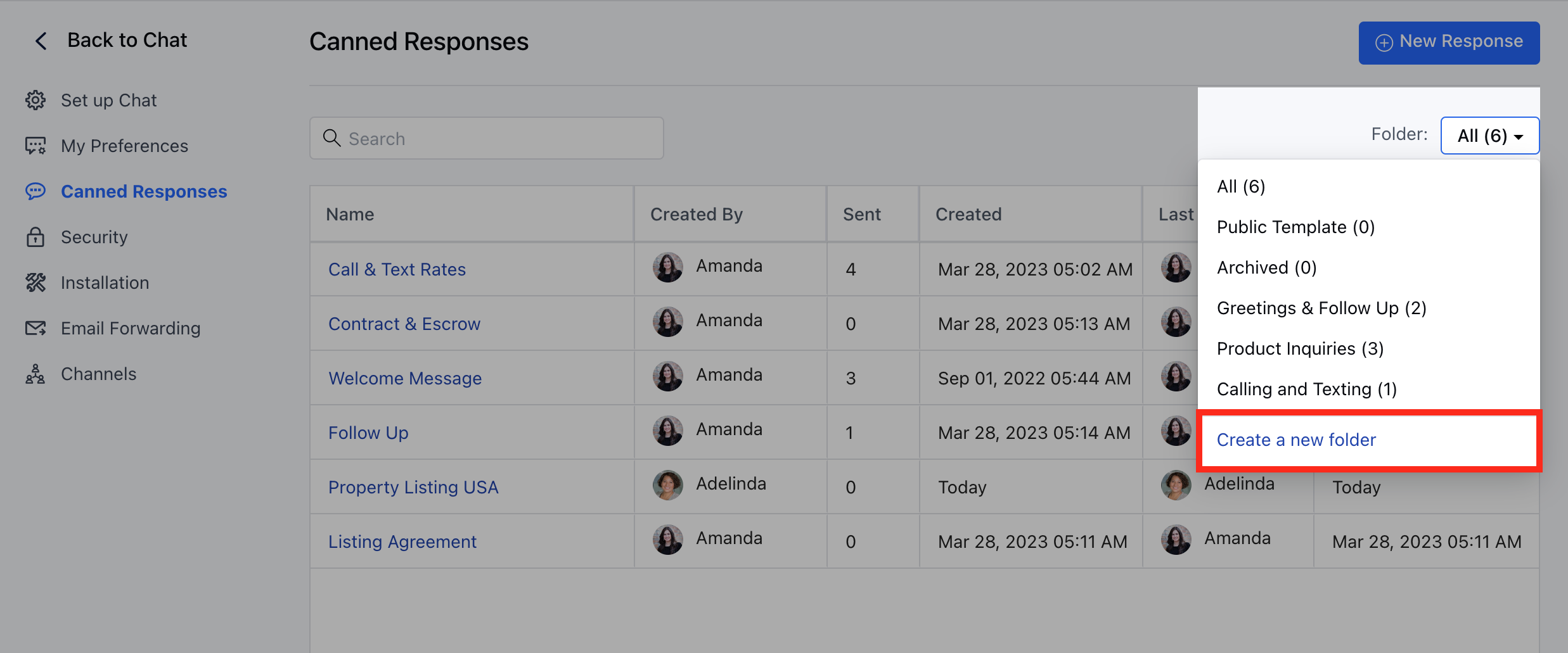
- Canned Responses can be organized in different folders to avoid clutters and provide better visibility while selecting the required saved reply, reducing the search efforts.
- Under Canned Responses, Select Folder Dropdown
- Click on “Create a New Folder”
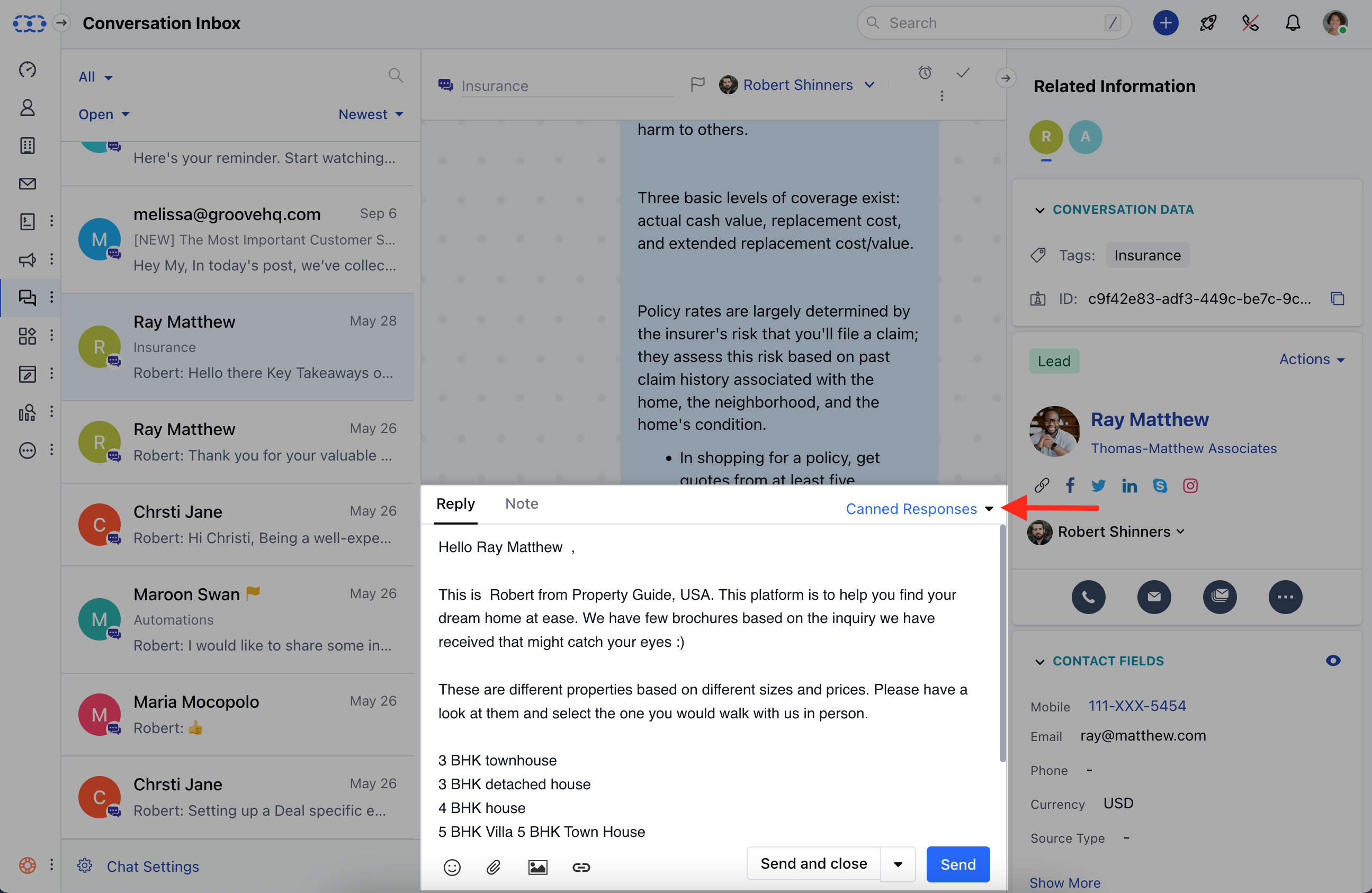
- Users can type the \symbol in the Reply field to quickly find the reply that fits the context.
- Alternatively, you can hit the corresponding Canned Responses label and search through all of your saved responses.
Manage Canned Responses
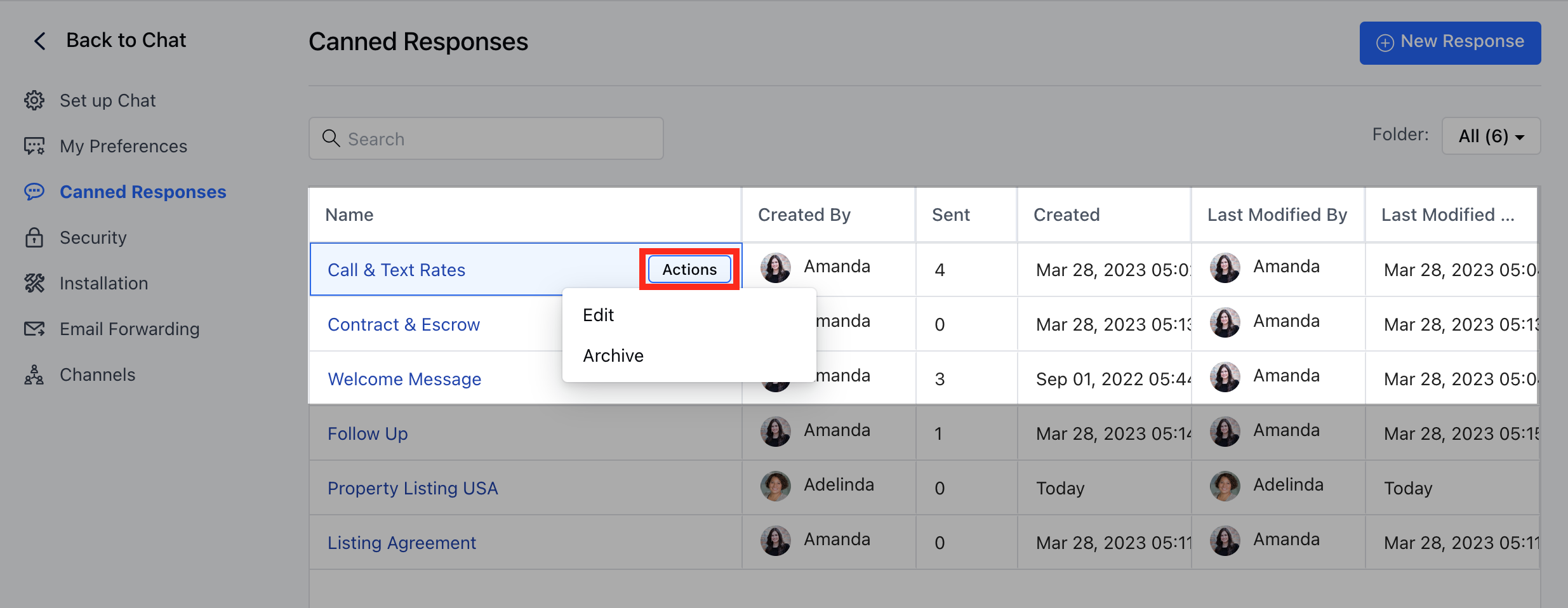
Canned Responses can be Edited orArchived as and when needed by following the below steps :- Go to Chats
- Click on Chat settings-Canned Responses
- Hover over Actions Menu against the Canned Response
- Hit Edit or Archive as Required
Note: You can only create and manage Canned Responses if you have the
permission to “Manage Canned
Responses”
otherwise you can only use canned responses.