Note:
- Please note that this feature is a part of Unified Conversation Inbox.
- A User with appropriate rights can perform this action
Skara Chat
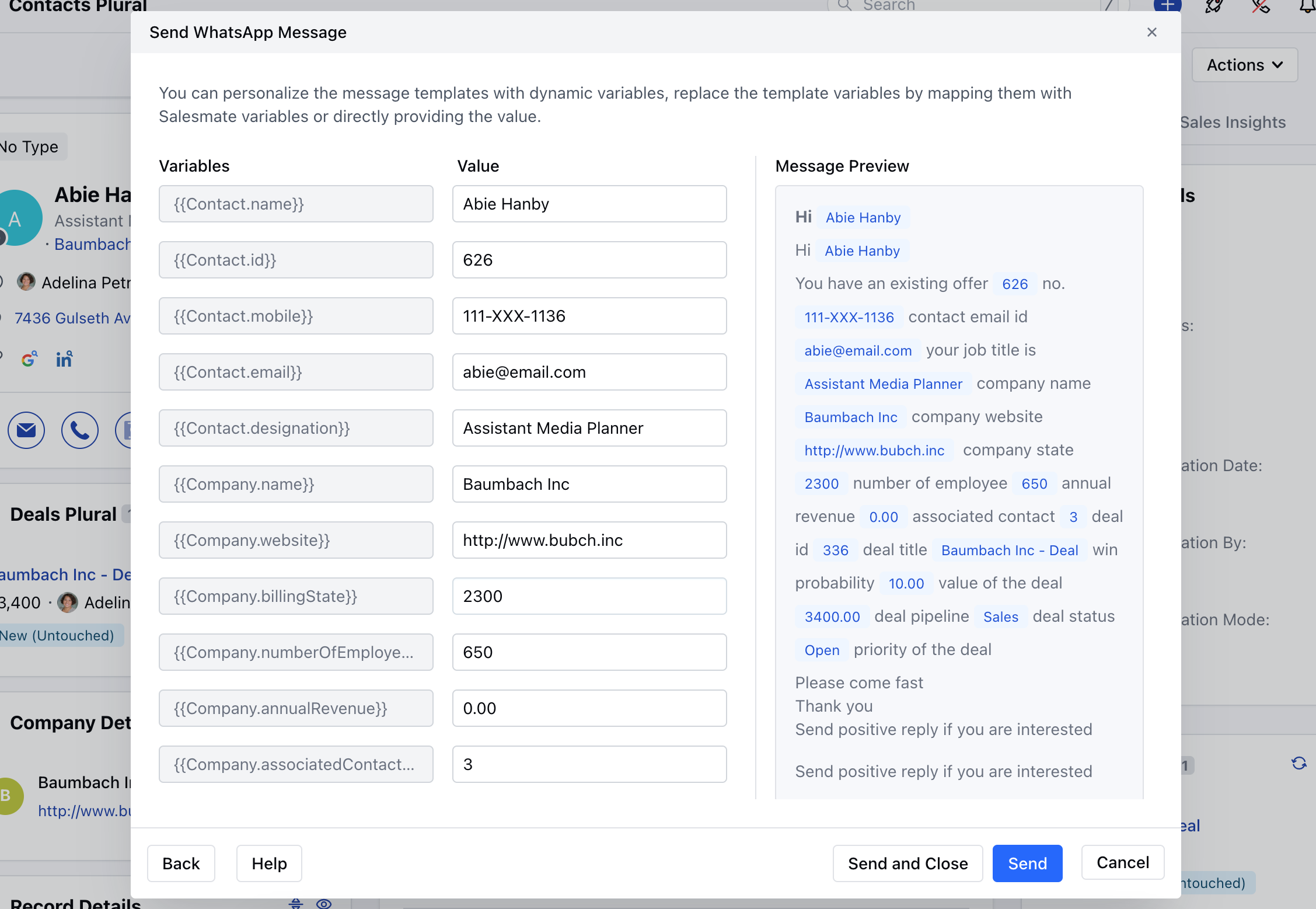
To initiate the Skara Chat,- Navigate to the Contacts Module from the left bar accessing to the Listing View
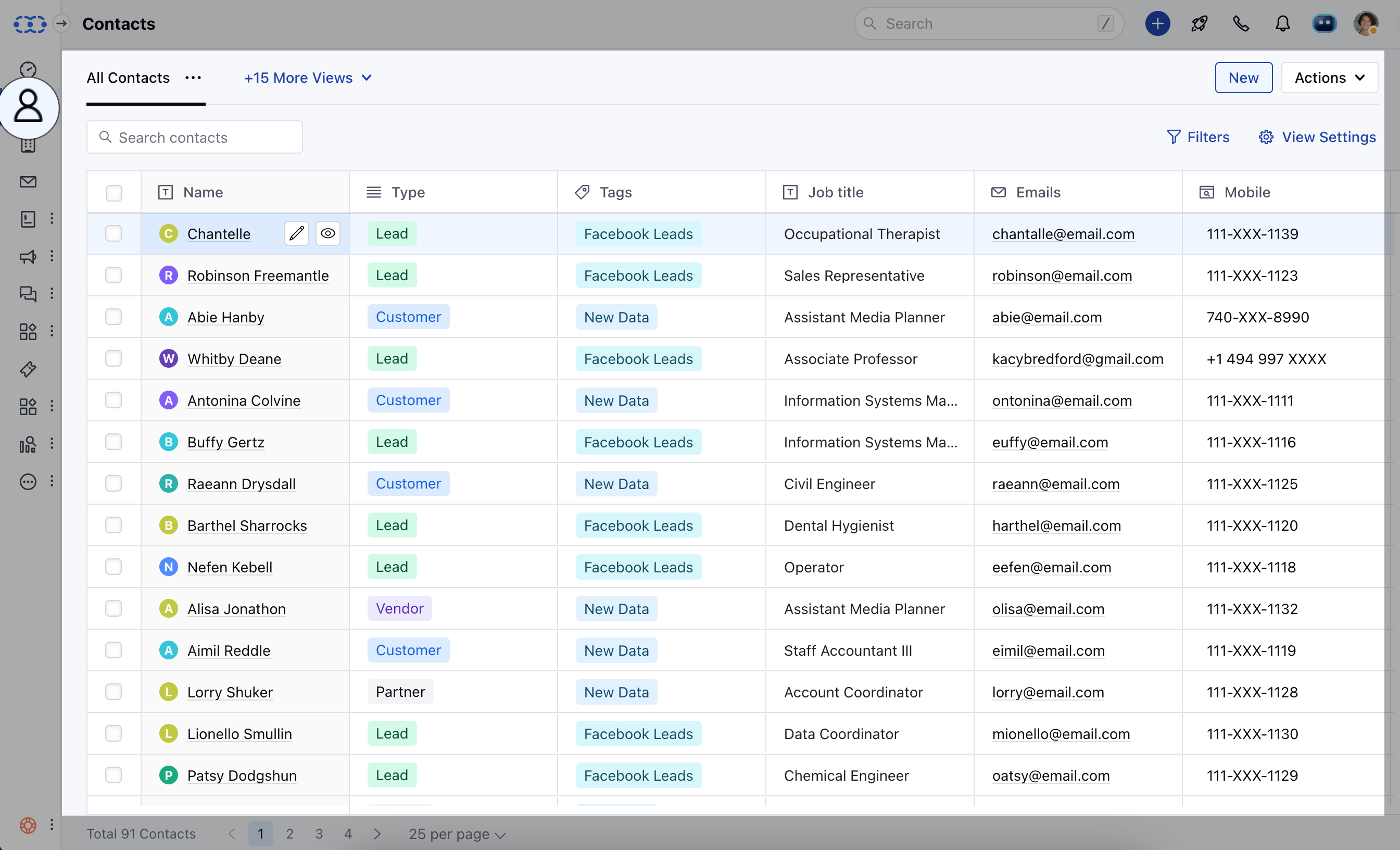
- Select the Contact that you wish to send a chat and open the Contact in the Detail View. * Click on the Start Chat Icon and select Skara Chat.
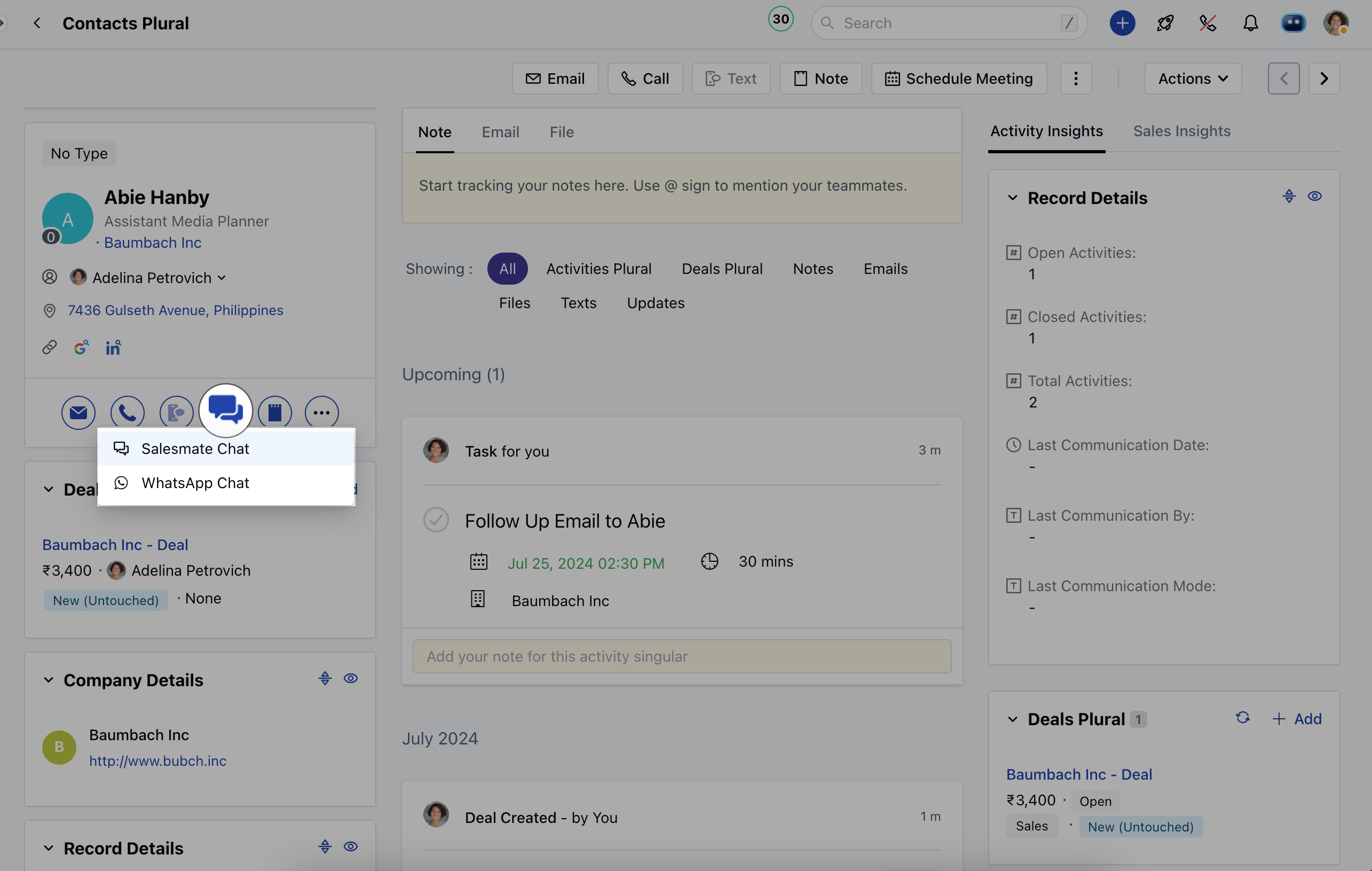
- Head over to the three dots on the top right and click on the Start Chat option
- Select the Skara Chat
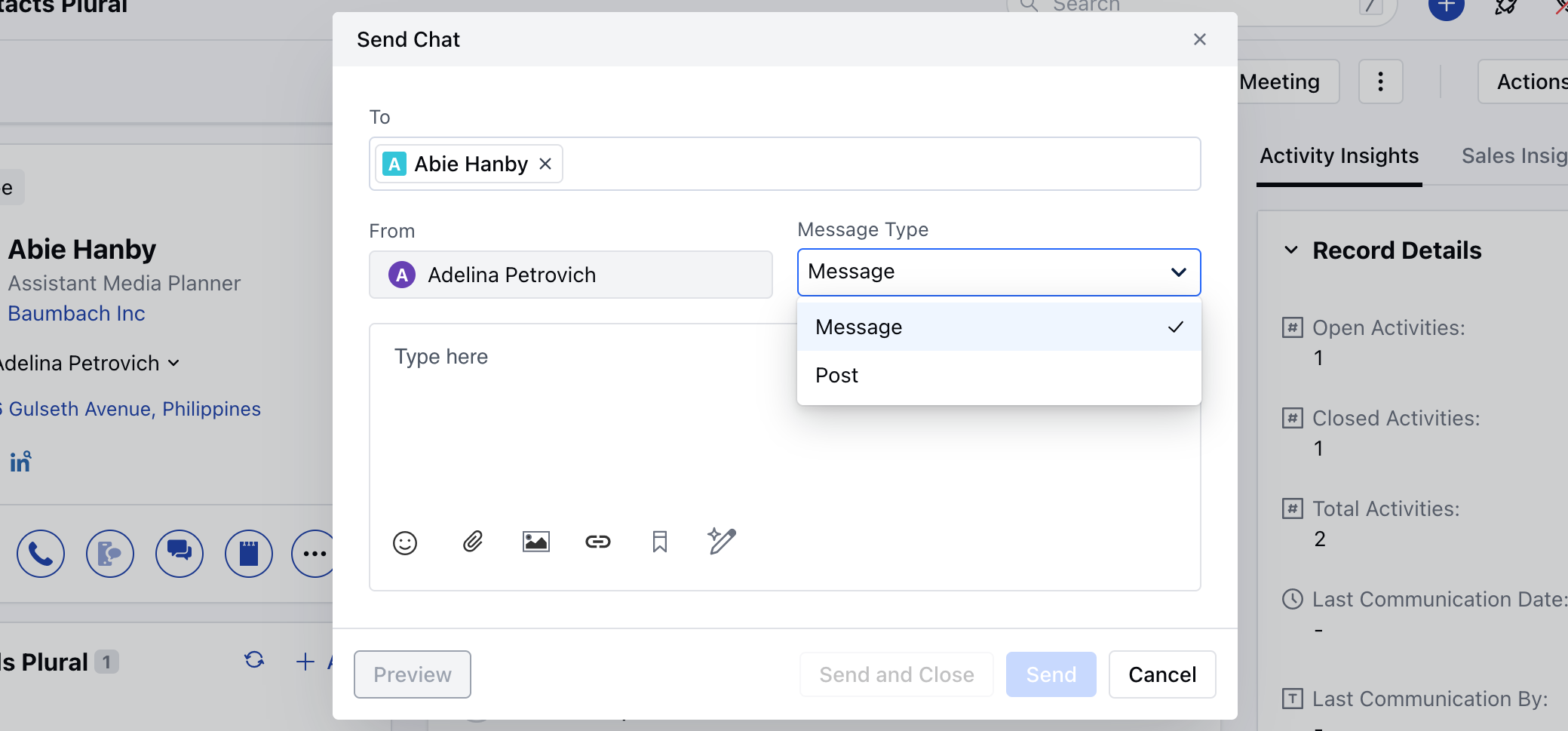
- To: This will display the contact’s name that was selected to send the message.
- From: This will display the Users name who is initiating the chat.
- Message Type,
- Message: You can choose this option to send it as a regular small message.
- Post: You can choose this option when you want to send a large message that appears in a big post form like chat journeys, for example sending an announcement or product updates.
- Message: Enter your desired message to send.
Note: The outbound chats can only be sent to the verified customers.
- Preview: Select this option to preview the message to see how it will appear.
- Send and Close: Select this option to send the message and mark the conversation as closed.
- Send: Select this option to send the message to the contact immediately.
- Cancel: Select this option to discard the message and close the popup window.
WhatsApp Chat
To initiate the WhatsApp Chat,- Navigate to the Contacts Module from the left bar accessing to the Listing View
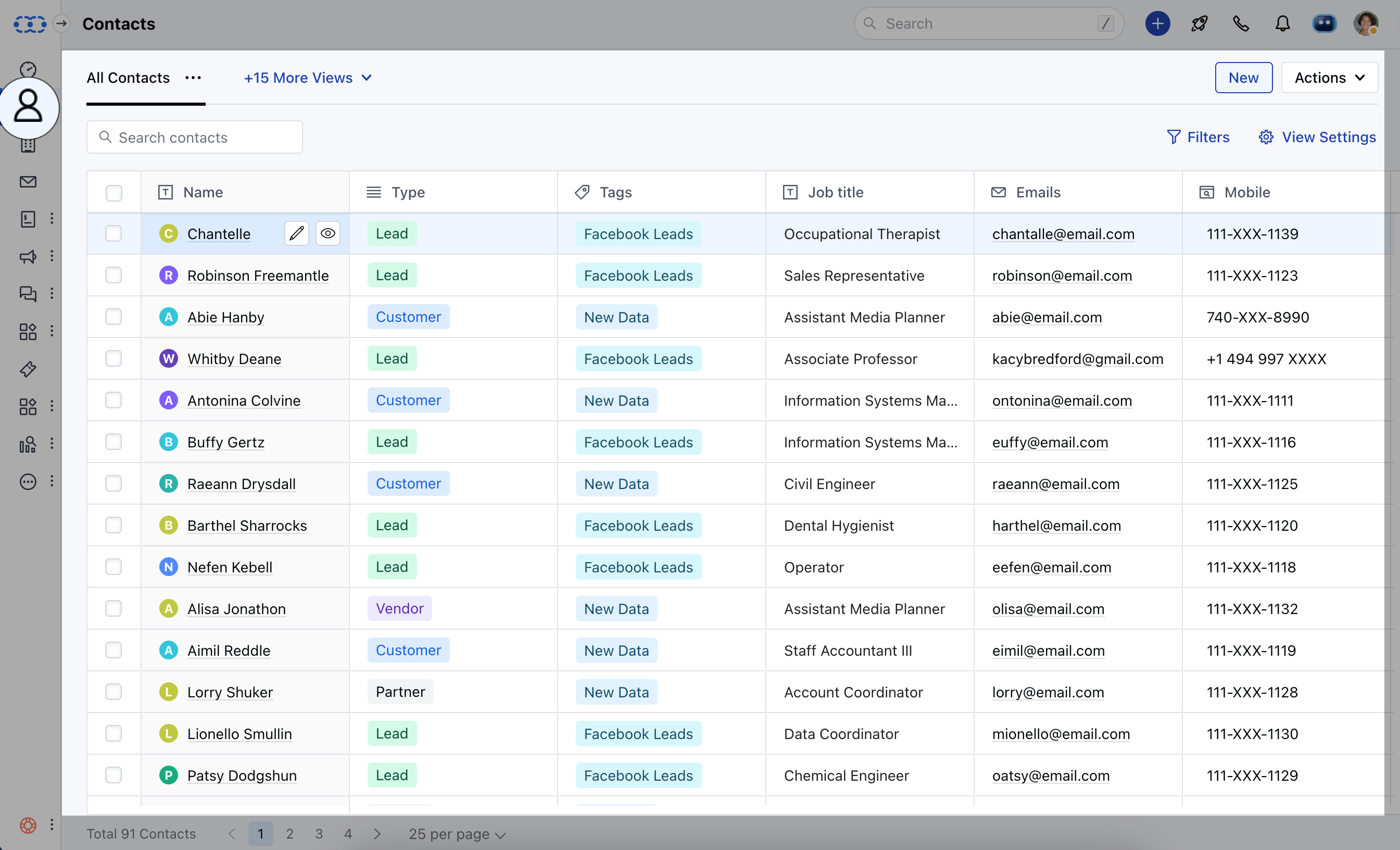
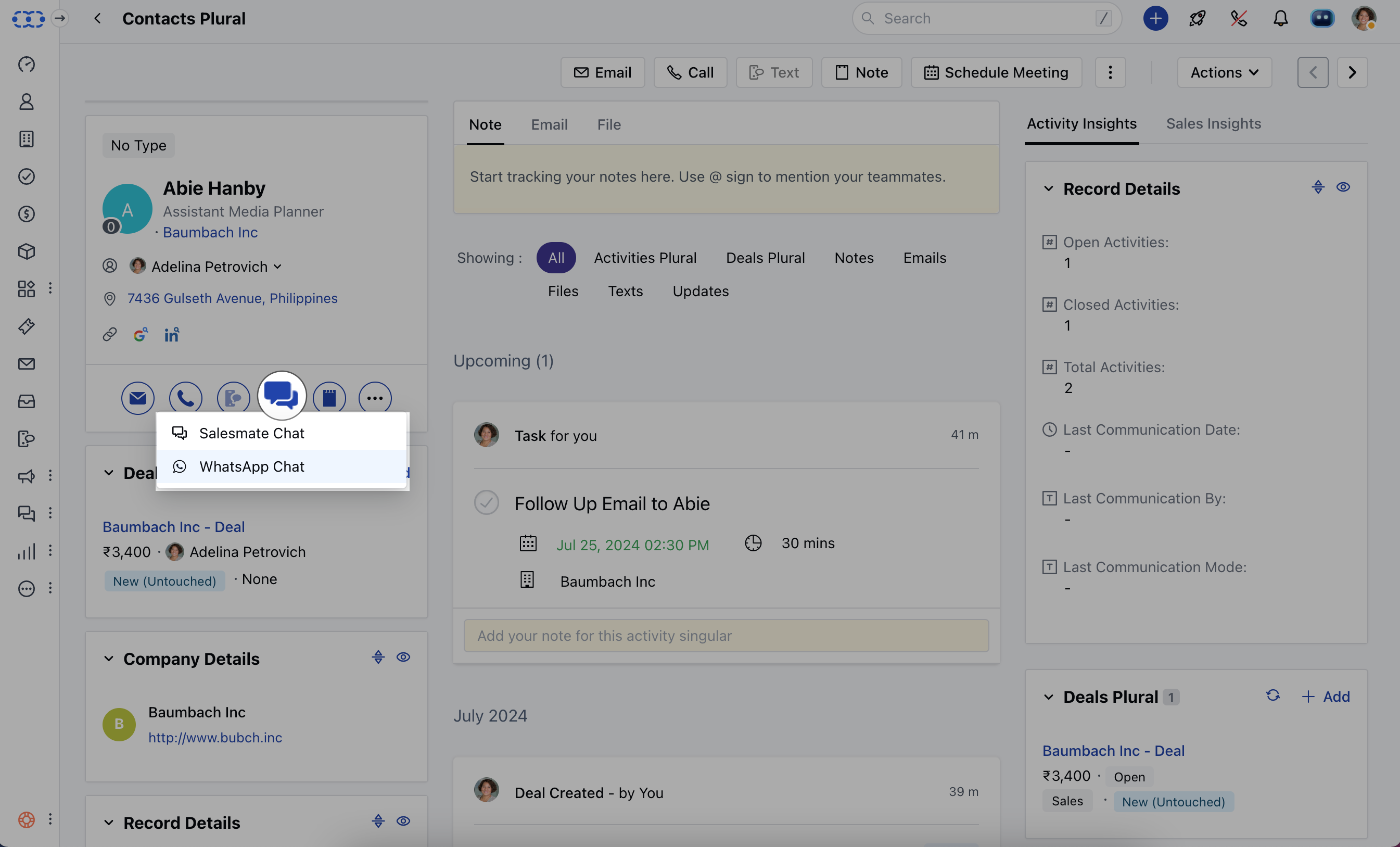
- Select the Contact that you wish to send a chat and open the Contact in the Detail View
- Click on the Start Chat Icon and select WhatsApp Chat
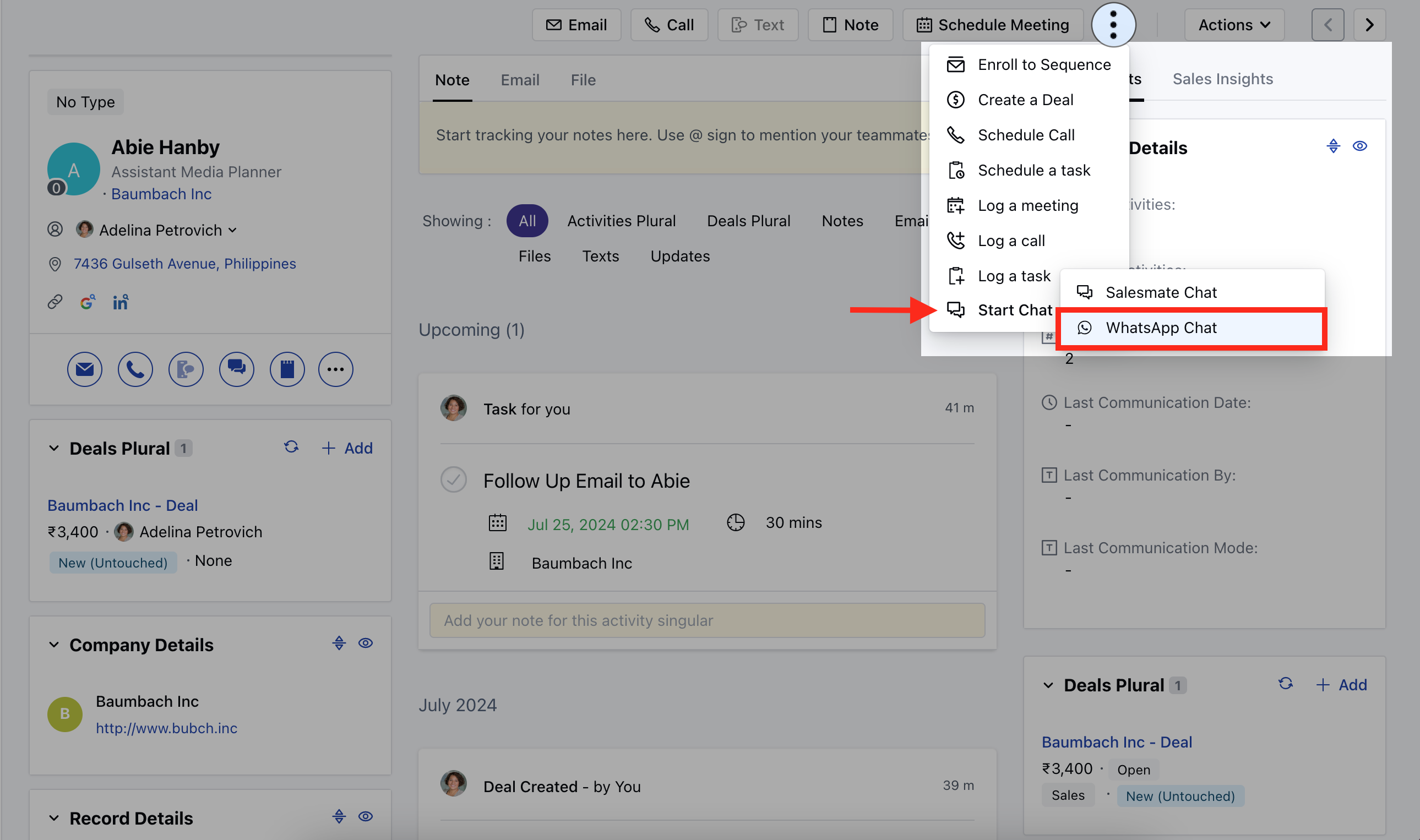
- Head over to the three dots on the top right and click on the Start Chat option
- Select the WhatsApp Chat
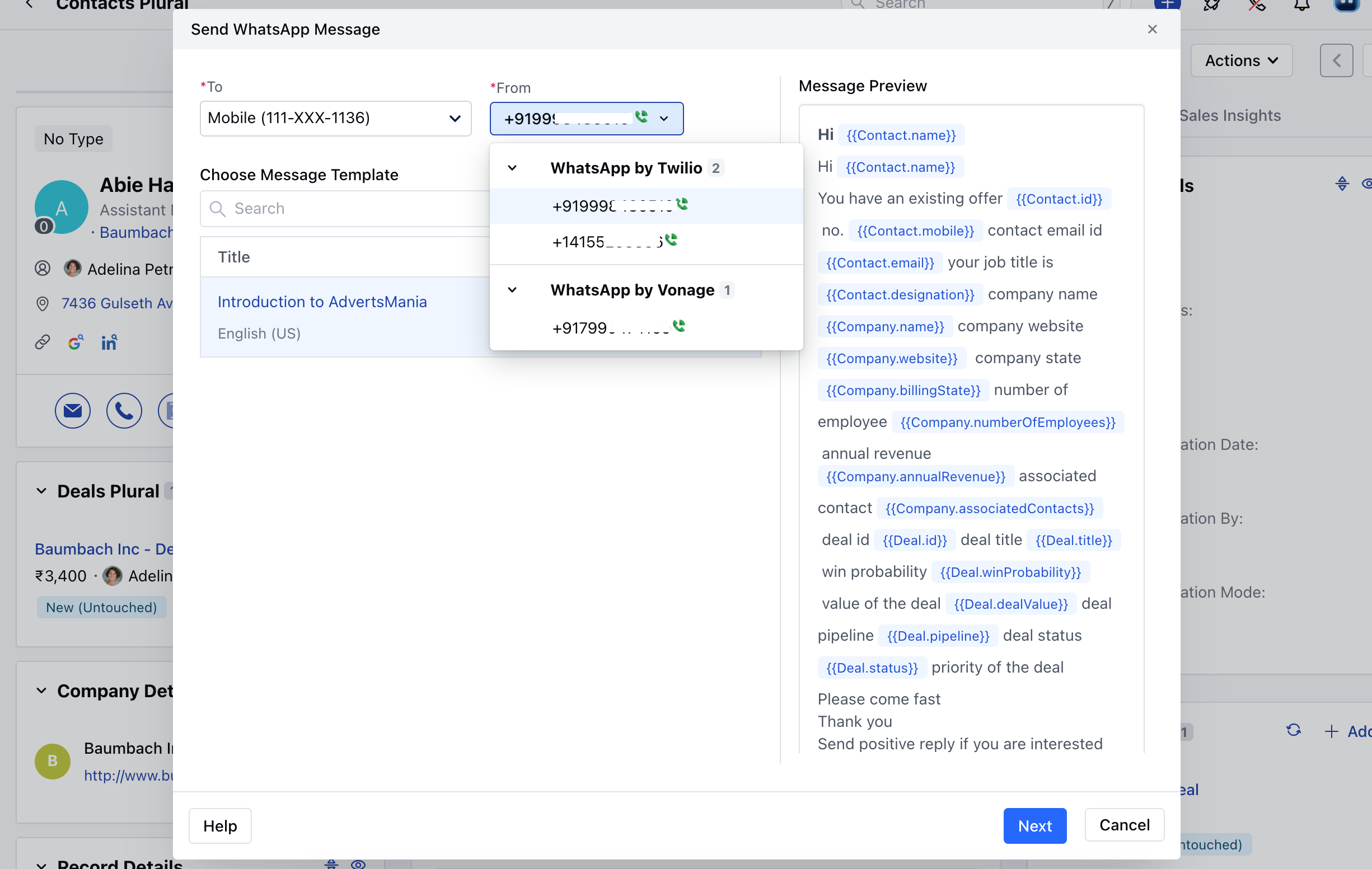
- To: This will display the Phone Number of the Contact you are sending text to.
- From: Select the WhatsApp number of the provider (Twilio or Vonage ) from which you want to send the text.
- WhatsApp Template: Select a template that you want to send.
- Learn More about Sending WhatsApp Template.
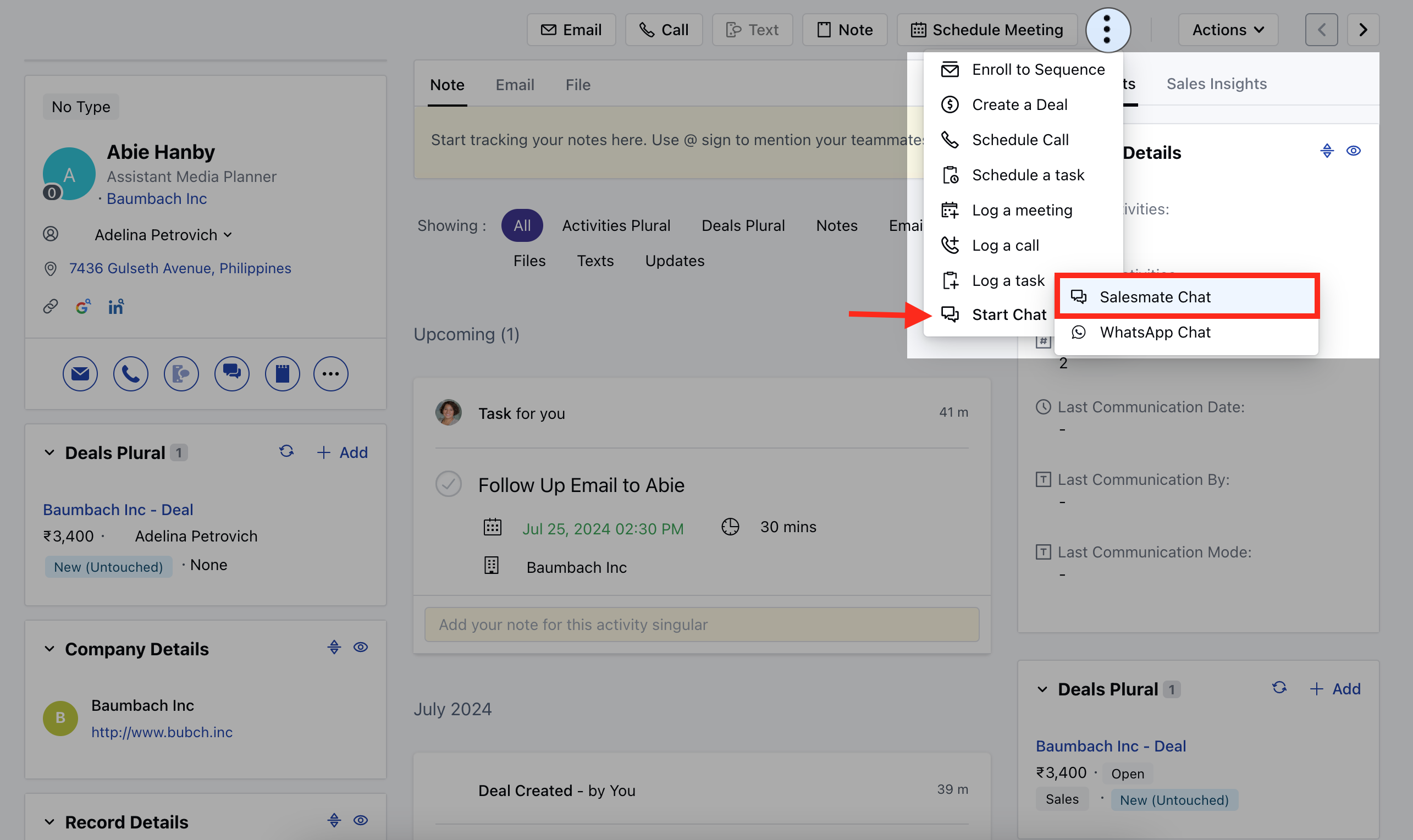
- Message Preview: This will display he preview of your selected template.
- You will get a Next button if the template contains variables.
- Learn More about variables
- Select the appropriate variables.
- Send and Close: Select this option to send the message and mark the conversation as closed.
- Send: Select this option to send the message to the contact immediately.
- Cancel: Select this option to discard the message and close the popup window.