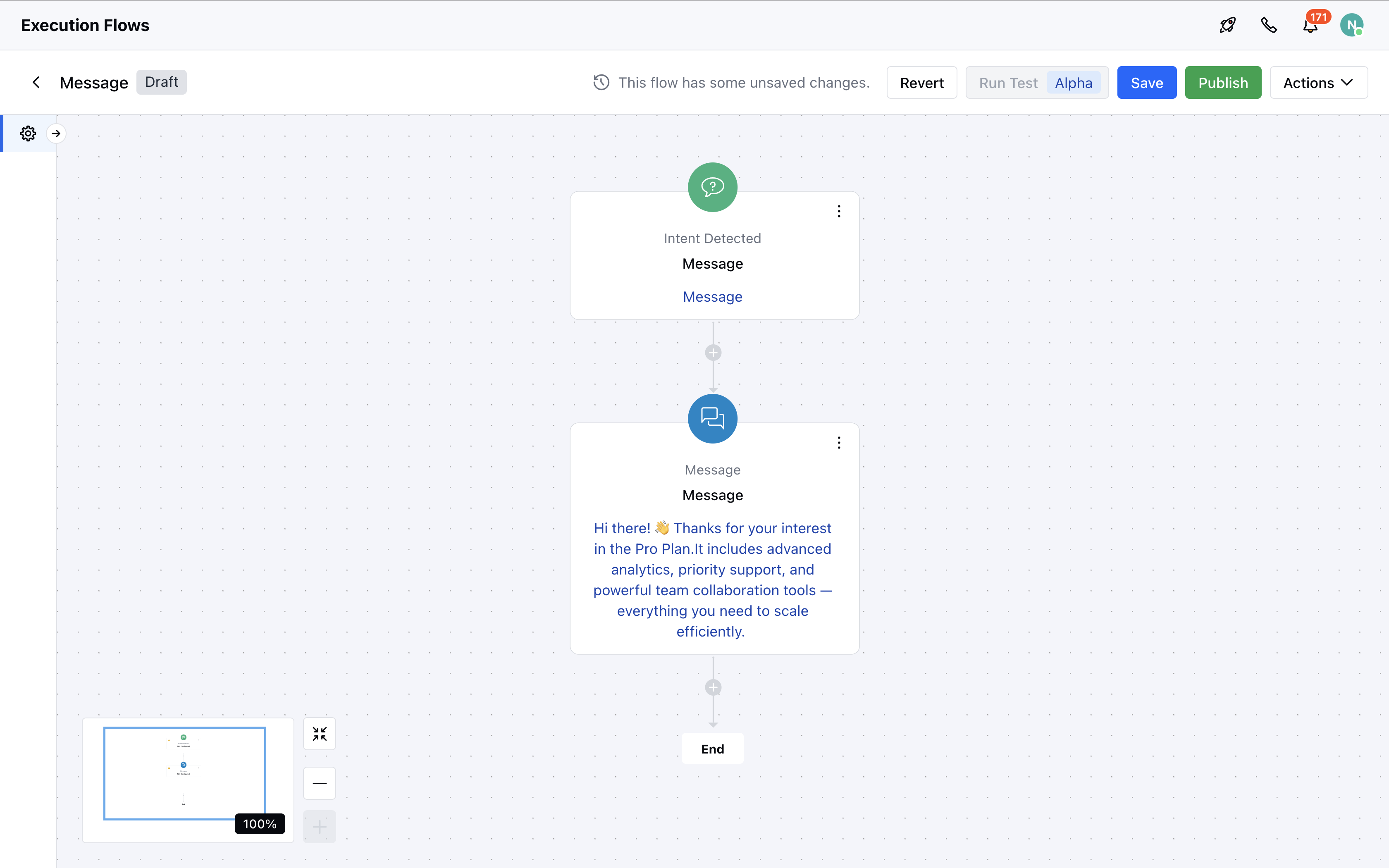
Topics covered:
Steps to Configure the Message Action:
- Add the Action: Select the Message – Action (Agent) from the list of available actions.
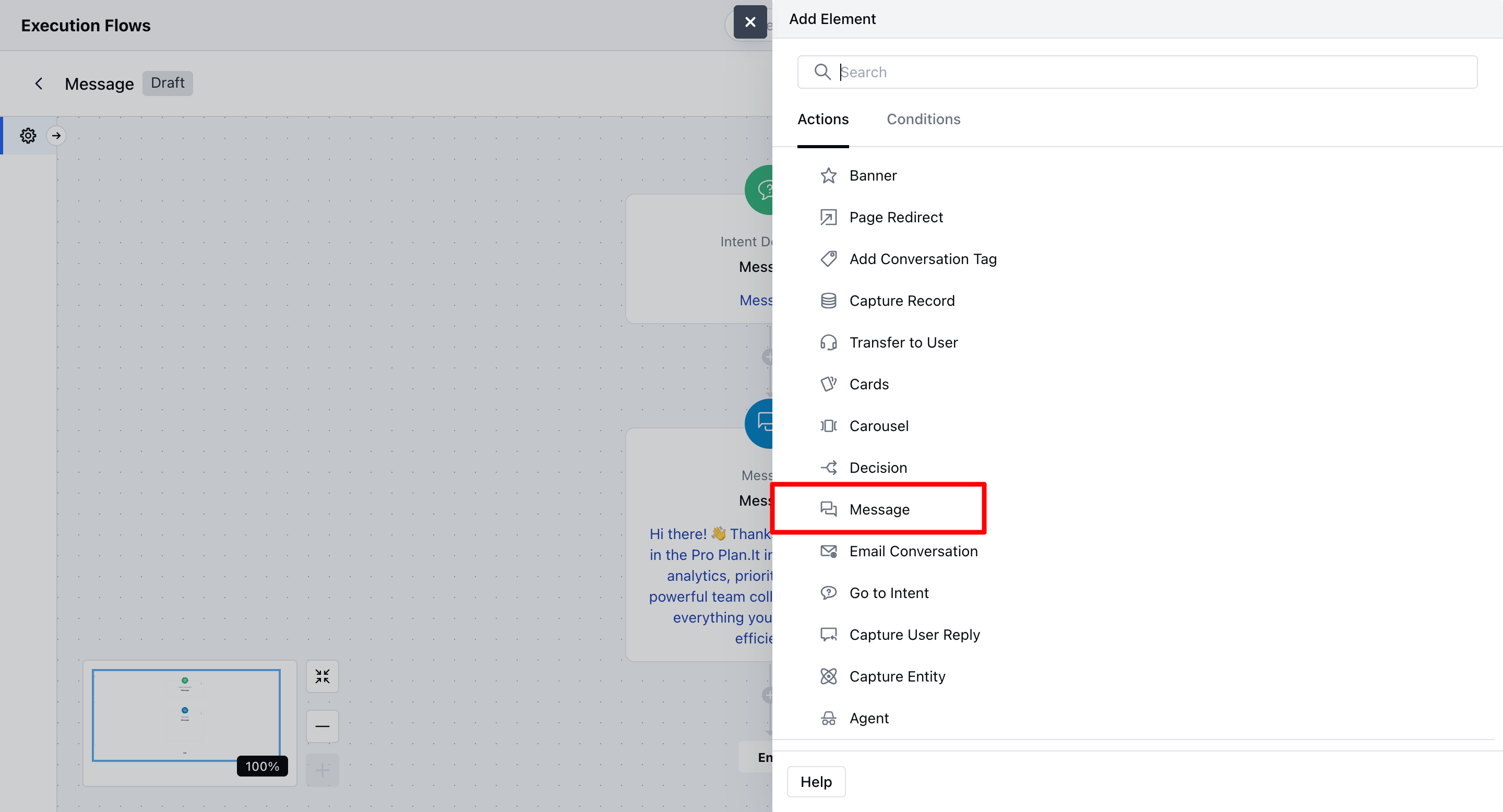
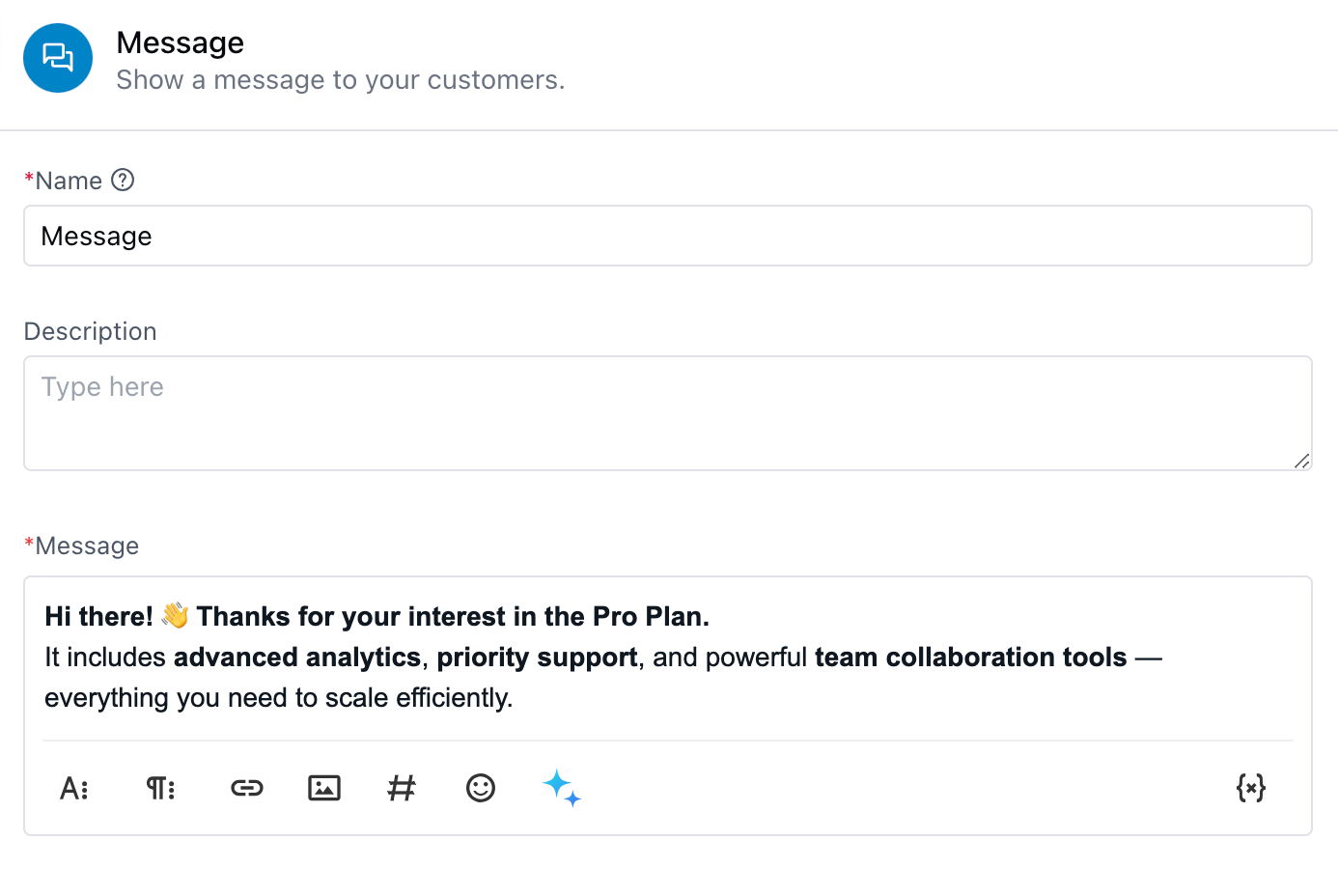
- Enter a Name: Give your action a meaningful name to help identify it later.
- Add a Description (Optional): You can provide a short description for internal reference.
- Write the Message: Type the message that you want to display to your customers. You can personalize it using variables or dynamic content.
- Preview Your Message: Use the Preview button in the configuration popup to see how your message will appear.
- Save: Click Save to finalize and apply the configuration.
Practical Use Case
Imagine a user is browsing your pricing page and opens the chat to ask: “What’s included in the Pro Plan?” Instead of waiting for an agent, your Execution Flow detects this query and triggers a Message Action: “Great question! The Pro Plan includes advanced analytics, priority support, and team collaboration tools.” This delivers immediate value and keeps the user engaged without agent intervention.